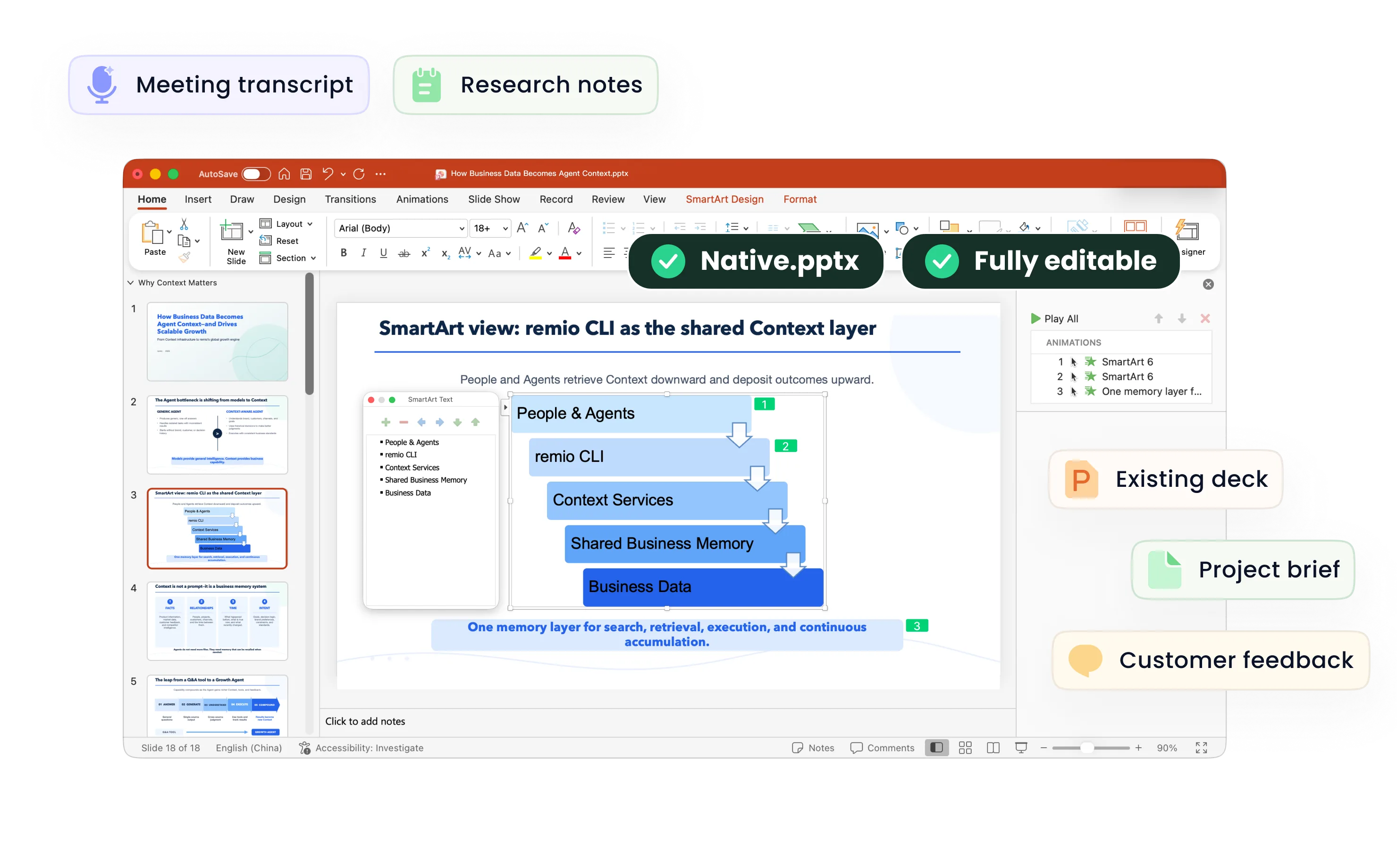
AI Presentation Prompts
Use practical AI presentation prompts for remio. Brief the audience and sources, review an outline, preserve company style and revise selected slides.
Begin with an outline prompt
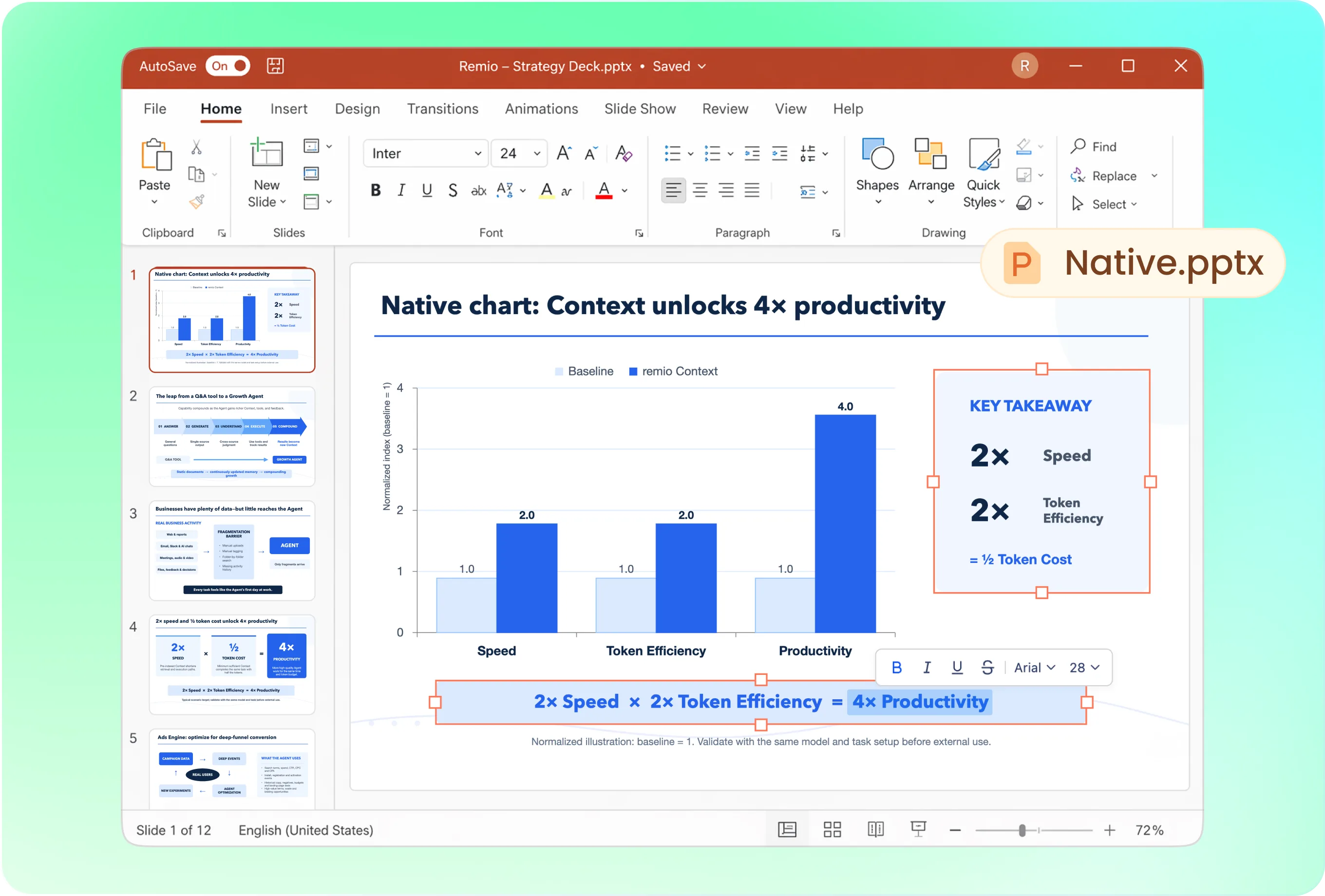
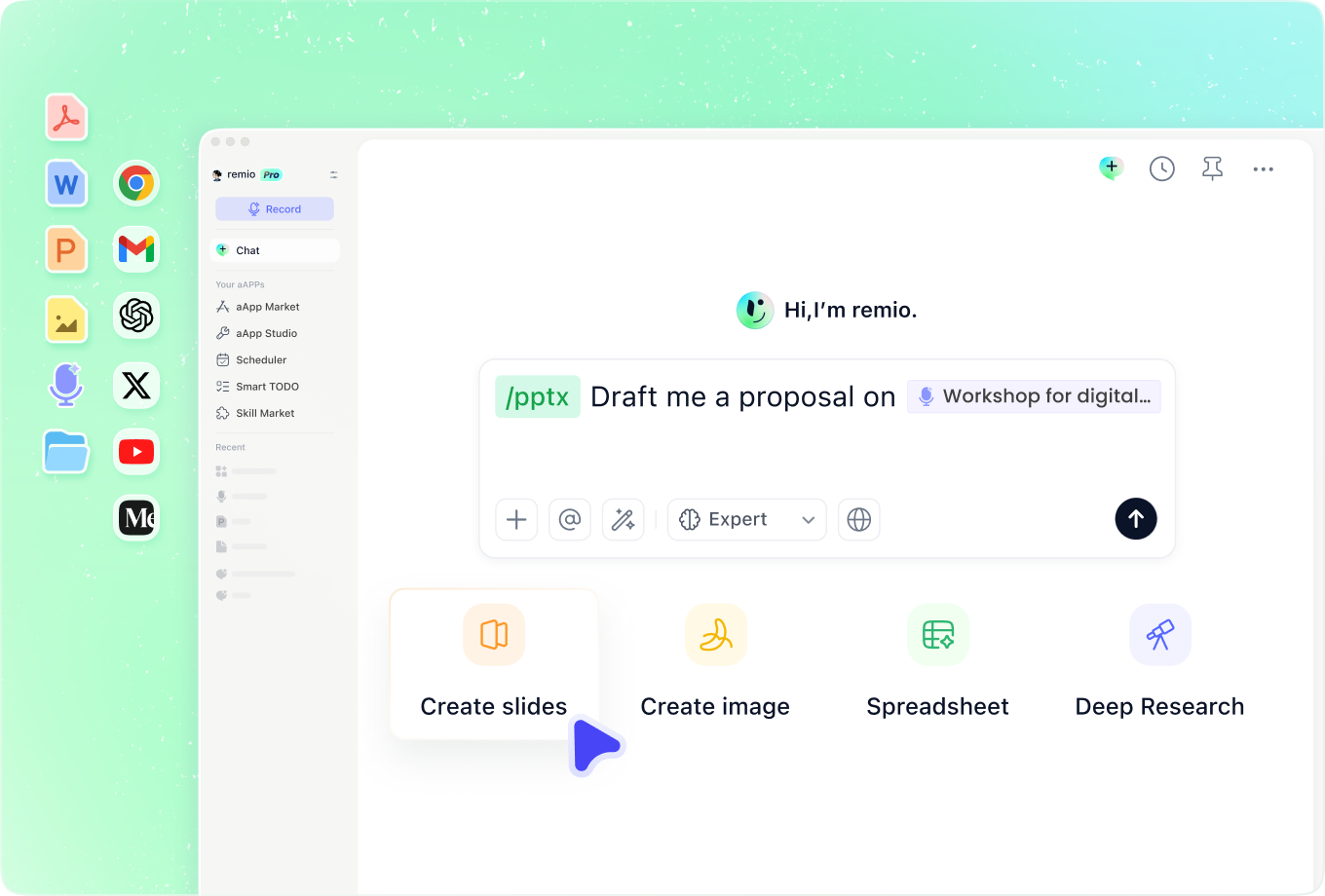
In remio desktop Chat, start /pptx followed by a space. Try: “Plan a seven-slide leadership update from these project notes. The audience needs to decide whether to extend the pilot. Show the recommendation, results, limitations, options and next action. Propose the slide titles and supporting evidence before creating the .pptx.” Change the slide count to fit your own brief.
Add a separate style instruction
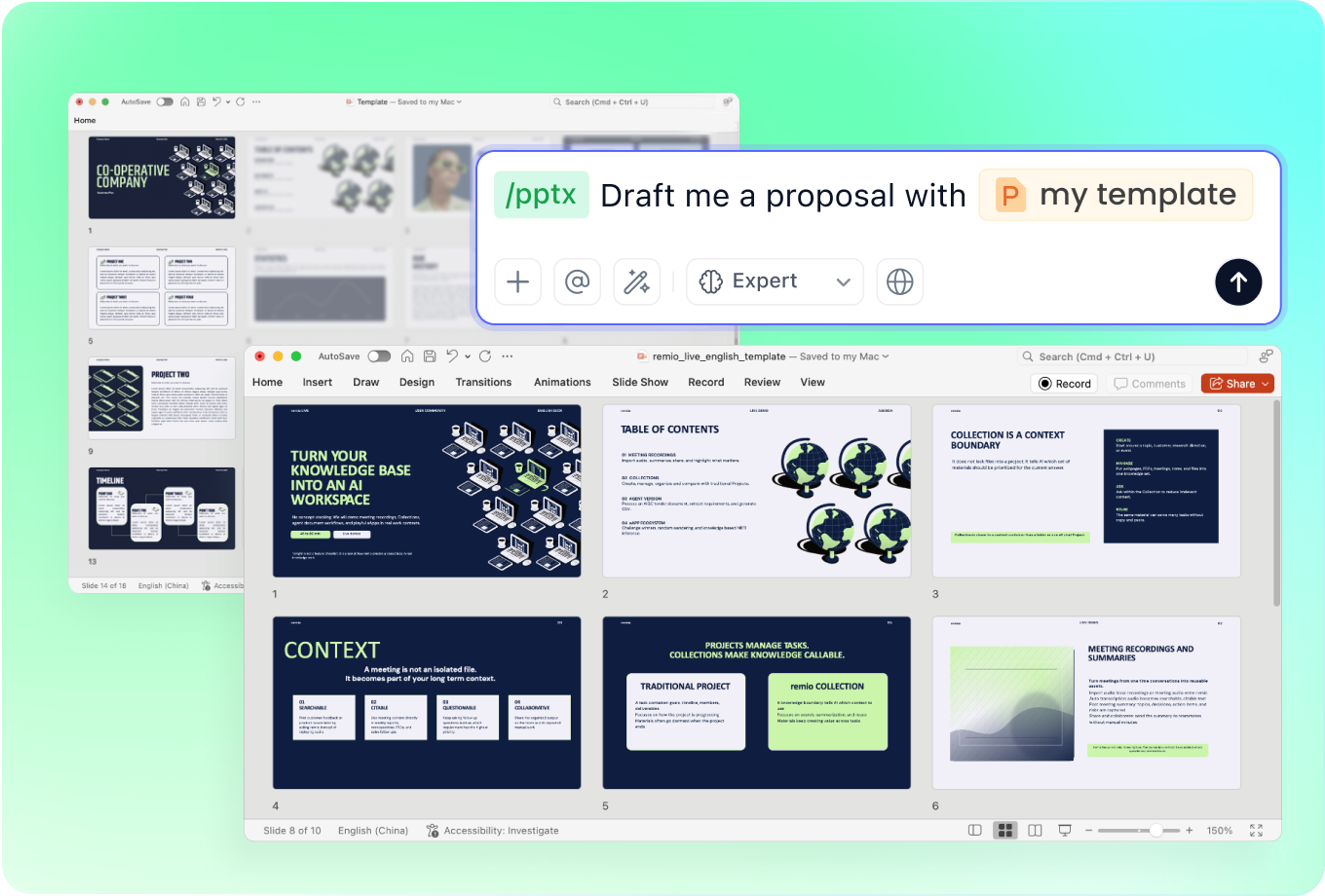
Provide the company deck and say what to preserve: “Use this PowerPoint as the visual reference. Keep the fonts, palette and title hierarchy. Use one main takeaway per slide and keep detailed analysis out of the opening summary.” Specify the audience’s expected detail level instead of asking only for a professional or modern look.
Use a revision prompt with a clear boundary
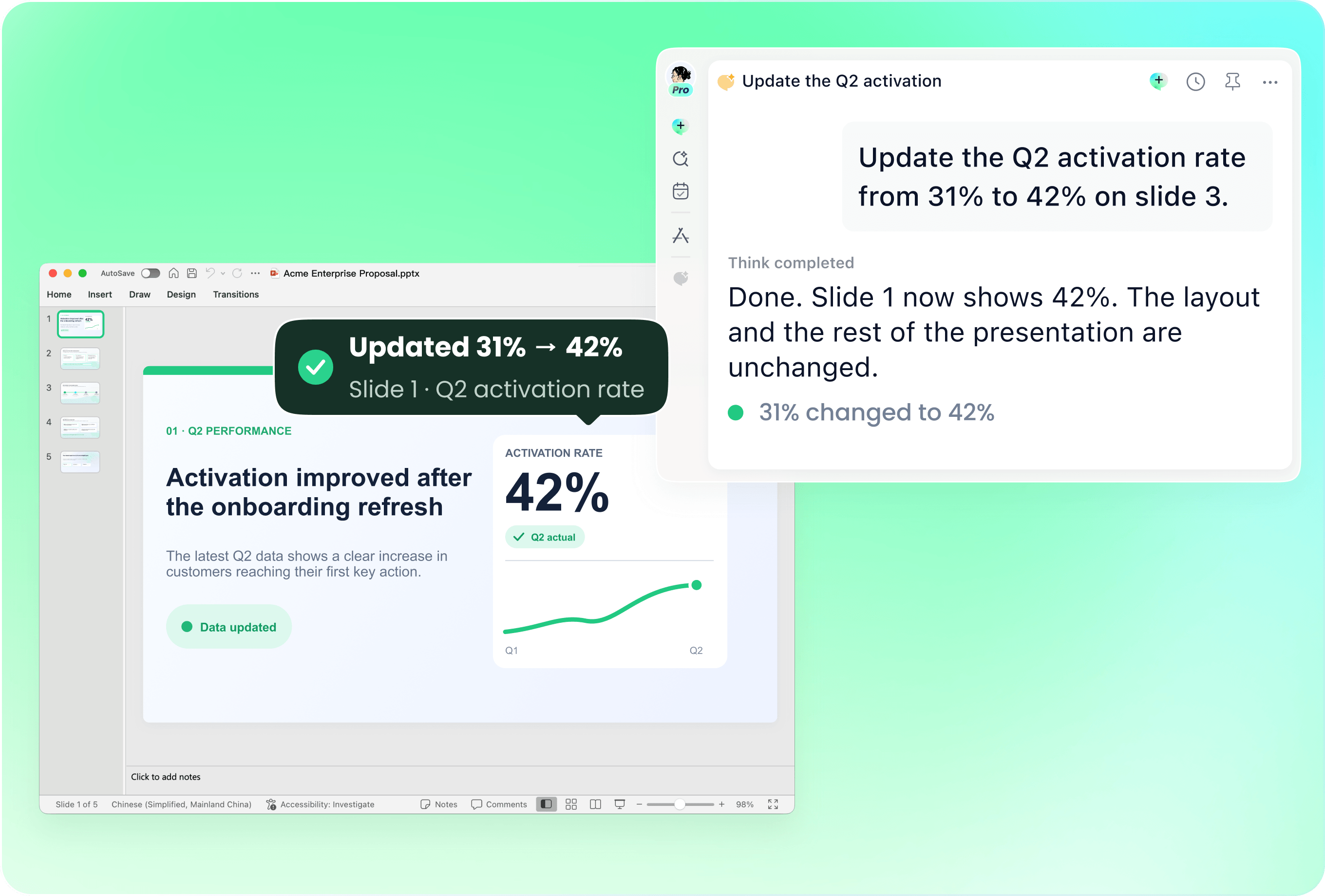
Try: “Shorten the explanation on slide 4 for a nontechnical audience. Preserve the figures, units and source date. Keep slides 1–3 unchanged.” For a factual update, identify the new source and the slides it affects. Separate a content correction from a full redesign so the next review has a clear scope.
Ask for a factual review before finishing
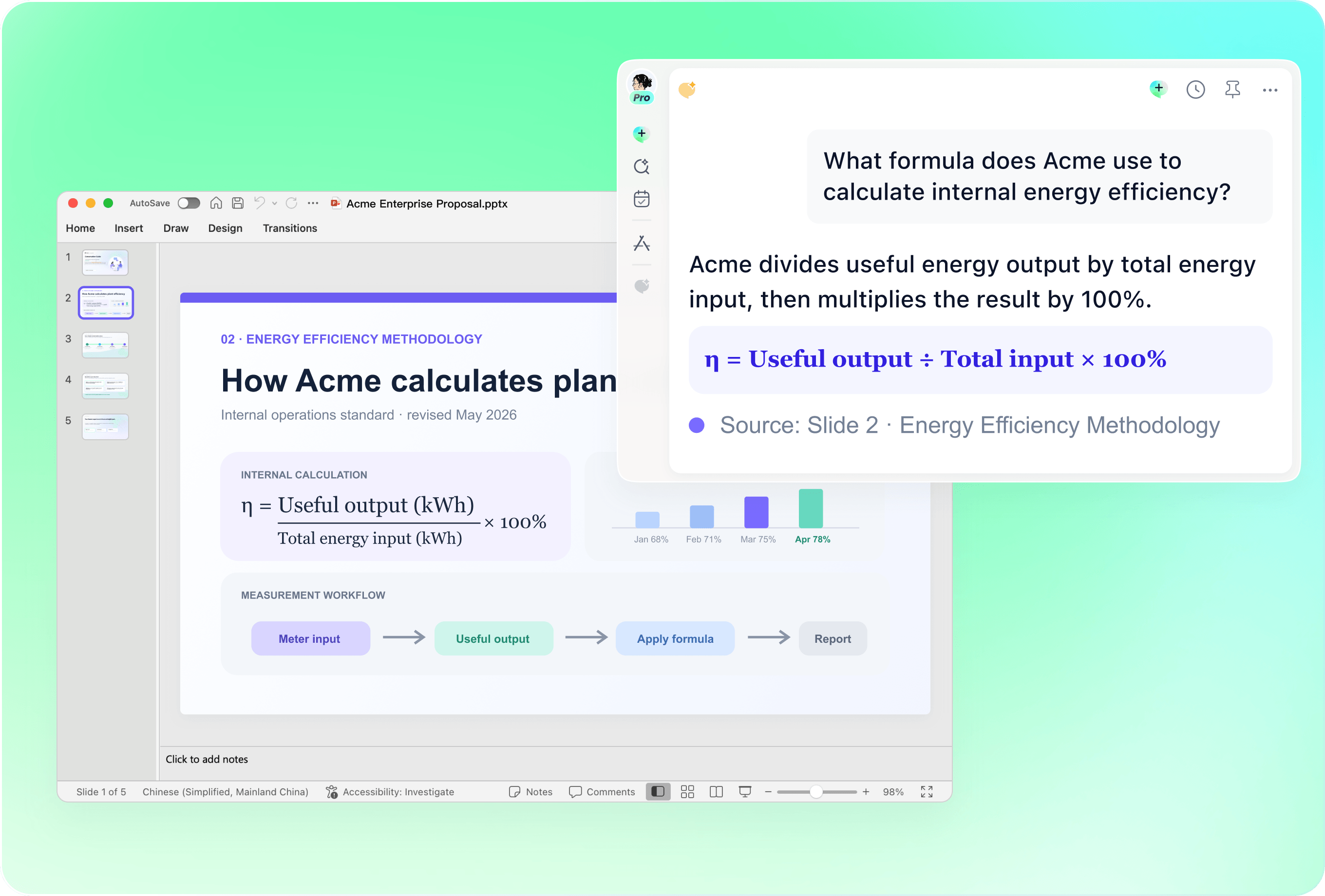
Try: “Check the draft against the supplied sources. List unsupported numbers, conflicting dates and recommendations that depend on an assumption. Do not invent missing evidence.” Then verify the flagged items yourself. A review prompt improves the checking workflow; it does not guarantee that every claim or citation is correct.
Supply context instead of adding vague adjectives
Explain what the audience already knows, why the presentation is needed and which sources are authoritative. Include relevant earlier decisions when a short note would otherwise be ambiguous. Ask remio to identify missing information before drafting. Useful constraints describe the job and evidence rather than promising a certain score, speed or audience reaction.
How it works
From source material to a PowerPoint file you can keep updating.
01
Define audience, sources and outcome
Write the purpose, required output, reference files and constraints.
02
Review the outline and evidence
Check slide titles, argument, missing facts and assumptions.
03
Refine with focused prompts
Revise selected slides, then inspect the finished PowerPoint.
FAQs
Yes. You can download remio and start for free. Some advanced usage may depend on your subscription plan, but you can try the AI presentation workflow before committing.
Use remio’s desktop presentation workflow. In Chat, type /pptx followed by a space and describe your task with the relevant source files. This tutorial does not describe an online upload-and-convert form.
Name the relevant source notes and files, the audience and the desired decision. Include earlier decisions and identify the authoritative version. Ask for missing information to be flagged rather than filled with invented evidence.
The output is a native .pptx for further editing in PowerPoint. Inspect the text, shapes and charts in the actual file. Text within a source image and image-based slide content do not become independent native objects merely because the file is a .pptx.
This tutorial focuses on native PowerPoint files. You can separately check whether another presentation application can import your .pptx, but import compatibility does not mean remio directly edits a Google Slides or Canva project. Review fonts, charts and other complex content after conversion.