top of page
remio AI Presentation workspace and source materials

Presentation tools for teachers

Turn teaching material into a lesson flow. Choose the tools for slides, revisions and classroom activities.

For Windows 10+ (x64) and Apple silicon Macs.

Presentation tools for teachers

Turn teaching material into a lesson flow. Choose the tools for slides, revisions and classroom activities.

For Windows 10+ (x64) and Apple silicon Macs.

Download remio
remio AI Presentation workspace and source materials

AI presentation tools for teachers

Compare five presentation workflows for teachers: source-based slides, visual design, online presentations, PowerPoint and interactive lessons.

remio

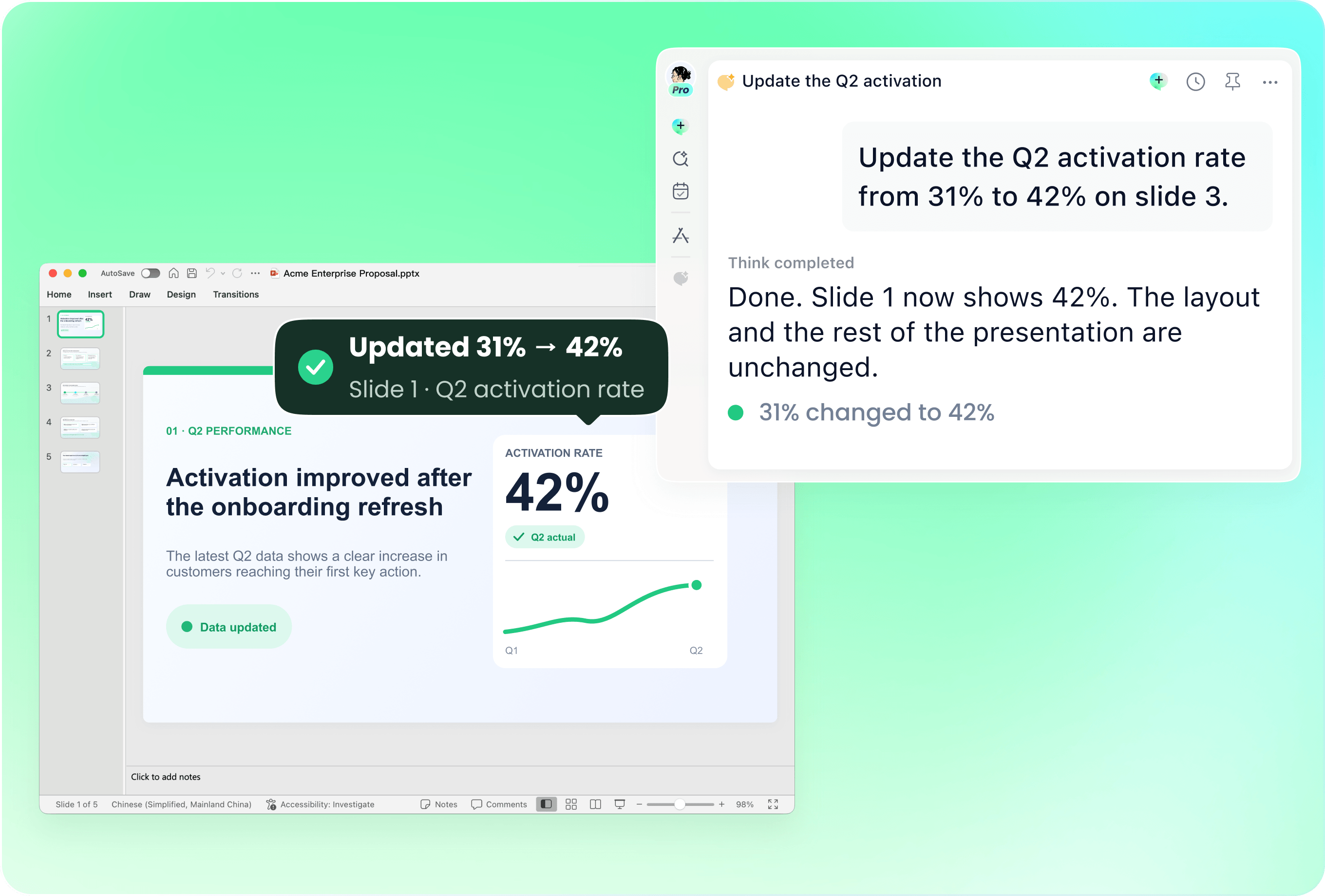
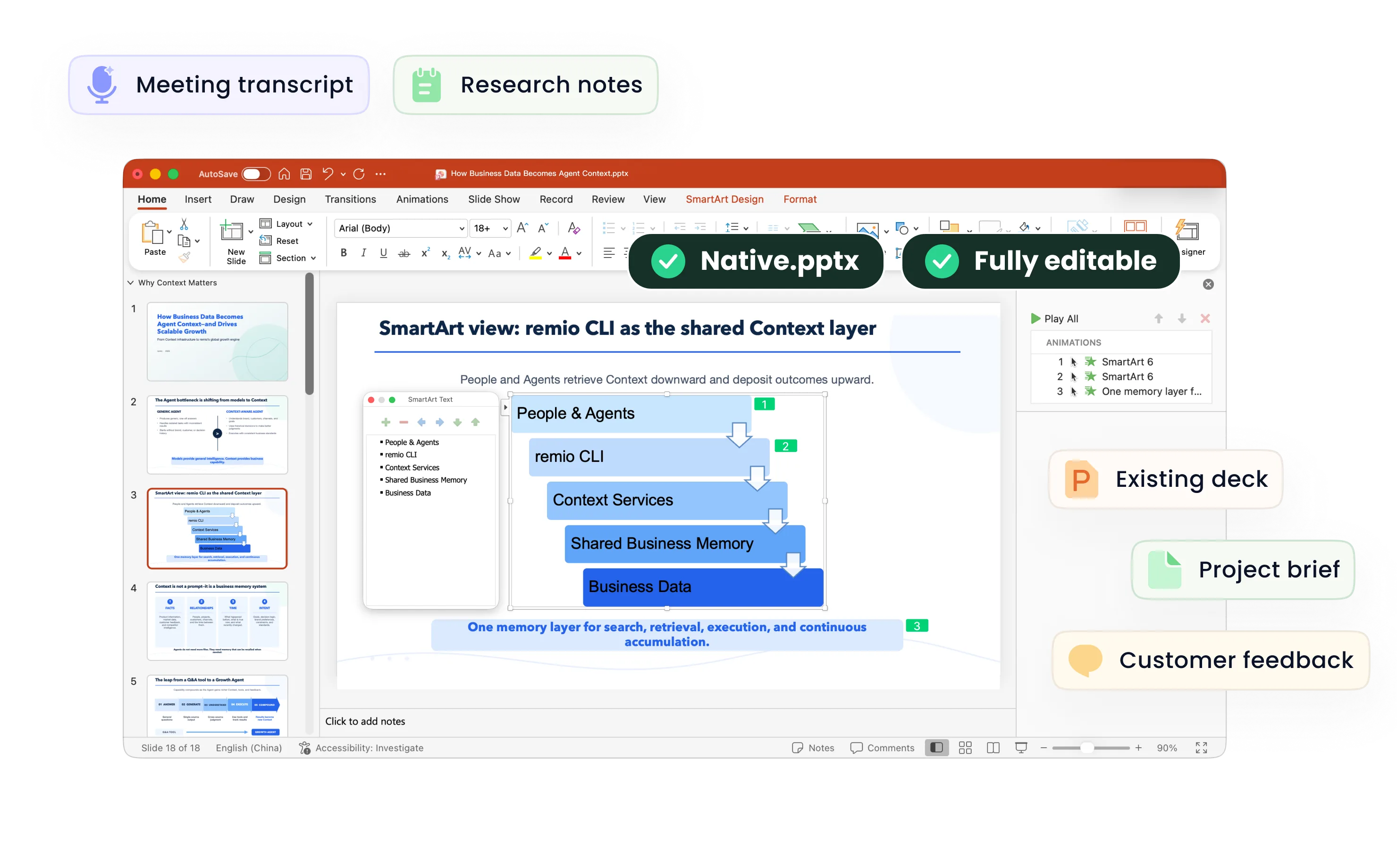
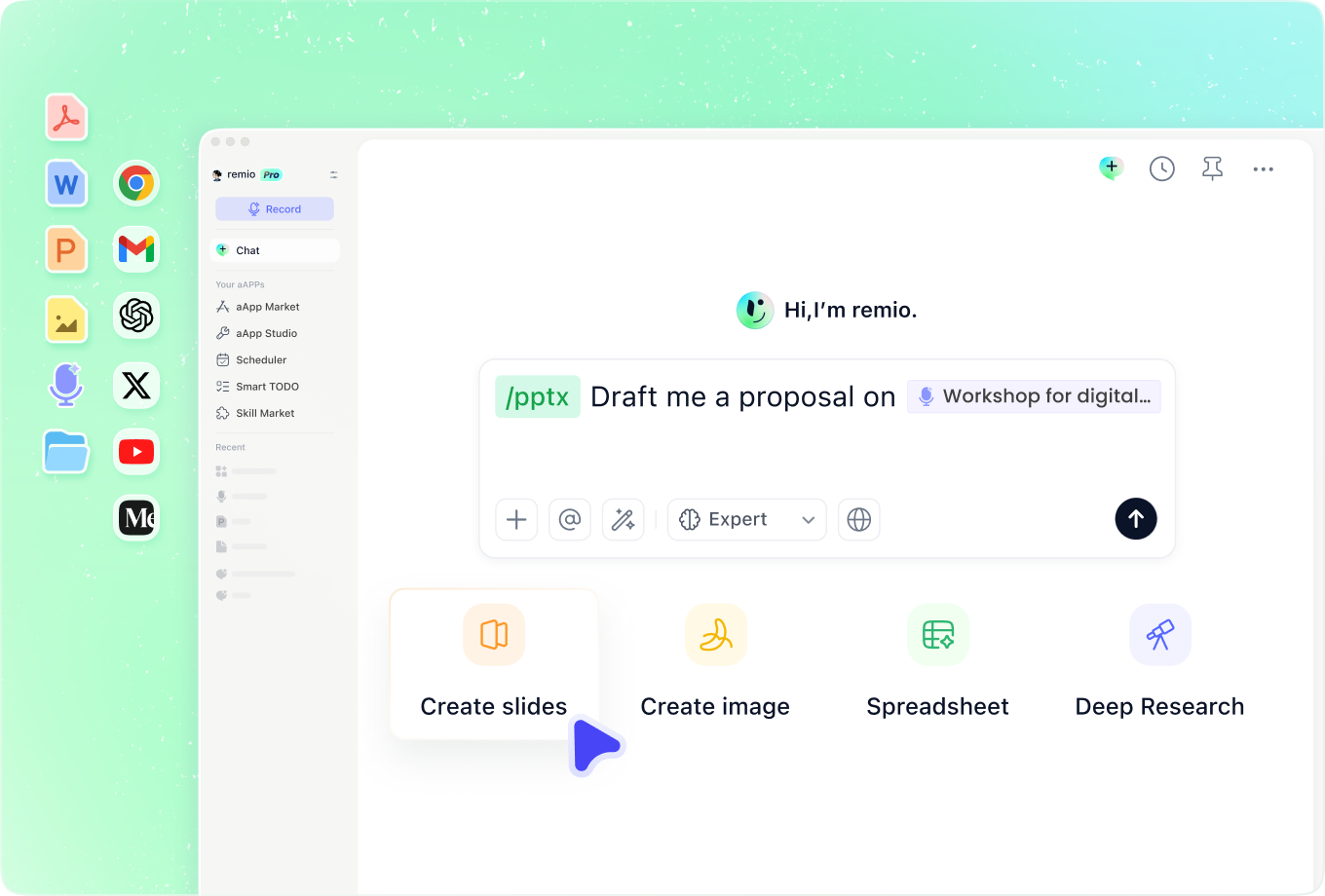
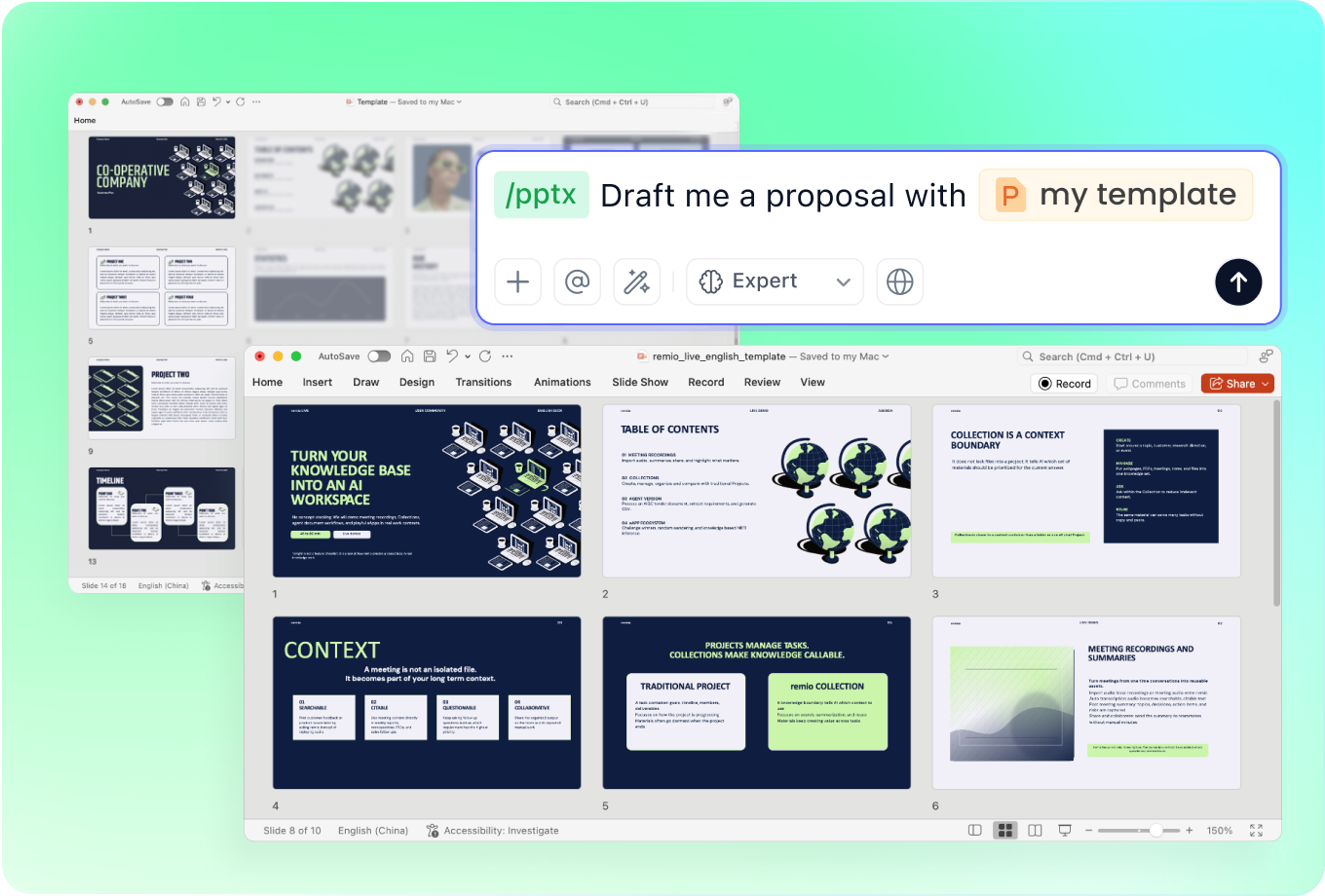
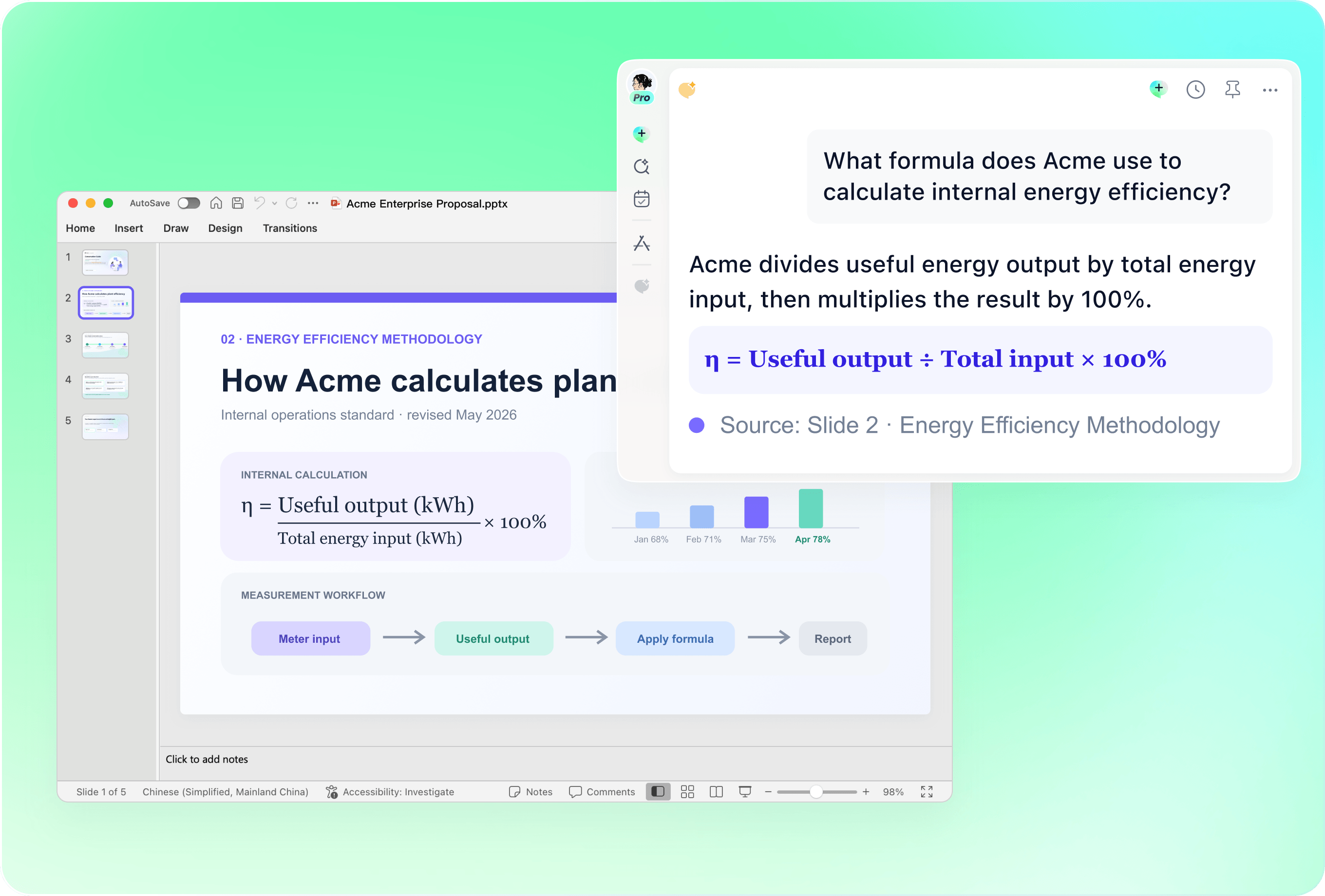
Consider remio when the lesson begins with teaching notes, reviewed readings or an existing PowerPoint. Specify the learners, learning objective and class length, then review the explanation and examples. Refine the editable slides and keep the source context available when the lesson changes. remio uses a Windows x64 or Apple silicon Mac desktop workflow.
Canva

Canva documents AI presentations created from prompts, outline review and editing with templates and design tools. Consider it when visual assets and a familiar design editor are central to your lesson preparation. Check reading order, contrast and the amount of text on the actual classroom display, then verify the delivery format you need.

Gamma

Gamma documents creating editable presentations from imported documents and slides, with themes and PowerPoint export. Consider its online workspace when that matches your lesson delivery. Check terminology and examples against the source reading, and inspect any exported file before using it in class.

PowerPoint with Copilot

Microsoft documents creating a presentation from source files with Copilot in PowerPoint and reviewing the generated draft. Consider this route when your teaching materials and delivery already live in Microsoft 365. Confirm that the required Copilot features are available to your account and organization, then review the lesson content and template use.

Curipod

Curipod describes an AI-supported interactive lesson workflow in which teachers initiate and structure the activities. Consider a lesson platform when student participation is a central part of the session. Check the activity flow, devices and access conditions for your class, and review the generated material before teaching.

Compare with your own material

From source material to a PowerPoint file you can keep updating.

  1. Define the outcome

    Choose the audience, source material and final delivery format.

  2. Use the same sample

    Review a draft and request one realistic revision.

  3. Inspect the result

    Check facts, readability and the output in your target environment.

FAQs

Which AI presentation tool should a teacher choose?

Begin with the teaching task. Source-based slide preparation, visual lesson design and live student activities have different requirements. Compare the workflow with your learning objective, classroom equipment and the format you need to share with students.

Can I create slides from lecture notes?

Add your reviewed notes, audience level, learning objective and session length. Ask for a clear sequence with examples and a recap. In remio, review the outline and editable PowerPoint against the source notes before using it in class.

Does an editable PowerPoint include live classroom interaction?

Treat slide creation and live activity delivery as separate requirements. If the lesson needs polls, responses or structured participation, evaluate the activity platform and classroom setup as well as the presentation file. A slide describing an activity does not itself run the interaction.

How should I evaluate accuracy and readability?

Use the same source reading and lesson objective. Check terminology, examples, reading level, contrast and slide density. The product descriptions here were checked against public documentation on 10 November 2026; review generated material with your own subject expertise.

How do I try remio for lesson preparation?

Download remio, add your teaching notes and existing presentation, and explain the learners and lesson objective. Review the outline, refine the editable slides and check the material on the display you will use in class.

AI presentation tools for teachers

Compare five presentation workflows for teachers: source-based slides, visual design, online presentations, PowerPoint and interactive lessons.

remio

remio

Consider remio when the lesson begins with teaching notes, reviewed readings or an existing PowerPoint. Specify the learners, learning objective and class length, then review the explanation and examples. Refine the editable slides and keep the source context available when the lesson changes. remio uses a Windows x64 or Apple silicon Mac desktop workflow.
Canva

Canva

Canva documents AI presentations created from prompts, outline review and editing with templates and design tools. Consider it when visual assets and a familiar design editor are central to your lesson preparation. Check reading order, contrast and the amount of text on the actual classroom display, then verify the delivery format you need.

Gamma

Gamma

Gamma documents creating editable presentations from imported documents and slides, with themes and PowerPoint export. Consider its online workspace when that matches your lesson delivery. Check terminology and examples against the source reading, and inspect any exported file before using it in class.

PowerPoint with Copilot

PowerPoint with Copilot

Microsoft documents creating a presentation from source files with Copilot in PowerPoint and reviewing the generated draft. Consider this route when your teaching materials and delivery already live in Microsoft 365. Confirm that the required Copilot features are available to your account and organization, then review the lesson content and template use.

Curipod

Curipod

Curipod describes an AI-supported interactive lesson workflow in which teachers initiate and structure the activities. Consider a lesson platform when student participation is a central part of the session. Check the activity flow, devices and access conditions for your class, and review the generated material before teaching.

Compare with your own material

From source material to a PowerPoint file you can keep updating.

01

Define the outcome

Choose the audience, source material and final delivery format.

02

Use the same sample

Review a draft and request one realistic revision.

03

Inspect the result

Check facts, readability and the output in your target environment.

FAQs

  • Begin with the teaching task. Source-based slide preparation, visual lesson design and live student activities have different requirements. Compare the workflow with your learning objective, classroom equipment and the format you need to share with students.

  • Add your reviewed notes, audience level, learning objective and session length. Ask for a clear sequence with examples and a recap. In remio, review the outline and editable PowerPoint against the source notes before using it in class.

  • Treat slide creation and live activity delivery as separate requirements. If the lesson needs polls, responses or structured participation, evaluate the activity platform and classroom setup as well as the presentation file. A slide describing an activity does not itself run the interaction.

  • Use the same source reading and lesson objective. Check terminology, examples, reading level, contrast and slide density. The product descriptions here were checked against public documentation on 10 November 2026; review generated material with your own subject expertise.

  • Download remio, add your teaching notes and existing presentation, and explain the learners and lesson objective. Review the outline, refine the editable slides and check the material on the display you will use in class.

FAQs

bottom of page