Business Presentation Maker
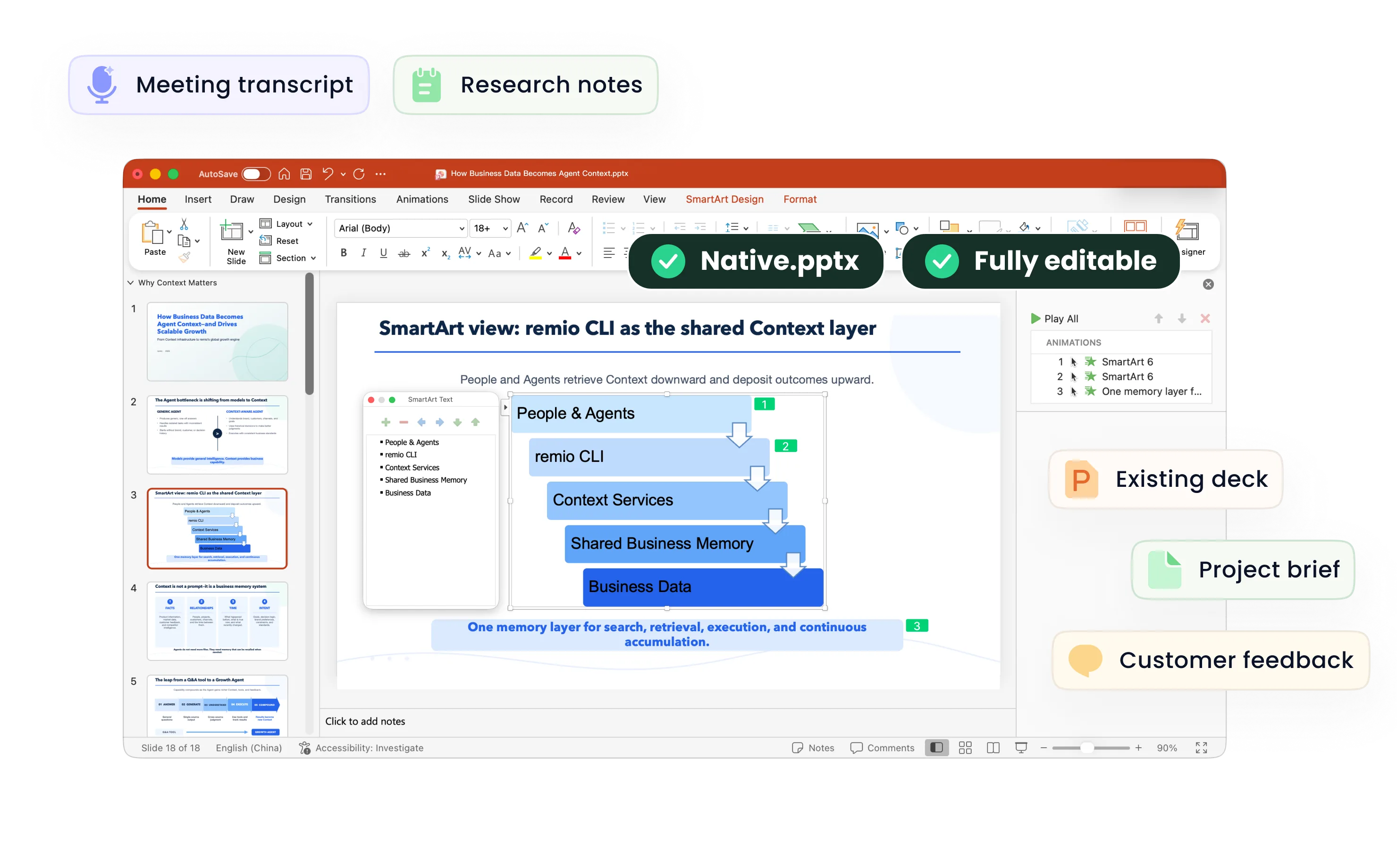
Create business presentations from briefs, reports and work context with remio. Review the storyline and refine a native PowerPoint in the desktop app.
Make the recommendation easy to follow
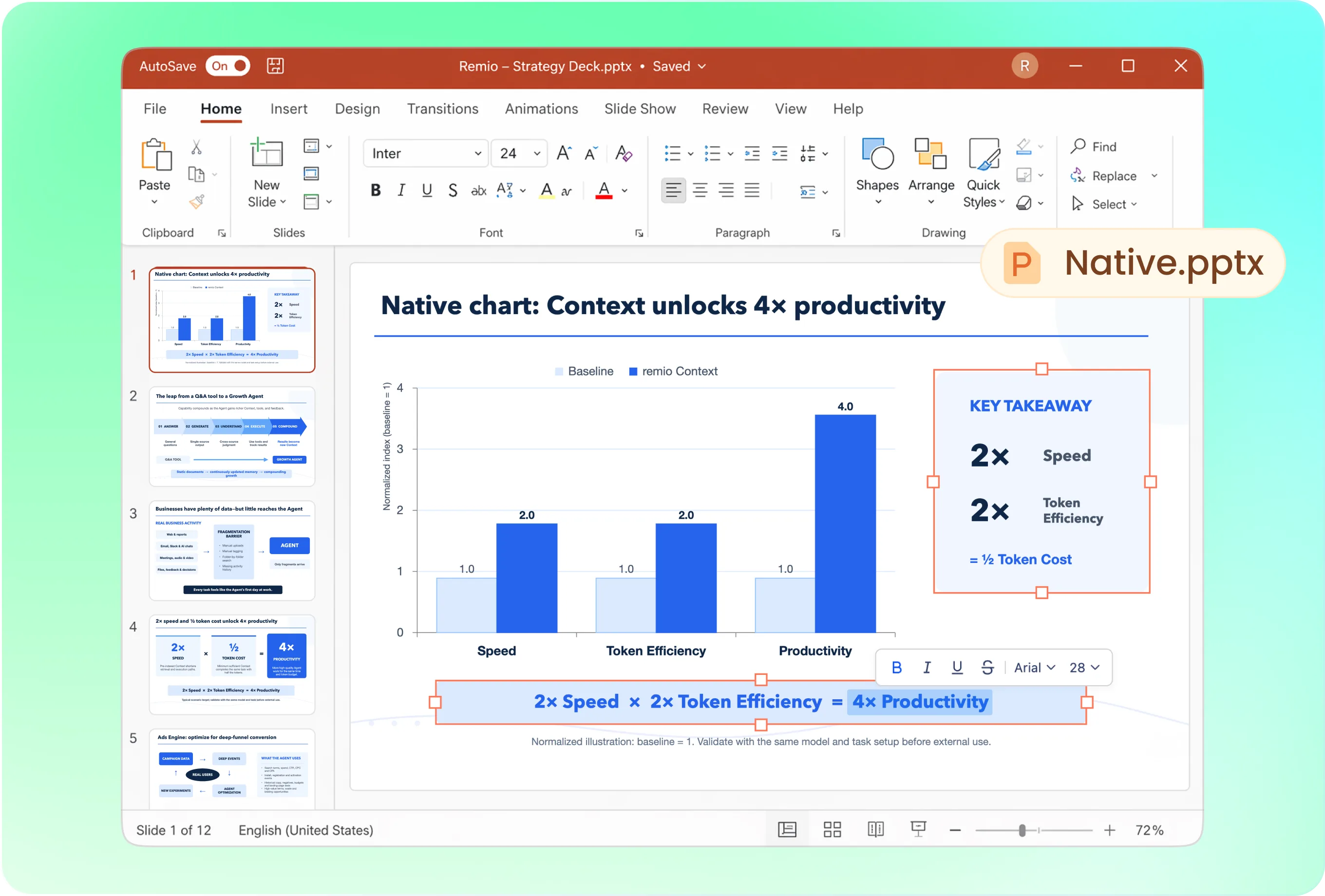
Open with the recommendation, then explain the situation, options, evidence and next steps. Try: “Create an eight-slide leadership deck from this brief. Put the decision on slide one, compare the options, and finish with owners and dates.” Review the outline before building.
Use the presentation style your company knows
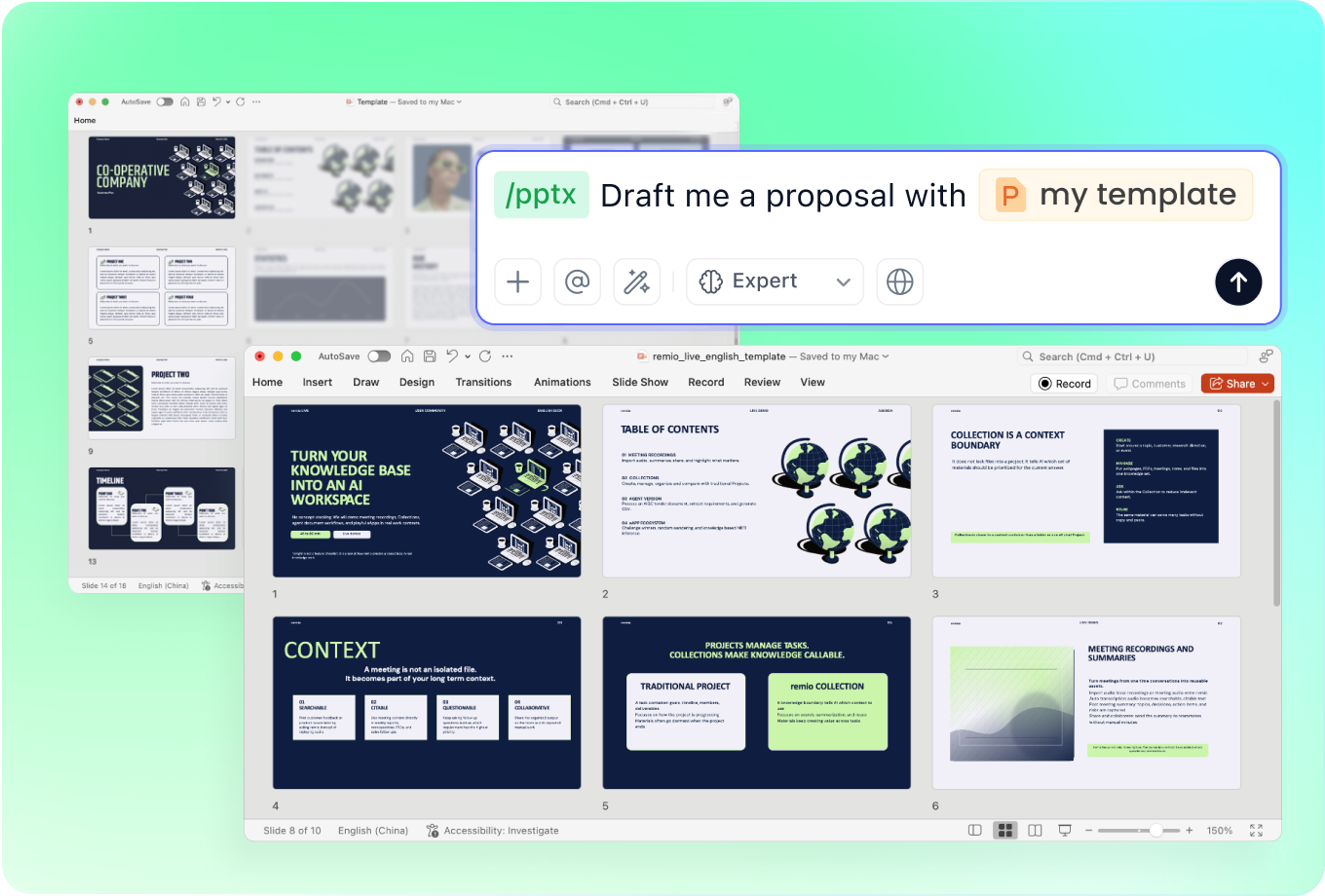
Add an approved company PowerPoint as a style reference. Describe how formal the meeting is and how much detail the audience needs. Ask remio to follow the fonts, colors and layout while keeping each slide focused on one business point.
Update the slides that changed
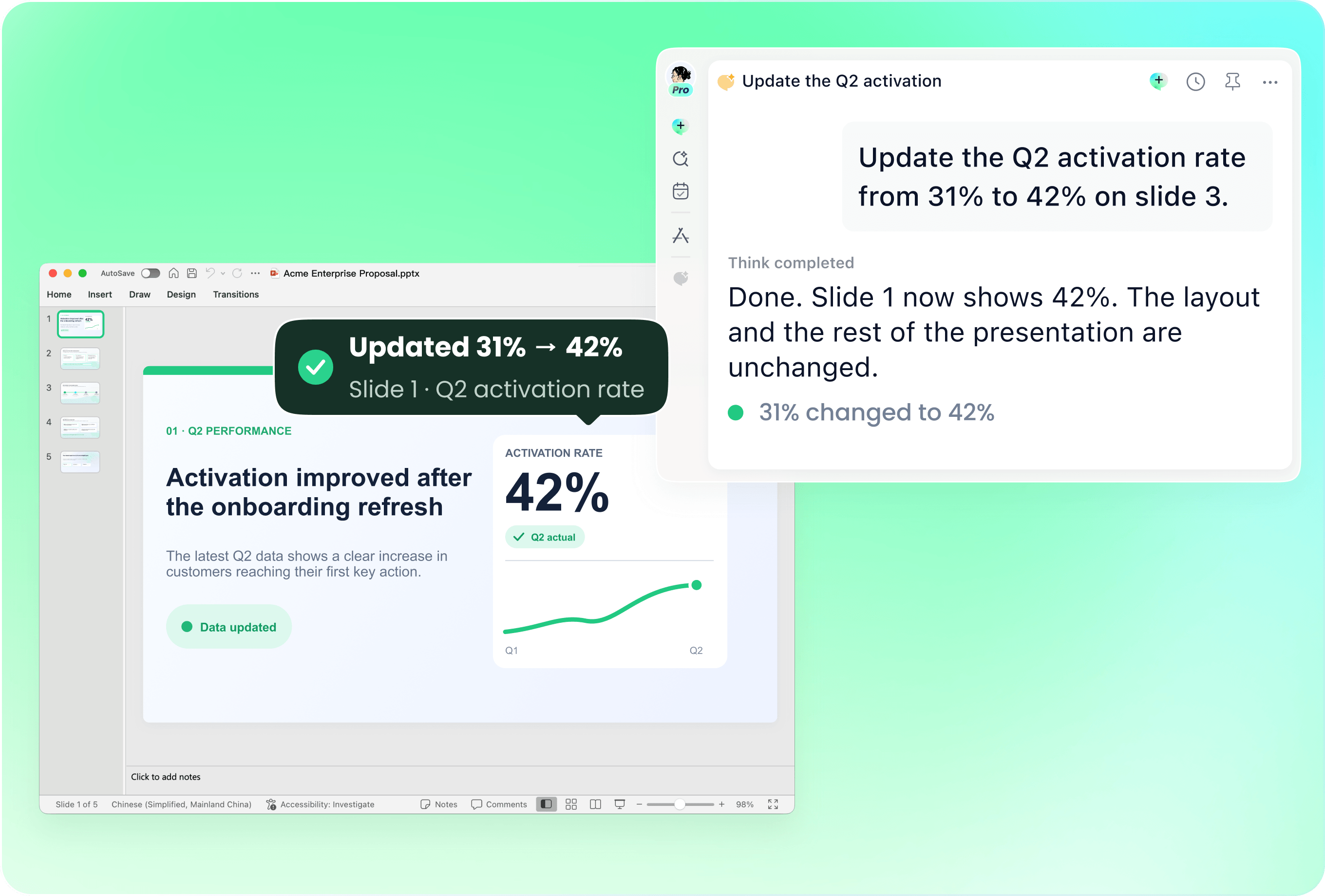
Provide the current deck with new meeting notes or a revised report. Identify the conclusions, figures or next steps that need updating. Review the changed pages and retain the sections that still explain the decision accurately.
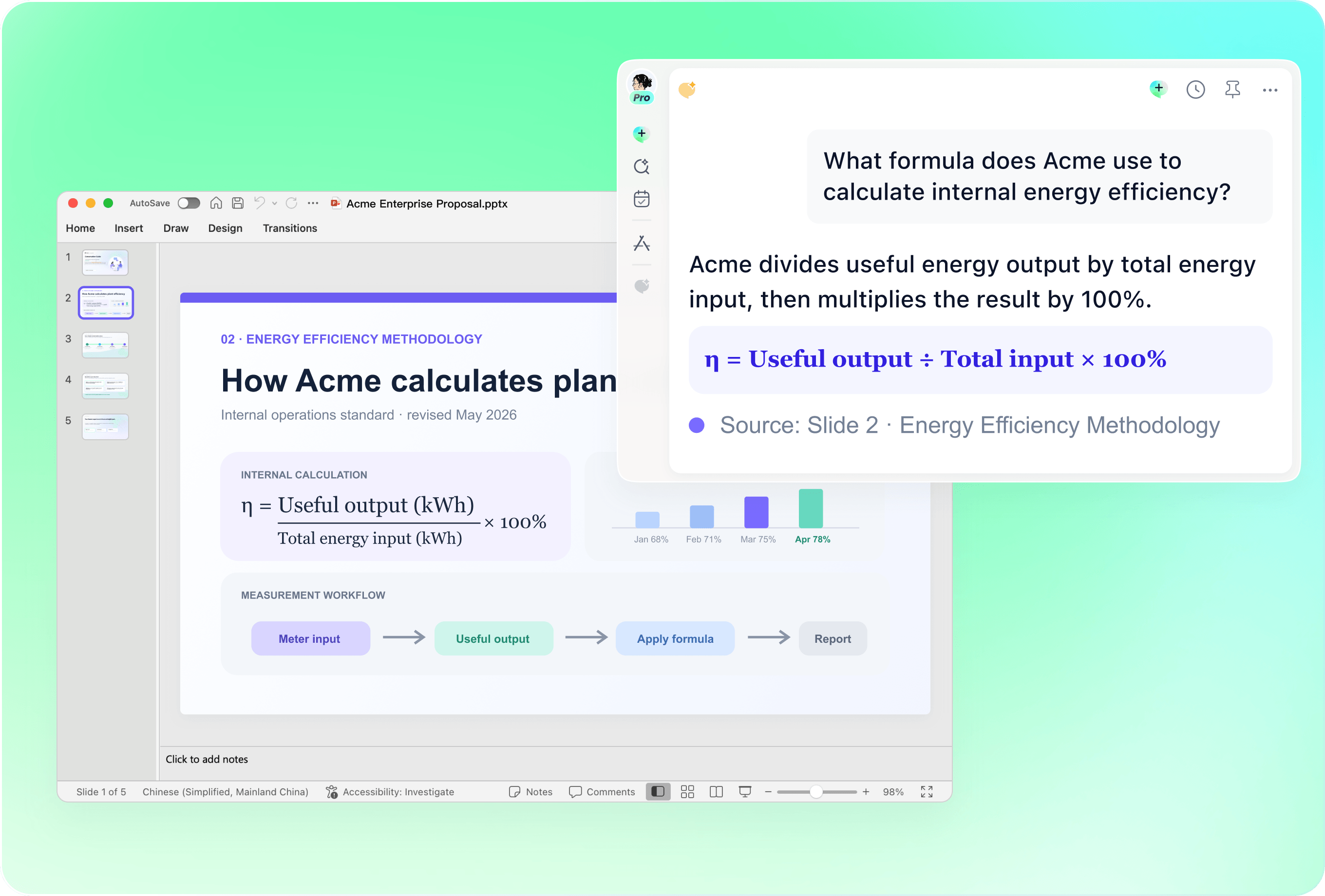
Keep evidence separate from assumptions
Check every metric against its source, including units, reporting periods and definitions. Label forecasts and recommendations clearly. A clean chart should explain the evidence you supplied; it should not turn an uncertain estimate into an established result.
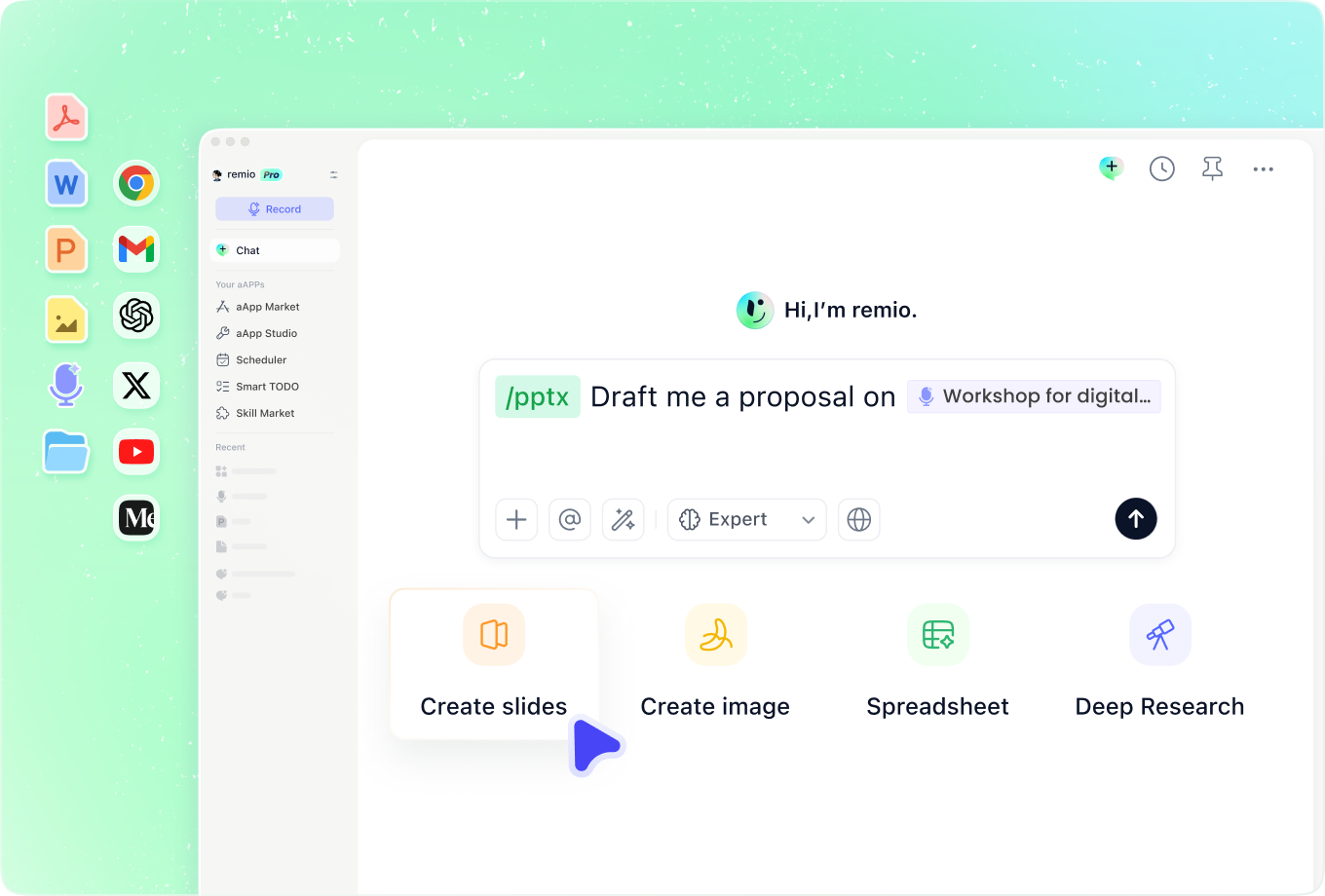
Connect the brief to the work behind it
Add earlier decisions, project notes and research so the presentation explains why the recommendation matters now. Name the most current source when documents disagree. Keep detailed background available for questions instead of overloading the main slides.
How it works
From source material to a PowerPoint file you can keep updating.
01
Add the brief and audience
Provide source materials and the decision the meeting should support.
02
Review the storyline
Confirm the recommendation, evidence, options and next steps.
03
Build and refine the PowerPoint
Create the editable deck, then check facts, layout and the action requested.
FAQs
Yes. You can download remio and start for free. Some advanced usage may depend on your subscription plan, but you can try the AI presentation workflow before committing.
remio is designed as a local first app instead of a browser-only slide editor.
For AI presentations, this makes a real difference. Local file access helps remio parse documents faster, handle larger context, and better preserve PowerPoint structure, styles, and layouts. It also reduces the need to upload sensitive files into a browser-based tool.Use the business brief together with relevant reports, notes and earlier decisions. Identify the audience and decision owner. Review the proposed storyline and distinguish confirmed results from assumptions before creating the final PowerPoint.
Yes. remio creates a native .pptx file from the start, not a presentation you have to export later. Every text box, layout, chart, and image stays editable in PowerPoint.
You can open it locally, edit it directly, and keep the same .pptx file from draft to final presentation.Not yet. remio currently focuses on native PowerPoint and .pptx workflows.
Keynote and Google Slides support are planned and will be added gradually.