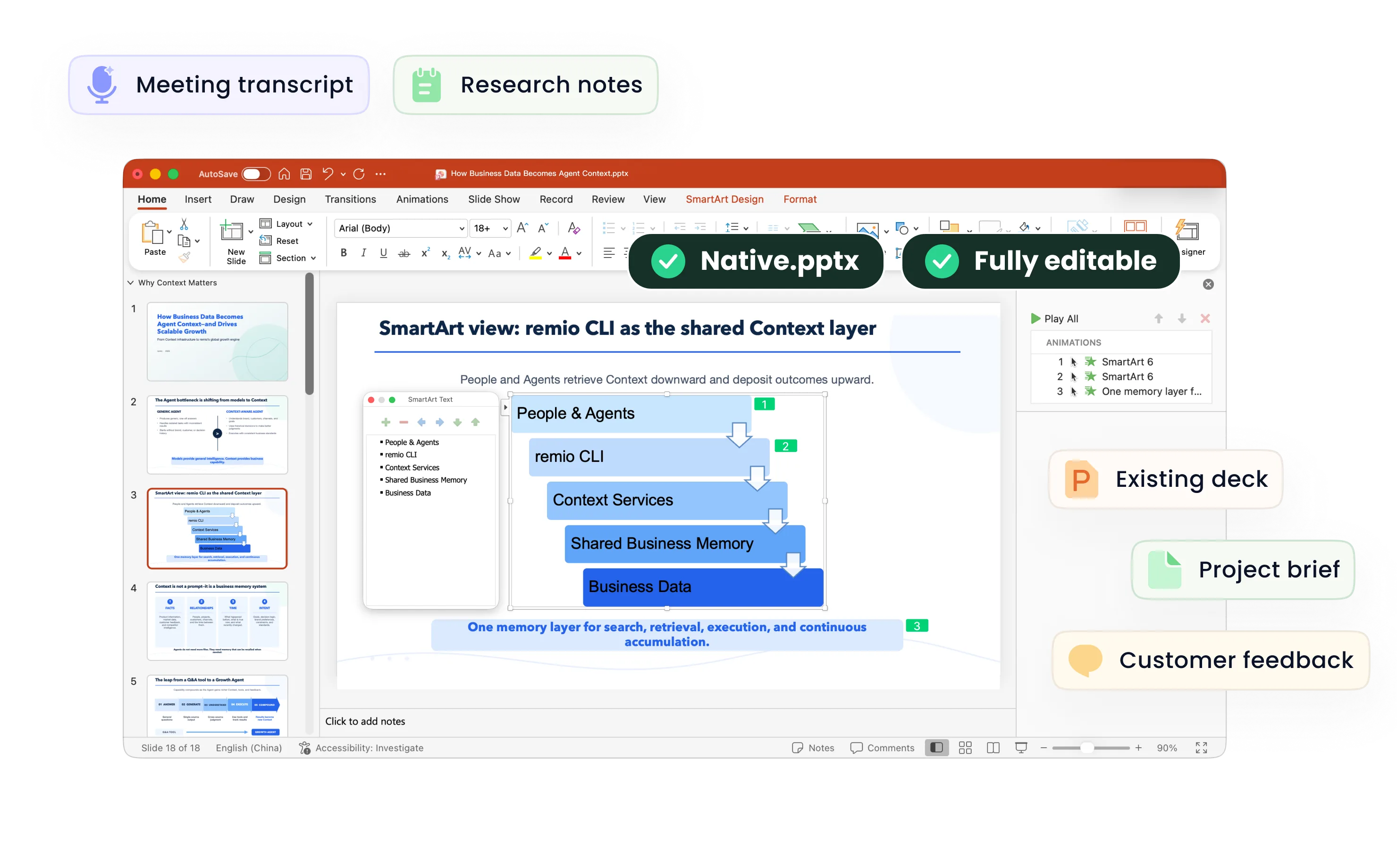
Business Strategy Presentation
Build a business strategy PowerPoint from research, options and work context. Review assumptions, trade-offs and recommendations in remio.
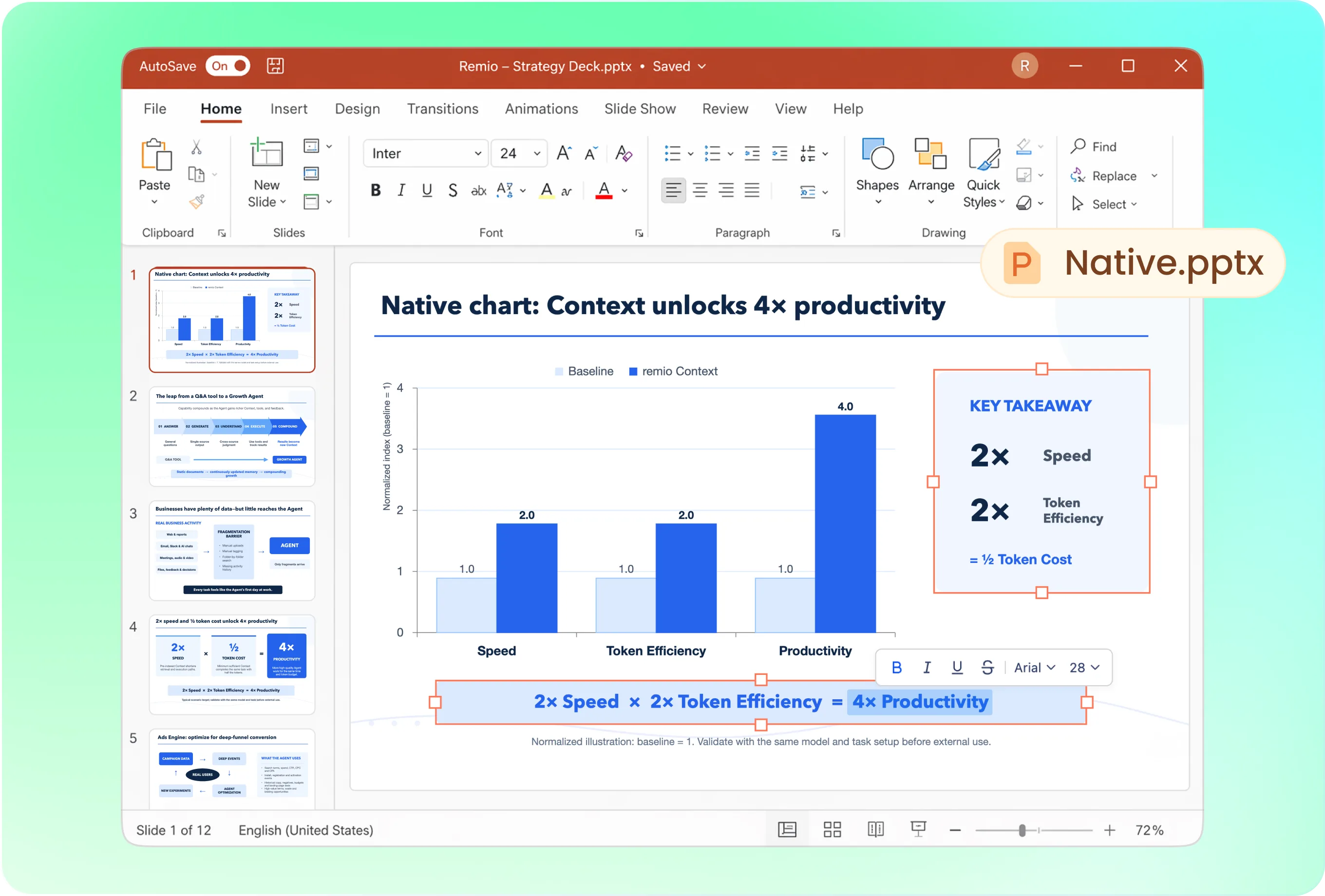
Present options before asking for agreement
Structure the discussion around the situation, strategic choices, evaluation criteria, recommendation and execution plan. Ask remio to compare options using the same criteria. Make the trade-offs visible instead of presenting the preferred option as inevitable.
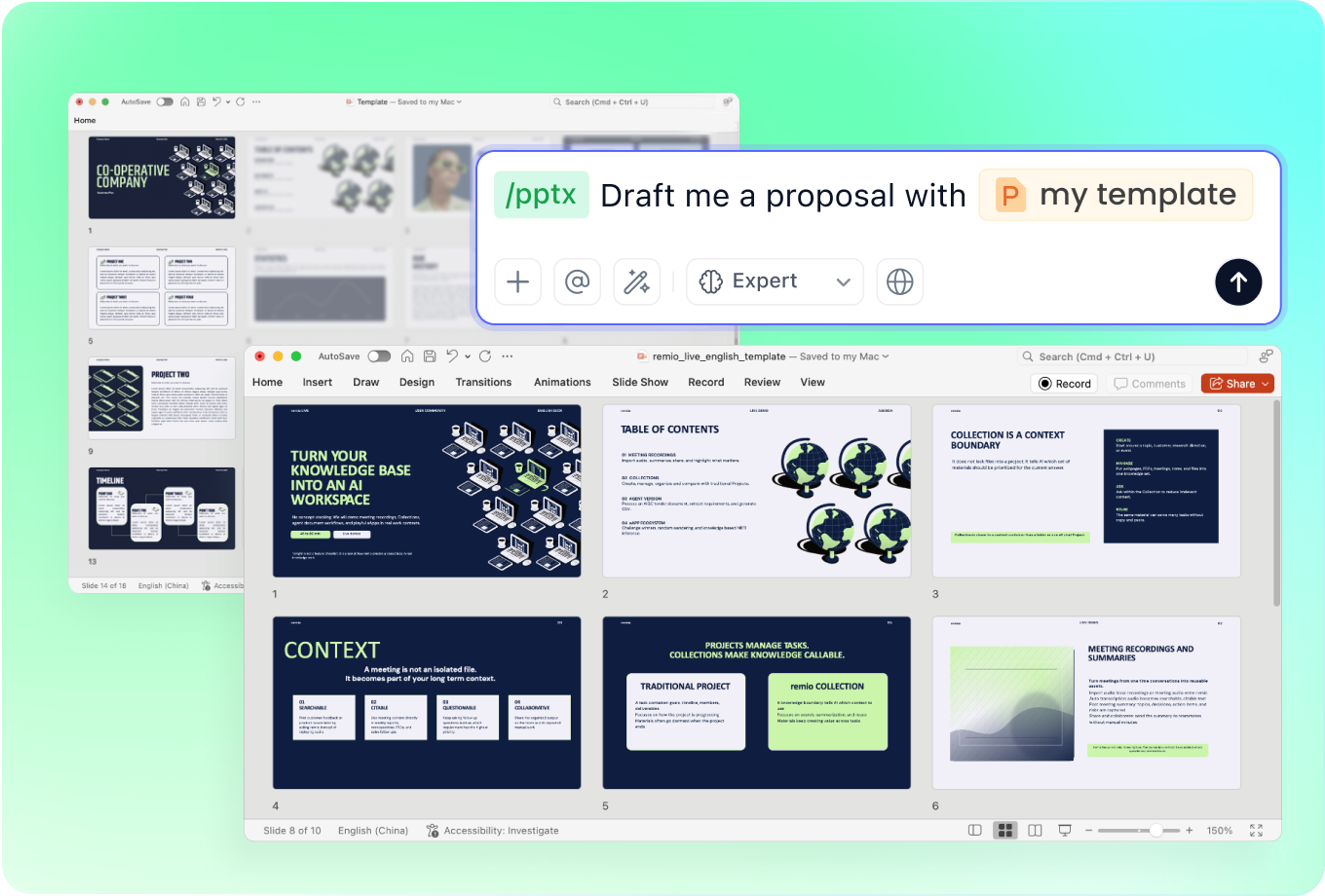
Use an executive presentation style
Provide a company deck and specify the depth needed for a board or leadership review. Keep main slides focused on choices and implications, with detailed analysis separated where appropriate. Review whether the visual hierarchy makes the recommendation clear.
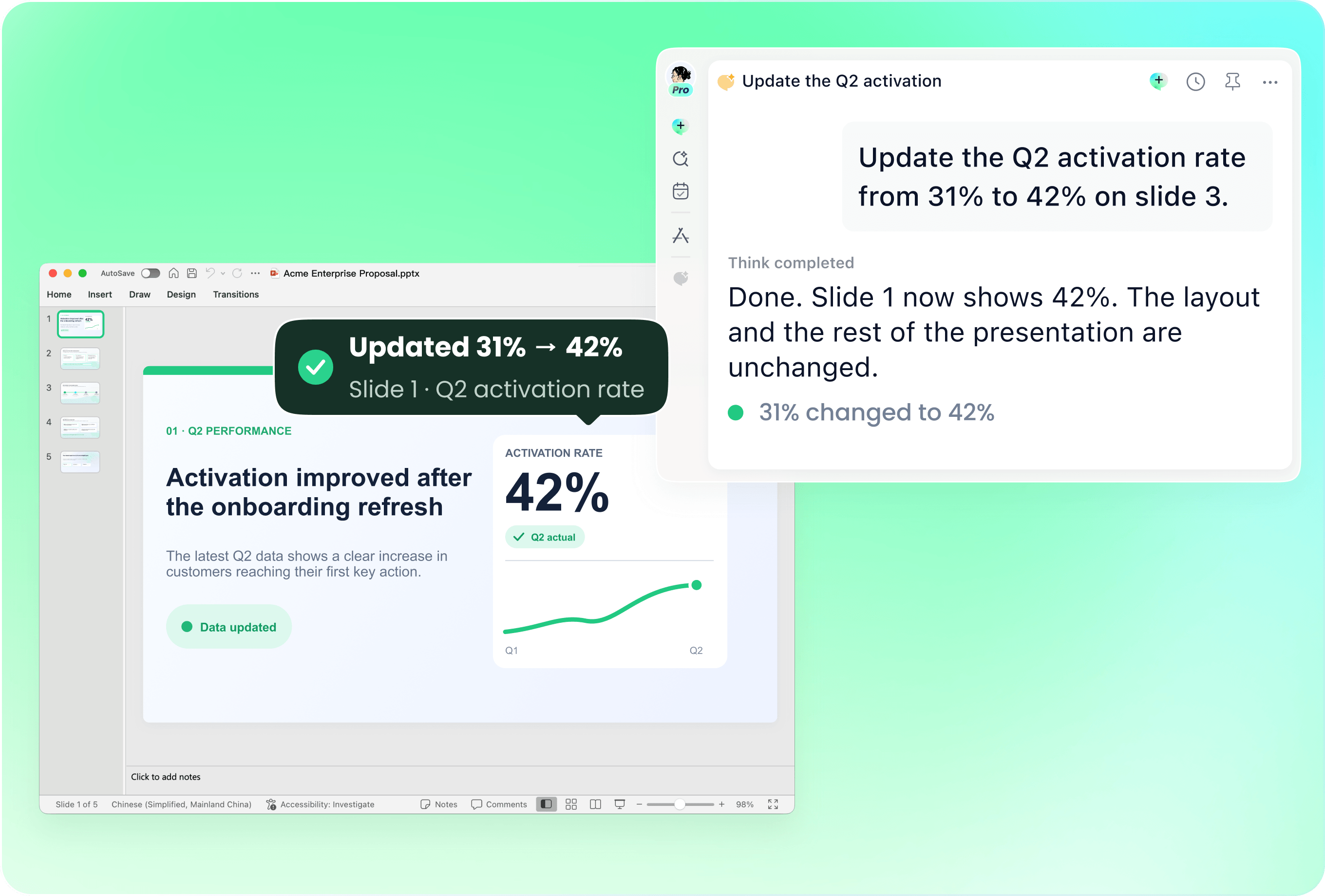
Revise the strategy as evidence changes
Bring the previous strategy deck with updated research or planning notes. Identify which assumptions changed and which choices need reconsideration. Ask remio to revise those slides, then check that the recommendation still follows from the current evidence.
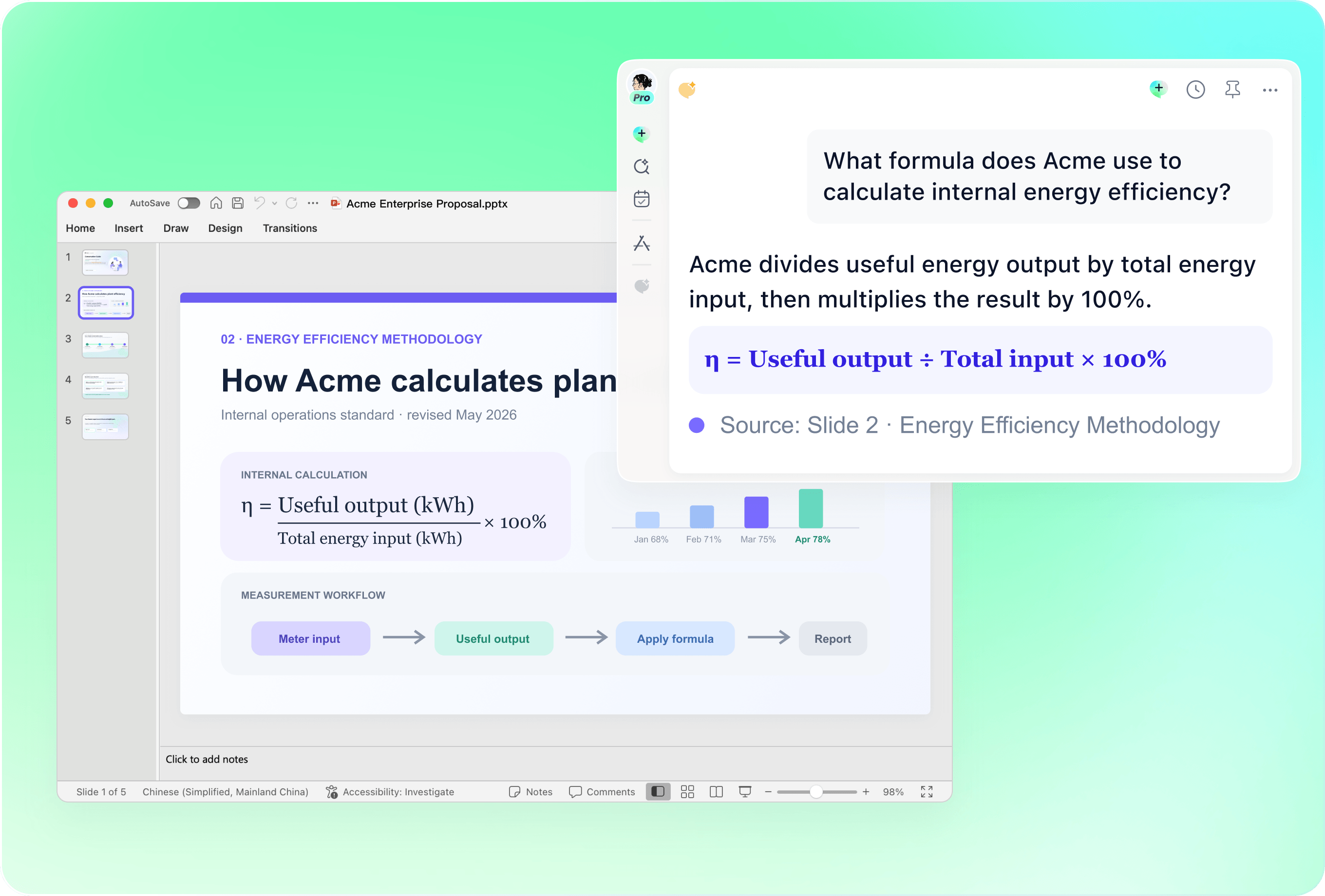
Challenge the assumptions behind the plan
Review market estimates, competitor comparisons, constraints and forecasts against their sources. Distinguish internal strengths from external opportunities in a SWOT discussion. Label scenarios as scenarios and record the uncertainties that could change the decision.
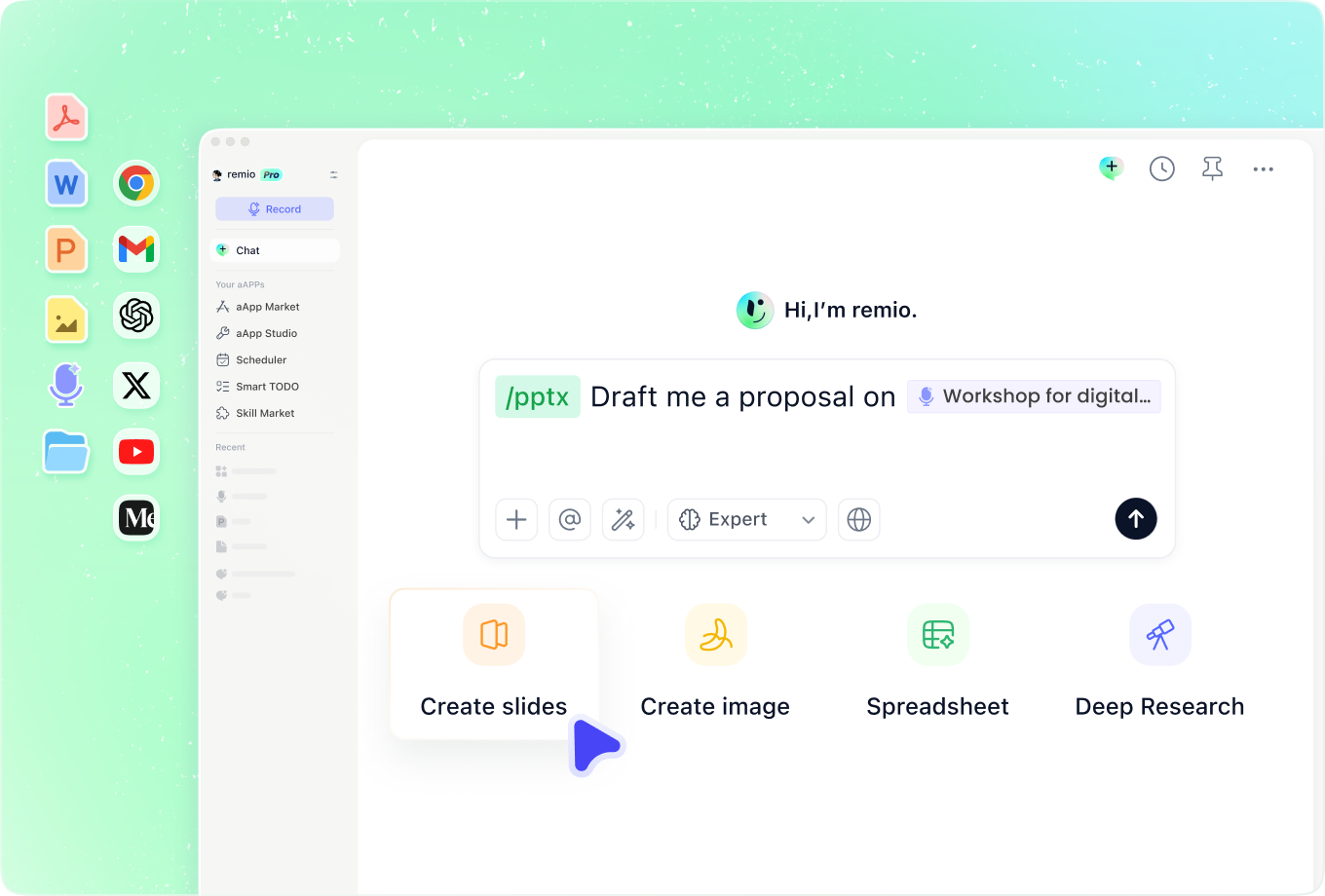
Connect the strategy to execution
Add earlier decisions, resource discussions and project context so the proposed plan reflects the work required. State the owners, dependencies and milestones you already know. Ask for unanswered questions where the brief cannot support an execution commitment.
How it works
From source material to a PowerPoint file you can keep updating.
01
Add the strategic brief
Provide the objective, evidence, constraints and candidate options.
02
Review the choices and assumptions
Check comparison criteria, uncertainties and the recommended direction.
03
Build the decision deck
Create the editable PowerPoint and review trade-offs, owners and milestones.
FAQs
Yes. You can download remio and start for free. Some advanced usage may depend on your subscription plan, but you can try the AI presentation workflow before committing.
remio is designed as a local first app instead of a browser-only slide editor.
For AI presentations, this makes a real difference. Local file access helps remio parse documents faster, handle larger context, and better preserve PowerPoint structure, styles, and layouts. It also reduces the need to upload sensitive files into a browser-based tool.Use current research alongside internal planning notes and earlier decisions. Define the planning horizon and decision criteria. Review SWOT labels, forecasts and proposed actions; the deck should make uncertainty explicit rather than manufacture a strategic certainty.
Yes. remio creates a native .pptx file from the start, not a presentation you have to export later. Every text box, layout, chart, and image stays editable in PowerPoint.
You can open it locally, edit it directly, and keep the same .pptx file from draft to final presentation.Not yet. remio currently focuses on native PowerPoint and .pptx workflows.
Keynote and Google Slides support are planned and will be added gradually.