
top of page
remio AI Presentation workspace and source materials

Christmas PPT templates

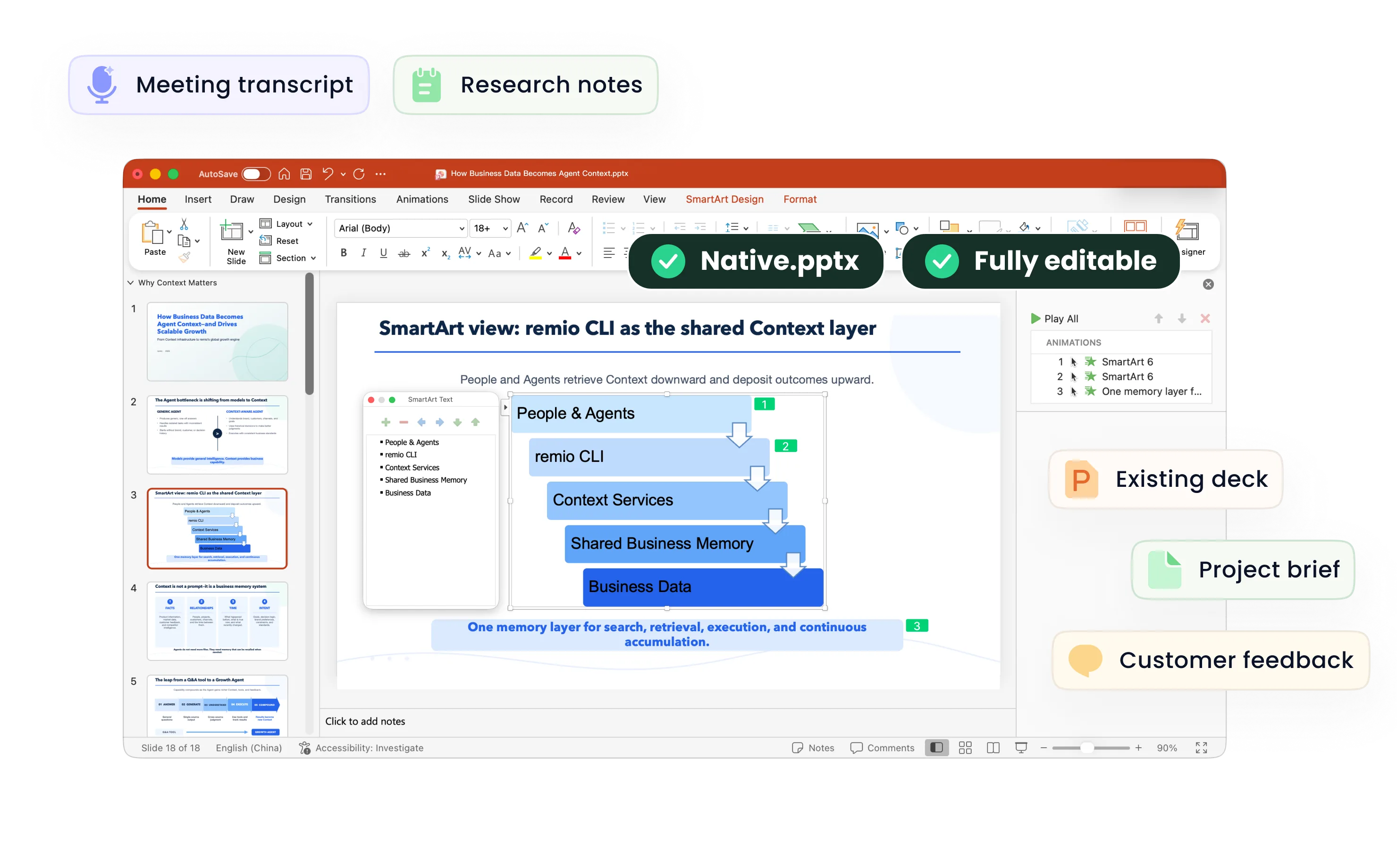
Bring your holiday plans, year-end highlights and reference slides into remio. Shape a festive presentation, then refine the editable PowerPoint.

For Windows 10+ (x64) and Apple silicon Macs.

Christmas PPT templates

Bring your holiday plans, year-end highlights and reference slides into remio. Shape a festive presentation, then refine the editable PowerPoint.

For Windows 10+ (x64) and Apple silicon Macs.

Download remio
remio AI Presentation workspace and source materials

Christmas PowerPoint Templates

Create Christmas slides for a party, classroom or team celebration. Use your event notes and references in remio to build and refine an editable PowerPoint.

Plan the occasion

Plan the occasion

Start with the audience and purpose: a family gathering, a school activity or a company celebration. Add the event brief, running order and notes. Explain whether the slides will guide a live event, introduce activities or share a year-end story, so the outline fits the occasion.
Set a festive direction

Set a festive direction

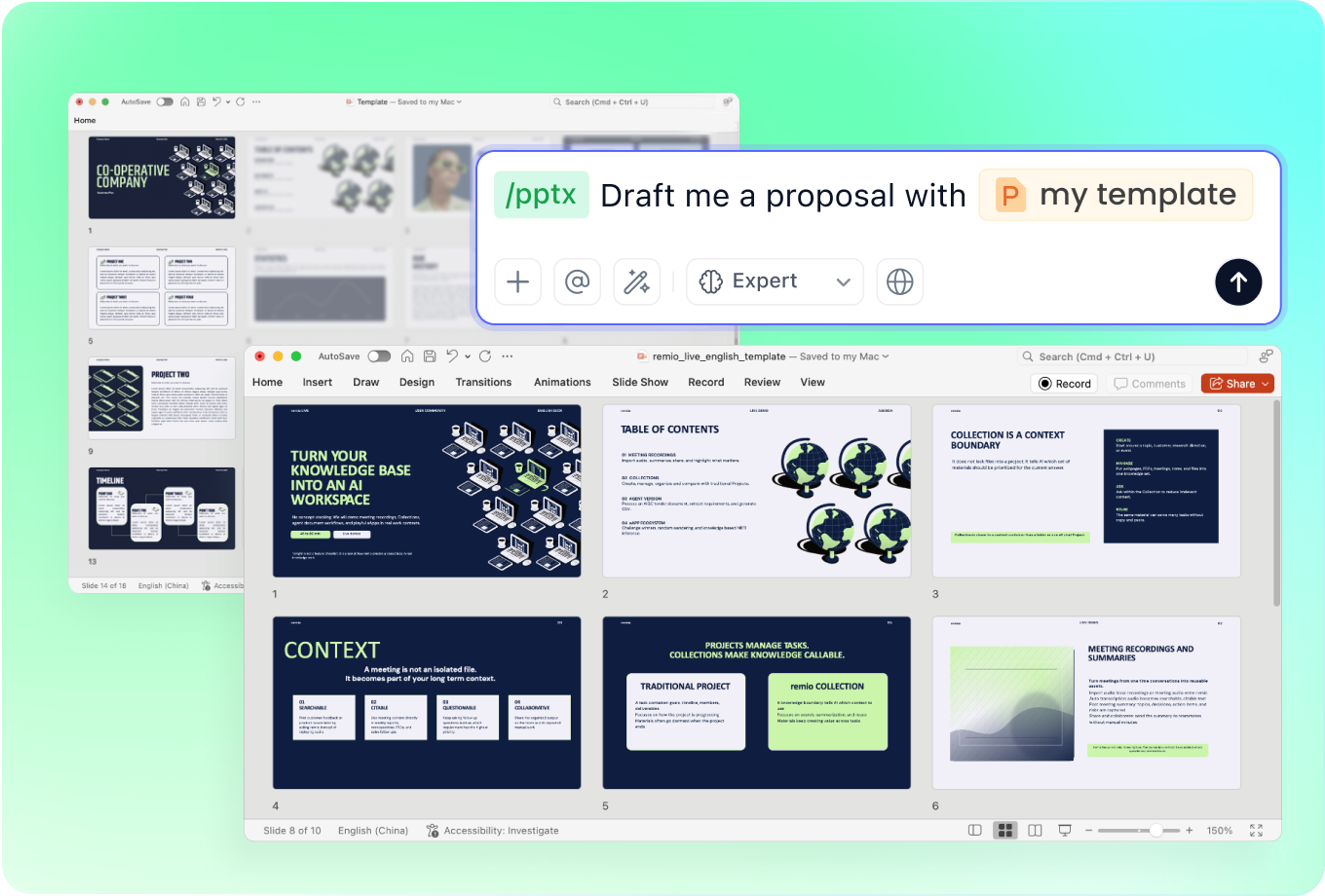
Describe the palette, imagery and tone you want. Traditional red and green, a winter theme or a restrained company style can each support a different event. Add a presentation reference if useful, then review the generated colors, contrast and text sizes together.

Make the program clear

Make the program clear

Turn the schedule into sections for a welcome, activities, announcements and closing wishes. For a classroom, add the lesson goal and discussion prompts. For a team celebration, include reviewed milestones and acknowledgments. Keep dates, locations and speaker names consistent across the deck.

Revise with your materials

Revise with your materials

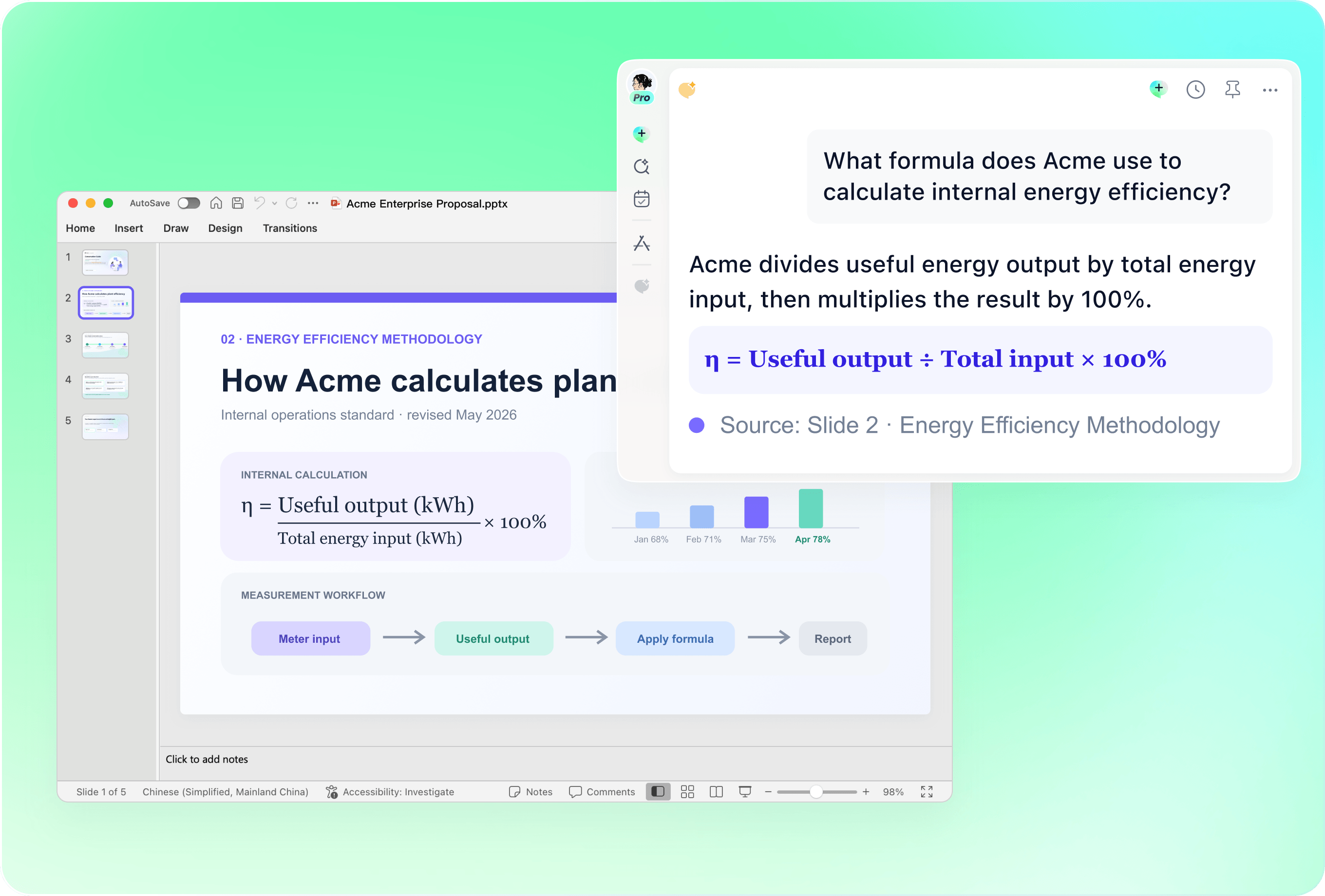
Add an existing presentation alongside this year's plans and explain what should change. Update the program, replace old highlights and describe the visual elements you want to retain. Check the resulting editable slides against the latest event notes before sharing them.

Review before the celebration

Review before the celebration

Read the full presentation in its event order. Check names, dates, image permissions and any figures used in a year-end recap. Keep decorative elements clear of the message and confirm that the audience can read the slides from the intended screen or projector.

How it works

From source material to a PowerPoint file you can keep updating.

  1. Add your holiday plans

    Provide the audience, program, source notes and any presentation reference.

  2. Shape the festive story

    Review the sequence, visual direction and event details.

  3. Refine and celebrate

    Check the editable PowerPoint and rehearse the presentation in its setting.

FAQs

What should Christmas slides include?

A useful structure includes a welcome, the purpose of the gathering, a program or year-end story, relevant activities and a closing message. Choose the sections for the actual audience rather than filling a fixed number of slides.

Can I make Christmas slides for a classroom?

Add the lesson goal, age group, activity instructions and materials you want to discuss. Ask remio to organize the presentation around those notes. Review the language, examples and reading level before using it with students.

How can I use this for a company celebration?

Provide the event program, approved team highlights and acknowledgments. Describe the company style and add an existing presentation as a reference. Verify names, figures and internal information before presenting or sharing the deck.

Can I update last year's Christmas presentation?

Add the existing presentation with the new program and notes. Explain which sections to keep, replace or remove, and describe any style changes. Review the updated slides for old dates, outdated details and inconsistent wording.

How do I create a Christmas PowerPoint with remio?

Download remio, add your holiday brief and source materials, and describe the audience and visual direction. Review the outline, refine the editable PowerPoint and check the event details before the celebration.

Christmas PowerPoint Templates

Create Christmas slides for a party, classroom or team celebration. Use your event notes and references in remio to build and refine an editable PowerPoint.

Plan the occasion

Plan the occasion

Start with the audience and purpose: a family gathering, a school activity or a company celebration. Add the event brief, running order and notes. Explain whether the slides will guide a live event, introduce activities or share a year-end story, so the outline fits the occasion.
Set a festive direction

Set a festive direction

Describe the palette, imagery and tone you want. Traditional red and green, a winter theme or a restrained company style can each support a different event. Add a presentation reference if useful, then review the generated colors, contrast and text sizes together.

Make the program clear

Make the program clear

Turn the schedule into sections for a welcome, activities, announcements and closing wishes. For a classroom, add the lesson goal and discussion prompts. For a team celebration, include reviewed milestones and acknowledgments. Keep dates, locations and speaker names consistent across the deck.

Revise with your materials

Revise with your materials

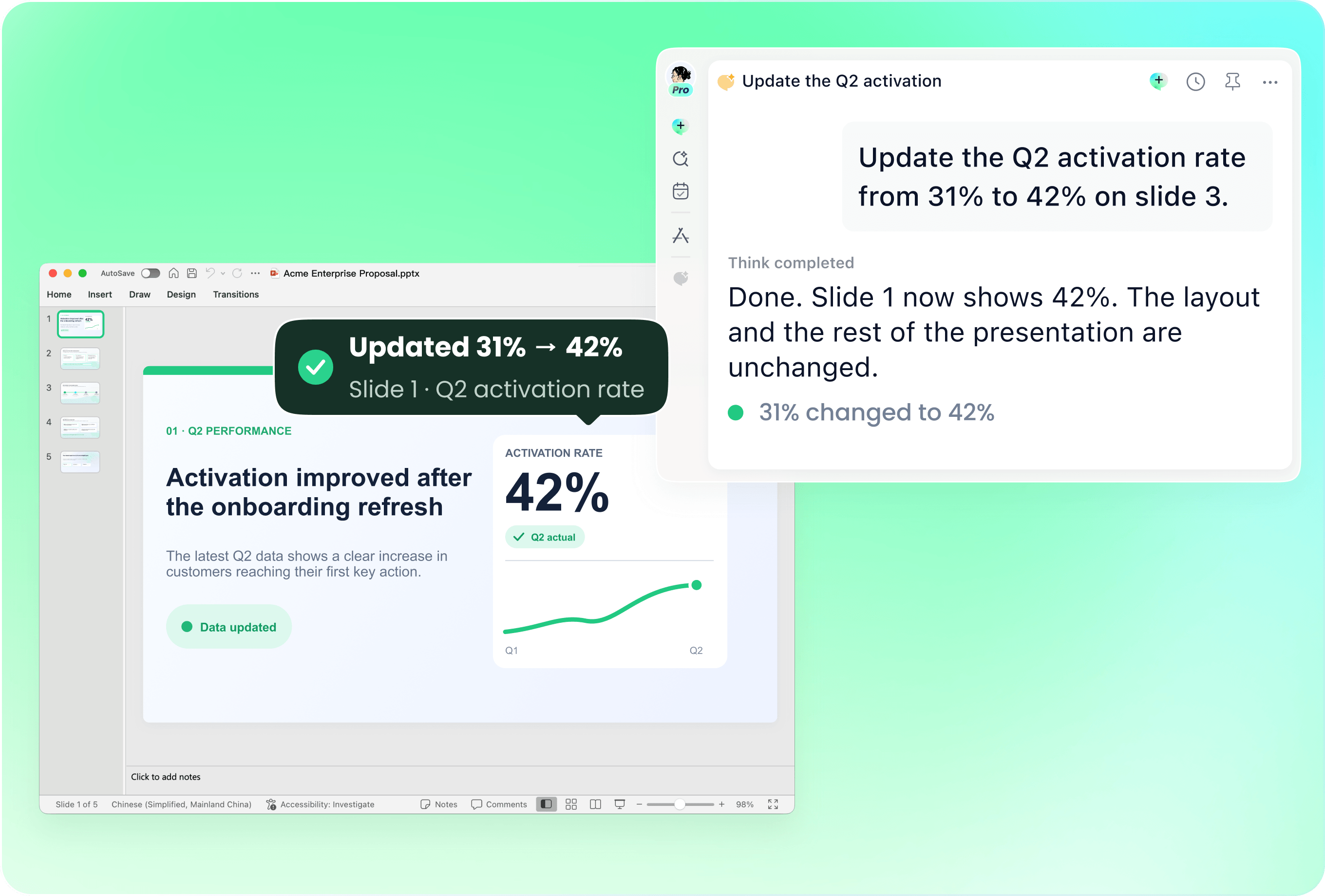
Add an existing presentation alongside this year's plans and explain what should change. Update the program, replace old highlights and describe the visual elements you want to retain. Check the resulting editable slides against the latest event notes before sharing them.

Review before the celebration

Review before the celebration

Read the full presentation in its event order. Check names, dates, image permissions and any figures used in a year-end recap. Keep decorative elements clear of the message and confirm that the audience can read the slides from the intended screen or projector.

How it works

From source material to a PowerPoint file you can keep updating.

01

Add your holiday plans

Provide the audience, program, source notes and any presentation reference.

02

Shape the festive story

Review the sequence, visual direction and event details.

03

Refine and celebrate

Check the editable PowerPoint and rehearse the presentation in its setting.

FAQs

  • A useful structure includes a welcome, the purpose of the gathering, a program or year-end story, relevant activities and a closing message. Choose the sections for the actual audience rather than filling a fixed number of slides.

  • Add the lesson goal, age group, activity instructions and materials you want to discuss. Ask remio to organize the presentation around those notes. Review the language, examples and reading level before using it with students.

  • Provide the event program, approved team highlights and acknowledgments. Describe the company style and add an existing presentation as a reference. Verify names, figures and internal information before presenting or sharing the deck.

  • Add the existing presentation with the new program and notes. Explain which sections to keep, replace or remove, and describe any style changes. Review the updated slides for old dates, outdated details and inconsistent wording.

  • Download remio, add your holiday brief and source materials, and describe the audience and visual direction. Review the outline, refine the editable PowerPoint and check the event details before the celebration.

FAQs

A useful structure includes a welcome, the purpose of the gathering, a program or year-end story, relevant activities and a closing message. Choose the sections for the actual audience rather than filling a fixed number of slides.

Add the lesson goal, age group, activity instructions and materials you want to discuss. Ask remio to organize the presentation around those notes. Review the language, examples and reading level before using it with students.

Provide the event program, approved team highlights and acknowledgments. Describe the company style and add an existing presentation as a reference. Verify names, figures and internal information before presenting or sharing the deck.

Add the existing presentation with the new program and notes. Explain which sections to keep, replace or remove, and describe any style changes. Review the updated slides for old dates, outdated details and inconsistent wording.

Download remio, add your holiday brief and source materials, and describe the audience and visual direction. Review the outline, refine the editable PowerPoint and check the event details before the celebration.

bottom of page