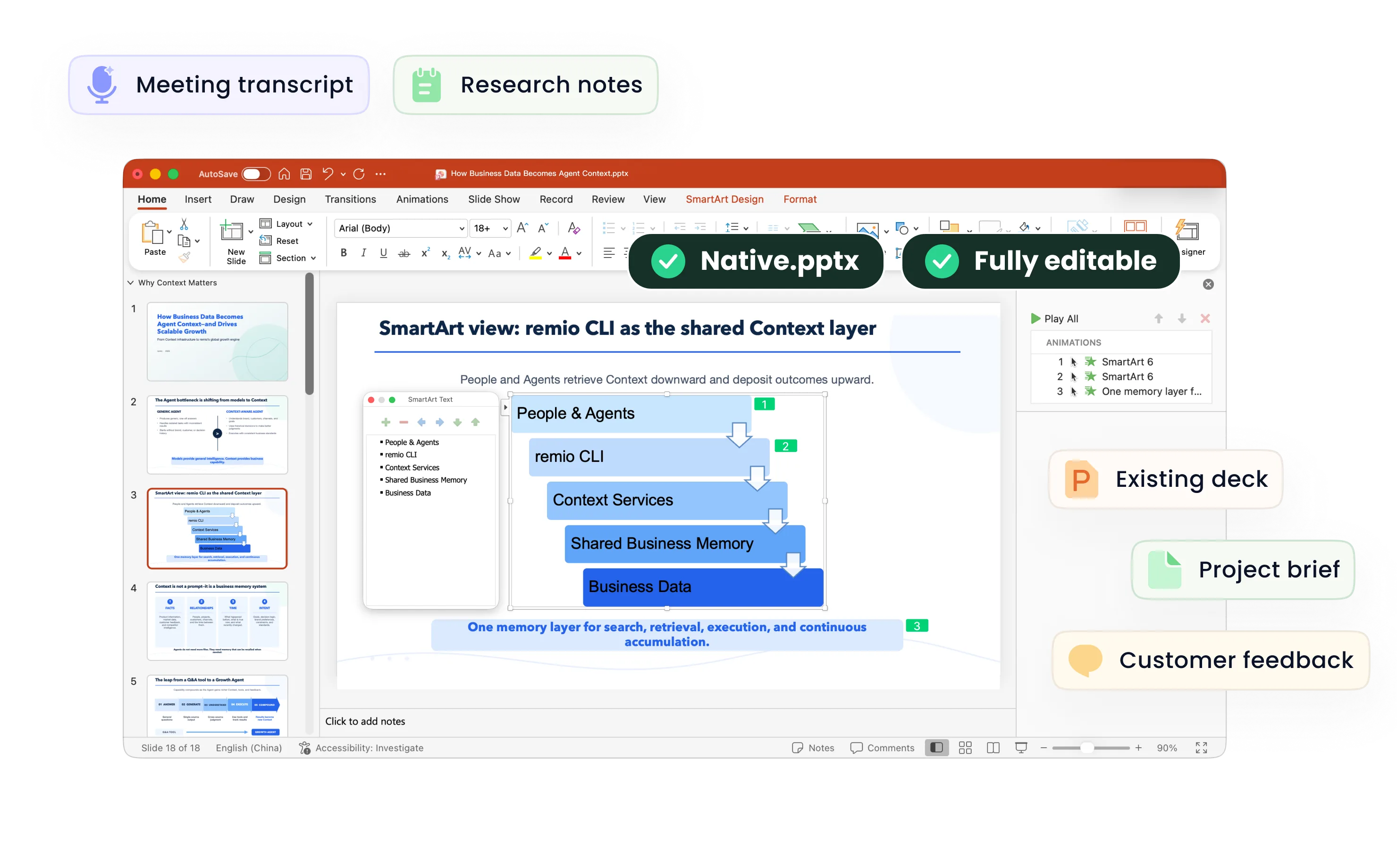
Create Presentations from Notes
Learn how to turn notes and meeting context into a PowerPoint with remio. Select sources, review an outline and revise the editable deck.
Start with a specific presentation request
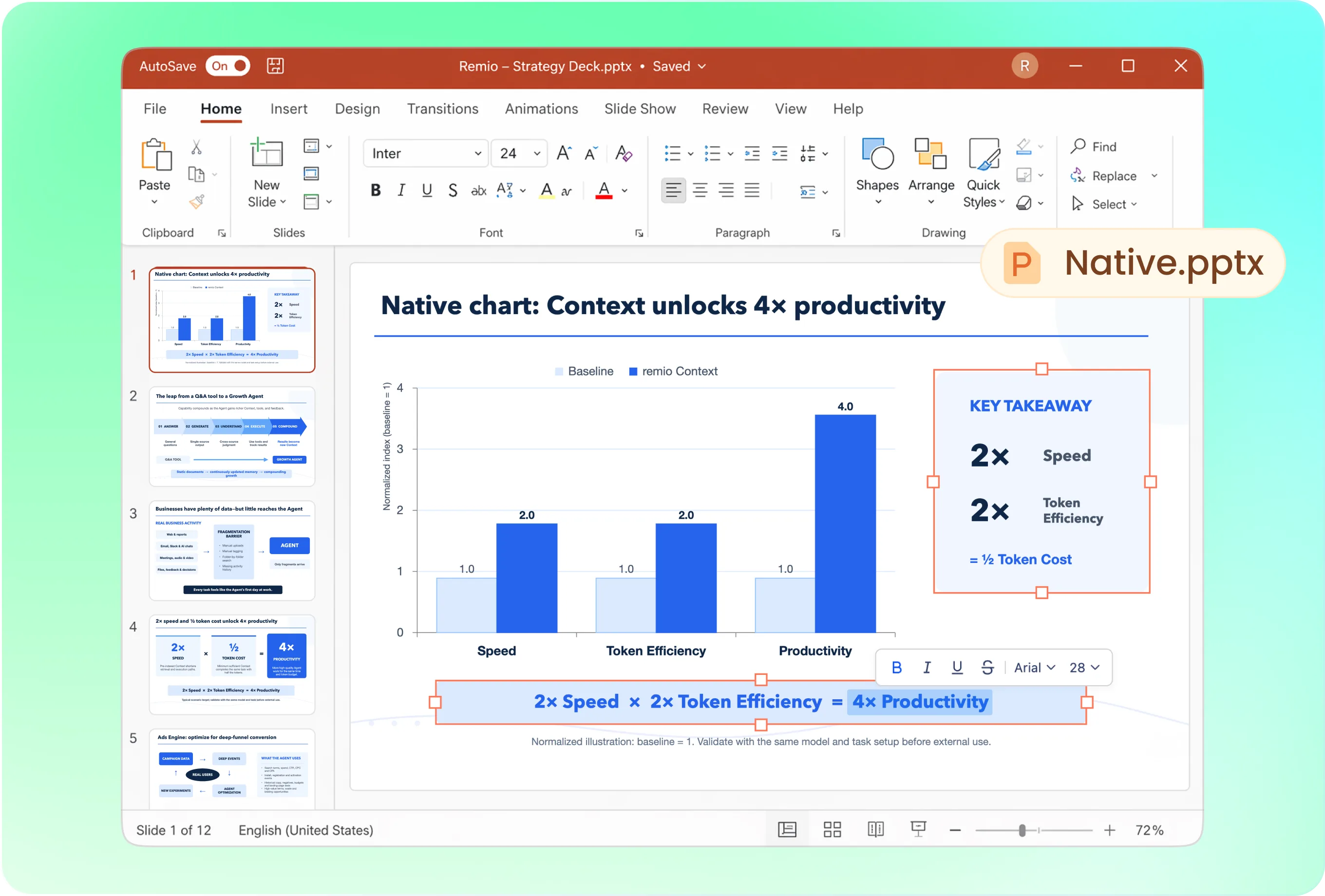
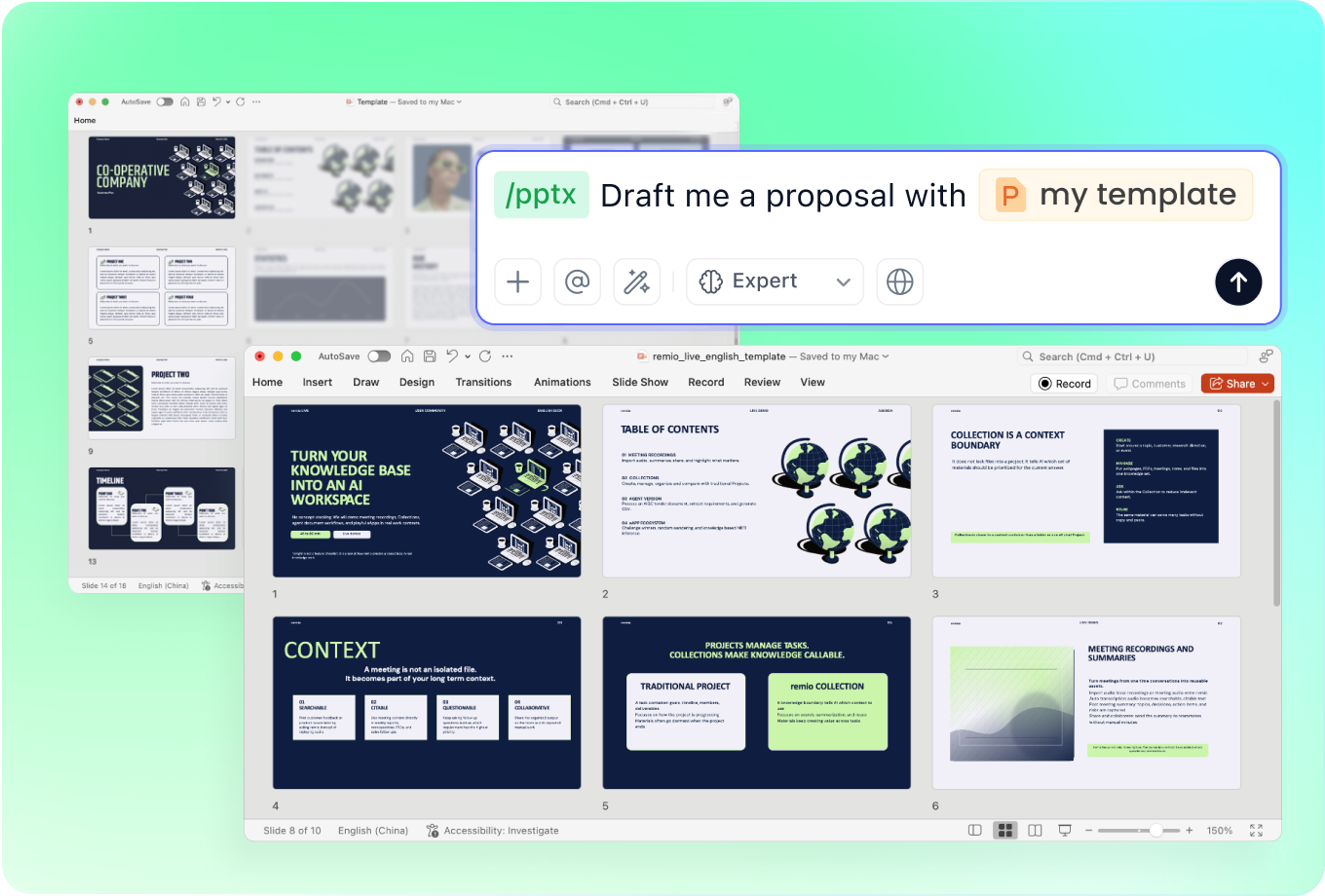
In remio desktop Chat, type /pptx followed by a space, then describe the task and name the sources. Try: “Create a six-slide project update from these meeting notes. The audience is the project sponsor. Explain progress, blockers, decisions needed and next actions. Propose the outline before creating the PowerPoint.” Treat six slides as your brief, not a product limit.
Provide a company deck as the style reference
If the presentation needs an established look, include an approved PowerPoint and explain that it is the design reference. Ask remio to follow its fonts, colors and layout conventions. Keep the source notes responsible for facts and the reference deck responsible for appearance; an old example should not supply current project figures.
Revise the deck when the meeting changes the plan
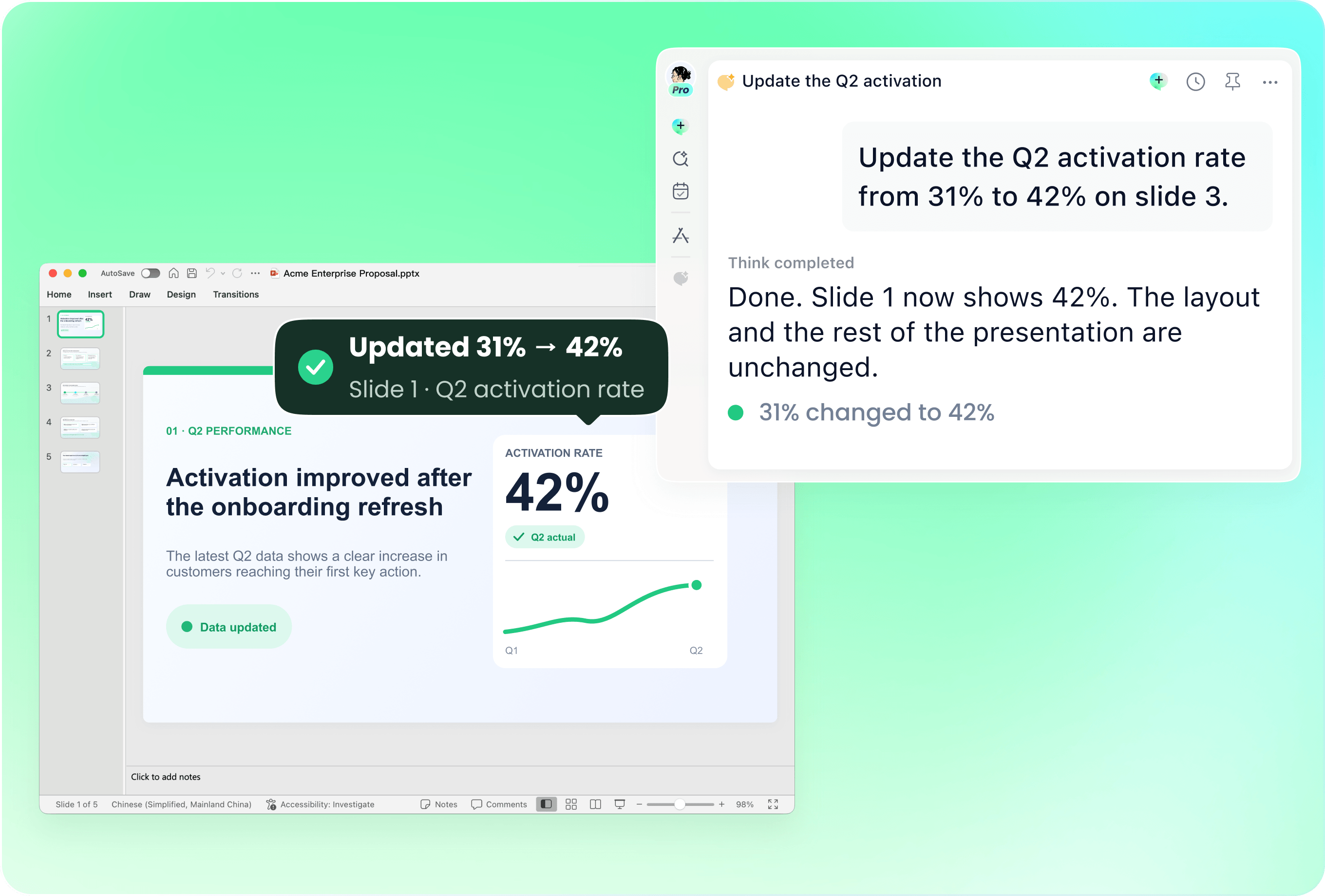
Keep the current .pptx and supply the new notes. Try: “Update the blockers and next-actions slides using today’s transcript. Keep the introduction and approved project scope unchanged. Flag any conflicting dates instead of choosing one silently.” Review the affected slides and confirm that the rest of the story still follows.

Check facts before checking polish
Compare names, dates, metrics and decision owners with the selected sources. Distinguish an agreed decision from an open question or suggestion. Open the PowerPoint and inspect slide order, text and chart labels. A transcript can contain transcription errors; clear slides do not remove the need to verify the underlying statement.

Use the background that explains the notes
Add the project brief and earlier decisions where they clarify a short meeting remark. State which document wins if versions disagree. Ask remio to list missing information before drafting a claim it cannot support. For a larger knowledge base, narrow the request to the relevant project and period rather than asking for everything you have saved.
How it works
From source material to a PowerPoint file you can keep updating.
01
Select sources and brief the audience
Provide notes, supporting documents, audience and purpose.
02
Review the proposed outline
Check decisions, evidence, slide order and unresolved questions.
03
Create and inspect the PowerPoint
Build the .pptx, verify facts and refine the slides you need.
FAQs
Yes. You can download remio and start for free. Some advanced usage may depend on your subscription plan, but you can try the AI presentation workflow before committing.
Use remio’s desktop presentation workflow. In Chat, type /pptx followed by a space and describe your task with the relevant source files. This tutorial does not describe an online upload-and-convert form.
Select the relevant notes, transcript and background documents, and name the most current source. Explain the audience and decision the deck should support. Review unresolved questions before turning them into slide conclusions.
The output is a native .pptx for further editing in PowerPoint. Inspect the text, shapes and charts in the actual file. Text within a source image and image-based slide content do not become independent native objects merely because the file is a .pptx.
This tutorial focuses on native PowerPoint files. You can separately check whether another presentation application can import your .pptx, but import compatibility does not mean remio directly edits a Google Slides or Canva project. Review fonts, charts and other complex content after conversion.