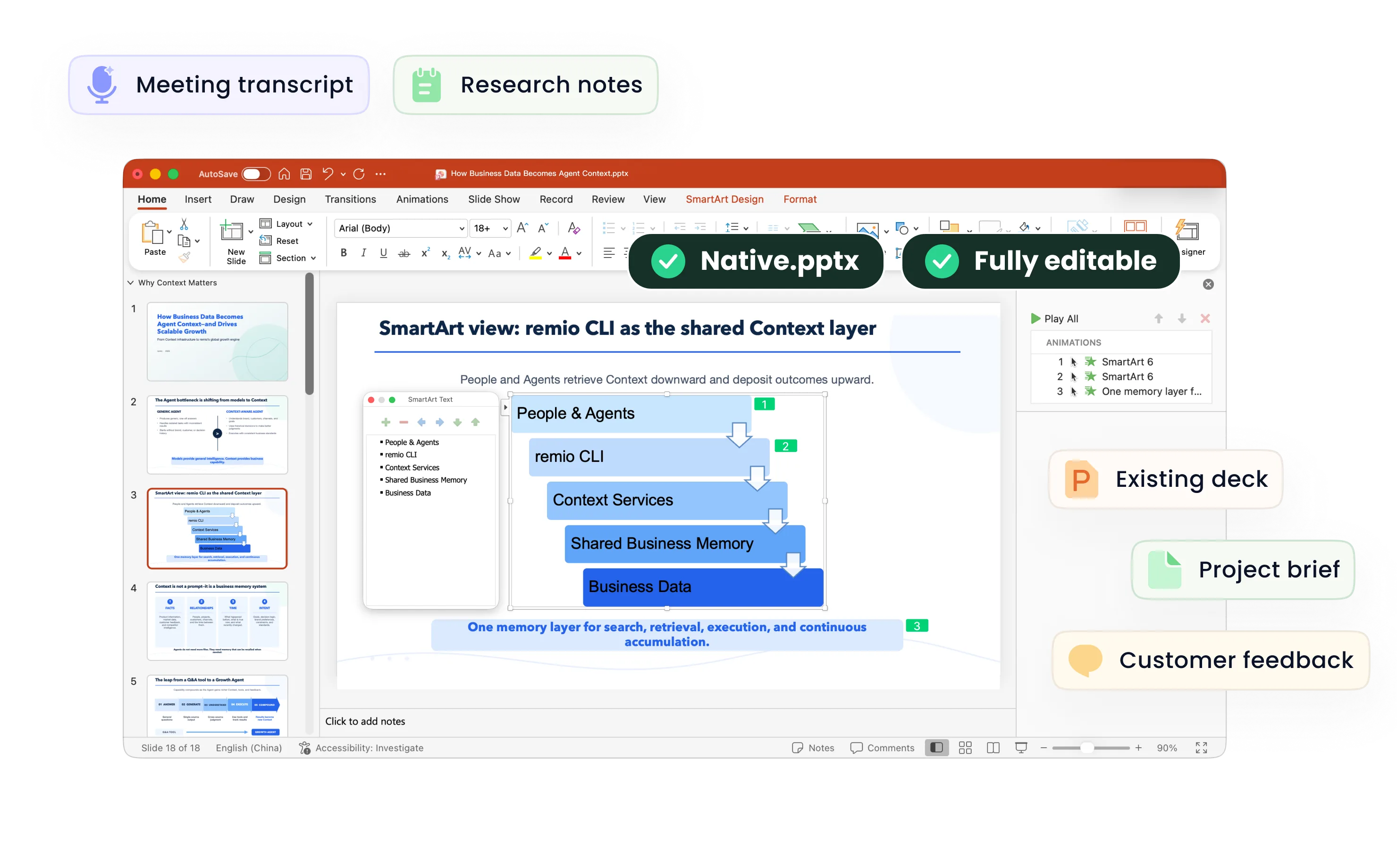
Create a presentation using your company’s PowerPoint style.
Give remio an approved company deck as the design reference and separate source material for the new content. Review both brand consistency and the argument of the finished presentation.
Desktop app for Windows 10+ (x64) and Apple silicon Macs.
Create Presentations with Company Template
Learn how to create a PowerPoint with your company template in remio. Separate style references from facts, review the outline and inspect the deck.
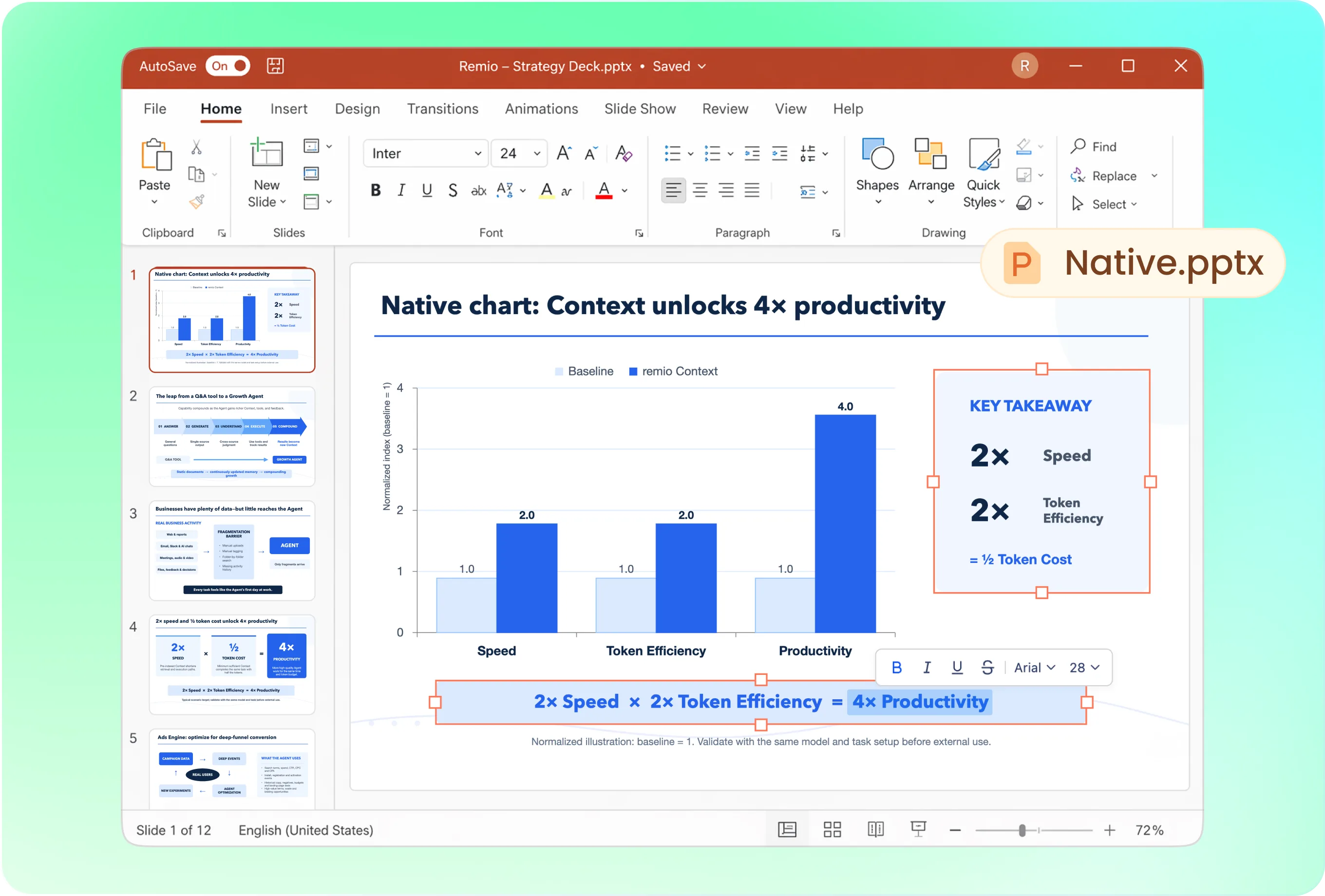
Give the content and reference separate roles
In remio desktop Chat, start /pptx followed by a space and identify the reference file. Try: “Use Company Overview.pptx as the style reference. Create a product update from the attached release brief. Keep the company fonts, colors and slide conventions, but use only the release brief for product facts. Propose the outline first.” Substitute your own file names and sources.
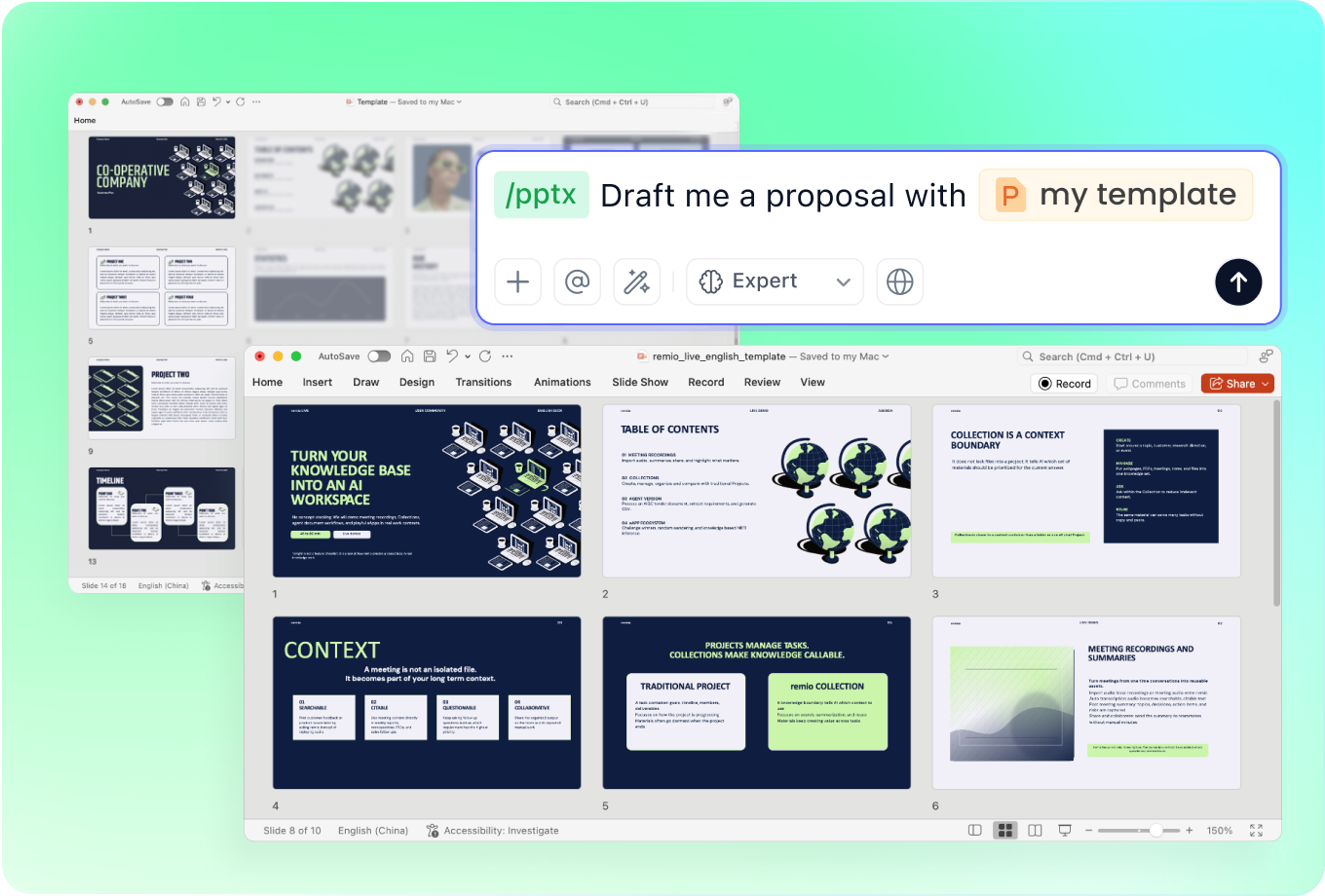
Name the brand details that matter
Specify fonts, title hierarchy, palette, logo treatment and expected information density. Point out which reference slides are useful for an opening, a comparison or a data exhibit. Include the assets you are authorized to use. A brand reference guides design; it does not make an outdated statistic or old product name current.
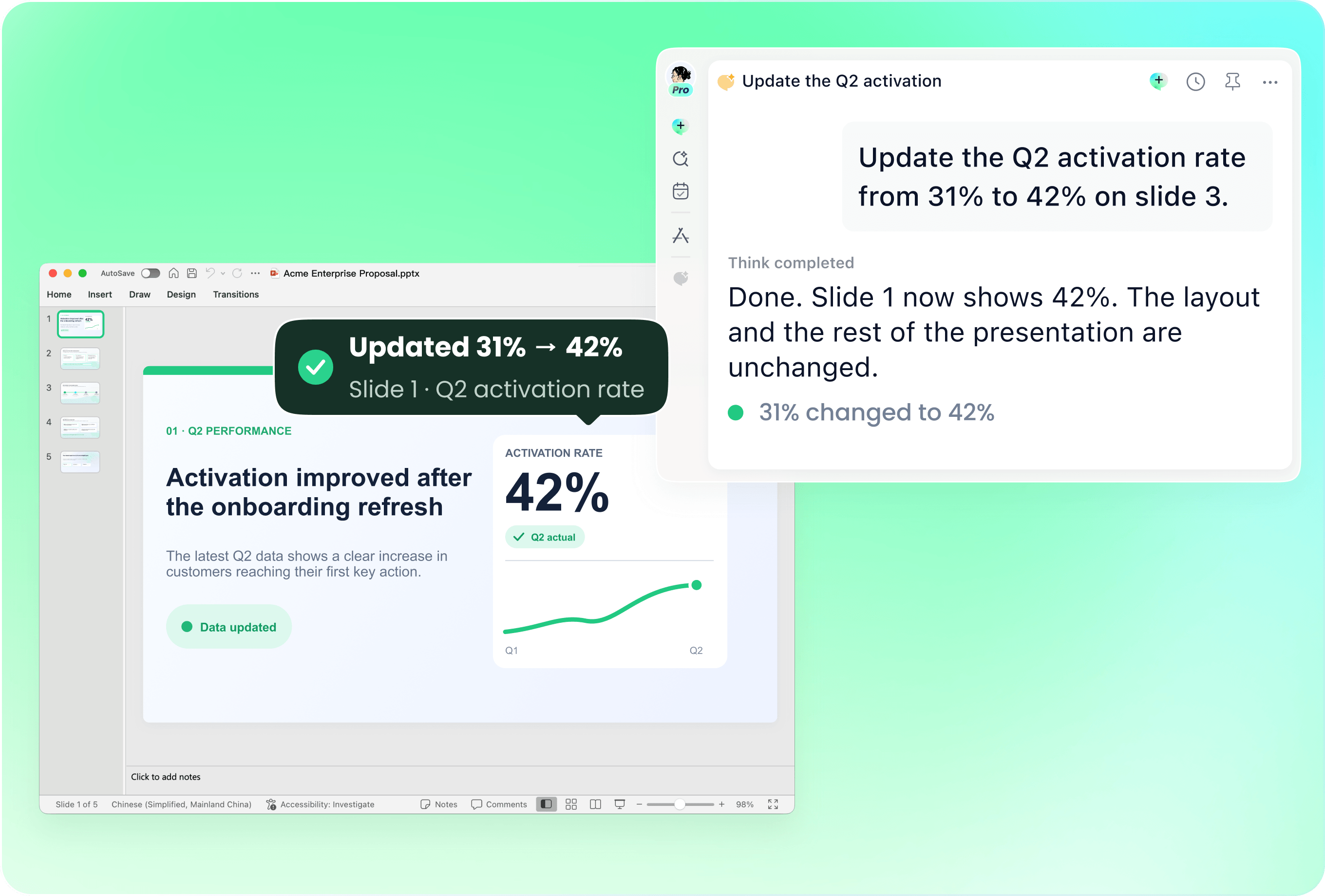
Adapt the same deck for a different audience
Keep the approved presentation and add a brief for the next audience. Try: “Adapt the customer version for partners. Keep the visual system, replace the customer onboarding examples with the partner workflow in this brief, and preserve the approved company description.” Review the new emphasis as well as the retained appearance.

Check the result in its presentation environment
Open the file in PowerPoint and compare representative title, content and chart slides with the reference. Check font availability, logo size, contrast, alignment and content fit. Review complex slide objects individually. If the result differs, identify the affected slide and the specific reference convention to restore.

Keep approved wording close to the workflow
Provide a current product description, approved proof points and audience context alongside the style deck. Mark wording that should remain verbatim. Ask remio to flag missing evidence or conflicting versions before creating the slides so brand consistency does not hide a factual inconsistency.
How it works
From source material to a PowerPoint file you can keep updating.
01
Provide the template and new brief
Separate the design reference, approved wording and factual sources.
02
Confirm the outline and style rules
Choose the story, audience and relevant slide conventions.
03
Inspect the branded PowerPoint
Compare fonts, colors, layout, content fit and approved wording.
FAQs
Yes. You can download remio and start for free. Some advanced usage may depend on your subscription plan, but you can try the AI presentation workflow before committing.
Use remio’s desktop presentation workflow. In Chat, type /pptx followed by a space and describe your task with the relevant source files. This tutorial does not describe an online upload-and-convert form.
Use the approved company PowerPoint for visual conventions and current source documents for facts. Add audience context and mark approved wording. Resolve version conflicts before generating the new presentation.
The output is a native .pptx for further editing in PowerPoint. Inspect the text, shapes and charts in the actual file. Text within a source image and image-based slide content do not become independent native objects merely because the file is a .pptx.
This tutorial focuses on native PowerPoint files. You can separately check whether another presentation application can import your .pptx, but import compatibility does not mean remio directly edits a Google Slides or Canva project. Review fonts, charts and other complex content after conversion.