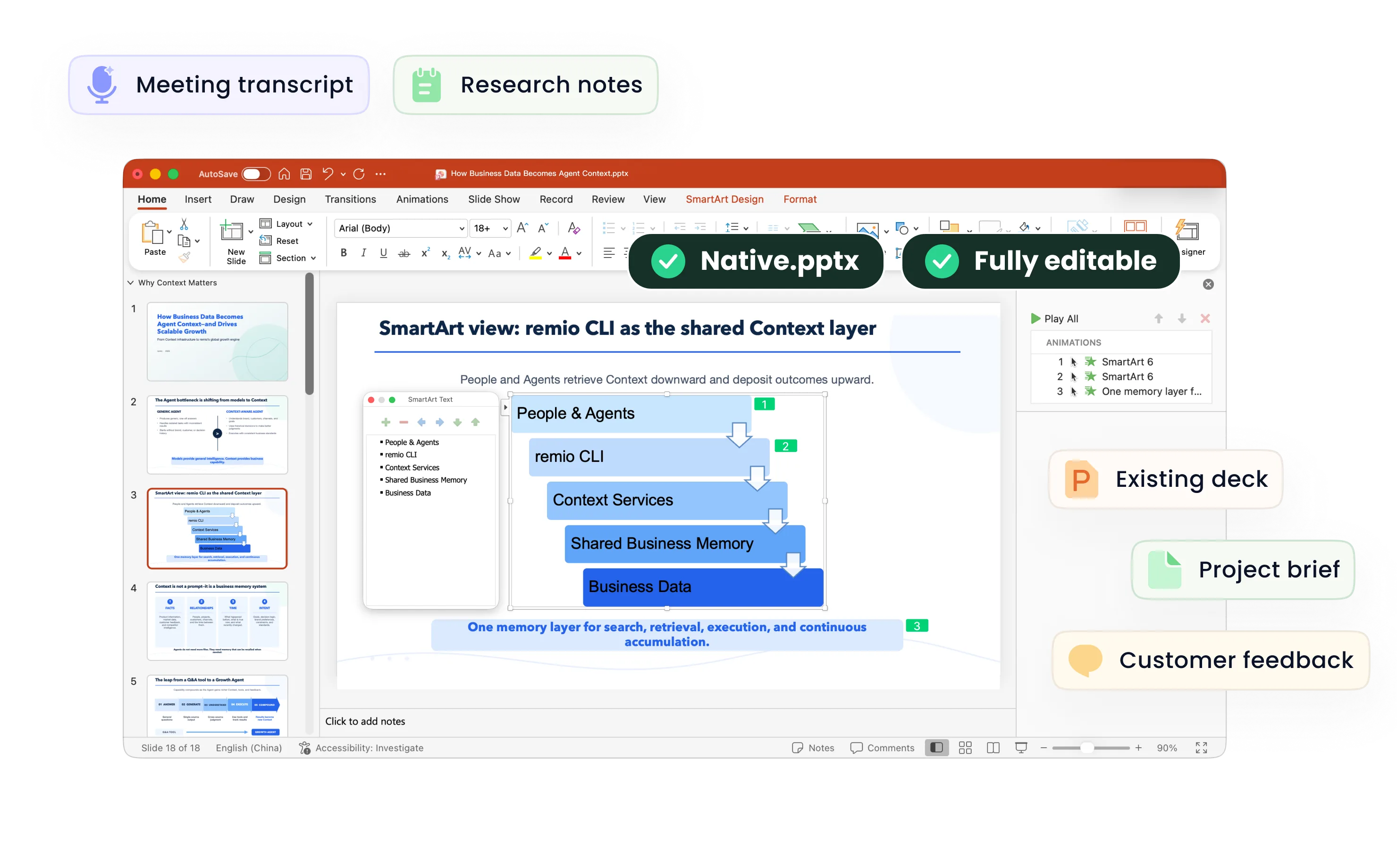
CSV to PowerPoint
Create editable PowerPoint presentations from CSV exports with remio. Define columns and metrics, review the analysis, and refine the deck in the desktop app.
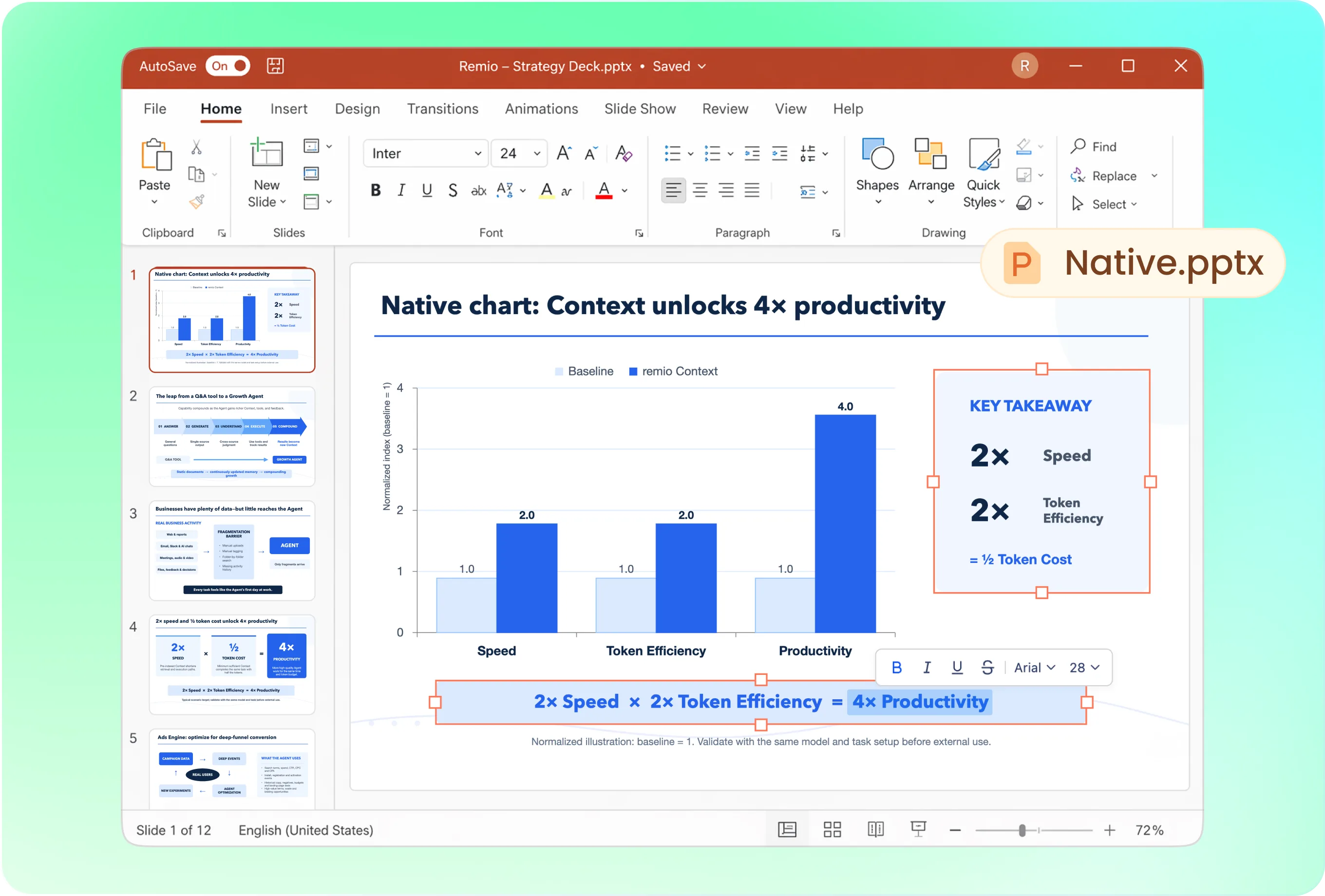
Turn a table into a useful readout
Try: “Use this campaign CSV for a six-slide recap. Compare spend, leads and conversion rate by channel. Define the reporting period, identify the strongest results, and separate observations from recommendations.” Check the data interpretation before building slides.
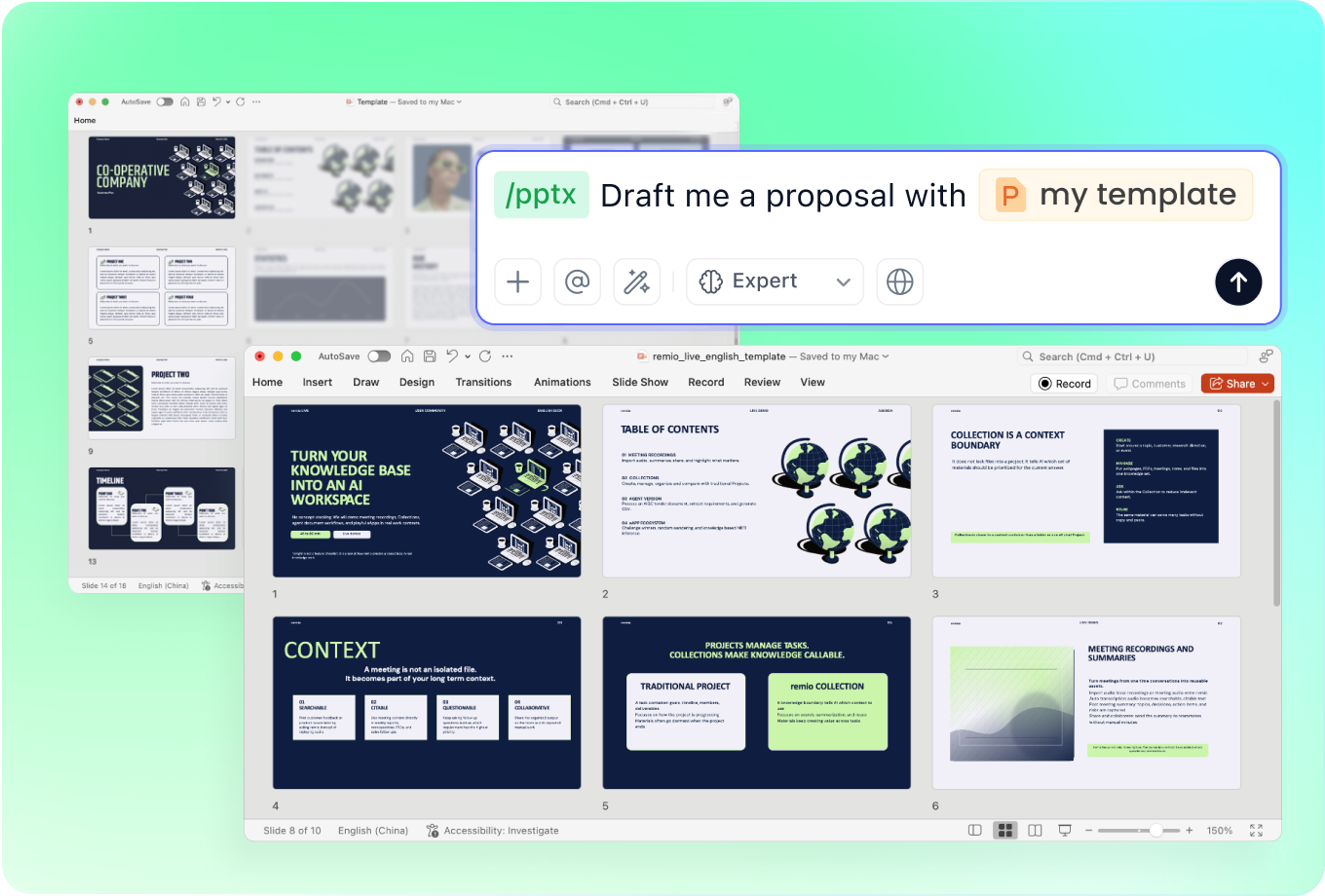
Present the findings in your company’s style
Add a company PowerPoint to guide fonts, colors and layout. Ask for a concise leadership review or a detailed working session. The CSV provides the data; it does not carry the chart styles or presentation formatting you want.
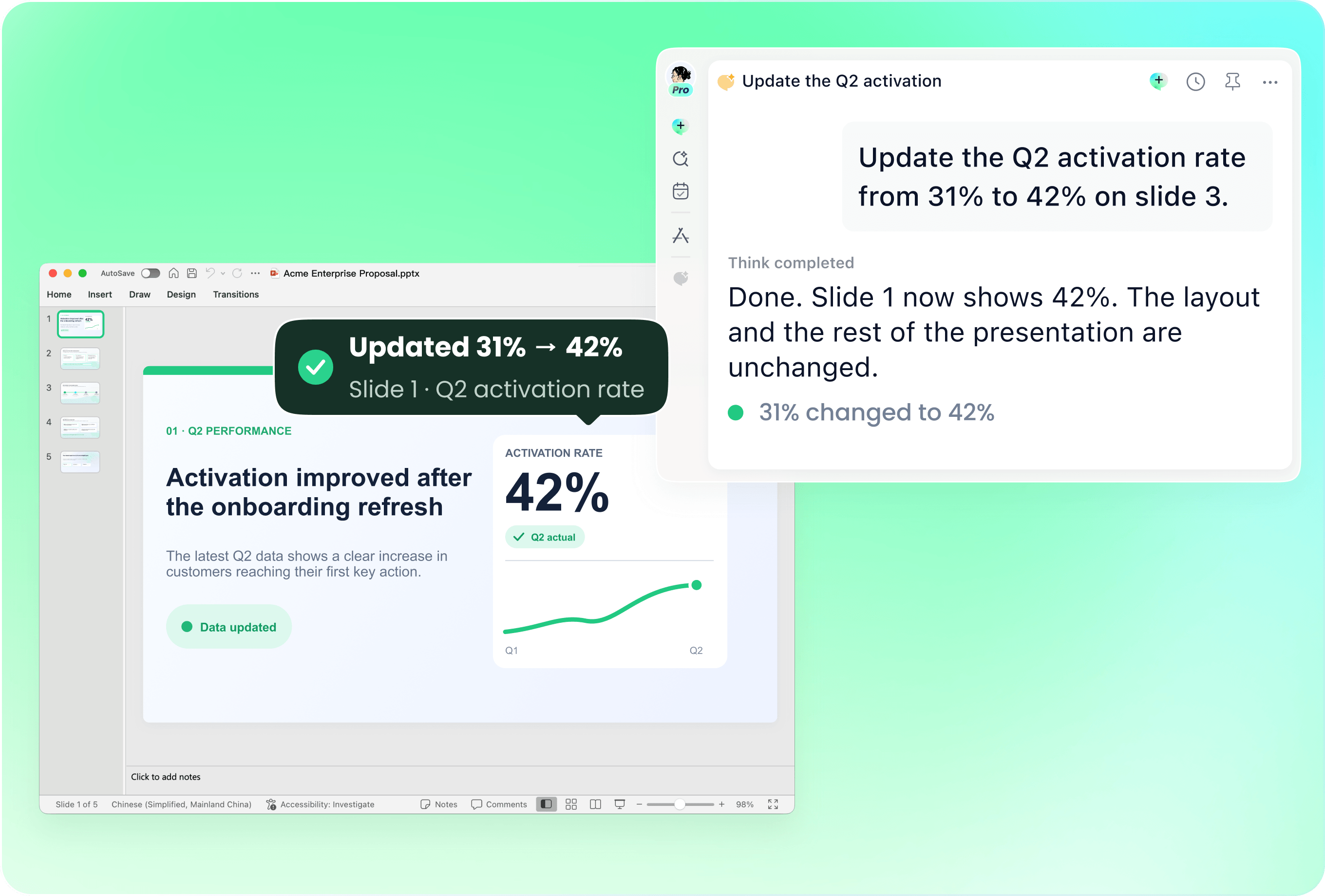
Use the latest export to update a prior deck
Provide last period’s presentation with the new CSV. Specify which metrics and slides to revise. Check that the time periods, comparisons and column meanings match before reusing the previous narrative.
Check column types and calculations
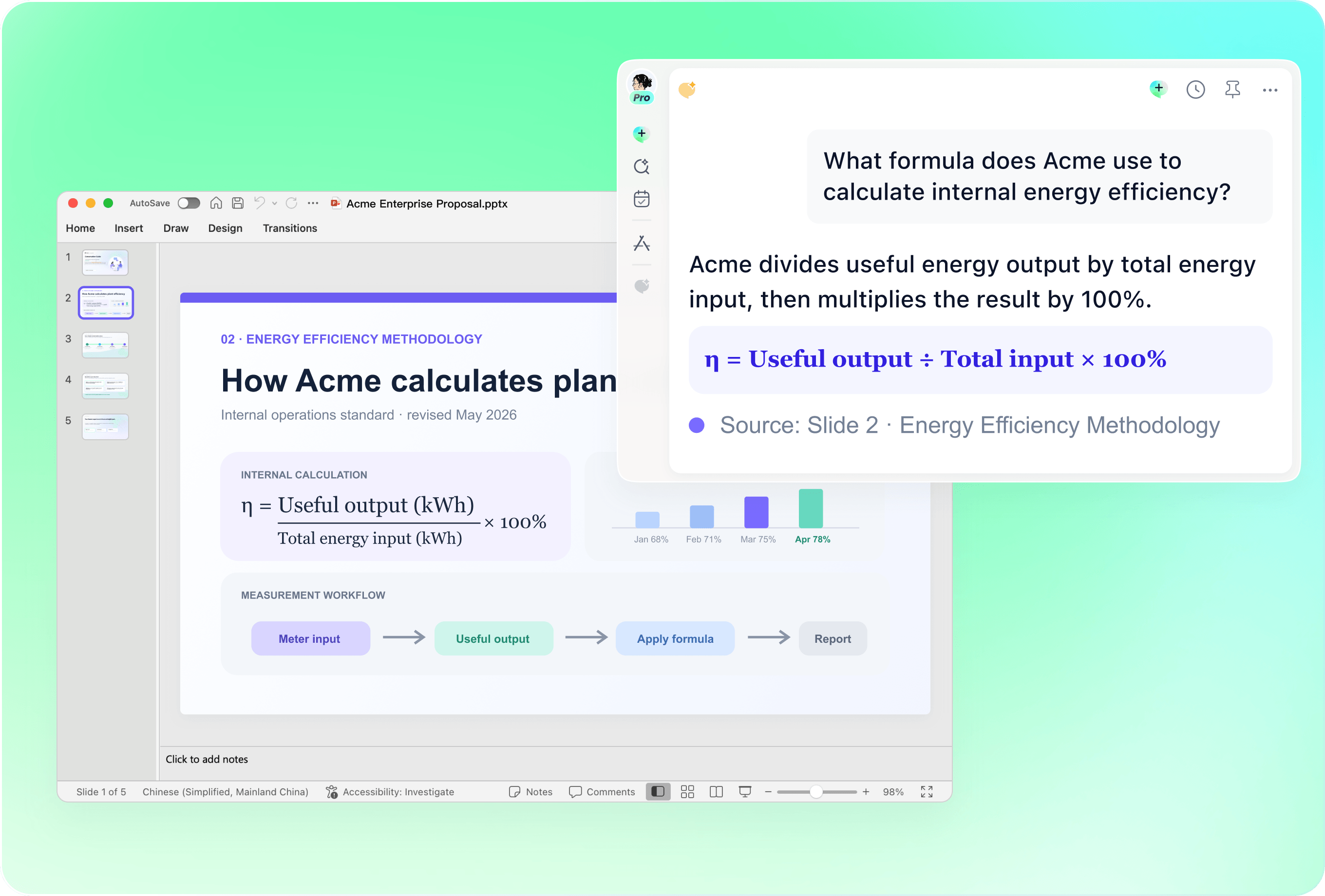
CSV exports can contain text-formatted numbers, date ambiguities and missing values. Confirm separators, units and any calculations used in the deck. Review chart labels and totals against the source rather than assuming a clean-looking slide proves the data is correct.

Add the business context behind the export
Combine the CSV with definitions, campaign briefs, project notes or meeting context. Explain exclusions and changes in how a metric is measured. Use that context to qualify the conclusions instead of filling gaps with invented explanations.
How it works
From source material to a PowerPoint file you can keep updating.
01
Add the CSV and data definitions
Provide the export, column meanings, reporting period and presentation goal.
02
Review the data interpretation
Check dates, units, missing values and the comparisons proposed for the slides.
03
Create the deck and verify the figures
Build the editable .pptx, then check calculations, chart labels and conclusions against the export.
FAQs
Yes. You can download remio and start for free. Some advanced usage may depend on your subscription plan, but you can try the AI presentation workflow before committing.
remio is designed as a local first app instead of a browser-only slide editor.
For AI presentations, this makes a real difference. Local file access helps remio parse documents faster, handle larger context, and better preserve PowerPoint structure, styles, and layouts. It also reduces the need to upload sensitive files into a browser-based tool.Bring the CSV together with a short data dictionary and the reporting context. Define units, dates, missing values and any calculation rules. Review the interpreted data and the conclusions before sharing; a CSV file alone cannot explain the business meaning behind every column.
Yes. remio creates a native .pptx file from the start, not a presentation you have to export later. Every text box, layout, chart, and image stays editable in PowerPoint.
You can open it locally, edit it directly, and keep the same .pptx file from draft to final presentation.Not yet. remio currently focuses on native PowerPoint and .pptx workflows.
Keynote and Google Slides support are planned and will be added gradually.