top of page
remio AI Presentation workspace and source materials

Cute PPT templates

Create a playful PPT from your notes and style references in remio. Refine the editable PowerPoint.

For Windows 10+ (x64) and Apple silicon Macs.

Cute PPT templates

Create a playful PPT from your notes and style references in remio. Refine the editable PowerPoint.

For Windows 10+ (x64) and Apple silicon Macs.

Download remio
remio AI Presentation workspace and source materials

Cute PowerPoint Templates

Create cute slides for a class project, story or creative introduction. Use your notes and visual references in remio to build an editable PowerPoint.

Start with your story

Start with your story

Add the project brief, audience and source notes. Explain whether the deck introduces a topic, tells a story or guides an activity. For a class project, include the learning goal and age group. Let the message determine the outline before adding decorative details.

Describe the cute style

Describe the cute style

Describe the soft colors, rounded shapes or playful details you want. A pastel mood, kawaii influence or gentle animal motif can each suggest a different direction. Add a reference deck to communicate your preferences, then review how the resulting style fits your material.

Keep the message readable

Keep the message readable

Use short headings and a clear sequence for explanations, examples and activities. Keep decorative details away from text and charts. Review type sizes and contrast on the screen you will use, especially when a soft background or a playful font makes reading harder.

Refine your existing slides

Refine your existing slides

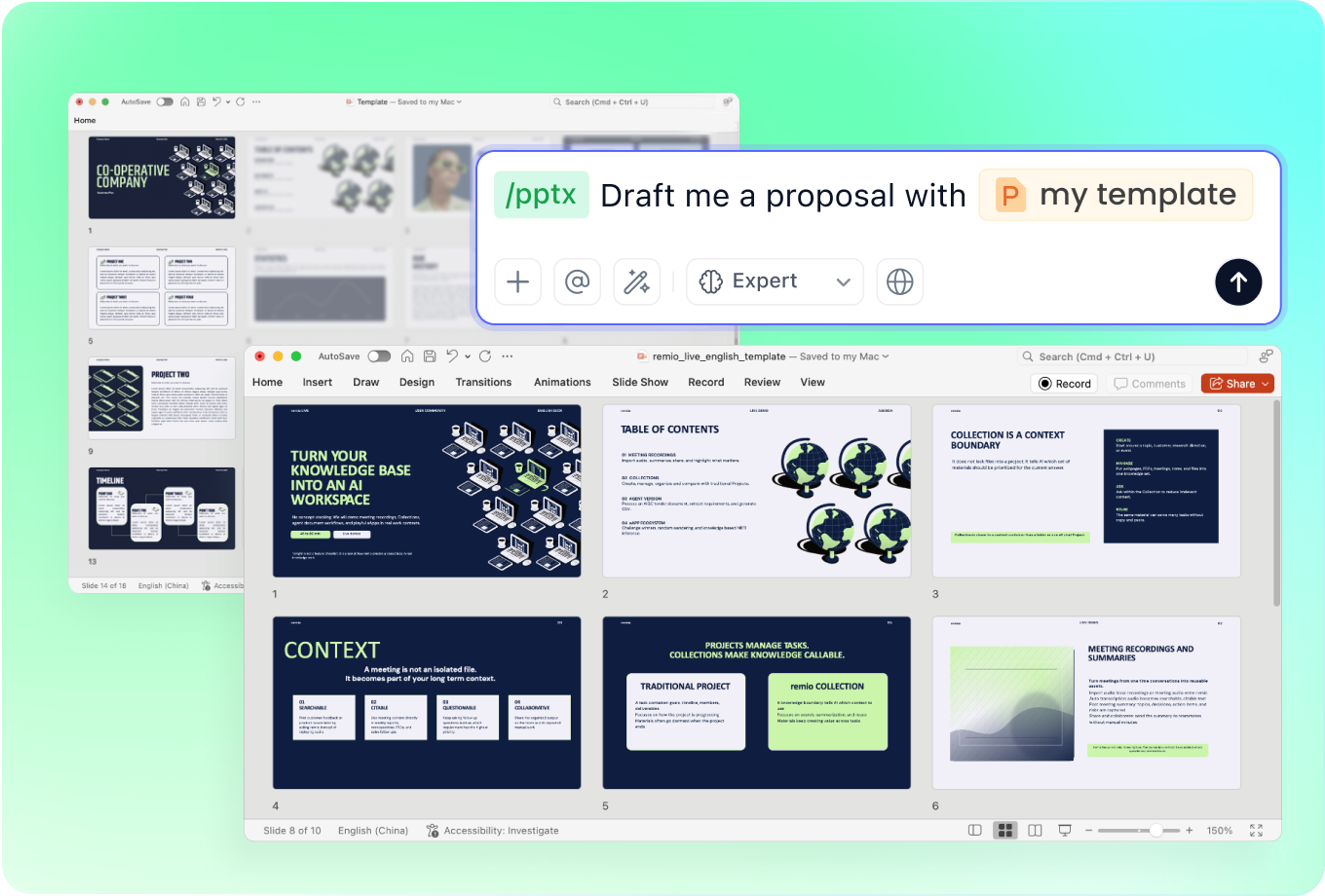
Add an existing deck with the new notes and explain what to keep or change. Ask for a lighter tone or a more playful direction while retaining the key content. Review the editable slides for missing details and consistent styling.

Review and present

Review and present

Read the presentation in order and check facts, names and image permissions. Confirm that the illustrations suit the audience and support the story. Open the editable PowerPoint to refine the final wording and layout, then rehearse at the intended presentation size.

How it works

From source material to a PowerPoint file you can keep updating.

  1. Add your ideas

    Provide your brief, notes, audience and style references.

  2. Shape the story

    Review the outline, playful details and readability.

  3. Refine and present

    Check the editable PowerPoint and rehearse your slides.

FAQs

What makes a presentation look cute?

Soft colors, rounded shapes and playful illustrations can create a cute style. Use them consistently and leave enough room for the message. A clear outline and readable text matter as much as the decorative elements.

Can I use a cute style for a class project?

Add the learning goal, age group, project notes and any required sections. Describe the tone and visual direction in remio. Review the facts, examples and reading level before presenting to a class.

How do I describe a pastel or kawaii style?

Explain the palette, shapes, mood and illustration direction you want, and add a reference presentation if useful. Be specific about what should remain simple. Check the resulting slides for consistent style and readable contrast.

Can I update an existing presentation?

Add the existing deck and your new material. Explain which content to keep and which design details to revise. Review the resulting editable PowerPoint for missing information and visual consistency before sharing it.

How do I make cute slides with remio?

Download remio, add your source notes and references, and describe the audience and preferred style. Review the outline and resulting slides, then refine the editable PowerPoint before presenting.

Cute PowerPoint Templates

Create cute slides for a class project, story or creative introduction. Use your notes and visual references in remio to build an editable PowerPoint.

Start with your story

Start with your story

Add the project brief, audience and source notes. Explain whether the deck introduces a topic, tells a story or guides an activity. For a class project, include the learning goal and age group. Let the message determine the outline before adding decorative details.

Describe the cute style

Describe the cute style

Describe the soft colors, rounded shapes or playful details you want. A pastel mood, kawaii influence or gentle animal motif can each suggest a different direction. Add a reference deck to communicate your preferences, then review how the resulting style fits your material.

Keep the message readable

Keep the message readable

Use short headings and a clear sequence for explanations, examples and activities. Keep decorative details away from text and charts. Review type sizes and contrast on the screen you will use, especially when a soft background or a playful font makes reading harder.

Refine your existing slides

Refine your existing slides

Add an existing deck with the new notes and explain what to keep or change. Ask for a lighter tone or a more playful direction while retaining the key content. Review the editable slides for missing details and consistent styling.

Review and present

Review and present

Read the presentation in order and check facts, names and image permissions. Confirm that the illustrations suit the audience and support the story. Open the editable PowerPoint to refine the final wording and layout, then rehearse at the intended presentation size.

How it works

From source material to a PowerPoint file you can keep updating.

01

Add your ideas

Provide your brief, notes, audience and style references.

02

Shape the story

Review the outline, playful details and readability.

03

Refine and present

Check the editable PowerPoint and rehearse your slides.

FAQs

  • Soft colors, rounded shapes and playful illustrations can create a cute style. Use them consistently and leave enough room for the message. A clear outline and readable text matter as much as the decorative elements.

  • Add the learning goal, age group, project notes and any required sections. Describe the tone and visual direction in remio. Review the facts, examples and reading level before presenting to a class.

  • Explain the palette, shapes, mood and illustration direction you want, and add a reference presentation if useful. Be specific about what should remain simple. Check the resulting slides for consistent style and readable contrast.

  • Add the existing deck and your new material. Explain which content to keep and which design details to revise. Review the resulting editable PowerPoint for missing information and visual consistency before sharing it.

  • Download remio, add your source notes and references, and describe the audience and preferred style. Review the outline and resulting slides, then refine the editable PowerPoint before presenting.

FAQs

Soft colors, rounded shapes and playful illustrations can create a cute style. Use them consistently and leave enough room for the message. A clear outline and readable text matter as much as the decorative elements.

Add the learning goal, age group, project notes and any required sections. Describe the tone and visual direction in remio. Review the facts, examples and reading level before presenting to a class.

Explain the palette, shapes, mood and illustration direction you want, and add a reference presentation if useful. Be specific about what should remain simple. Check the resulting slides for consistent style and readable contrast.

Add the existing deck and your new material. Explain which content to keep and which design details to revise. Review the resulting editable PowerPoint for missing information and visual consistency before sharing it.

Download remio, add your source notes and references, and describe the audience and preferred style. Review the outline and resulting slides, then refine the editable PowerPoint before presenting.

bottom of page