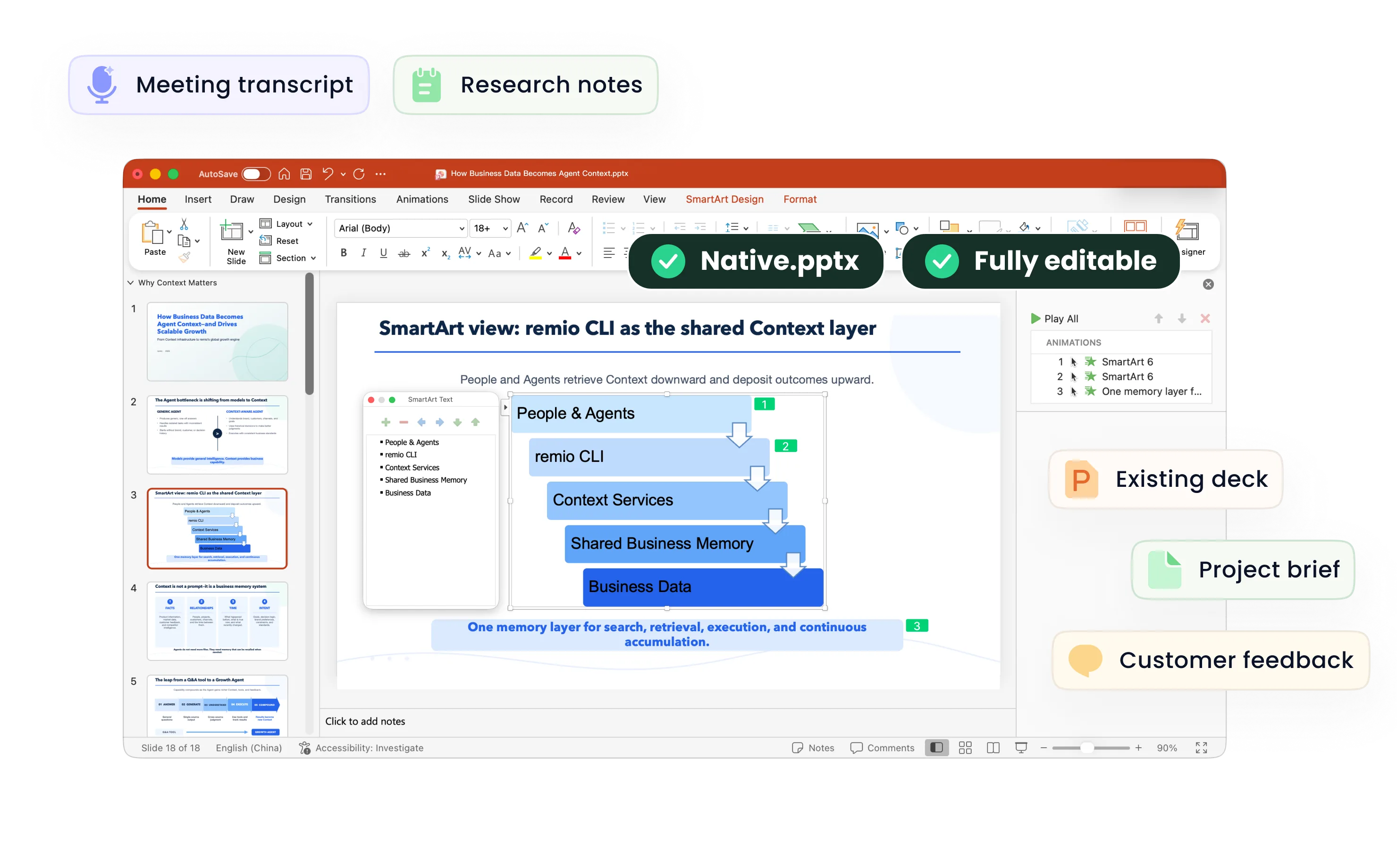
Edit AI PowerPoint Presentations
Learn how to revise an existing PowerPoint with remio. Scope selected-slide edits, preserve the reference style and check the updated file.
Describe the edit by slide and purpose
Start the presentation workflow in remio desktop Chat and provide the existing .pptx. Try: “Revise slides 3 and 5 for a customer meeting. Slide 3 should explain the new rollout dates from this project note. Slide 5 should answer the customer’s three questions. Keep every other slide unchanged.” Use slide numbers together with titles so the target remains clear.
Keep visual rules explicit
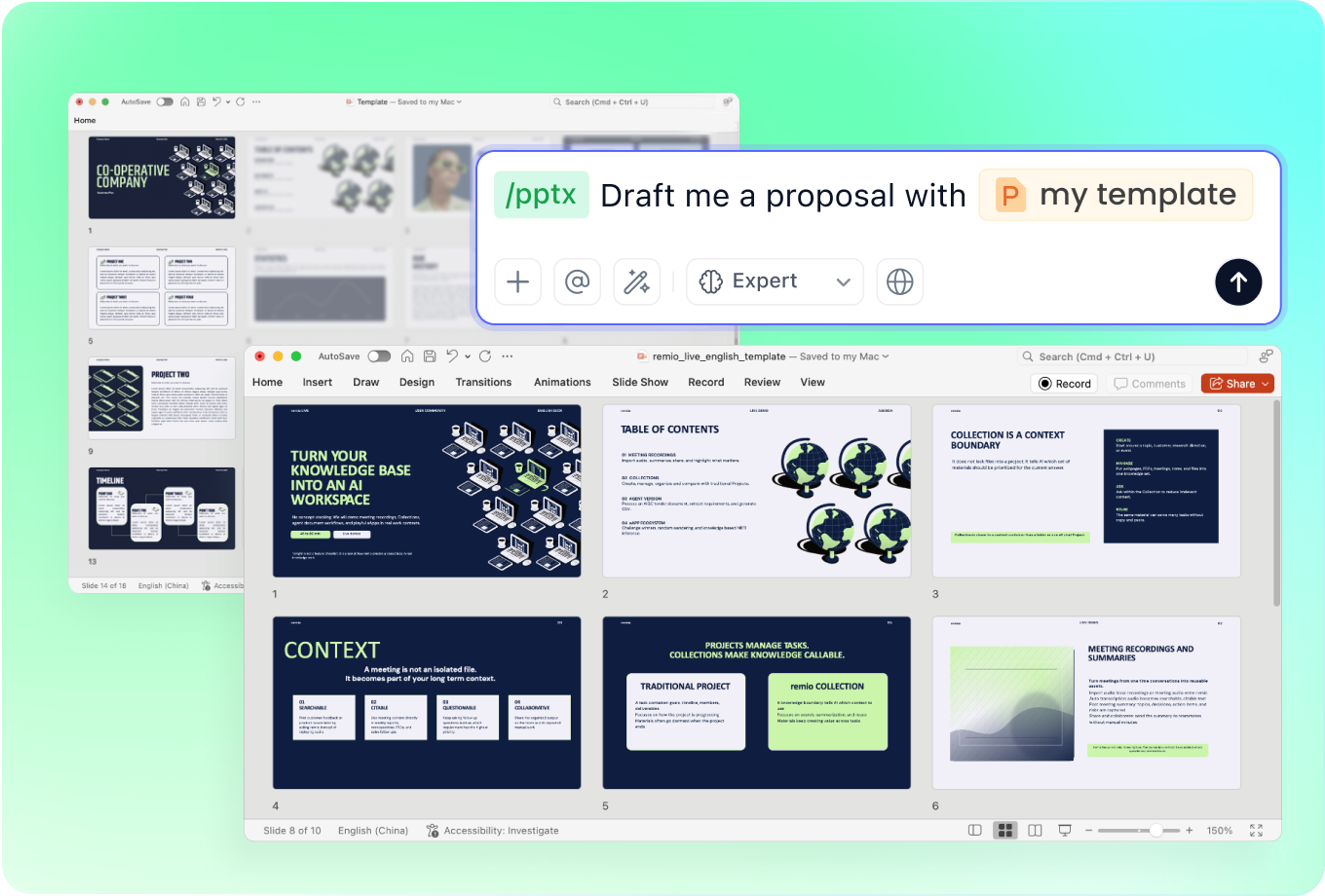
Ask remio to preserve the company template, fonts, colors and layout of the supplied deck. Say whether a longer explanation should replace text, become an additional slide or move into supporting material. Check the result rather than assuming that a new paragraph will fit the original text box.
Make each review round a bounded change
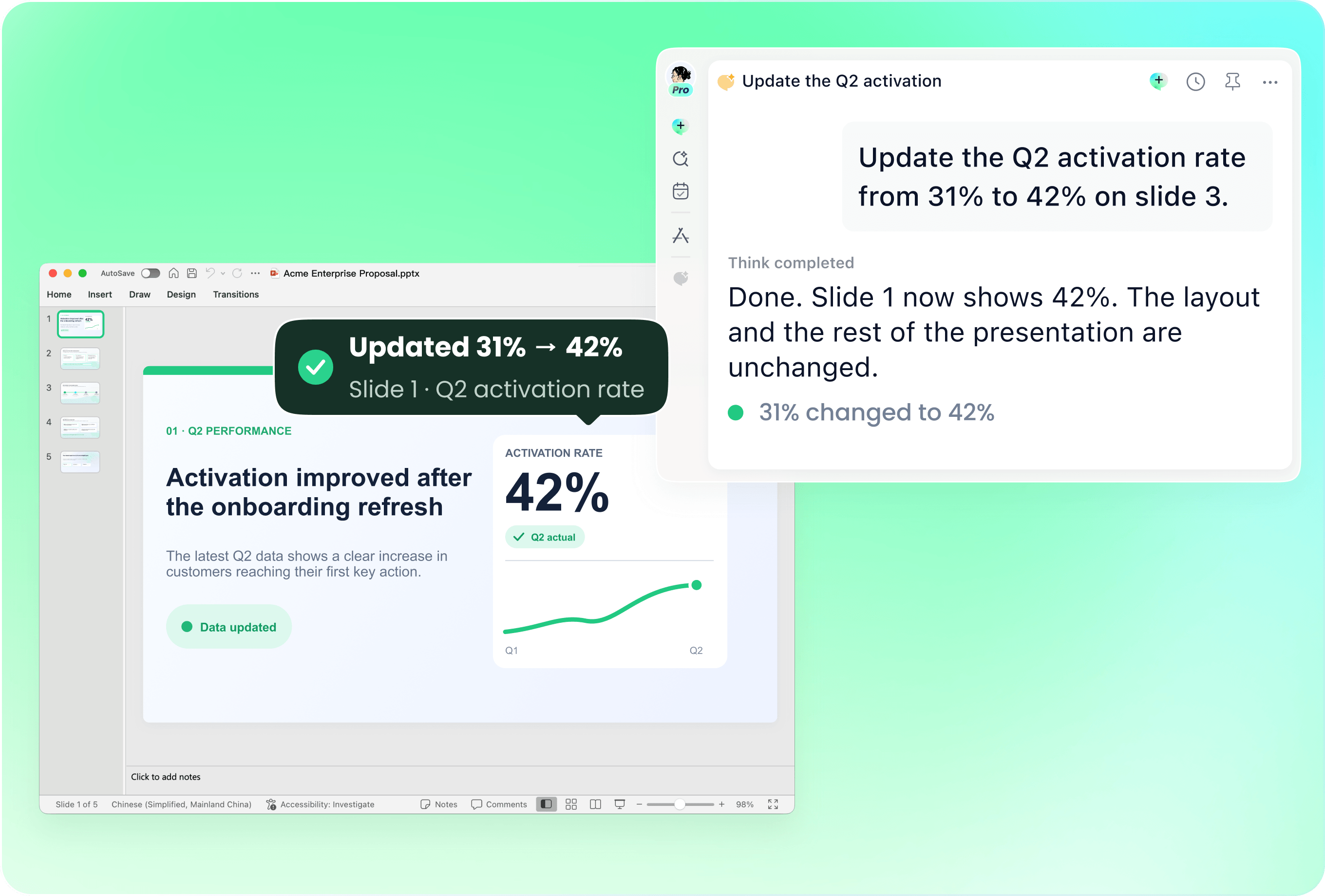
Use the latest reviewed file for the next revision. Name the new input and the change it requires, such as shortening an explanation or updating a chart. Avoid asking for a broad redesign when the task is a factual update. Compare slide count, order and unchanged sections with your saved version before accepting the revision.
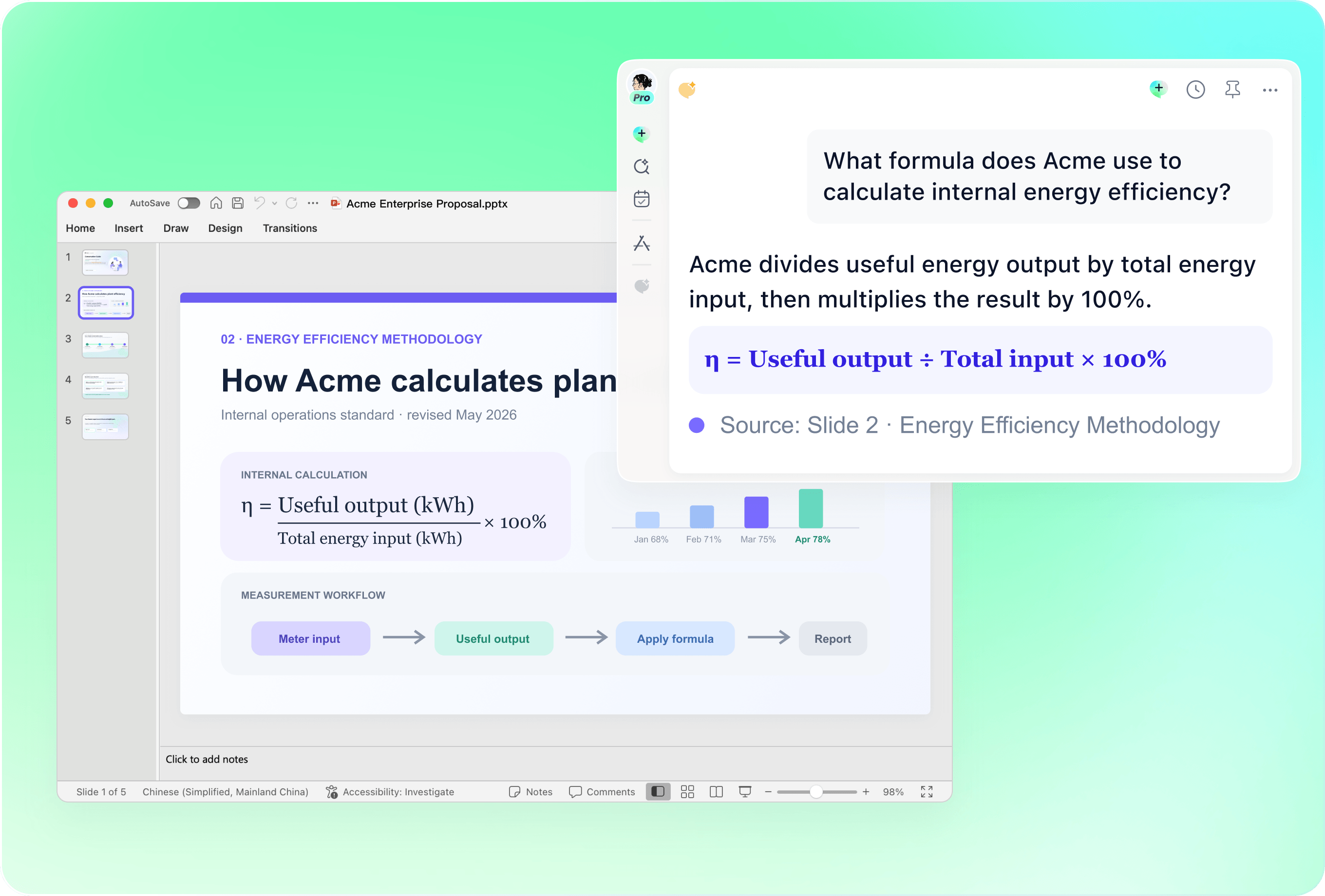
Inspect native objects and the final layout
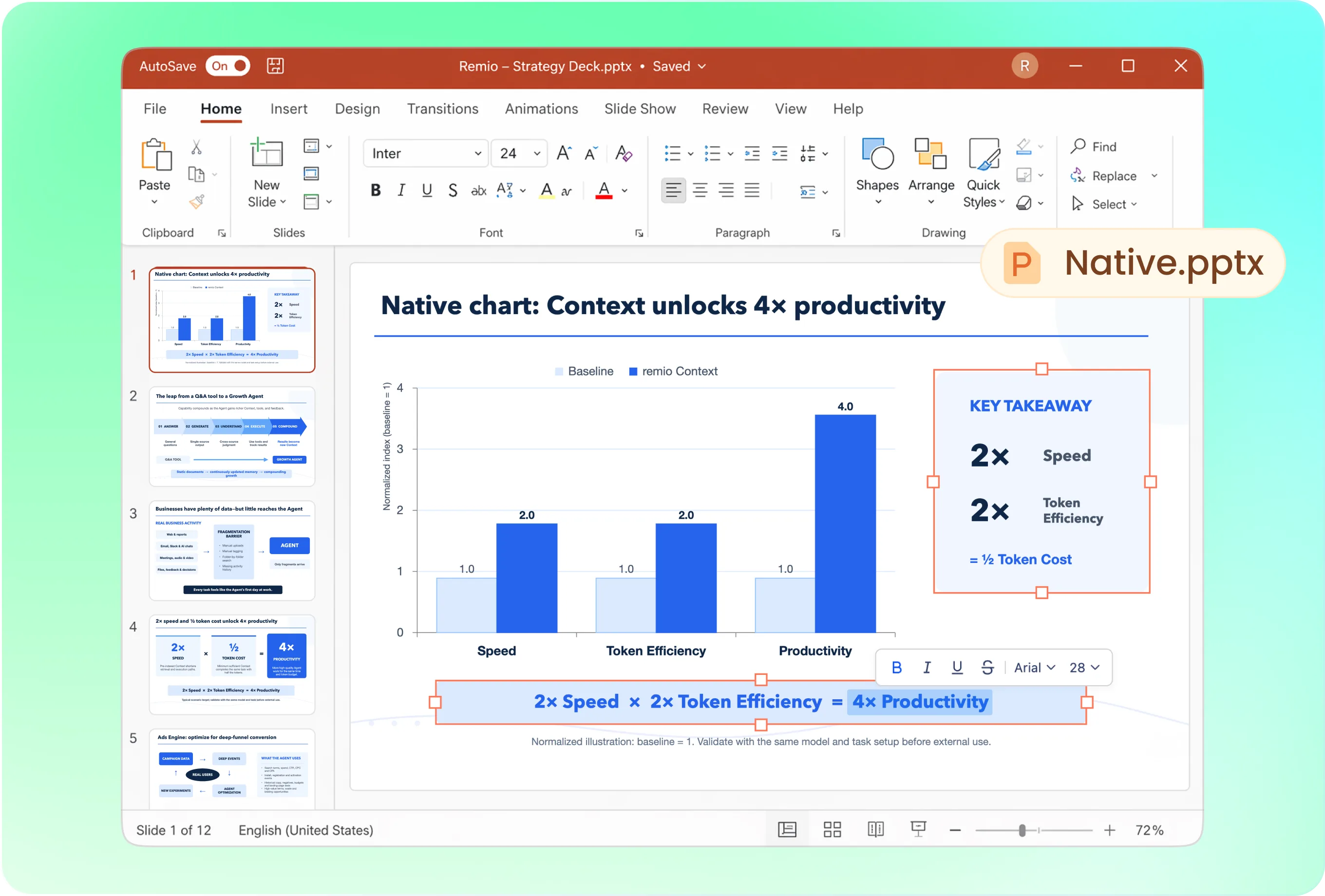
Open the .pptx in PowerPoint and check that intended text and shapes can be selected independently. Inspect chart values, line breaks, image crops and any complex diagram that changed. Text inside a source image is not the same as a native text box. If something is flattened or misplaced, identify that slide and request a focused repair.
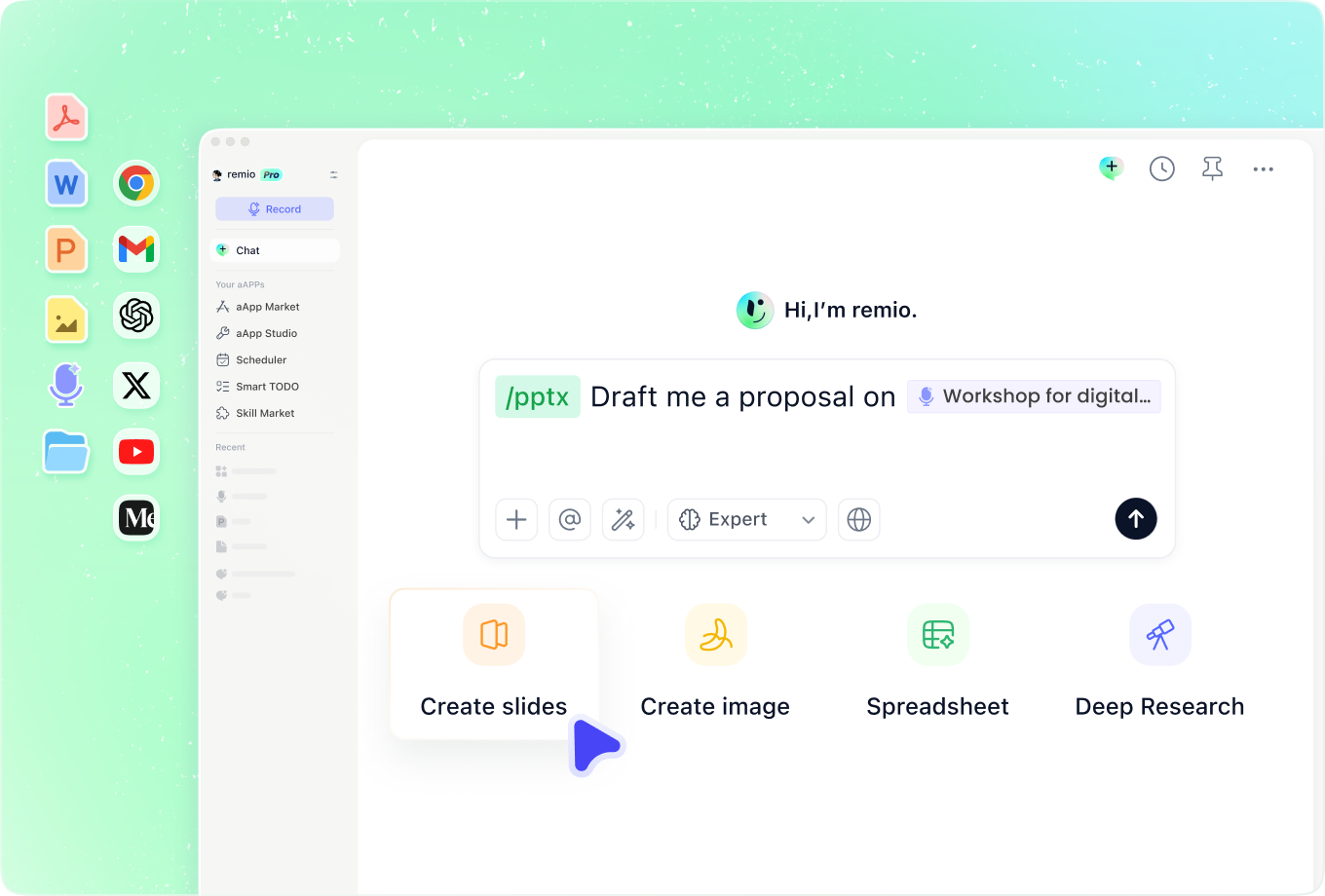
Attach the evidence behind a requested change
Provide the latest report, meeting note or approved wording instead of only saying a slide is wrong. Explain which prior assumption has changed. Ask remio to flag a conclusion that no longer follows from the updated evidence, even if the conclusion appears on a different slide.
How it works
From source material to a PowerPoint file you can keep updating.
01
Provide the deck and change brief
Identify slide numbers, titles, source updates and preserved sections.
02
Review the proposed revision
Confirm scope, factual changes and how longer content should fit.
03
Compare the revised PowerPoint
Check changed slides, native objects and retained sections.
FAQs
Yes. You can download remio and start for free. Some advanced usage may depend on your subscription plan, but you can try the AI presentation workflow before committing.
Use remio’s desktop presentation workflow. In Chat, type /pptx followed by a space and describe your task with the relevant source files. This tutorial does not describe an online upload-and-convert form.
Use the current .pptx together with the new source material and a specific change brief. Identify the affected slides and preserved sections. Keep earlier decisions available when they explain why the deck was written that way.
The output is a native .pptx for further editing in PowerPoint. Inspect the text, shapes and charts in the actual file. Text within a source image and image-based slide content do not become independent native objects merely because the file is a .pptx.
This tutorial focuses on native PowerPoint files. You can separately check whether another presentation application can import your .pptx, but import compatibility does not mean remio directly edits a Google Slides or Canva project. Review fonts, charts and other complex content after conversion.