Export Editable PowerPoint
Learn how to review and reuse an editable .pptx from remio. Inspect native objects, manage revisions and check compatibility after importing elsewhere.
Request the native PowerPoint as the output
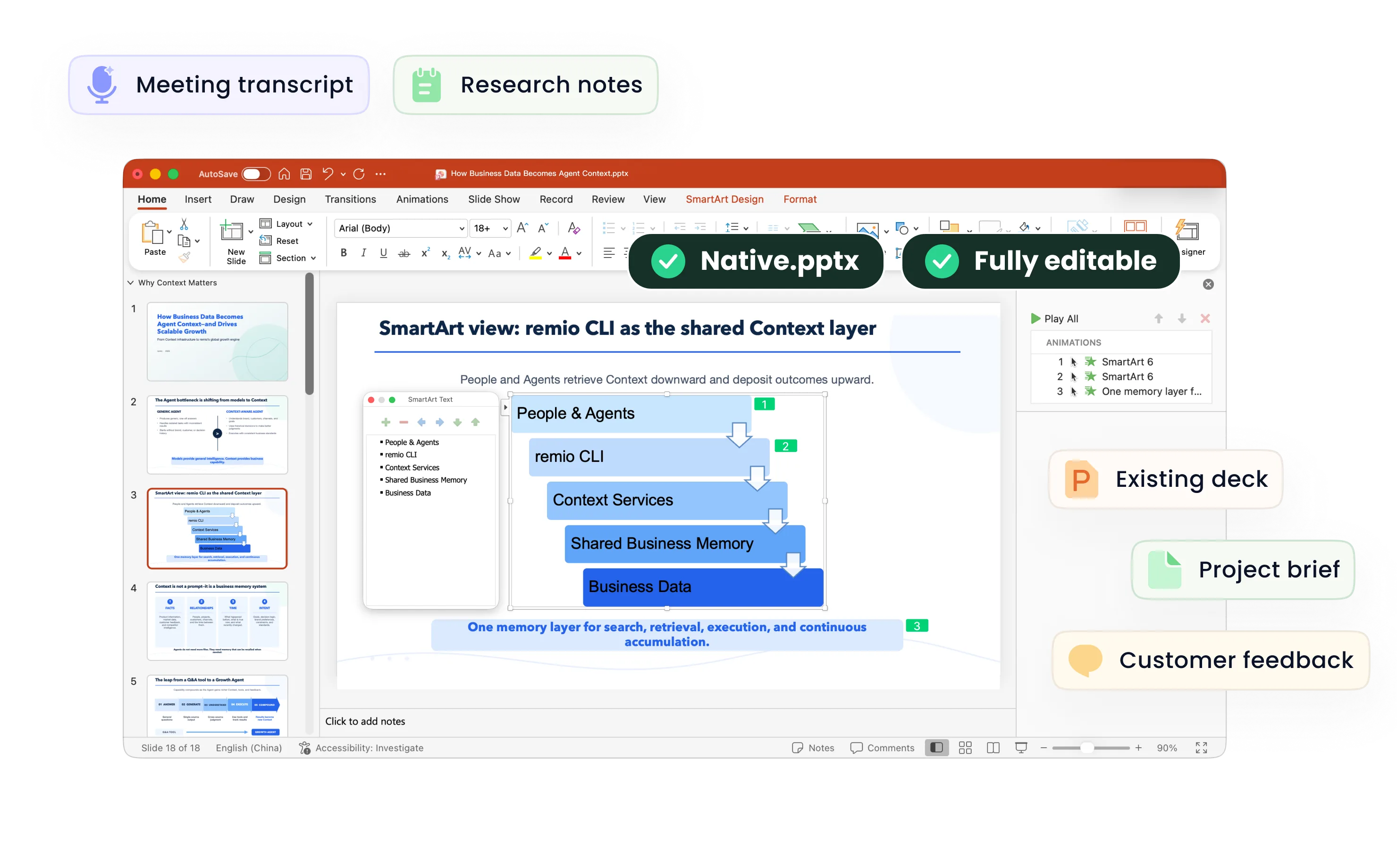
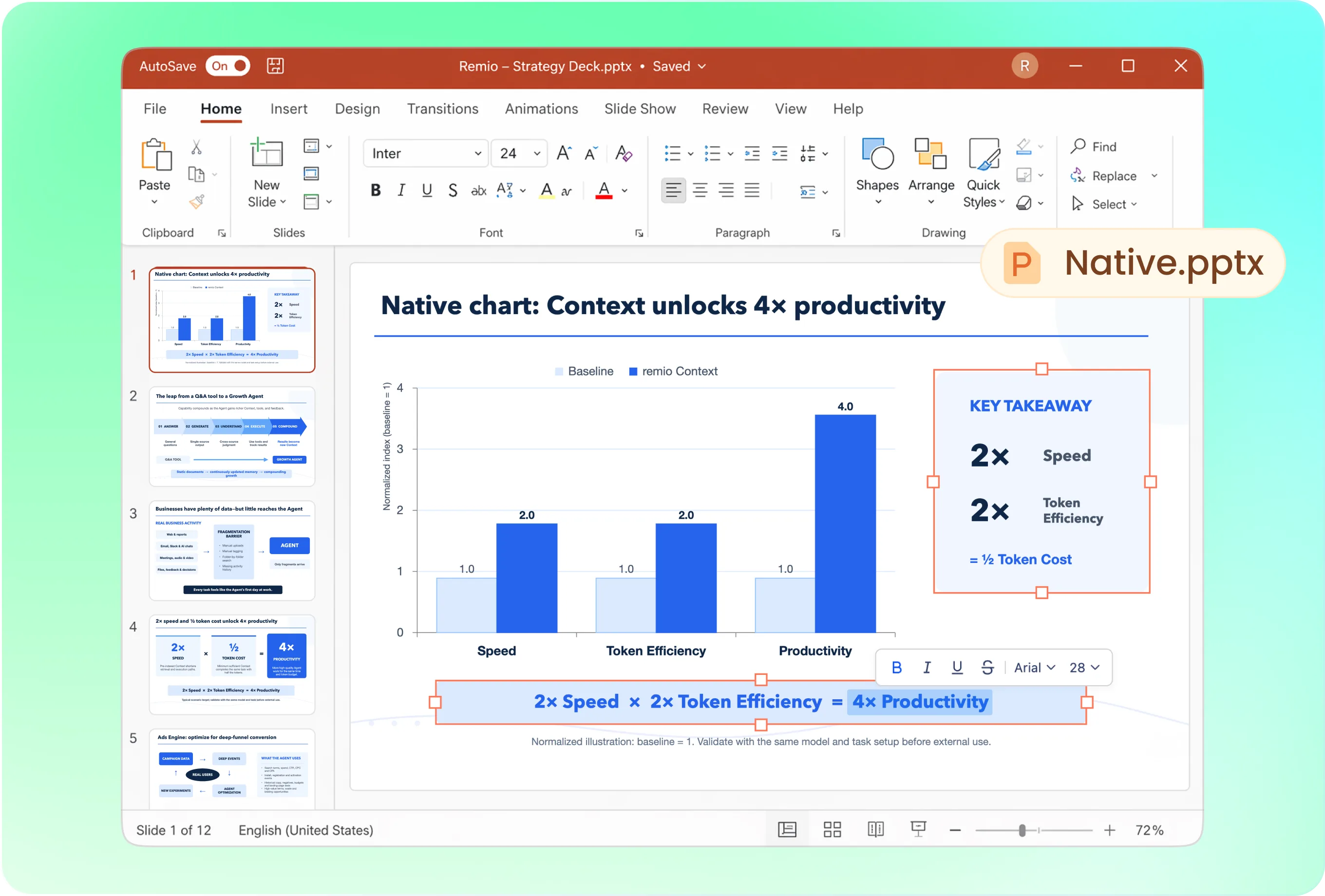
Start the PPT workflow in remio desktop Chat. Try: “Create a native, editable .pptx from this approved outline. Keep titles and body text as text boxes, use native chart objects for the supplied data where supported, and identify anything that remains an image.” The deliverable is a PowerPoint file rather than a promise that every kind of source media becomes an editable object.
Check the file with the intended fonts and template
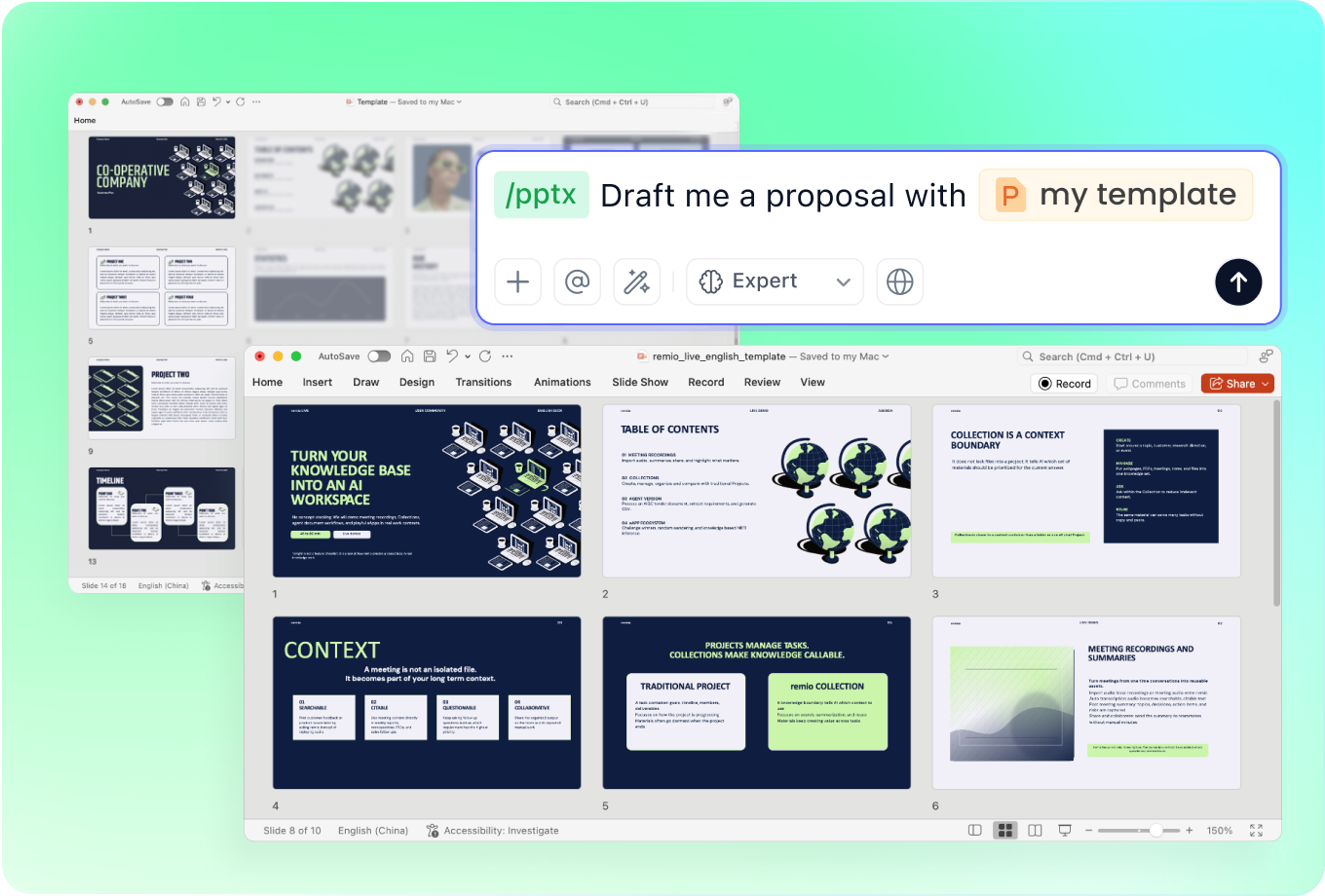
Open the created .pptx in PowerPoint and inspect the title, a dense content slide and a data slide. Confirm font availability and compare the layout with your supplied reference. A file extension alone does not prove that text fits or that the presentation will look identical on another computer.
Keep the same file through review rounds
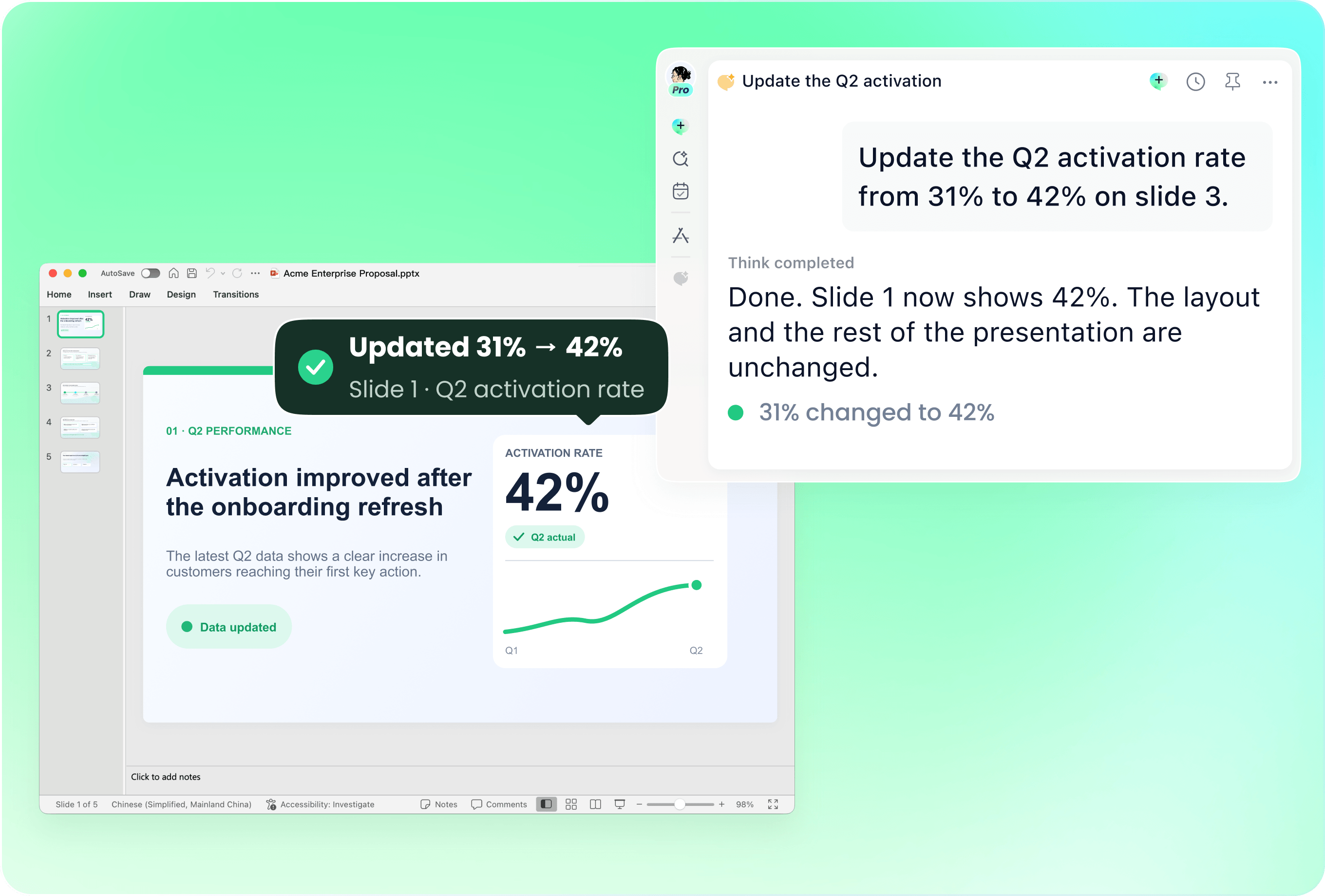
Save a versioned copy before requesting changes. Provide the current .pptx to remio with the slide titles or numbers and the source update. Ask for a bounded revision rather than recreating the whole presentation. Compare the new file with the approved version before sending it to your audience.

Treat imports into other tools as a separate check
If you import the .pptx into Google Slides or another application, inspect the converted version. Check fonts, charts, diagrams and text selection after conversion. Import compatibility is different from remio directly editing a cloud presentation, and a converted chart may require repair. Keep the original .pptx available when native PowerPoint editability matters.

Deliver the context someone needs to use the deck
Include the agreed sources, reporting period and any necessary assumptions in the presentation or accompanying handoff. Distinguish final content from open questions. Ask the next editor which application they will use so you can inspect the relevant file instead of assuming that a PDF or image-based slide has the same editing behavior.
How it works
From source material to a PowerPoint file you can keep updating.
01
Request a native .pptx
Specify the output, source materials and intended application.
02
Open and inspect the PowerPoint
Check editable objects, fonts, layout and data labels.
03
Verify revisions or conversions
Retain the original and inspect the actual file you will deliver.
FAQs
Yes. You can download remio and start for free. Some advanced usage may depend on your subscription plan, but you can try the AI presentation workflow before committing.
Use remio’s desktop presentation workflow. In Chat, type /pptx followed by a space and describe your task with the relevant source files. This tutorial does not describe an online upload-and-convert form.
Keep the source material and current .pptx together so revisions can be checked against the intended facts and structure. State the target application; review any imported or converted copy separately from the native PowerPoint.
The output is a native .pptx for further editing in PowerPoint. Inspect the text, shapes and charts in the actual file. Text within a source image and image-based slide content do not become independent native objects merely because the file is a .pptx.
This tutorial focuses on native PowerPoint files. You can separately check whether another presentation application can import your .pptx, but import compatibility does not mean remio directly edits a Google Slides or Canva project. Review fonts, charts and other complex content after conversion.