top of page
remio AI Presentation workspace and source materials

Fun PPT templates

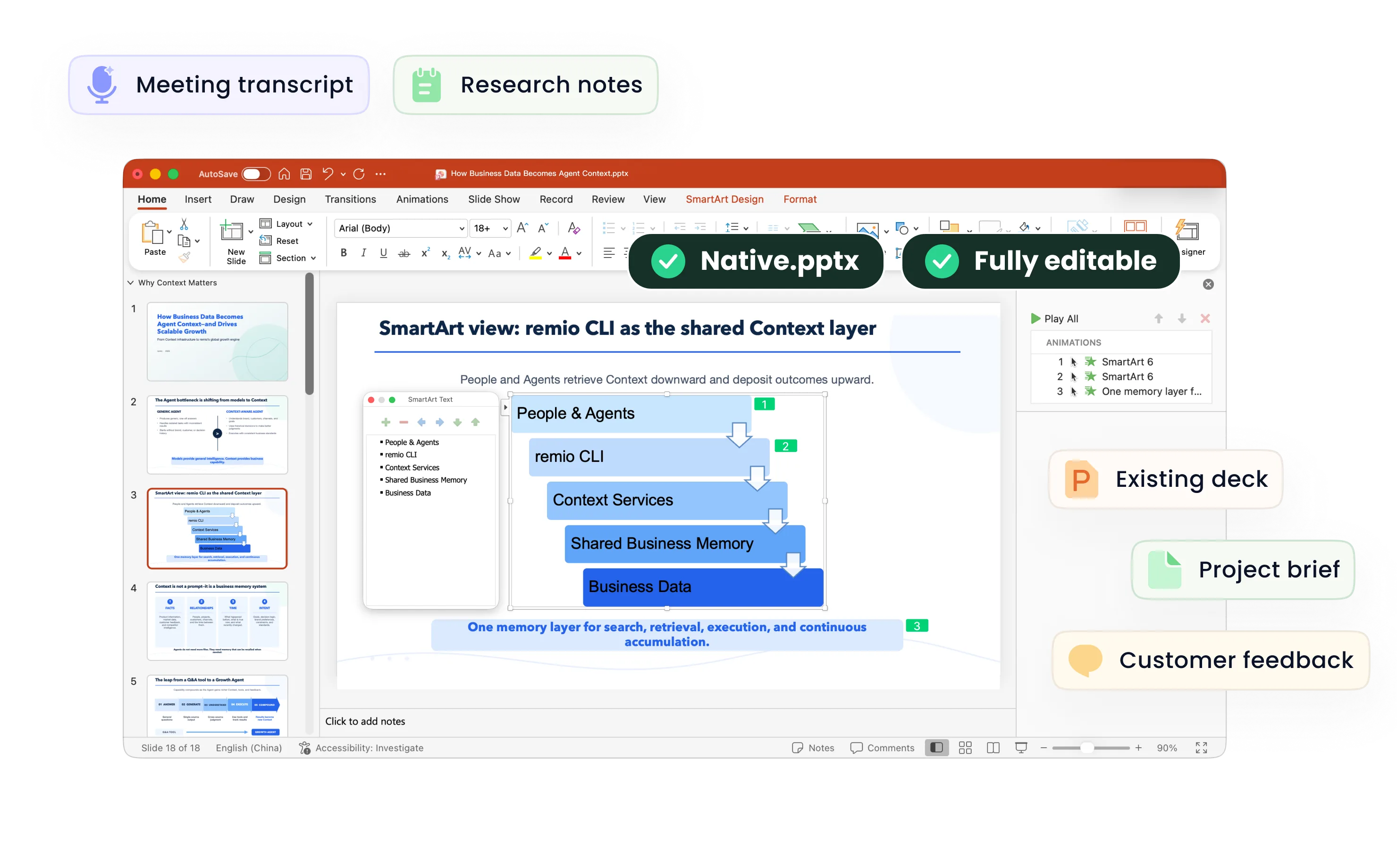
Turn notes and ideas into a lively PPT in remio. Refine the story and editable slides.

For Windows 10+ (x64) and Apple silicon Macs.

Fun PPT templates

Turn notes and ideas into a lively PPT in remio. Refine the story and editable slides.

For Windows 10+ (x64) and Apple silicon Macs.

Download remio
remio AI Presentation workspace and source materials

Fun PowerPoint Templates

Create fun slides for PowerPoint nights, icebreakers or celebrations. Use your notes and references in remio to shape an editable PowerPoint.

Plan the shared activity

Plan the shared activity

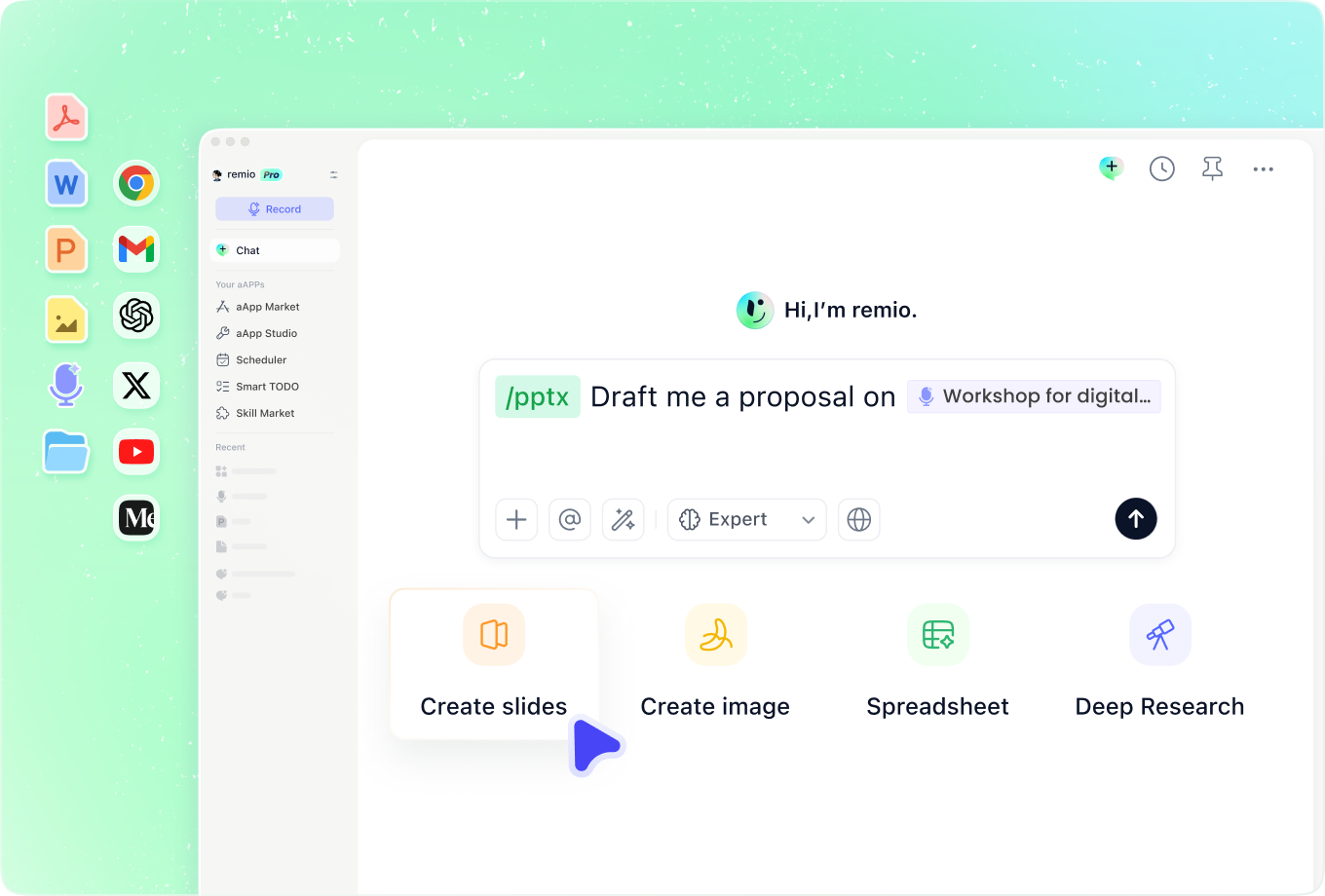
Add the occasion, audience and time available. For a PowerPoint night, include your topic, rankings or friendly debate. For an icebreaker, explain what participants should learn about each other. Build a clear opening, activity and closing sequence.
Build a quiz outline

Build a quiz outline

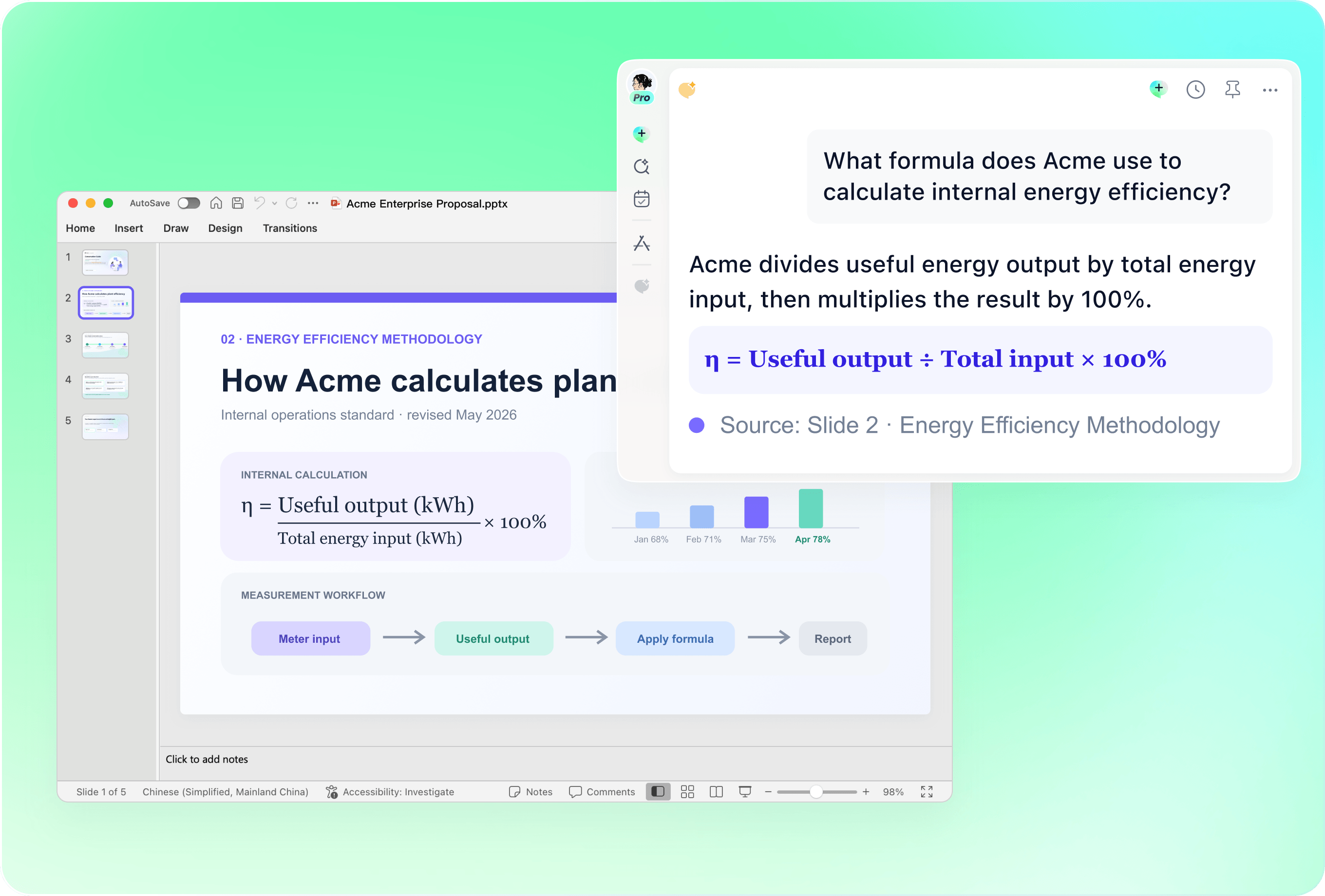
Provide your questions, reviewed answers and short explanations. Ask for a clear slide sequence with space for participants to respond. Check every answer before presenting. Add any live voting, scoring or interactive controls separately in the presentation tool you use.

Set a playful direction

Set a playful direction

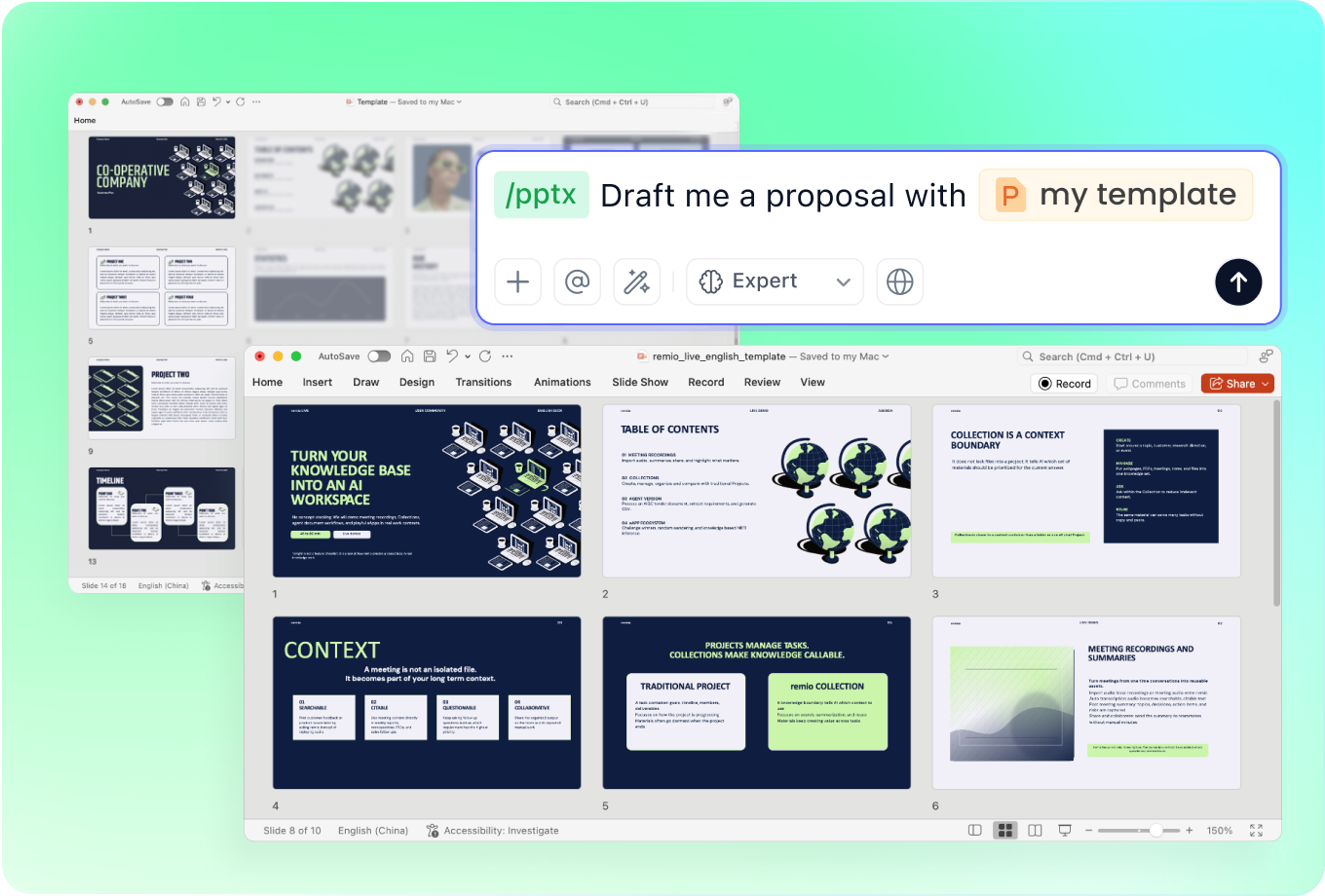
Describe the colors, shapes and tone you want, and add a reference deck if useful. A celebration, classroom introduction and team meeting call for different treatments. Keep the design readable and review how each playful detail supports the activity.

Refresh the event slides

Refresh the event slides

Add an existing presentation with the new schedule, names and activity notes. Explain which slides to keep and what has changed. Review the editable result for old dates, repeated questions and content that no longer fits the audience.

Rehearse with the audience

Rehearse with the audience

Check names, facts and permissions for any images you include. Read the activity instructions aloud and test the slide order. Refine the editable PowerPoint, check text at presentation size and leave enough time for people to take part.

How it works

From source material to a PowerPoint file you can keep updating.

  1. Add the occasion

    Provide your audience, activity notes and visual references.

  2. Shape the activity

    Review the sequence, instructions and source facts.

  3. Refine and rehearse

    Check the editable PowerPoint and try the activity aloud.

FAQs

What is a fun presentation useful for?

A lively deck can support a PowerPoint night, team icebreaker, celebration or classroom introduction. Start with what people should do or remember, then use playful wording and visuals to support that goal.

Can I plan a quiz in remio?

Provide the questions, answers and explanations, then ask remio to organize the slide content. Review the answer key yourself. Live voting, automatic scores and game controls need separate setup in your chosen presentation tool.

How do I prepare a PowerPoint night?

Choose a topic that fits the group and add your notes, examples and preferred tone. Ask remio for a concise sequence, then review the editable slides and rehearse your delivery. Keep rankings and friendly debates understandable without private context.

Can I reuse last year’s celebration slides?

Add the existing deck and updated event notes. Specify new dates, names and activities, along with any design details to retain. Check the revised PowerPoint for outdated information and image permissions before presenting.

How do I create fun slides with remio?

Download remio and add your audience, activity notes and references. Review the outline and resulting slides, then refine the editable PowerPoint. Rehearse instructions and check readability before the event.

Fun PowerPoint Templates

Create fun slides for PowerPoint nights, icebreakers or celebrations. Use your notes and references in remio to shape an editable PowerPoint.

Plan the shared activity

Plan the shared activity

Add the occasion, audience and time available. For a PowerPoint night, include your topic, rankings or friendly debate. For an icebreaker, explain what participants should learn about each other. Build a clear opening, activity and closing sequence.
Build a quiz outline

Build a quiz outline

Provide your questions, reviewed answers and short explanations. Ask for a clear slide sequence with space for participants to respond. Check every answer before presenting. Add any live voting, scoring or interactive controls separately in the presentation tool you use.

Set a playful direction

Set a playful direction

Describe the colors, shapes and tone you want, and add a reference deck if useful. A celebration, classroom introduction and team meeting call for different treatments. Keep the design readable and review how each playful detail supports the activity.

Refresh the event slides

Refresh the event slides

Add an existing presentation with the new schedule, names and activity notes. Explain which slides to keep and what has changed. Review the editable result for old dates, repeated questions and content that no longer fits the audience.

Rehearse with the audience

Rehearse with the audience

Check names, facts and permissions for any images you include. Read the activity instructions aloud and test the slide order. Refine the editable PowerPoint, check text at presentation size and leave enough time for people to take part.

How it works

From source material to a PowerPoint file you can keep updating.

01

Add the occasion

Provide your audience, activity notes and visual references.

02

Shape the activity

Review the sequence, instructions and source facts.

03

Refine and rehearse

Check the editable PowerPoint and try the activity aloud.

FAQs

  • A lively deck can support a PowerPoint night, team icebreaker, celebration or classroom introduction. Start with what people should do or remember, then use playful wording and visuals to support that goal.

  • Provide the questions, answers and explanations, then ask remio to organize the slide content. Review the answer key yourself. Live voting, automatic scores and game controls need separate setup in your chosen presentation tool.

  • Choose a topic that fits the group and add your notes, examples and preferred tone. Ask remio for a concise sequence, then review the editable slides and rehearse your delivery. Keep rankings and friendly debates understandable without private context.

  • Add the existing deck and updated event notes. Specify new dates, names and activities, along with any design details to retain. Check the revised PowerPoint for outdated information and image permissions before presenting.

  • Download remio and add your audience, activity notes and references. Review the outline and resulting slides, then refine the editable PowerPoint. Rehearse instructions and check readability before the event.

FAQs

A lively deck can support a PowerPoint night, team icebreaker, celebration or classroom introduction. Start with what people should do or remember, then use playful wording and visuals to support that goal.

Provide the questions, answers and explanations, then ask remio to organize the slide content. Review the answer key yourself. Live voting, automatic scores and game controls need separate setup in your chosen presentation tool.

Choose a topic that fits the group and add your notes, examples and preferred tone. Ask remio for a concise sequence, then review the editable slides and rehearse your delivery. Keep rankings and friendly debates understandable without private context.

Add the existing deck and updated event notes. Specify new dates, names and activities, along with any design details to retain. Check the revised PowerPoint for outdated information and image permissions before presenting.

Download remio and add your audience, activity notes and references. Review the outline and resulting slides, then refine the editable PowerPoint. Rehearse instructions and check readability before the event.

bottom of page