top of page
remio AI Presentation workspace and source materials

Funny PPT templates

Build a humorous PPT from your notes in remio. Review the jokes and refine the editable slides.

For Windows 10+ (x64) and Apple silicon Macs.

Funny PPT templates

Build a humorous PPT from your notes in remio. Review the jokes and refine the editable slides.

For Windows 10+ (x64) and Apple silicon Macs.

Download remio
remio AI Presentation workspace and source materials

Funny PowerPoint Templates

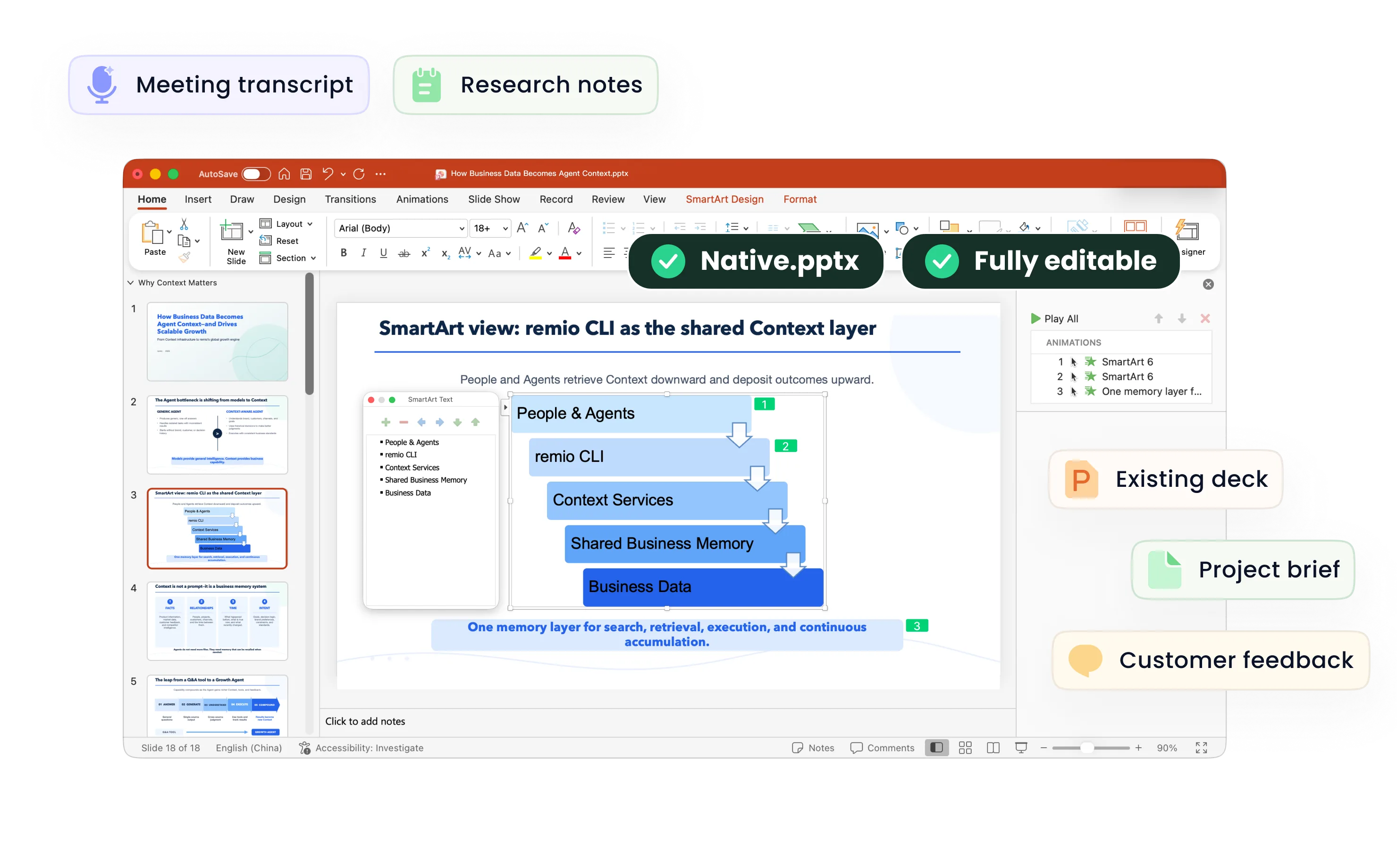
Create funny slides for PowerPoint nights, office talks or classroom stories. Shape your ideas and humor in remio, then refine an editable PowerPoint.

Find the relatable idea

Find the relatable idea

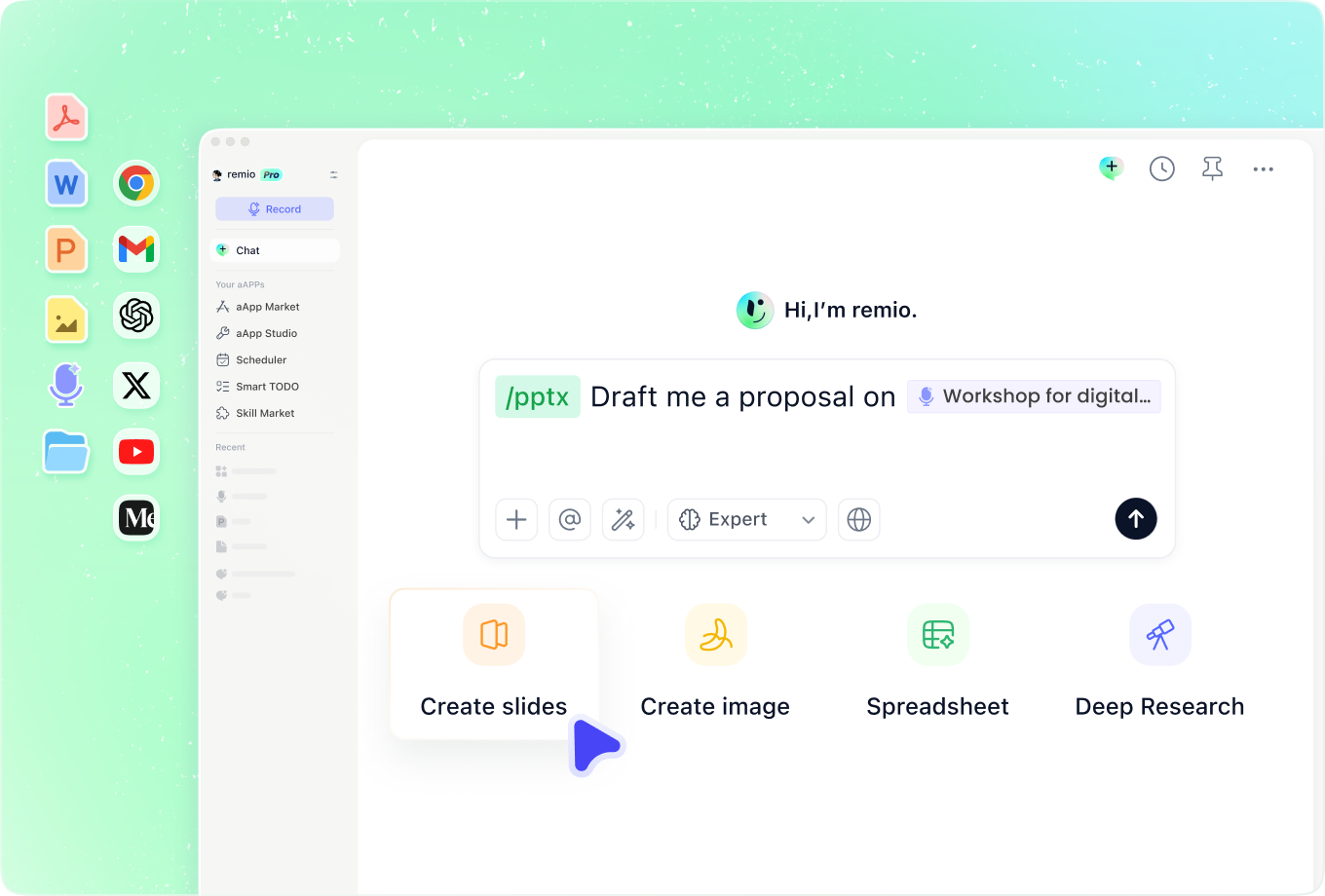
Add the topic, audience and observations behind your presentation. Explain what the group will recognize and what needs context. Ask for a clear setup and a light tone, then choose the ideas that serve the story rather than filling every slide with a joke.
Write around your visual joke

Write around your visual joke

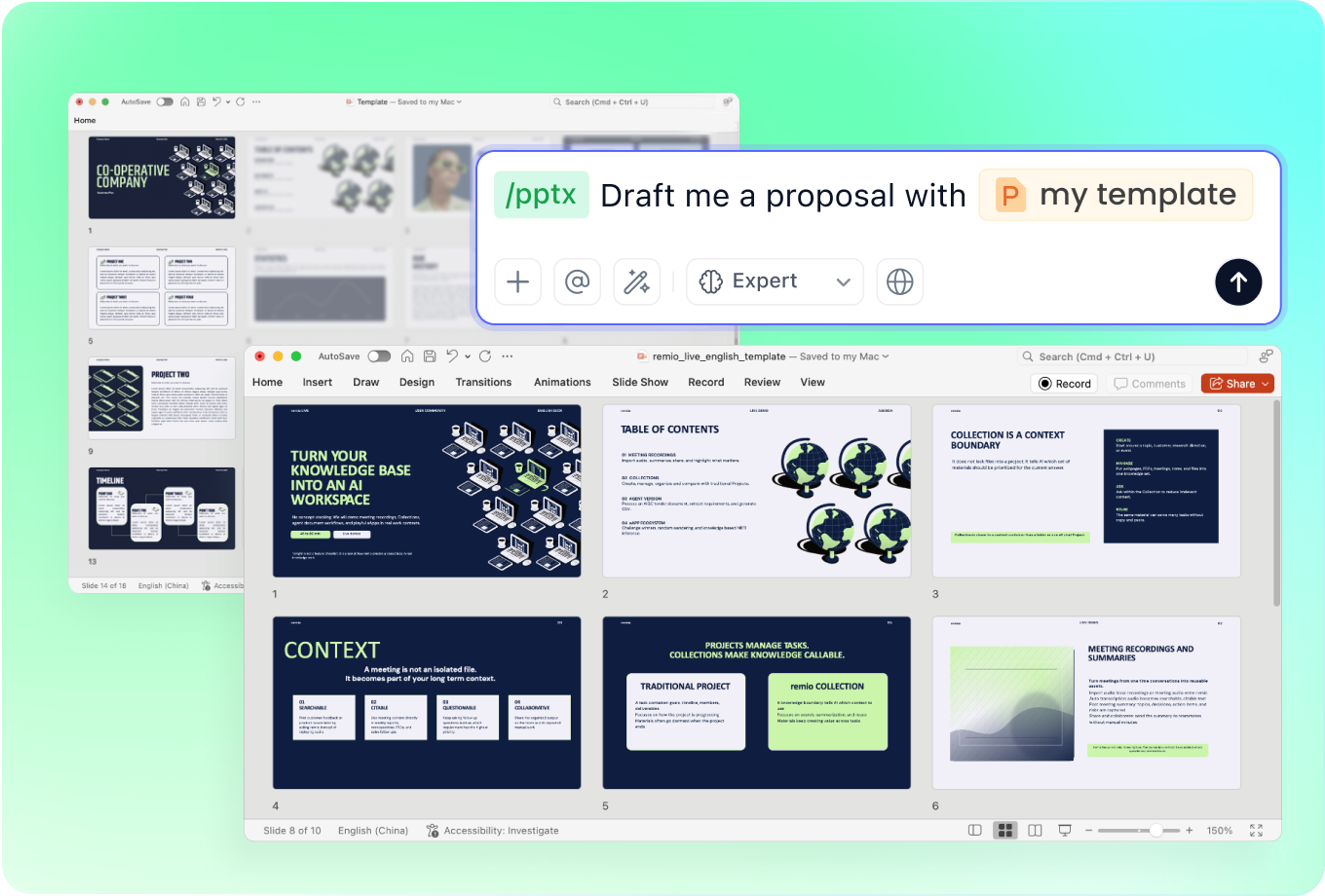
Describe the comparison, reaction or caption you have in mind. Provide your own reference material and images you can use. Review the wording and layout together. A short caption should remain understandable even when the audience does not recognize a meme.

Adapt humor to the room

Adapt humor to the room

For an office talk, supply the meeting purpose and examples you are comfortable sharing. For a class, include the learning goal and age group. Review the jokes for relevance and tone. Keep private details and jokes at someone else’s expense out of the deck.

Revise the comic sequence

Revise the comic sequence

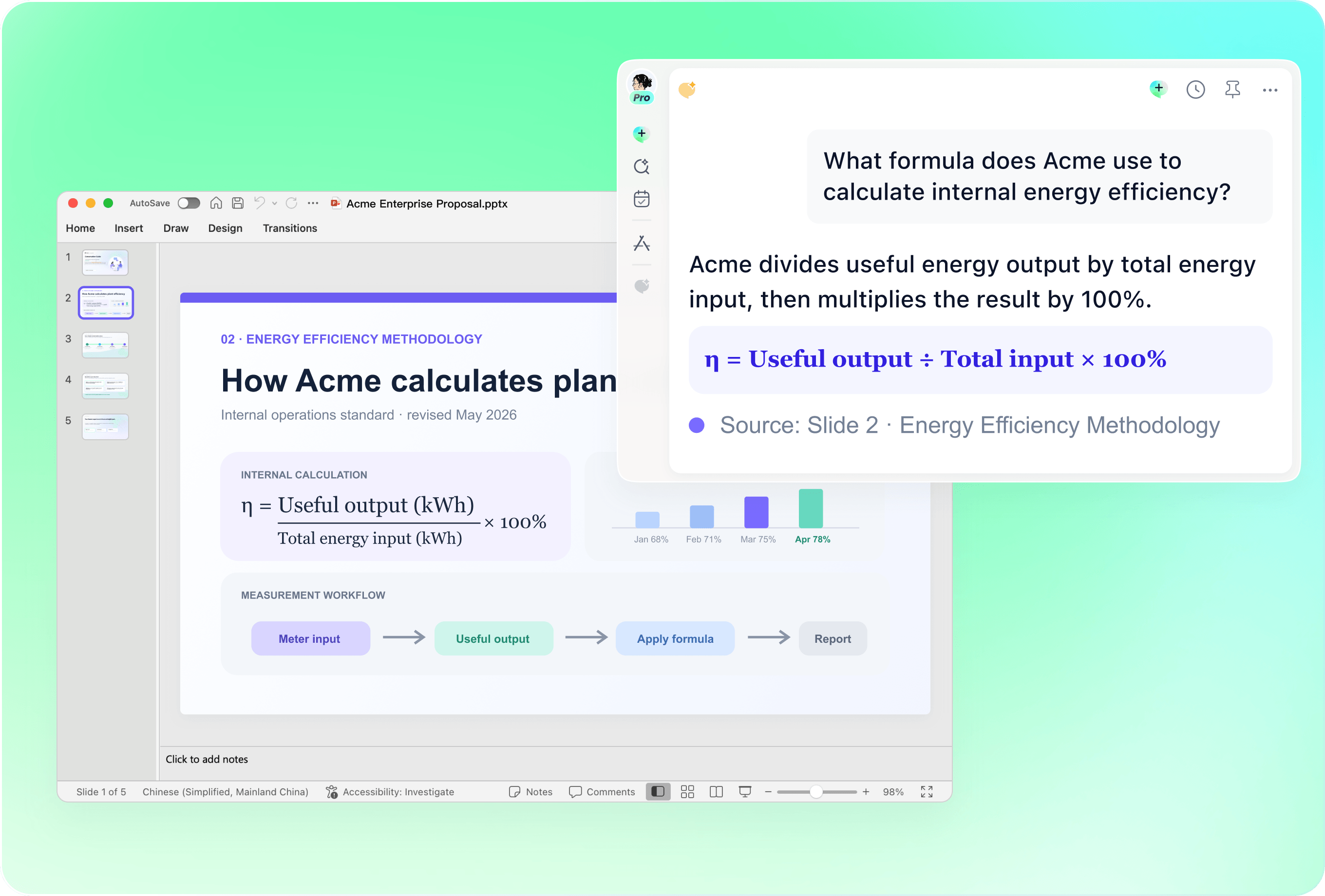
Add your existing presentation with notes on the setup, reveal and closing. Explain where a joke distracts from the message or needs more context. Review the revised editable slides and rehearse the sequence to judge the timing yourself.

Check the final delivery

Check the final delivery

Read captions aloud, check factual claims and confirm image permissions. Remove jokes that need a long explanation. Refine the editable PowerPoint for readable text and clear visual comparisons, then rehearse with someone who knows the audience.

How it works

From source material to a PowerPoint file you can keep updating.

  1. Add your material

    Provide your topic, audience, observations and references.

  2. Review the humor

    Check the setup, captions, tone and slide sequence.

  3. Refine and rehearse

    Edit the PowerPoint and test your delivery aloud.

FAQs

What makes a slide funny?

A relatable observation, unexpected comparison or concise visual joke can add humor. Keep one clear point on each slide and review whether the joke helps the story. Audience context and your delivery matter as much as the design.

Can I use meme-style slides?

Describe the format or visual comparison and add images you have permission to use. Review the captions, image rights and audience fit yourself. Keep the joke understandable for people who do not recognize the original meme.

How do I keep office humor appropriate?

Provide the purpose of the talk and the tone you want. Prefer shared situations and self-contained observations over personal jokes. Review the result for private details, confusing references and wording that could undermine the message.

Can I revise an existing funny deck?

Add the deck and explain which jokes, facts or sections need work. Describe the intended audience and what should stay. Review the editable result and rehearse the setup and reveal before sharing it.

How do I make funny slides with remio?

Download remio, add your topic and notes, and describe the audience and tone. Review the outline, captions and visual direction. Refine the editable PowerPoint and test the jokes aloud before presenting.

Funny PowerPoint Templates

Create funny slides for PowerPoint nights, office talks or classroom stories. Shape your ideas and humor in remio, then refine an editable PowerPoint.

Find the relatable idea

Find the relatable idea

Add the topic, audience and observations behind your presentation. Explain what the group will recognize and what needs context. Ask for a clear setup and a light tone, then choose the ideas that serve the story rather than filling every slide with a joke.
Write around your visual joke

Write around your visual joke

Describe the comparison, reaction or caption you have in mind. Provide your own reference material and images you can use. Review the wording and layout together. A short caption should remain understandable even when the audience does not recognize a meme.

Adapt humor to the room

Adapt humor to the room

For an office talk, supply the meeting purpose and examples you are comfortable sharing. For a class, include the learning goal and age group. Review the jokes for relevance and tone. Keep private details and jokes at someone else’s expense out of the deck.

Revise the comic sequence

Revise the comic sequence

Add your existing presentation with notes on the setup, reveal and closing. Explain where a joke distracts from the message or needs more context. Review the revised editable slides and rehearse the sequence to judge the timing yourself.

Check the final delivery

Check the final delivery

Read captions aloud, check factual claims and confirm image permissions. Remove jokes that need a long explanation. Refine the editable PowerPoint for readable text and clear visual comparisons, then rehearse with someone who knows the audience.

How it works

From source material to a PowerPoint file you can keep updating.

01

Add your material

Provide your topic, audience, observations and references.

02

Review the humor

Check the setup, captions, tone and slide sequence.

03

Refine and rehearse

Edit the PowerPoint and test your delivery aloud.

FAQs

  • A relatable observation, unexpected comparison or concise visual joke can add humor. Keep one clear point on each slide and review whether the joke helps the story. Audience context and your delivery matter as much as the design.

  • Describe the format or visual comparison and add images you have permission to use. Review the captions, image rights and audience fit yourself. Keep the joke understandable for people who do not recognize the original meme.

  • Provide the purpose of the talk and the tone you want. Prefer shared situations and self-contained observations over personal jokes. Review the result for private details, confusing references and wording that could undermine the message.

  • Add the deck and explain which jokes, facts or sections need work. Describe the intended audience and what should stay. Review the editable result and rehearse the setup and reveal before sharing it.

  • Download remio, add your topic and notes, and describe the audience and tone. Review the outline, captions and visual direction. Refine the editable PowerPoint and test the jokes aloud before presenting.

FAQs

A relatable observation, unexpected comparison or concise visual joke can add humor. Keep one clear point on each slide and review whether the joke helps the story. Audience context and your delivery matter as much as the design.

Describe the format or visual comparison and add images you have permission to use. Review the captions, image rights and audience fit yourself. Keep the joke understandable for people who do not recognize the original meme.

Provide the purpose of the talk and the tone you want. Prefer shared situations and self-contained observations over personal jokes. Review the result for private details, confusing references and wording that could undermine the message.

Add the deck and explain which jokes, facts or sections need work. Describe the intended audience and what should stay. Review the editable result and rehearse the setup and reveal before sharing it.

Download remio, add your topic and notes, and describe the audience and tone. Review the outline, captions and visual direction. Refine the editable PowerPoint and test the jokes aloud before presenting.

bottom of page