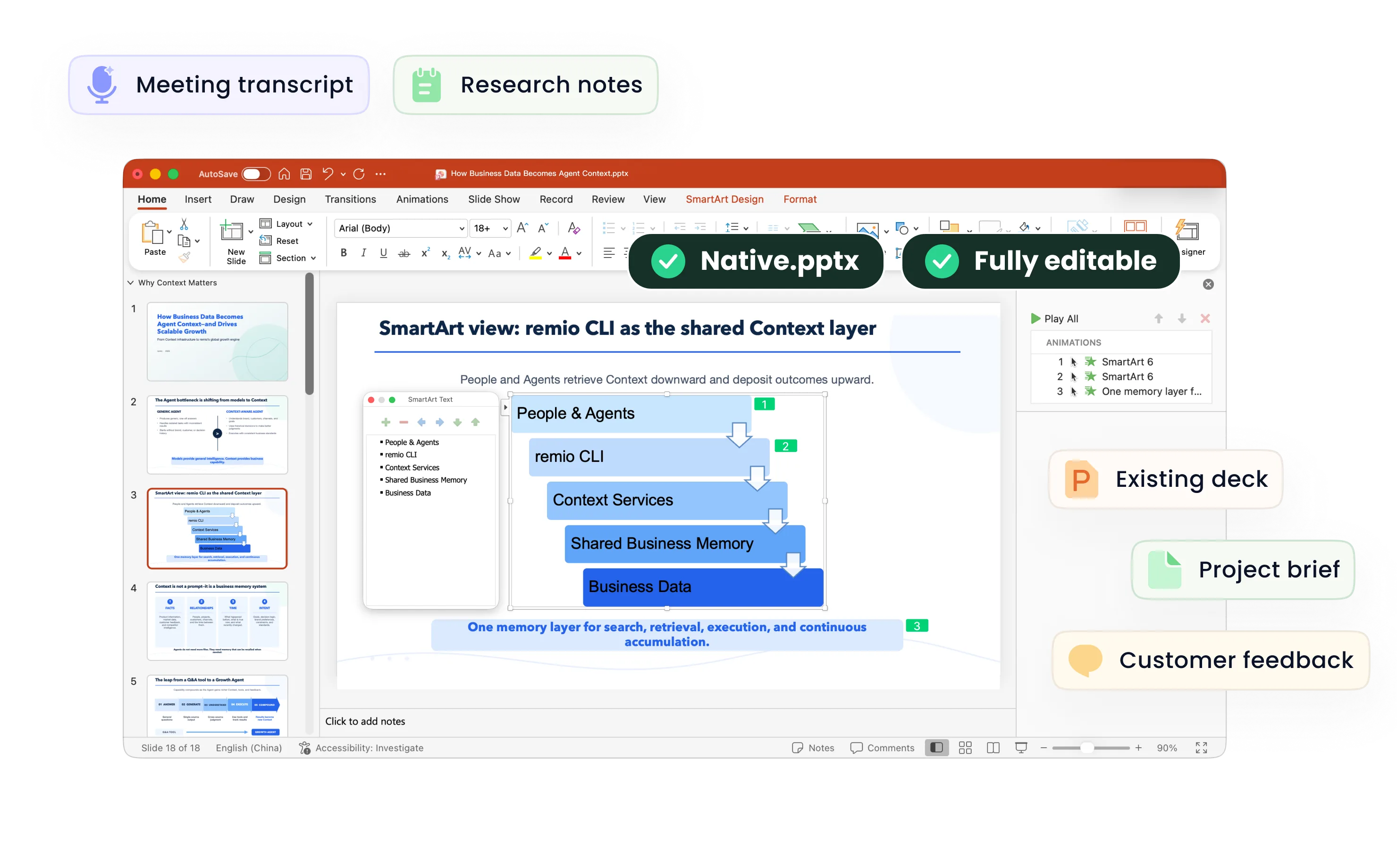
Markdown to PowerPoint
Create editable PowerPoint slides from Markdown notes, headings and lists with remio. Review the outline, code excerpts and sources in the desktop app.
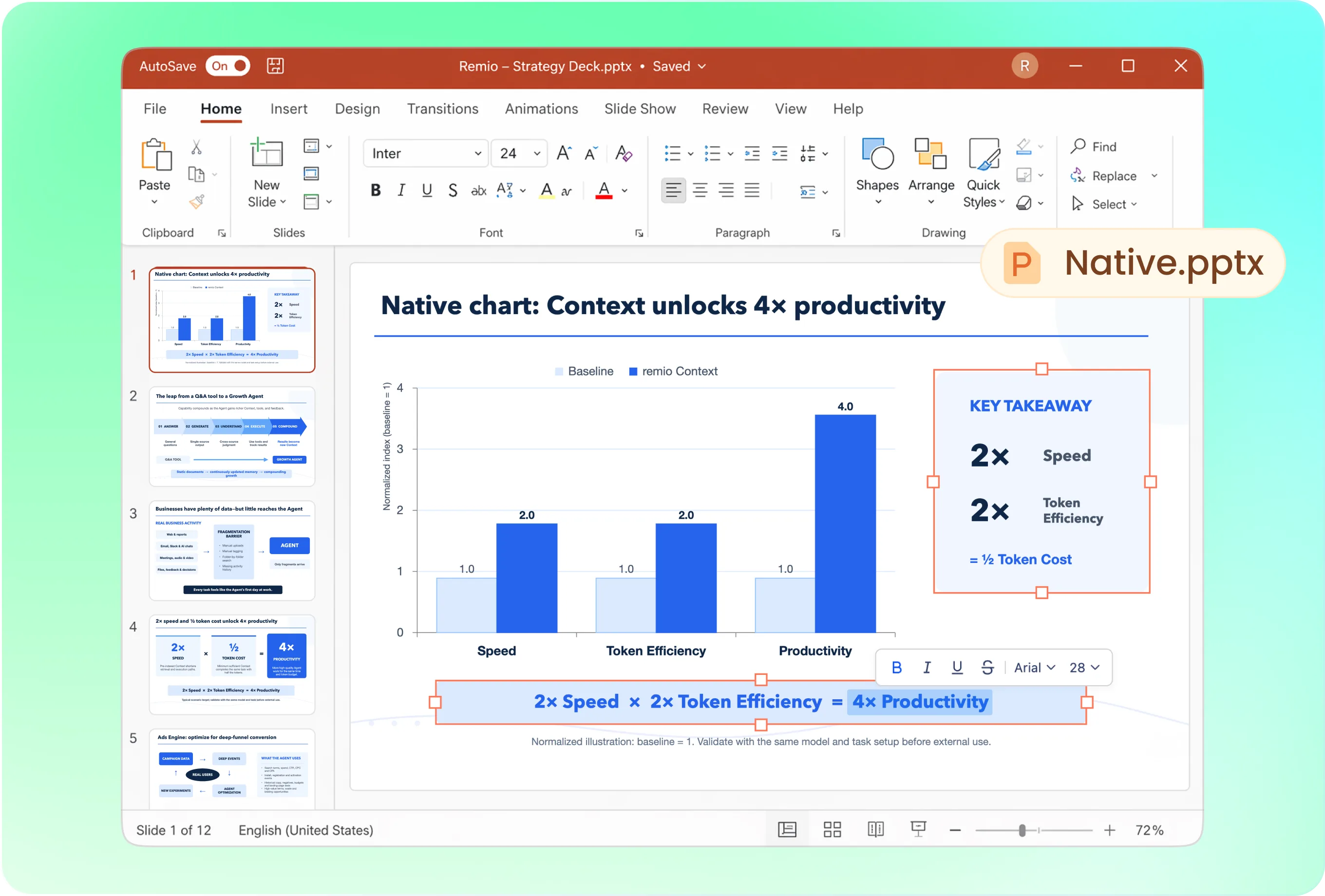
Turn document structure into a slide outline
Headings are a starting point, not a rule that every section must become one slide. Try: “Turn this Markdown brief into eight slides for a product review. Preserve the main sections, shorten long lists, and finish with open decisions.” Review the outline before building.
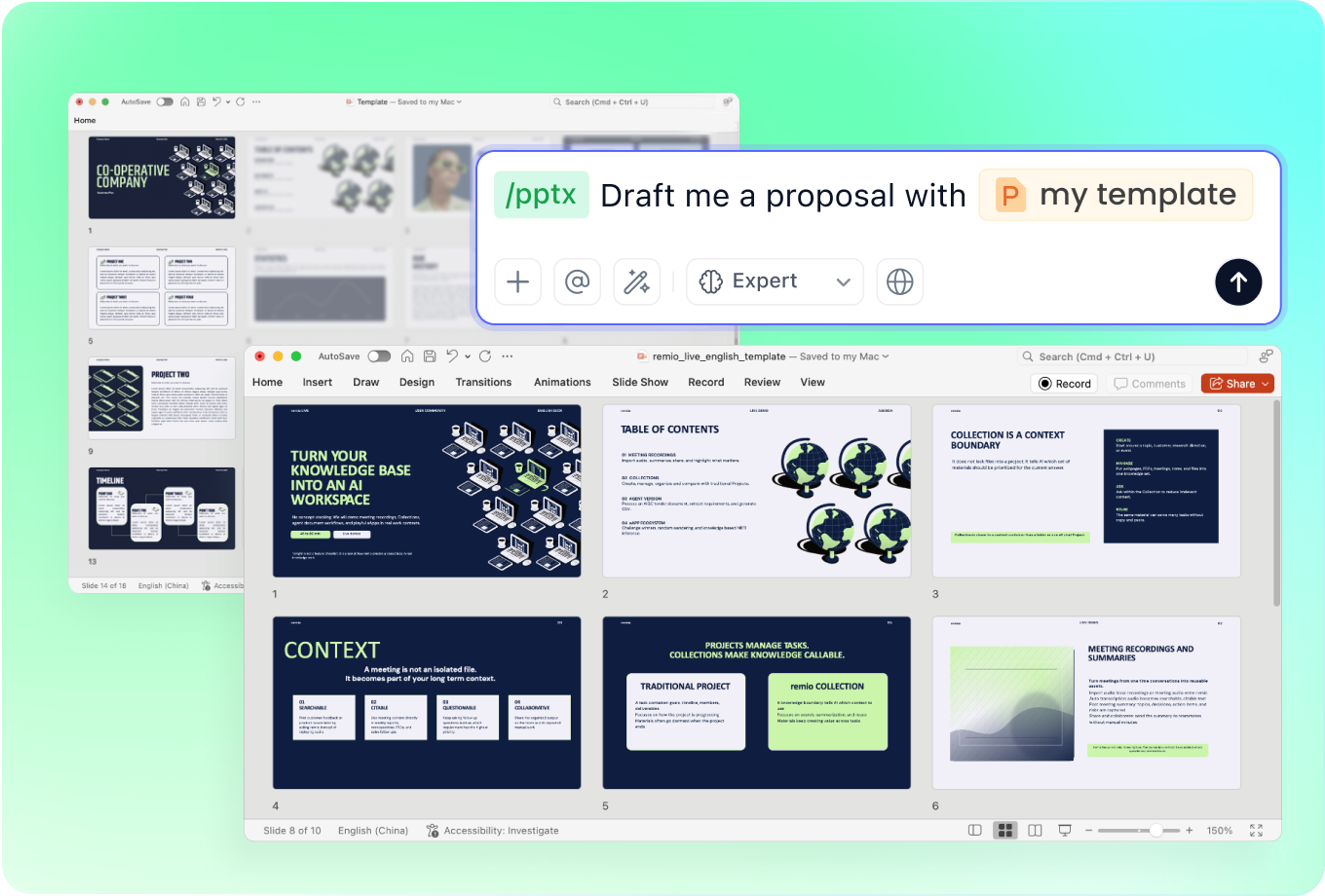
Keep content and presentation style separate
Use a company PowerPoint to guide fonts, colors and layout. Markdown describes your content; it does not automatically supply a slide theme. Tell remio whether the result should be a technical walkthrough, a client presentation or an executive summary.
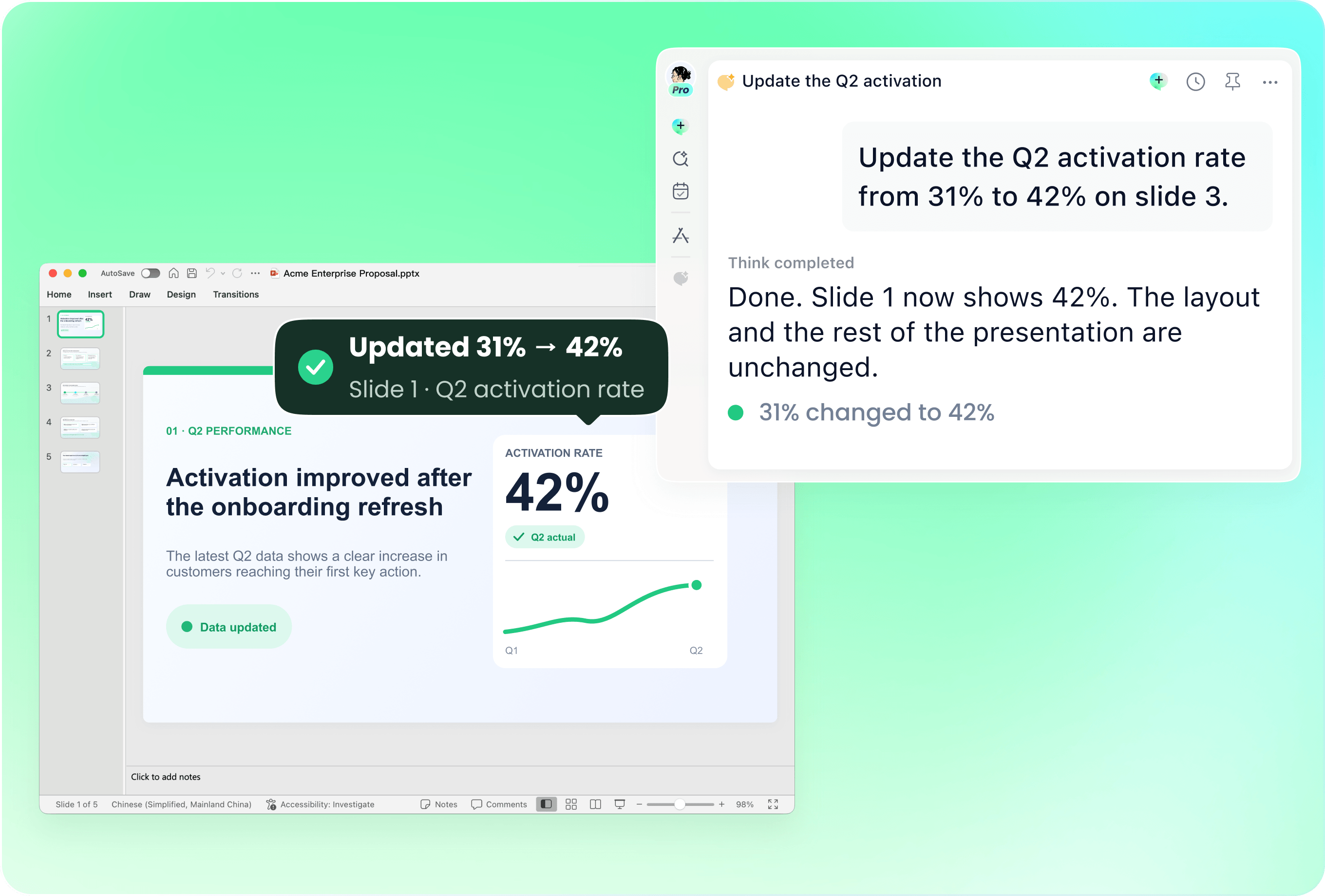
Use release notes to revise an existing deck
Provide the current presentation alongside the new Markdown notes. Name the slides that need new features, revised milestones or updated explanations. Review the changes so outdated details are removed without rewriting the entire deck.
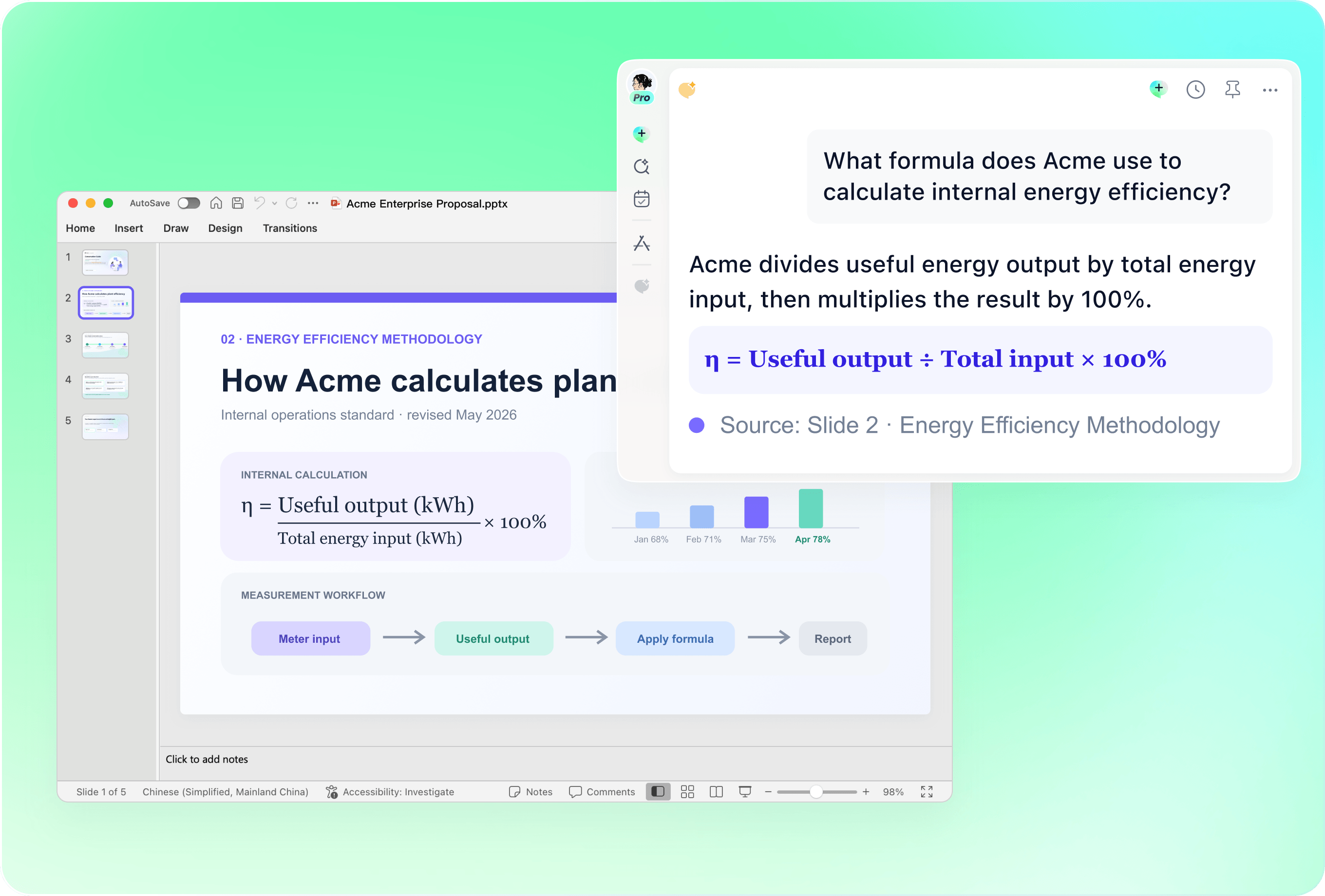
Check code, tables and linked figures
Review code excerpts for readability and accuracy. Confirm table values, equations and the figures actually included in the deck. Supply images explicitly when needed; do not assume a relative image path, custom Markdown extension or document theme becomes an identical PowerPoint element.
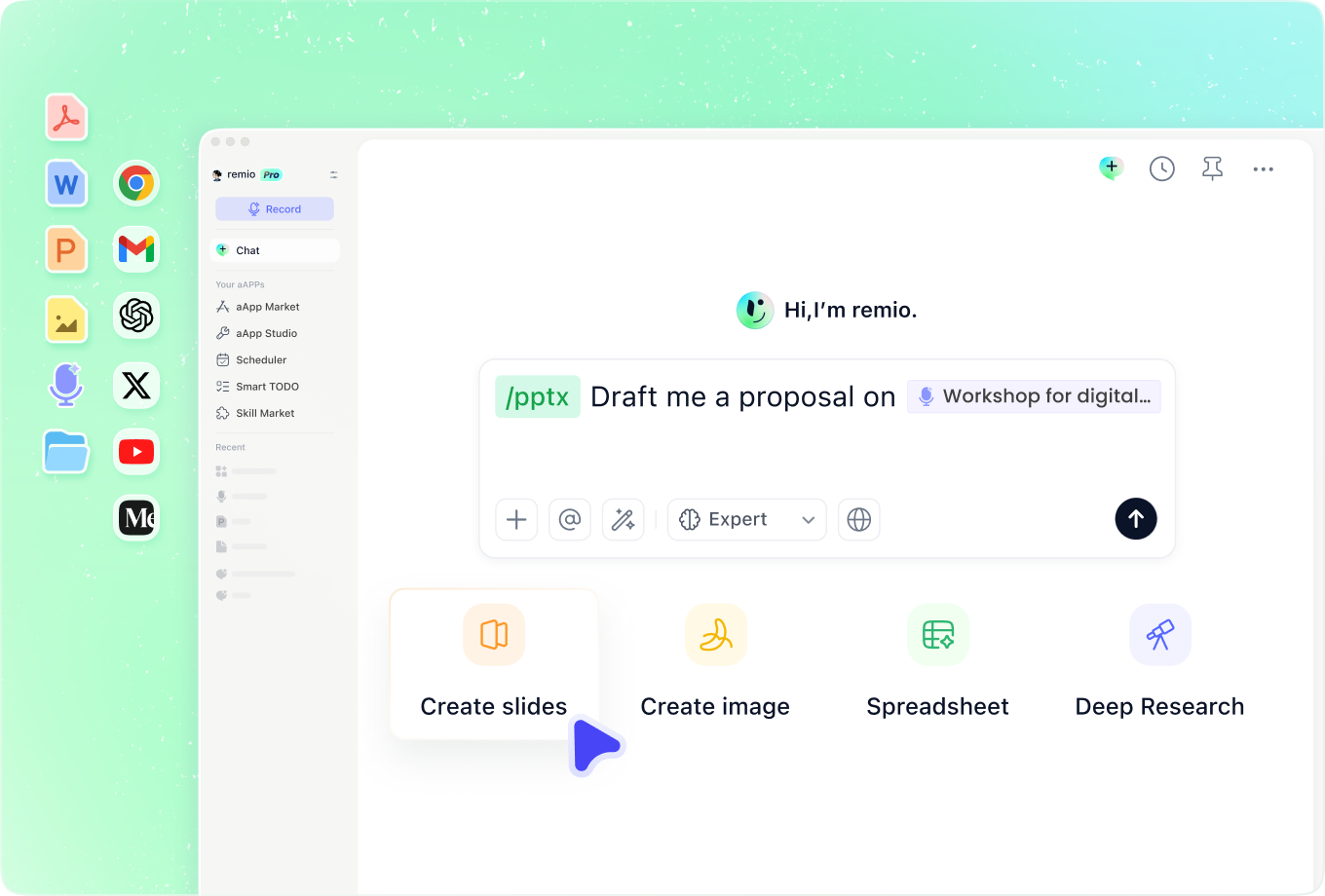
Add the background behind short notes
Combine Markdown with research, project notes and prior decisions in remio. Explain abbreviations and audience knowledge. Ask for clarification where a short bullet or code comment does not provide enough evidence for a presentation claim.
How it works
From source material to a PowerPoint file you can keep updating.
01
Provide the Markdown content
Add the document text, relevant figures and a short description of the audience and goal.
02
Review the proposed slides
Confirm the heading hierarchy, shortened lists and any code, table or image requirements.
03
Create and refine the .pptx
Build the editable PowerPoint, then check technical details and visual layout.
FAQs
Yes. You can download remio and start for free. Some advanced usage may depend on your subscription plan, but you can try the AI presentation workflow before committing.
remio is designed as a local first app instead of a browser-only slide editor.
For AI presentations, this makes a real difference. Local file access helps remio parse documents faster, handle larger context, and better preserve PowerPoint structure, styles, and layouts. It also reduces the need to upload sensitive files into a browser-based tool.Use your Markdown content together with project background and referenced sources. Provide figures or attachments that the presentation needs. Markdown headings and lists help explain structure, but you should review how code, tables, equations and images are represented in the final deck.
Yes. remio creates a native .pptx file from the start, not a presentation you have to export later. Every text box, layout, chart, and image stays editable in PowerPoint.
You can open it locally, edit it directly, and keep the same .pptx file from draft to final presentation.Not yet. remio currently focuses on native PowerPoint and .pptx workflows.
Keynote and Google Slides support are planned and will be added gradually.