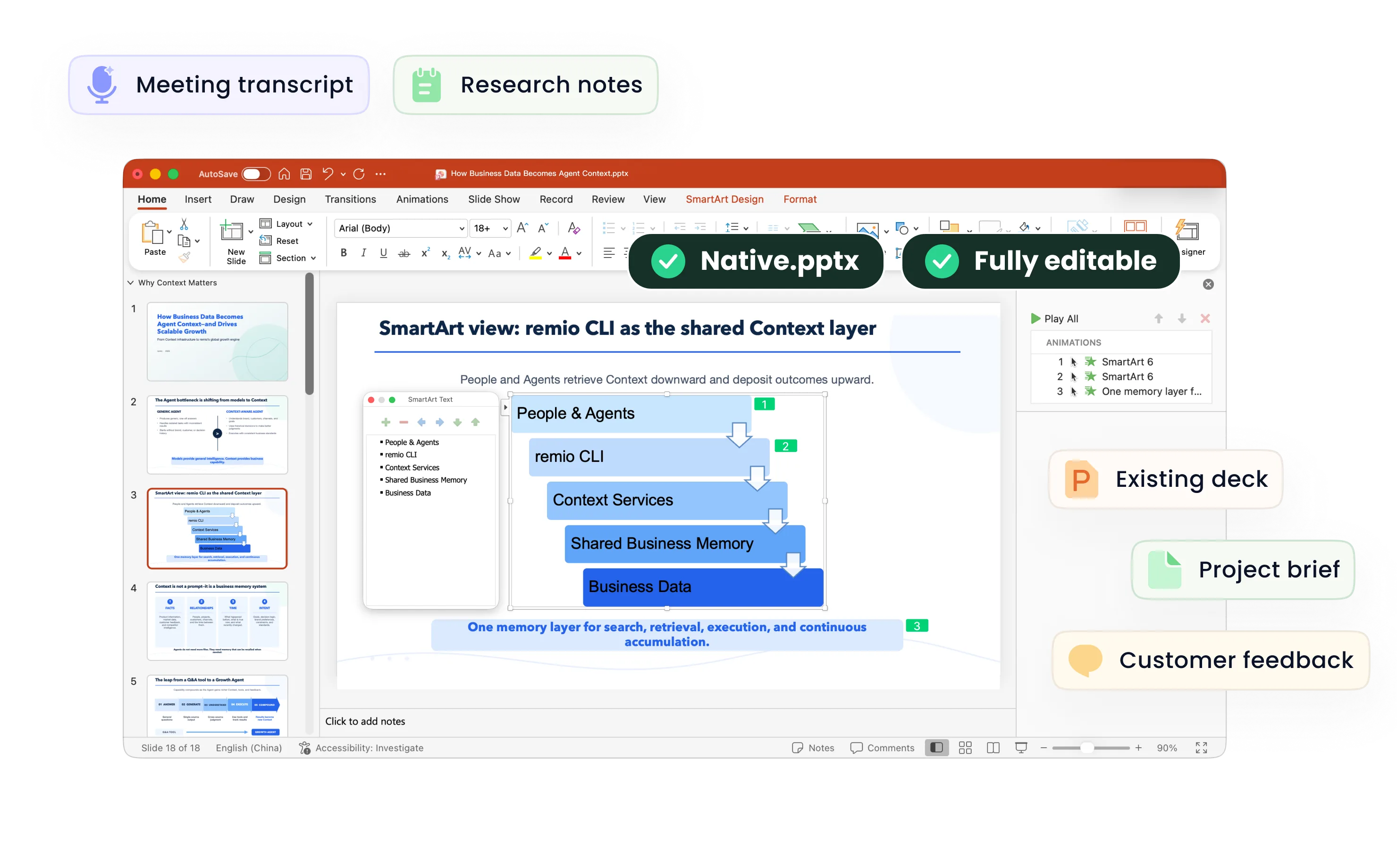
Outline to PowerPoint
Create an editable PowerPoint from a bulleted or numbered outline. Review the slide structure, add supporting material and refine the deck in remio.
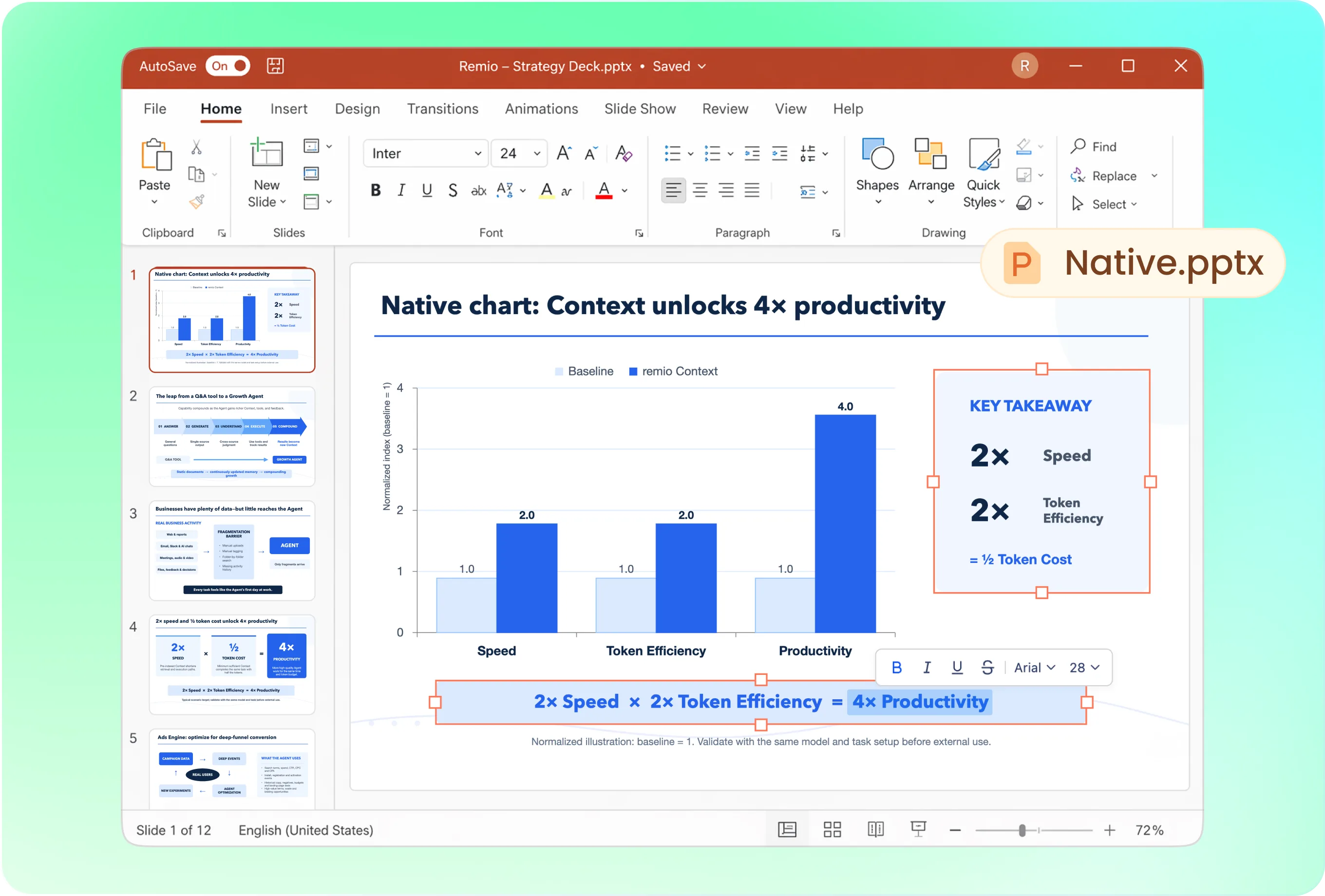
Keep the hierarchy of your argument
Tell remio which points are sections and which are supporting details. Try: “Use this outline for a ten-slide client update. Keep the three main sections, make each slide title a takeaway, and flag any claim that needs a source.” Review how the outline becomes a slide sequence.
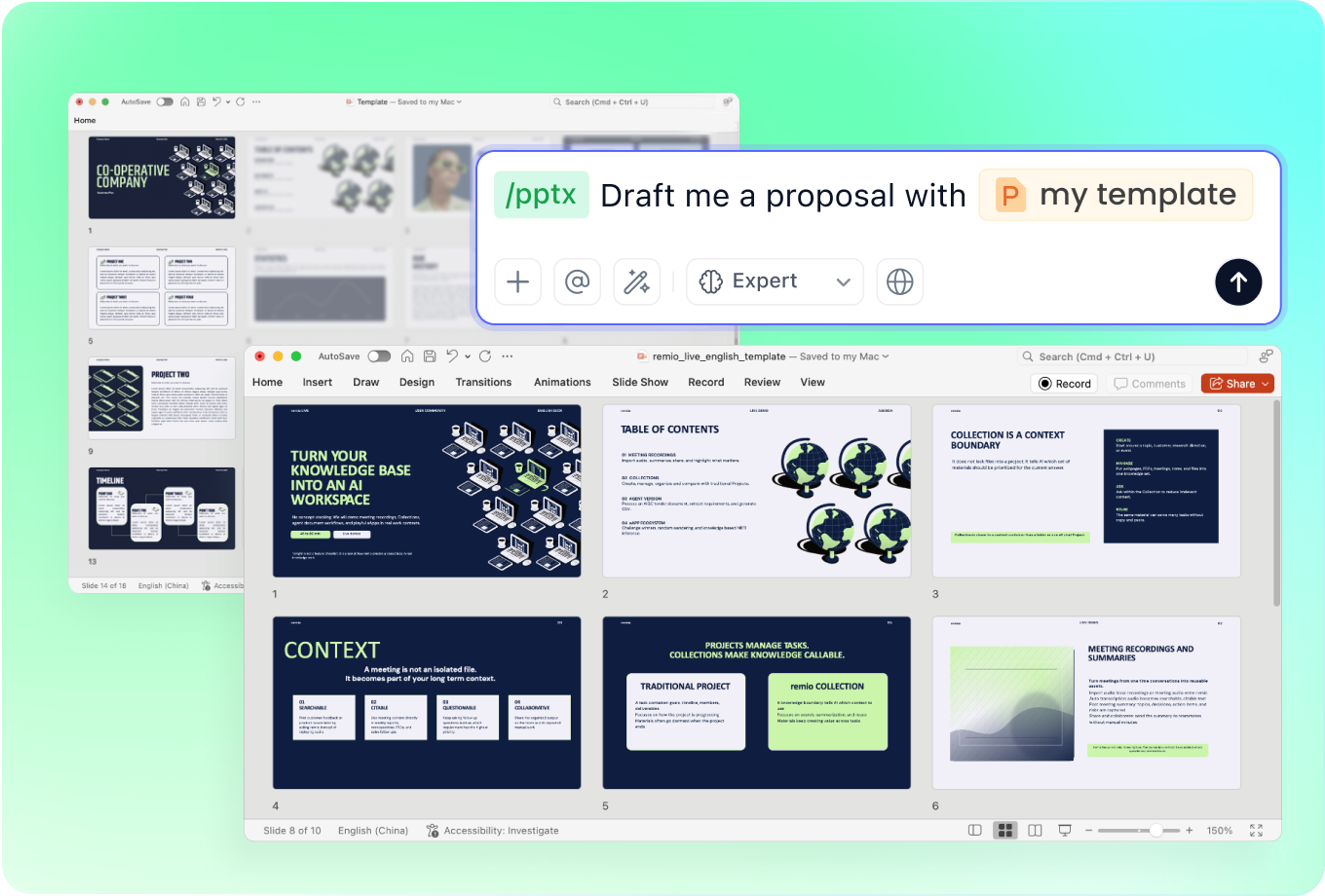
Apply your company’s presentation style
Provide the company PowerPoint you want to follow. Specify whether the outline should become a concise executive deck or a detailed working presentation. Keep the brand consistent while allowing dense sections to span more than one slide.
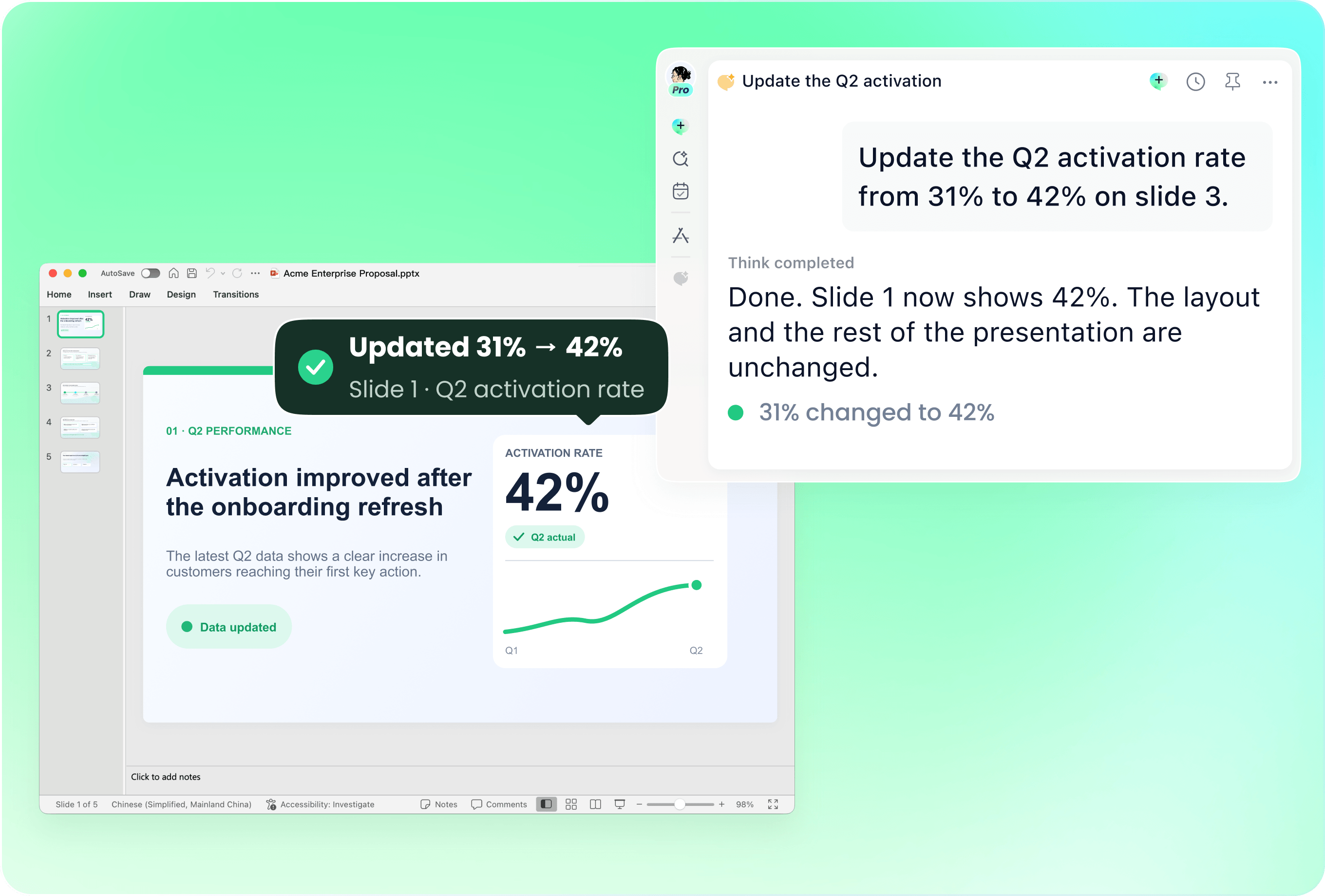
Revise the outline without rebuilding everything
Use an existing deck when the structure is already close. Ask remio to add a section, move a supporting point or rewrite selected slides from the new outline. Review the affected pages so important context is not lost in the revision.
Identify evidence before adding visuals
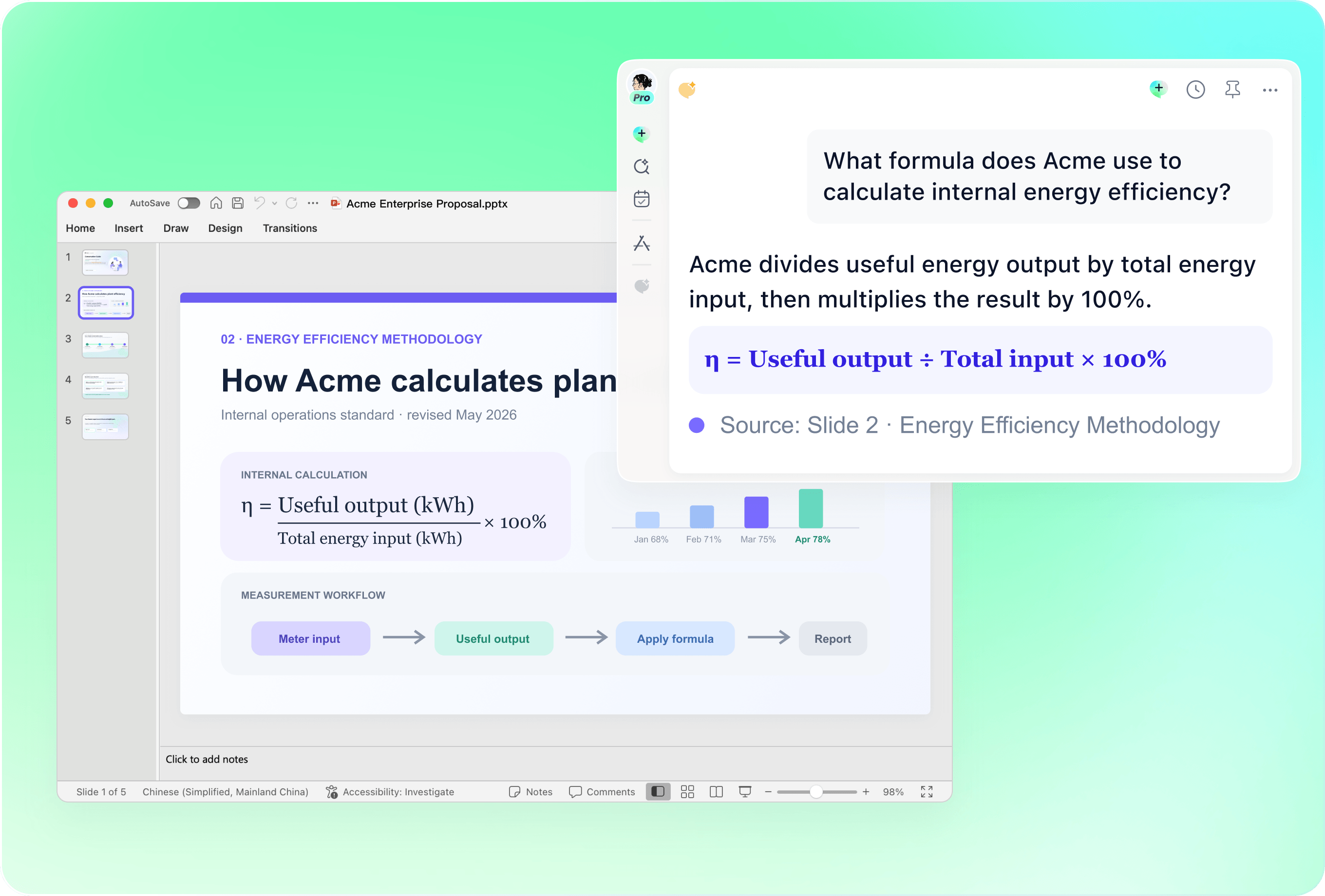
An outline often contains placeholders such as “market data” or “results chart.” Provide the underlying figures and sources before building those slides. Review the chart labels, claims and citations along with the slide text; an empty heading is not evidence.

Expand only where your material supports it
Bring in project notes, research and prior presentations to support short bullets. Tell remio where to expand and where to stay concise. If material is missing, ask for a list of open questions rather than a made-up answer.
How it works
From source material to a PowerPoint file you can keep updating.
01
Provide the outline
Add headings and supporting bullets. Specify the audience, goal and desired length.
02
Confirm the slide structure
Review section breaks, slide titles and evidence gaps before generating the presentation.
03
Build and review the deck
Create the editable .pptx, then check the hierarchy, detail level and slide layout.
FAQs
Yes. You can download remio and start for free. Some advanced usage may depend on your subscription plan, but you can try the AI presentation workflow before committing.
remio is designed as a local first app instead of a browser-only slide editor.
For AI presentations, this makes a real difference. Local file access helps remio parse documents faster, handle larger context, and better preserve PowerPoint structure, styles, and layouts. It also reduces the need to upload sensitive files into a browser-based tool.A plain bulleted or numbered outline is a useful starting point. Add the evidence behind each main point and indicate which sections need research or examples. remio can use that material to develop the presentation; review any added claims before sharing.
Yes. remio creates a native .pptx file from the start, not a presentation you have to export later. Every text box, layout, chart, and image stays editable in PowerPoint.
You can open it locally, edit it directly, and keep the same .pptx file from draft to final presentation.Not yet. remio currently focuses on native PowerPoint and .pptx workflows.
Keynote and Google Slides support are planned and will be added gradually.