top of page
remio AI Presentation workspace and source materials

PDF to PowerPoint converters

Choose between converting PDF pages and building a new presentation from the report behind them.

For Windows 10+ (x64) and Apple silicon Macs.

PDF to PowerPoint converters

Choose between converting PDF pages and building a new presentation from the report behind them.

For Windows 10+ (x64) and Apple silicon Macs.

Download remio
remio AI Presentation workspace and source materials

PDF to PowerPoint converters

Compare five PDF to PowerPoint workflows. Check source structure, editable output, scanned pages and the presentation you actually need.

remio

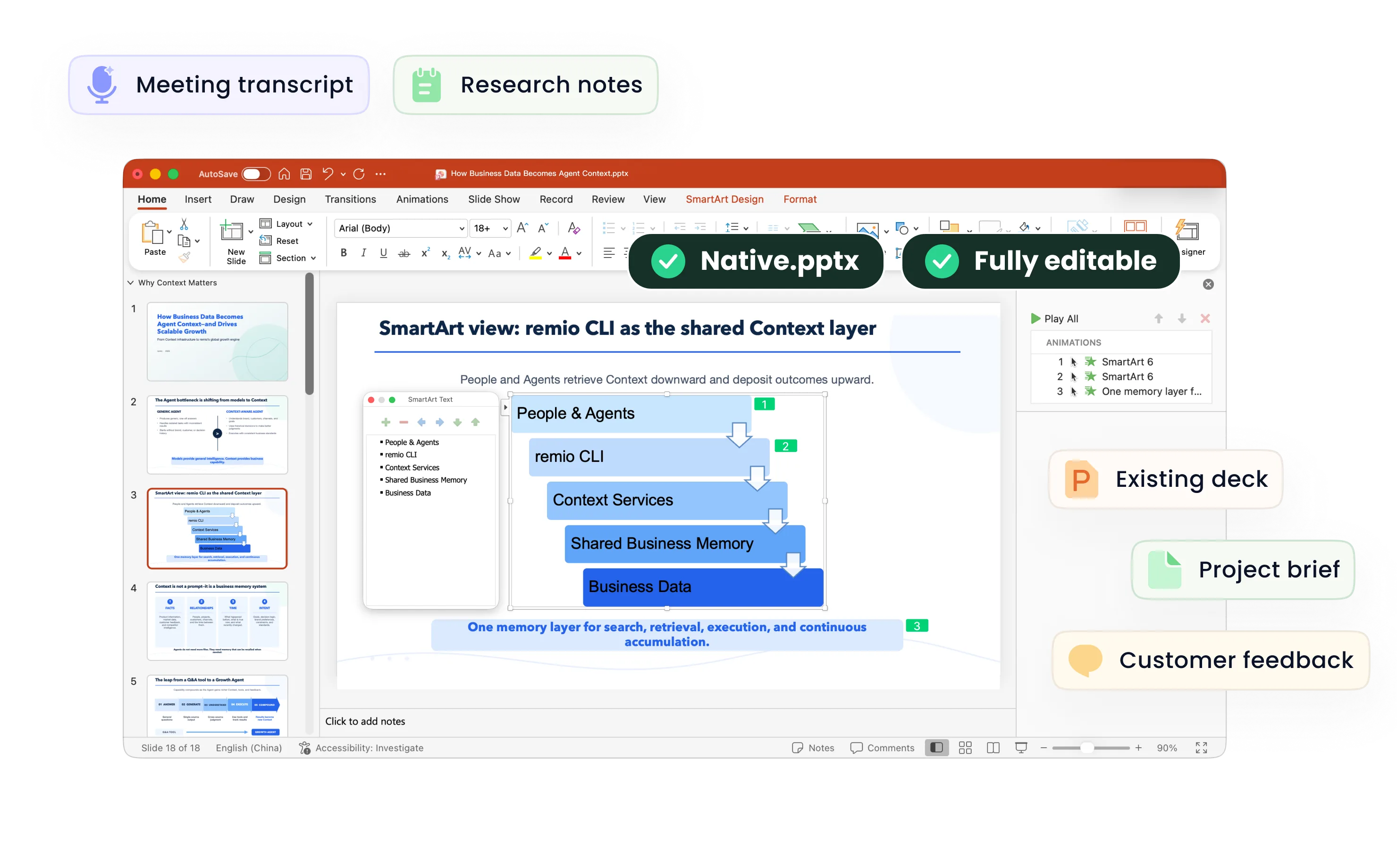
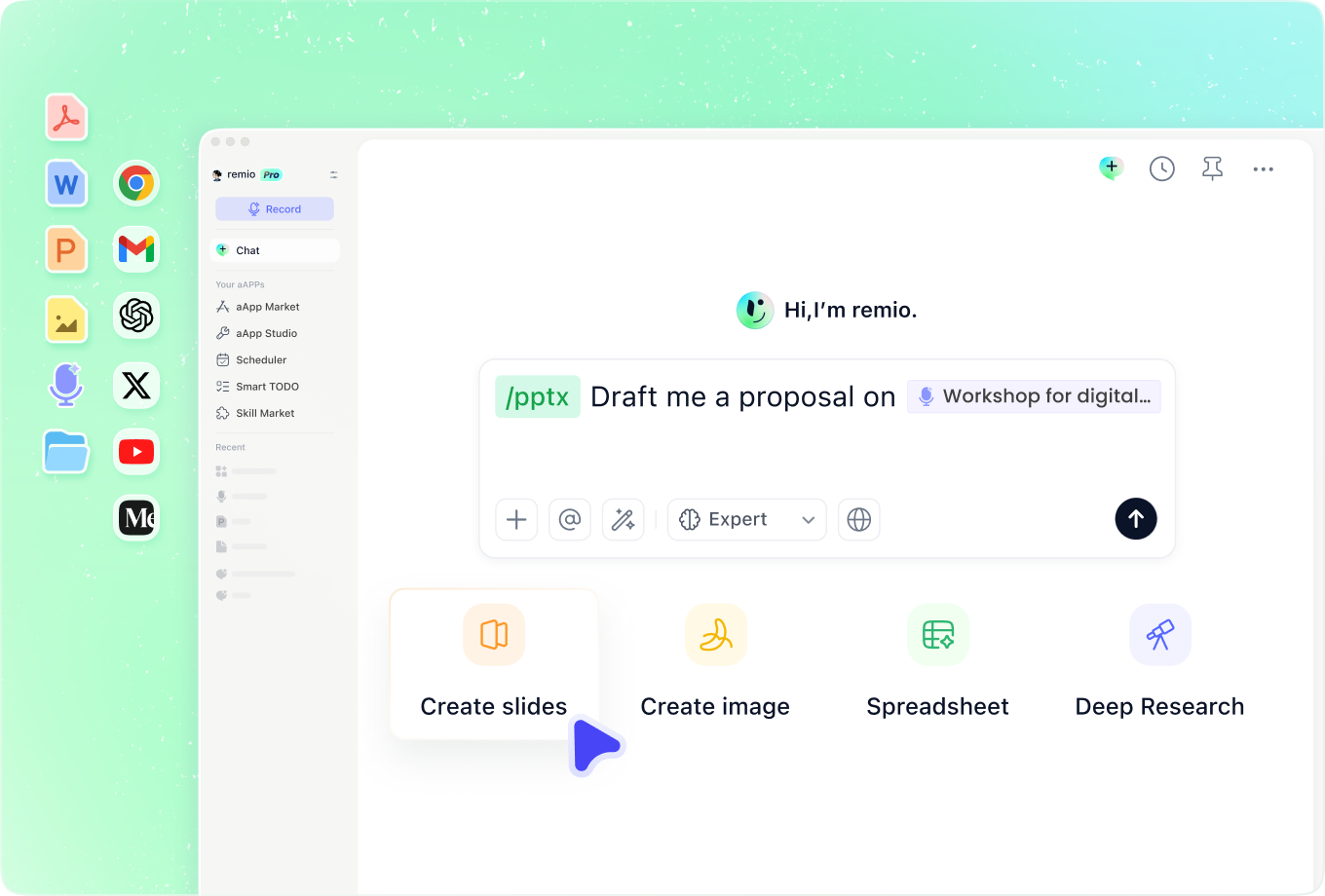
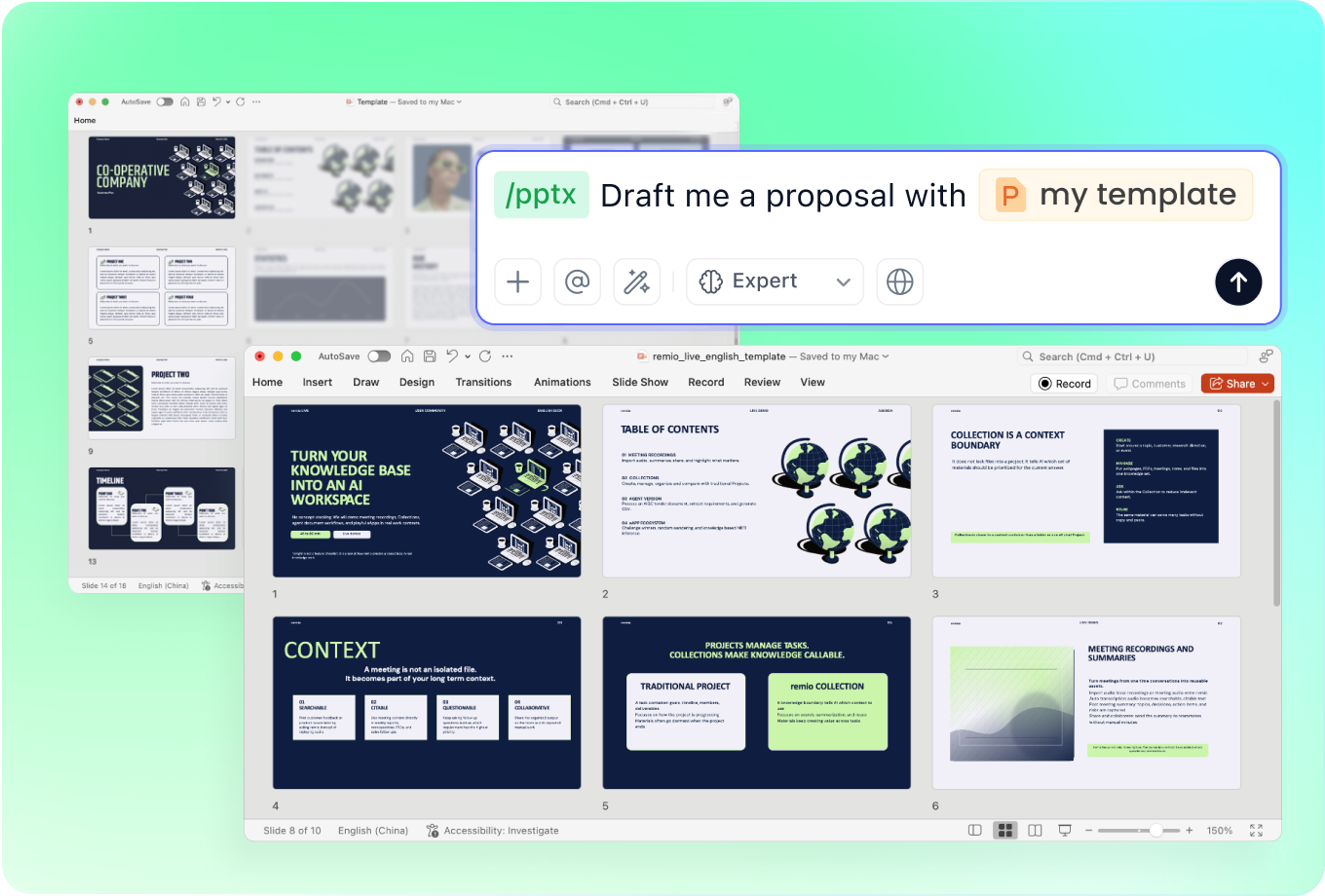
Consider remio when the PDF is source material for a new presentation. Add the report and relevant work context, specify the audience and desired message, and review the outline. Refine the native PowerPoint against the source facts. Evaluate this as a source-to-presentation workflow, especially when the report needs a different sequence or level of detail.
Smallpdf

Smallpdf documents a browser-based PDF-to-PPT converter that produces editable PowerPoint files. Consider a conversion workflow when the PDF pages already have the structure you want to present. Test a representative page containing dense text, a table and a chart, and inspect the actual output and account limits.

iLovePDF

iLovePDF documents converting PDF files to editable PowerPoint, with each page of a multi-page document becoming a slide. Consider it when a page-by-page result matches your intended deck. Check reading order, fonts, tables and the objects you need to edit before processing a longer document.

Gamma

Gamma documents PDF import into its editable presentation workflow and PowerPoint export. Consider that route when you want to work on the presentation structure and styling after import. Check factual coverage and the final export; a useful draft and faithful reproduction of a PDF page are different acceptance criteria.

Canva

Canva documents file import into editable designs, AI presentation creation and PowerPoint export. Consider its design workflow when you plan to rework the visual presentation after bringing in source content. Verify the PDF you are using, the required edits and the final PowerPoint in your target software.

Compare with your own material

From source material to a PowerPoint file you can keep updating.

  1. Define the outcome

    Choose the audience, source material and final delivery format.

  2. Use the same sample

    Review a draft and request one realistic revision.

  3. Inspect the result

    Check facts, readability and the output in your target environment.

FAQs

Should I convert pages or create a new presentation?

Convert pages when the PDF already looks like the slides you need. Build a new presentation when a report needs a shorter story, different order or audience-specific explanation. Define that goal before judging the output of a converter or an AI presentation tool.

What should I check with a scanned PDF?

First check whether the text is selectable. A scanned page may need OCR before its text can be edited or used reliably. Test a representative scanned page and verify the OCR and export features available in the account you intend to use.

Will charts and tables remain editable?

Open the resulting PowerPoint and inspect the objects. Check whether text, tables and charts can be edited in the way you need, then verify labels, units and values against the PDF. A file ending in .pptx is not enough to establish object-level editability.

How should I compare free or paid options?

Check file-size and page limits, scanned-document support and the output features available to your account. Use the same small sample before choosing a plan. The product descriptions here were checked against public documentation on 10 November 2026 and do not promise unlimited free conversion.

How do I build a presentation from a PDF in remio?

Download remio, add the PDF and relevant notes, and describe the audience and presentation goal. Review the outline, source facts and editable PowerPoint. Refine the slides and check the final deck before sharing.

PDF to PowerPoint converters

Compare five PDF to PowerPoint workflows. Check source structure, editable output, scanned pages and the presentation you actually need.

remio

remio

Consider remio when the PDF is source material for a new presentation. Add the report and relevant work context, specify the audience and desired message, and review the outline. Refine the native PowerPoint against the source facts. Evaluate this as a source-to-presentation workflow, especially when the report needs a different sequence or level of detail.
Smallpdf

Smallpdf

Smallpdf documents a browser-based PDF-to-PPT converter that produces editable PowerPoint files. Consider a conversion workflow when the PDF pages already have the structure you want to present. Test a representative page containing dense text, a table and a chart, and inspect the actual output and account limits.

iLovePDF

iLovePDF

iLovePDF documents converting PDF files to editable PowerPoint, with each page of a multi-page document becoming a slide. Consider it when a page-by-page result matches your intended deck. Check reading order, fonts, tables and the objects you need to edit before processing a longer document.

Gamma

Gamma

Gamma documents PDF import into its editable presentation workflow and PowerPoint export. Consider that route when you want to work on the presentation structure and styling after import. Check factual coverage and the final export; a useful draft and faithful reproduction of a PDF page are different acceptance criteria.

Canva

Canva

Canva documents file import into editable designs, AI presentation creation and PowerPoint export. Consider its design workflow when you plan to rework the visual presentation after bringing in source content. Verify the PDF you are using, the required edits and the final PowerPoint in your target software.

Compare with your own material

From source material to a PowerPoint file you can keep updating.

01

Define the outcome

Choose the audience, source material and final delivery format.

02

Use the same sample

Review a draft and request one realistic revision.

03

Inspect the result

Check facts, readability and the output in your target environment.

FAQs

  • Convert pages when the PDF already looks like the slides you need. Build a new presentation when a report needs a shorter story, different order or audience-specific explanation. Define that goal before judging the output of a converter or an AI presentation tool.

  • First check whether the text is selectable. A scanned page may need OCR before its text can be edited or used reliably. Test a representative scanned page and verify the OCR and export features available in the account you intend to use.

  • Open the resulting PowerPoint and inspect the objects. Check whether text, tables and charts can be edited in the way you need, then verify labels, units and values against the PDF. A file ending in .pptx is not enough to establish object-level editability.

  • Check file-size and page limits, scanned-document support and the output features available to your account. Use the same small sample before choosing a plan. The product descriptions here were checked against public documentation on 10 November 2026 and do not promise unlimited free conversion.

  • Download remio, add the PDF and relevant notes, and describe the audience and presentation goal. Review the outline, source facts and editable PowerPoint. Refine the slides and check the final deck before sharing.

FAQs

bottom of page