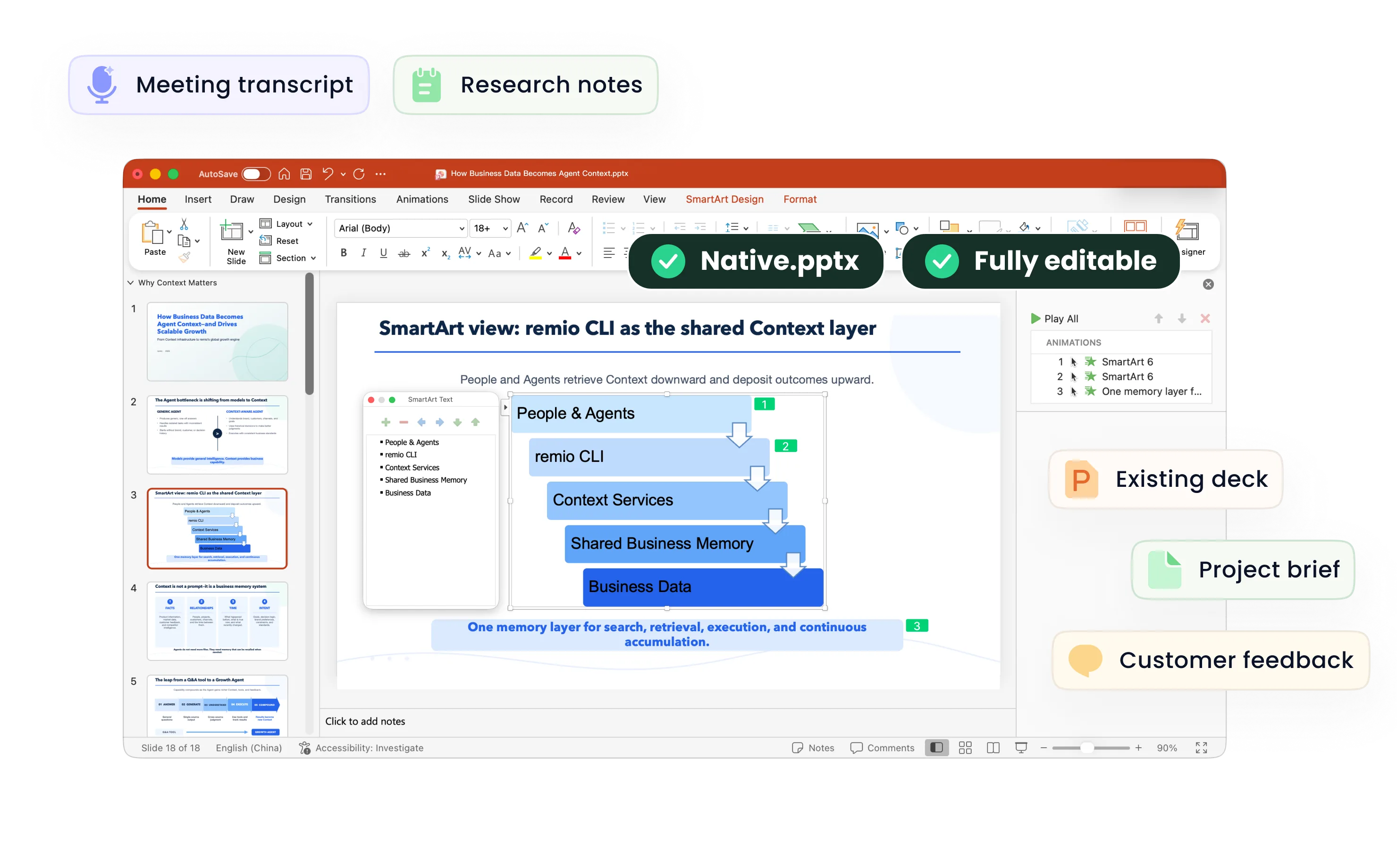
Product Demo Presentation
Create product demo presentations from product briefs, screenshots and audience context. Review the workflow and refine the PowerPoint in remio.
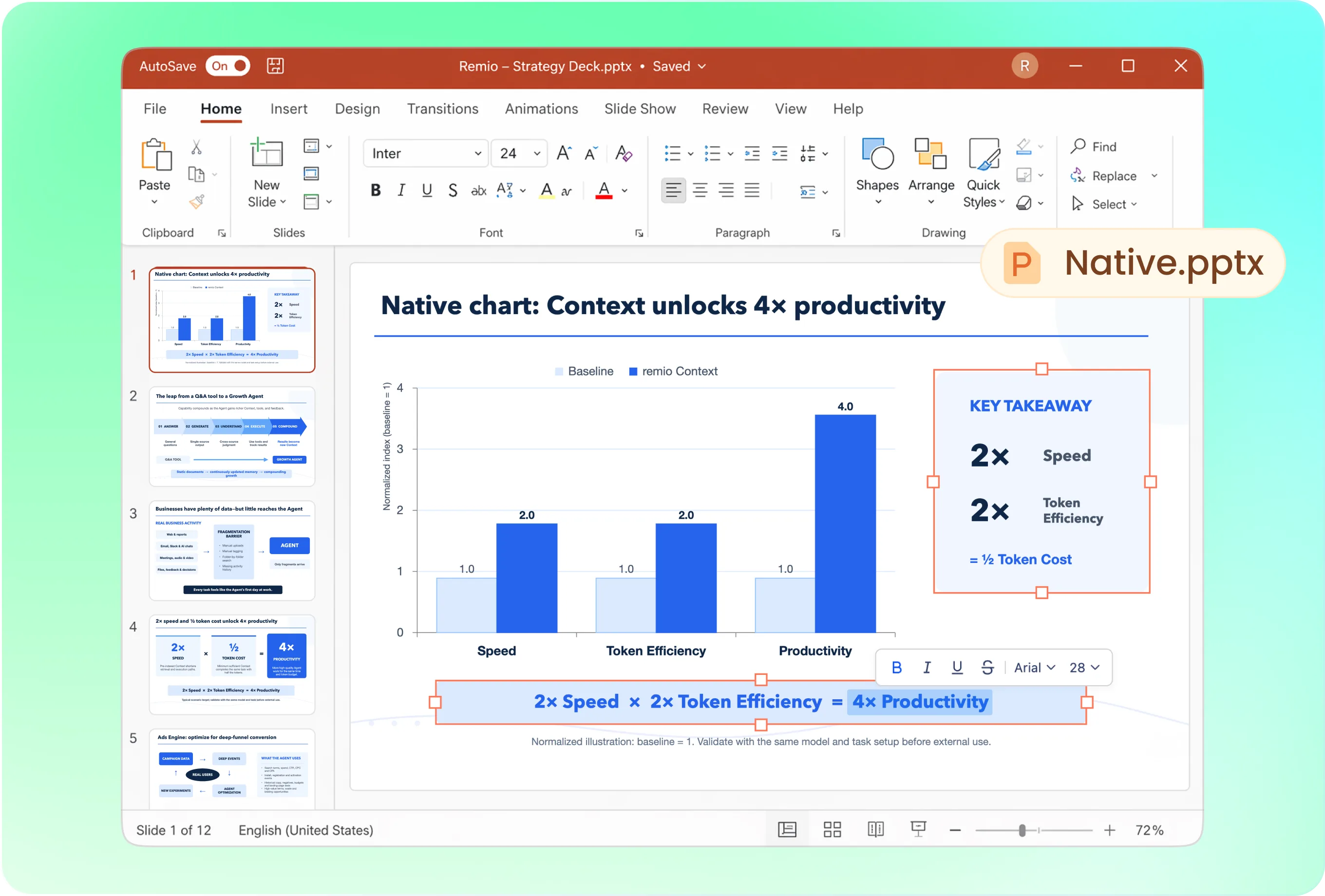
Show a task from problem to outcome
Open with the user’s situation, explain the starting point, walk through the key actions and close with the result and next step. Ask remio to keep the sequence focused on one workflow instead of listing every feature.
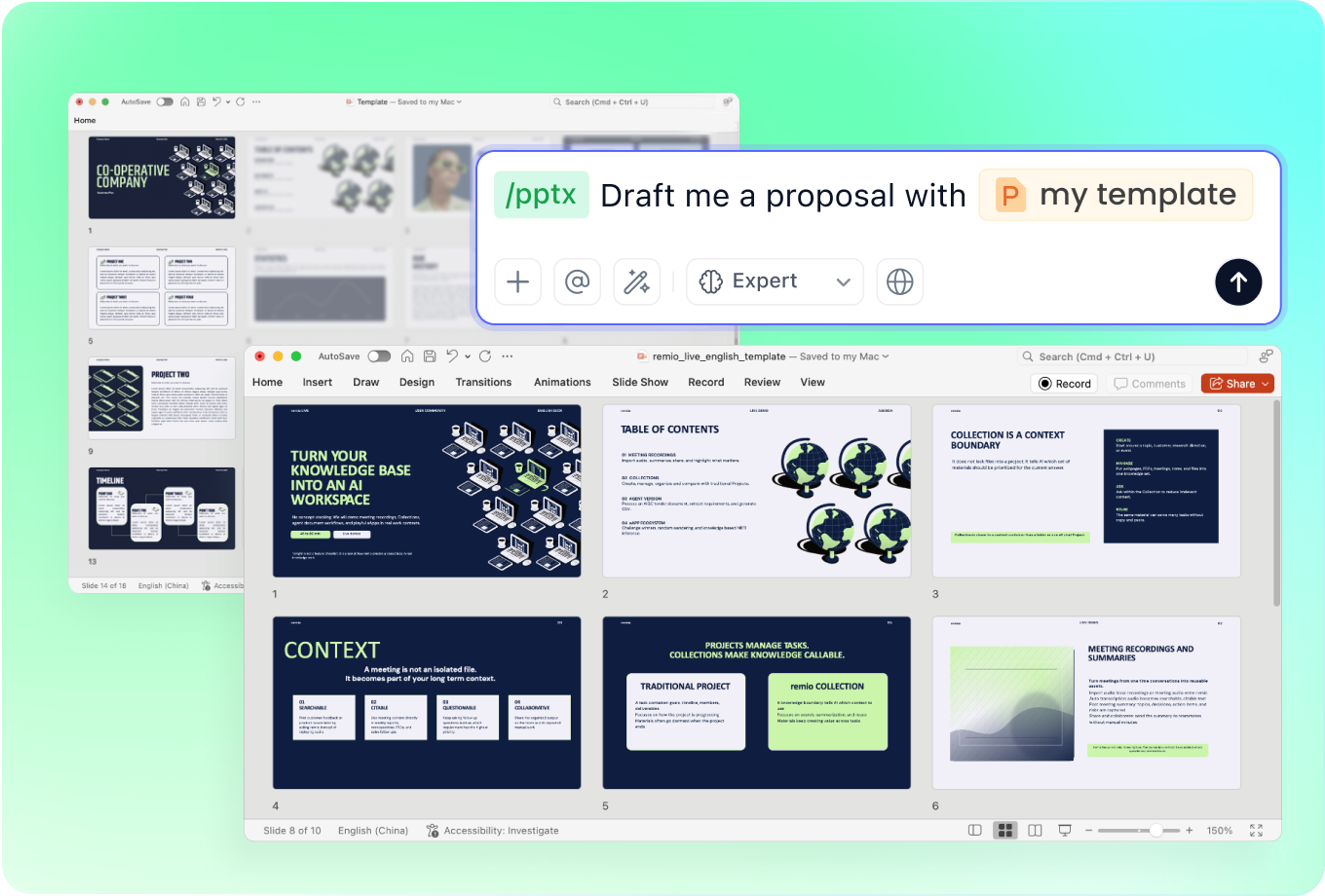
Use product visuals in the company style
Provide your approved presentation and the screenshots needed for the demo. Ask for a consistent layout that leaves interface details readable. Check that captions explain the action shown and that the visuals match the current product version.
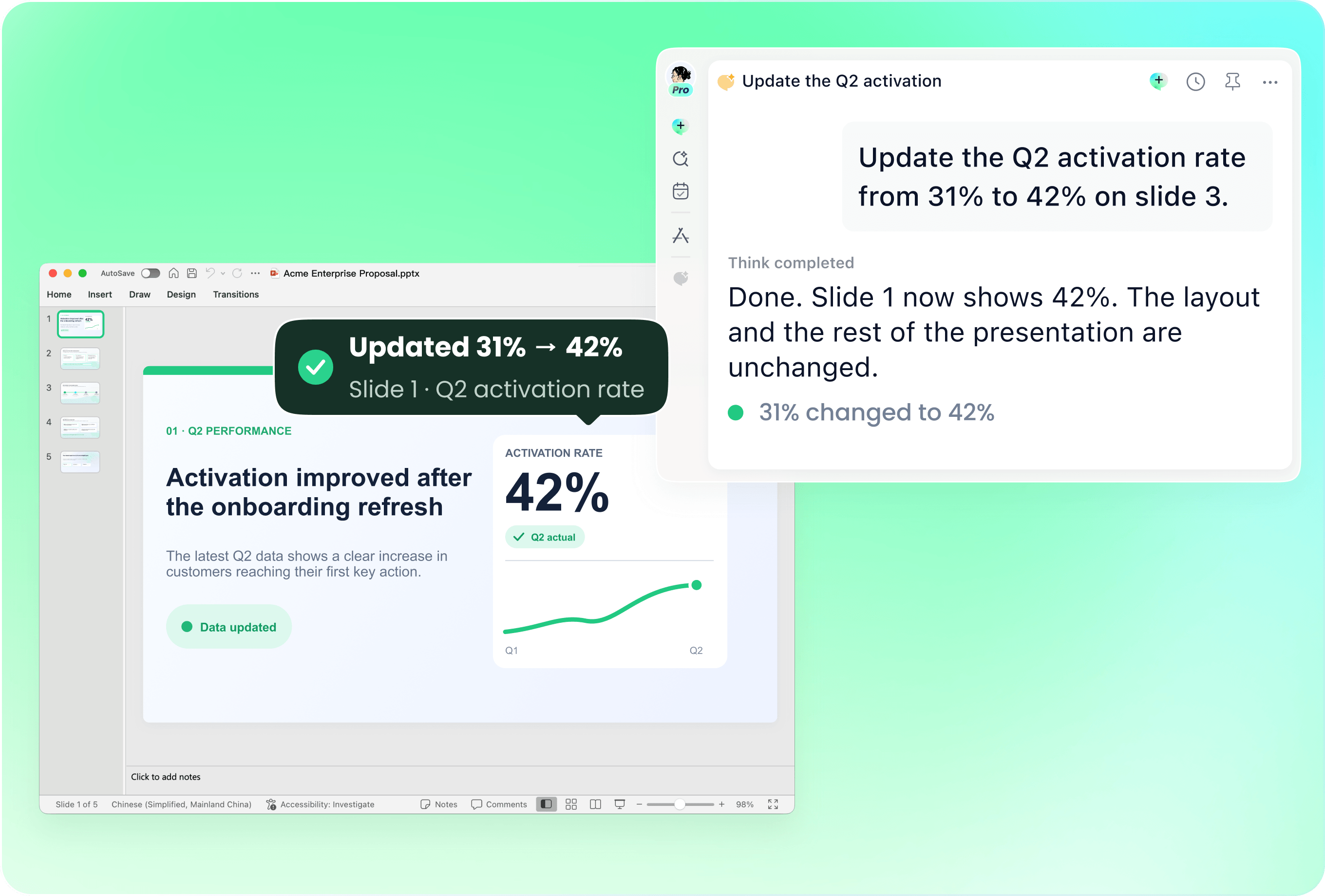
Update the walkthrough when the product changes
Use the existing deck with release notes and replacement screenshots. Identify changed screens, terminology and steps. Ask remio to revise the relevant slides, then compare the deck with the actual workflow you plan to demonstrate.
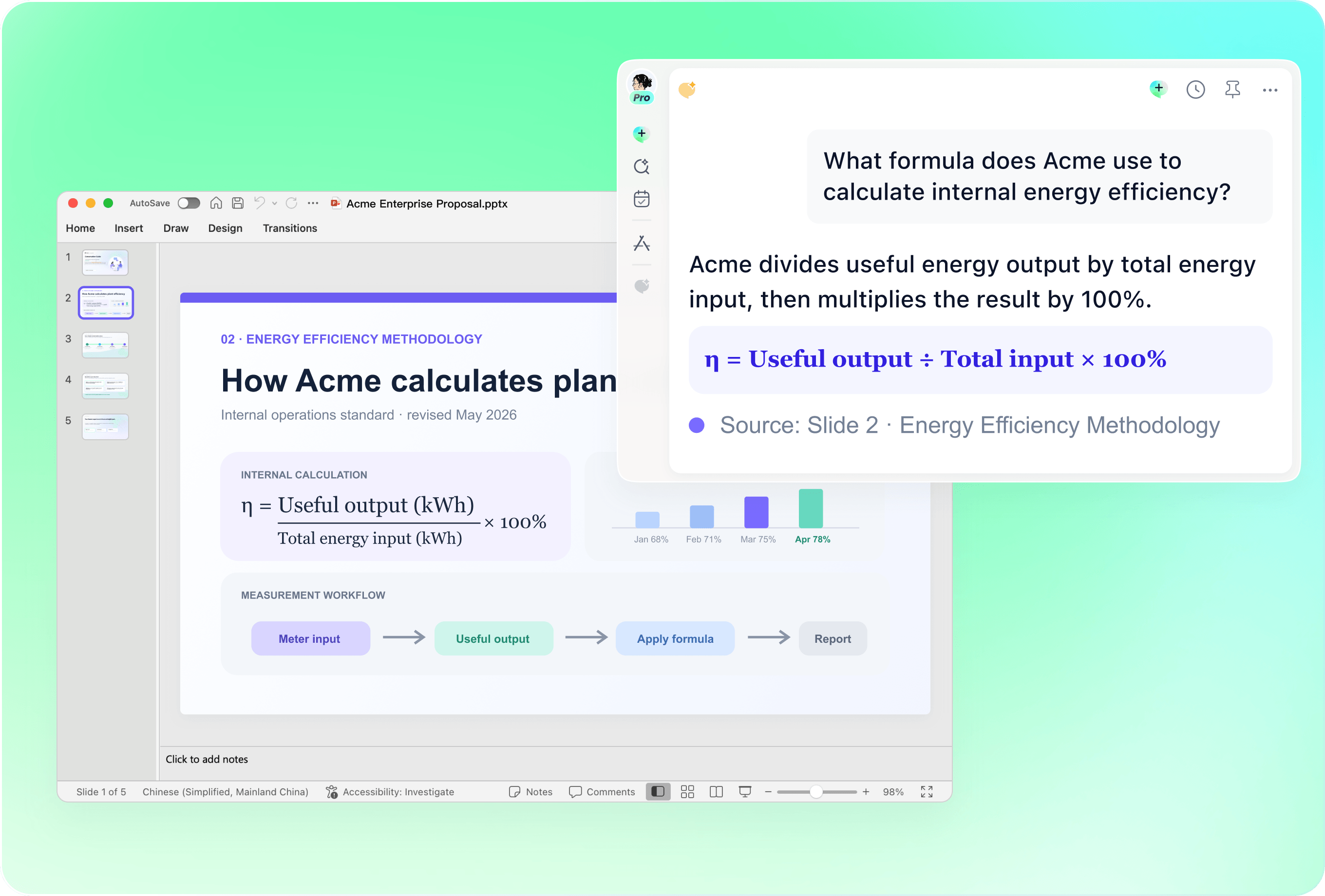
Keep the demonstration faithful to the product
Verify feature availability, setup requirements and claims about the result. Distinguish a planned feature from something available now. The presentation supports your walkthrough; it is not a generated live application, interactive prototype or guarantee that every environment behaves identically.
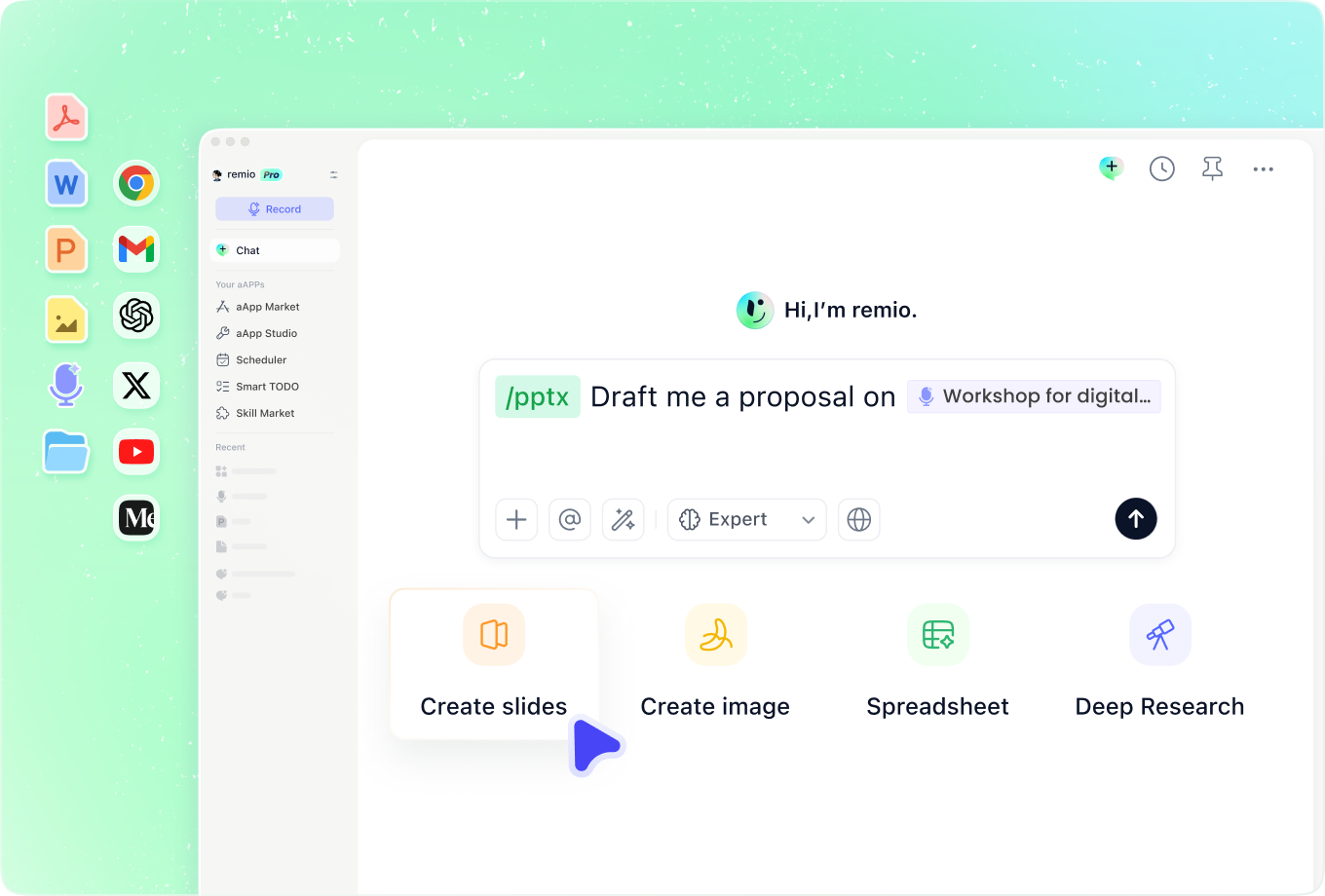
Address the questions this audience brings
Add discovery notes, user feedback and technical context relevant to the demo. Ask remio to explain why each action matters for that audience. Keep unresolved integration or implementation questions visible rather than implying they have already been answered.
How it works
From source material to a PowerPoint file you can keep updating.
01
Add the product and demo brief
Provide the workflow, audience, current screenshots and requirements.
02
Review the walkthrough
Confirm the sequence, feature claims and intended outcome.
03
Build and rehearse the deck
Create the editable PowerPoint and test the story against the real demo.
FAQs
Yes. You can download remio and start for free. Some advanced usage may depend on your subscription plan, but you can try the AI presentation workflow before committing.
remio is designed as a local first app instead of a browser-only slide editor.
For AI presentations, this makes a real difference. Local file access helps remio parse documents faster, handle larger context, and better preserve PowerPoint structure, styles, and layouts. It also reduces the need to upload sensitive files into a browser-based tool.Combine current product information with a specific demo workflow and approved screenshots. Explain the audience and environment. Review the final slides against the actual product; this is a presentation workflow, not automatic construction of a live interactive demo.
Yes. remio creates a native .pptx file from the start, not a presentation you have to export later. Every text box, layout, chart, and image stays editable in PowerPoint.
You can open it locally, edit it directly, and keep the same .pptx file from draft to final presentation.Not yet. remio currently focuses on native PowerPoint and .pptx workflows.
Keynote and Google Slides support are planned and will be added gradually.