top of page
remio AI Presentation workspace and source materials

Teacher PPT templates

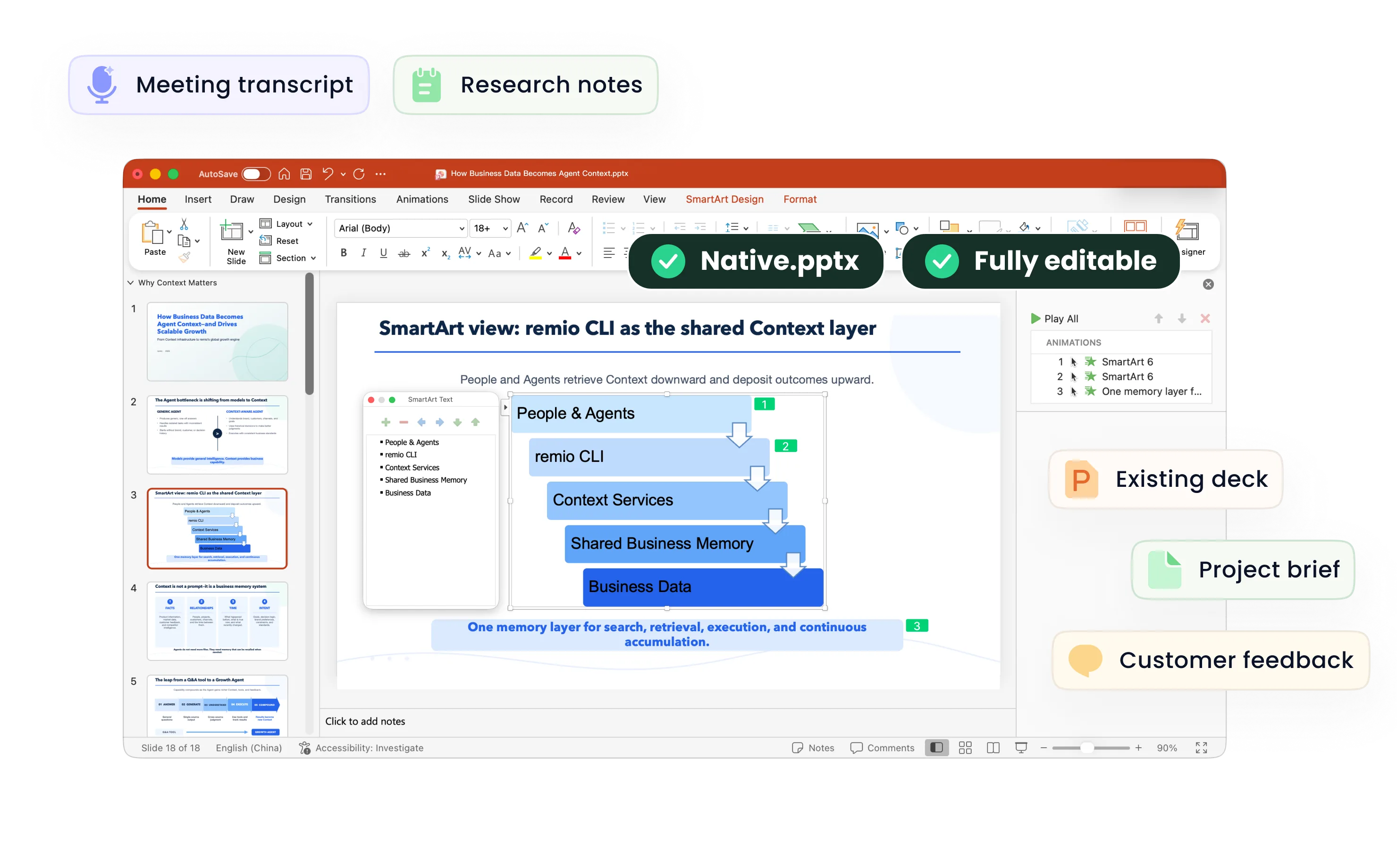
Build reusable slide patterns for lessons, class introductions and teacher training. Bring your objectives and reviewed materials into remio.

Desktop app for Windows 10+ (x64) and Apple silicon Macs.

Teacher PPT templates

Build reusable slide patterns for lessons, class introductions and teacher training. Bring your objectives and reviewed materials into remio.

Desktop app for Windows 10+ (x64) and Apple silicon Macs.

Download remio
remio AI Presentation workspace and source materials

Teacher PowerPoint Templates

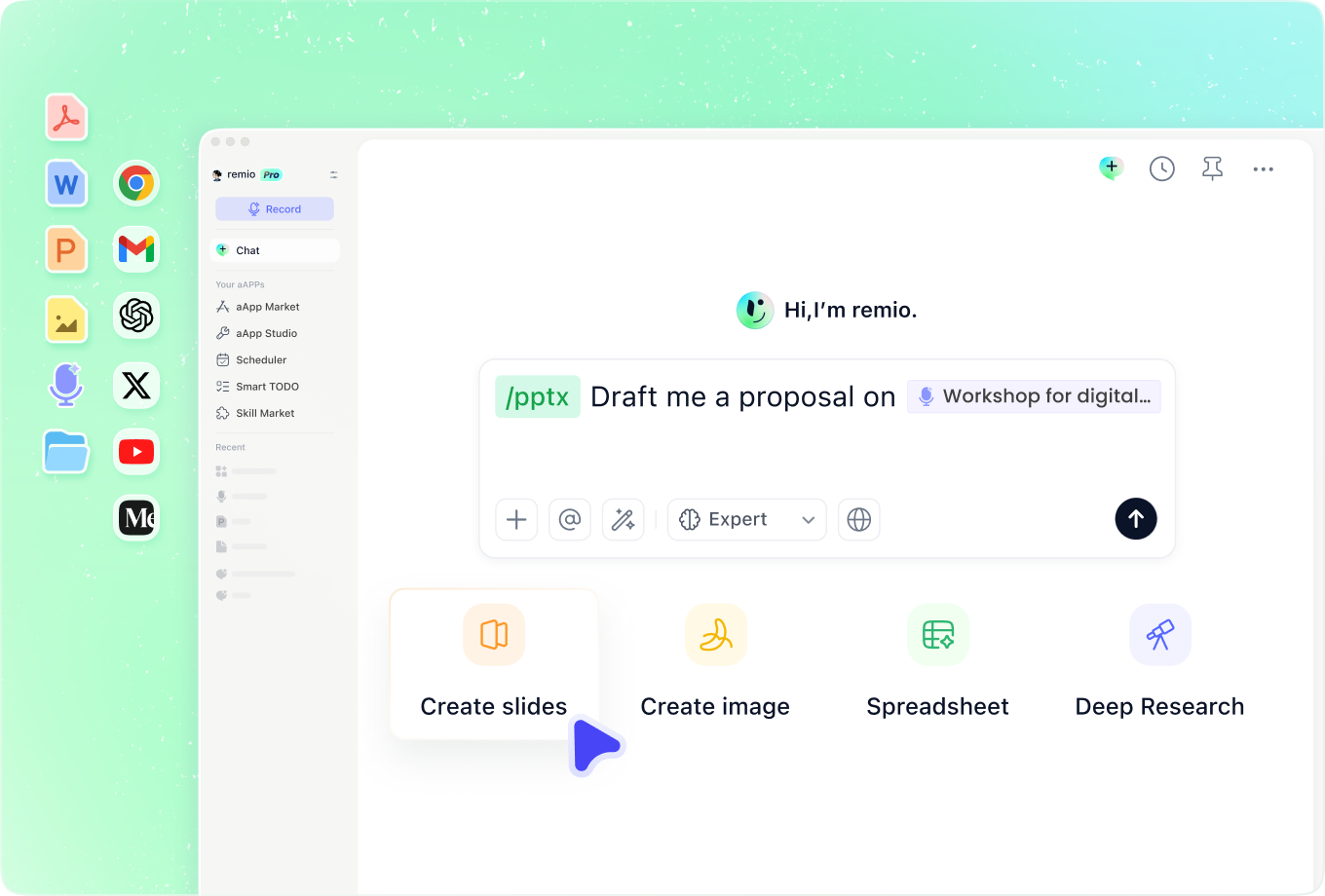
Prepare classroom lecture slides, lesson plans and back-to-school presentations with reusable structures. Review and refine your teaching slides in remio.

Plan the lesson sequence

Plan the lesson sequence

Start a lesson plan with the objective, prior knowledge, materials, activity and a way to check understanding. For classroom lecture slides, divide the explanation into manageable ideas and examples. State the lesson duration and grade level so you can review whether the sequence fits the class.
Keep a small set of teaching layouts

Keep a small set of teaching layouts

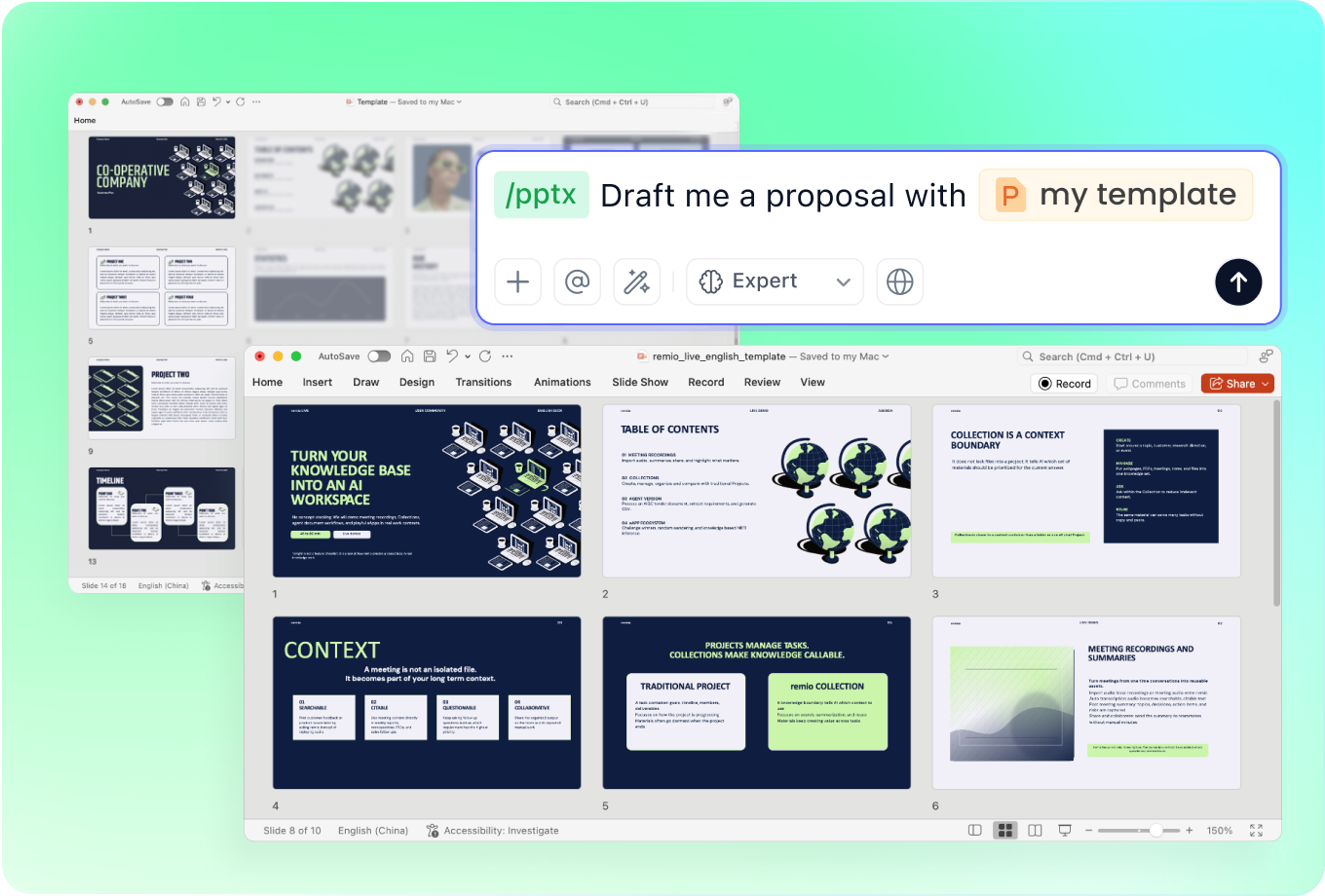
Reuse patterns for a learning goal, worked example, discussion prompt, activity instructions and recap. Keep headings, labels and spacing consistent. Provide an existing school deck if there are visual conventions to follow.

Check explanations against the sources

Check explanations against the sources

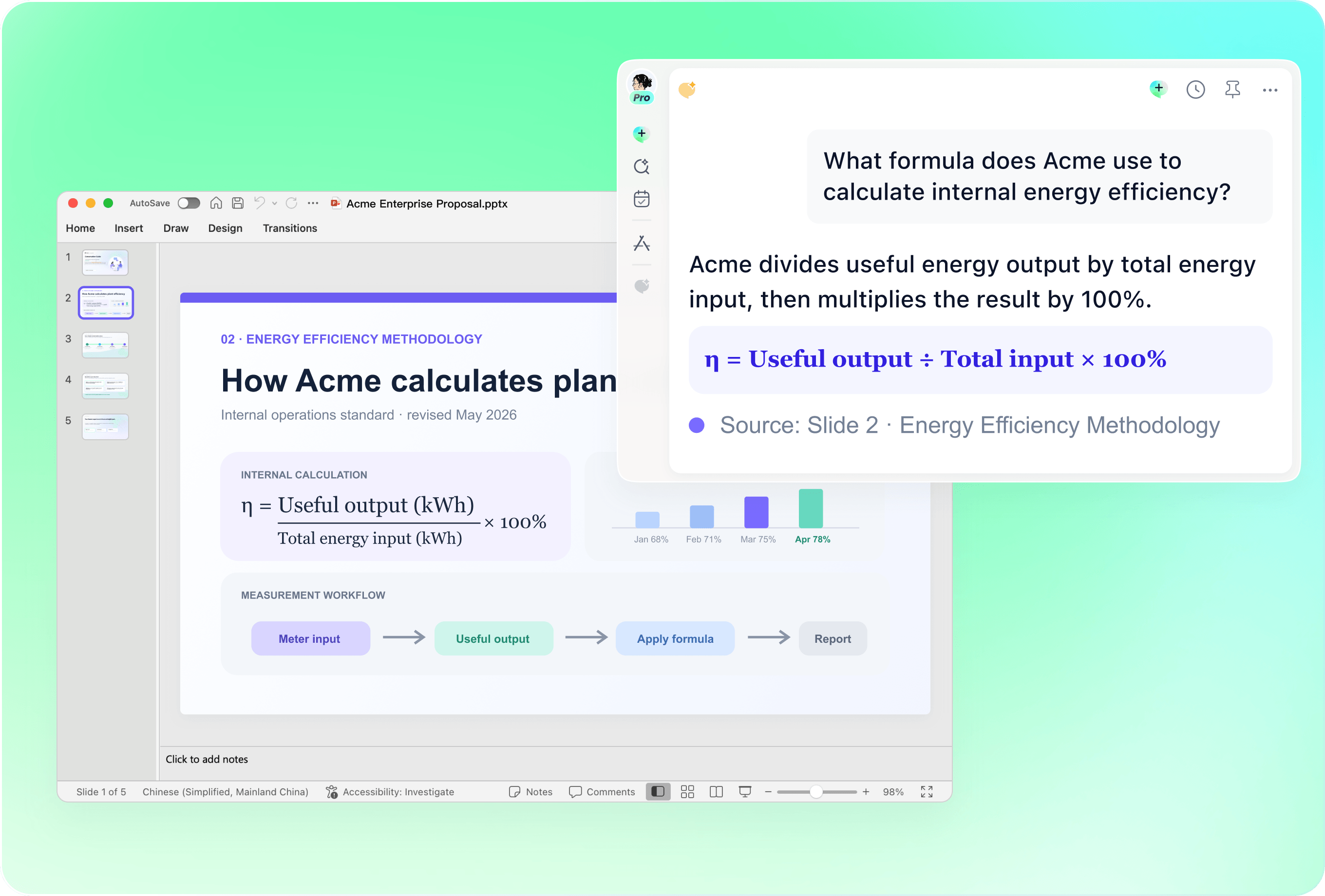
Add your approved reading, teaching notes and example solutions. Ask remio to build the explanation from those materials, then compare definitions, calculations and answer keys with the originals. Adjust the vocabulary and examples for the learners rather than treating generated wording as automatically classroom-ready.

Adapt slides across school occasions

Adapt slides across school occasions

For meet-the-teacher or back-to-school slides, introduce the course, classroom routines and contact arrangements. For teacher training, explain the practice, supporting material and discussion task. Use the latest approved information and revise existing slides when the class or purpose changes.

End with a useful check and recap

End with a useful check and recap

Add a discussion question, short practice task or exit prompt, followed by a concise recap. Ordinary question slides can support a teacher-led review. Do not assume that they provide live scoring, polling or an interactive quiz system. Review the instructions and any answers before using them in class.

How it works

From source material to a PowerPoint file you can keep updating.

  1. Add the teaching context

    Provide the objective, learners, timing, notes and reviewed classroom materials.

  2. Review the recurring layouts

    Check the explanation, worked example, activity and recap sequence.

  3. Refine for the class

    Review readability, instructions, sources and any example answers before teaching.

FAQs

What should teacher presentation templates include?

Useful recurring layouts cover the learning objective, lesson sequence, explanations, worked examples, activity instructions, a check for understanding and a recap. Choose the patterns that help your class, and adapt the depth to the subject and available time.

Can I prepare meet-the-teacher and back-to-school slides?

Yes. Use the course introduction, classroom routines, expectations and contact arrangements you provide. Keep the language clear for students or families and check that the information matches current school practice.

Can I include quizzes or discussion questions?

You can prepare ordinary slides with questions, choices, explanations or practice tasks for a teacher-led activity. This page does not promise live response collection, automatic scoring or interactive quiz controls. Review question wording and answer keys before presenting.

Can I reuse and update an existing lesson deck?

Yes. Add the current presentation, learning objectives and new material. Describe which explanations, examples or instructions should change and which layout conventions to retain. Check the revised deck for consistency before the next class.

How do I build teaching slides with remio?

Download the remio desktop app, add your lesson notes and reviewed sources, and explain the learners and lesson purpose. Review the outline, refine the teaching layouts and verify the examples, instructions and recap before presenting.

Teacher PowerPoint Templates

Prepare classroom lecture slides, lesson plans and back-to-school presentations with reusable structures. Review and refine your teaching slides in remio.

Plan the lesson sequence

Plan the lesson sequence

Start a lesson plan with the objective, prior knowledge, materials, activity and a way to check understanding. For classroom lecture slides, divide the explanation into manageable ideas and examples. State the lesson duration and grade level so you can review whether the sequence fits the class.
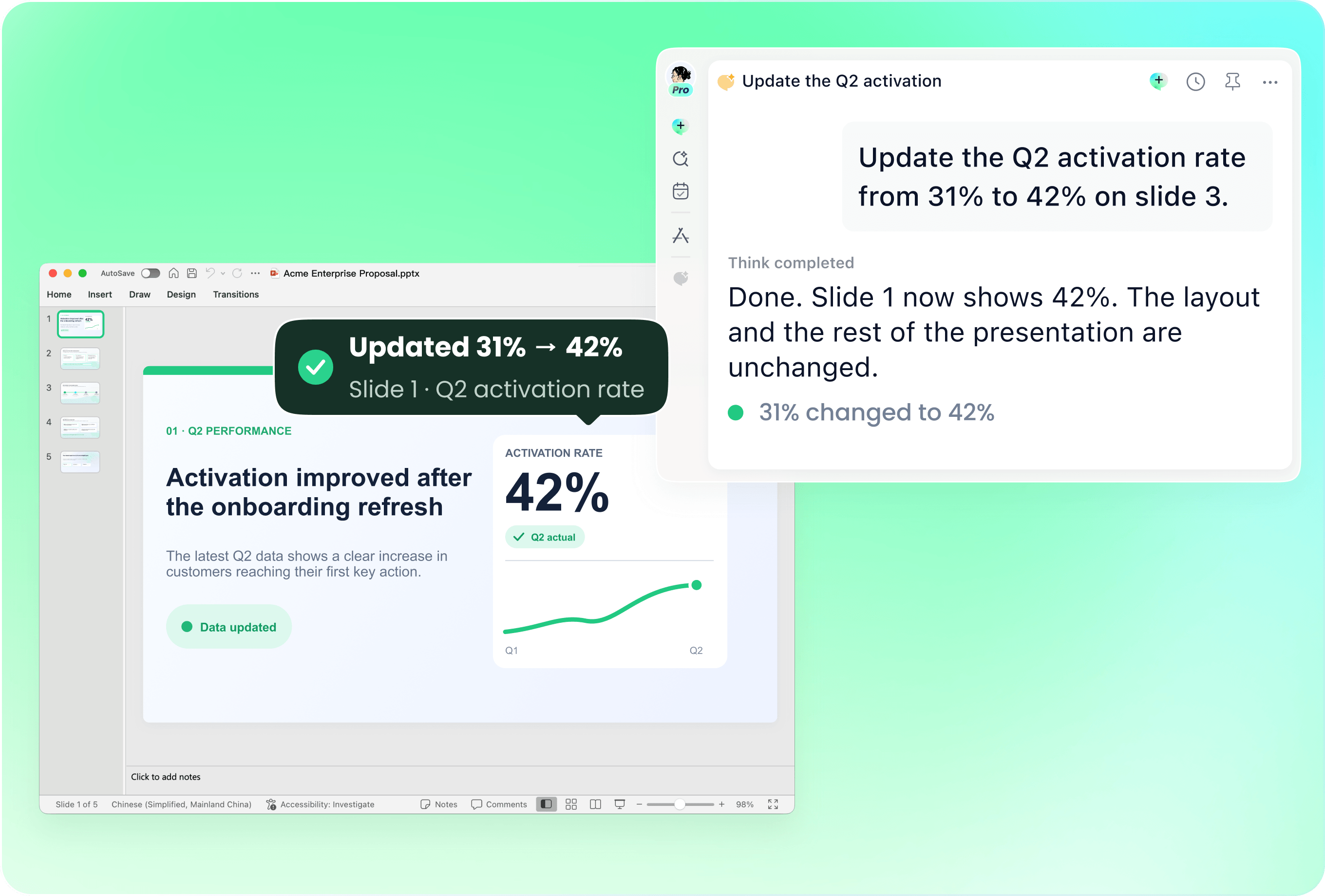
Keep a small set of teaching layouts

Keep a small set of teaching layouts

Reuse patterns for a learning goal, worked example, discussion prompt, activity instructions and recap. Keep headings, labels and spacing consistent. Provide an existing school deck if there are visual conventions to follow.

Check explanations against the sources

Check explanations against the sources

Add your approved reading, teaching notes and example solutions. Ask remio to build the explanation from those materials, then compare definitions, calculations and answer keys with the originals. Adjust the vocabulary and examples for the learners rather than treating generated wording as automatically classroom-ready.

Adapt slides across school occasions

Adapt slides across school occasions

For meet-the-teacher or back-to-school slides, introduce the course, classroom routines and contact arrangements. For teacher training, explain the practice, supporting material and discussion task. Use the latest approved information and revise existing slides when the class or purpose changes.

End with a useful check and recap

End with a useful check and recap

Add a discussion question, short practice task or exit prompt, followed by a concise recap. Ordinary question slides can support a teacher-led review. Do not assume that they provide live scoring, polling or an interactive quiz system. Review the instructions and any answers before using them in class.

How it works

From source material to a PowerPoint file you can keep updating.

01

Add the teaching context

Provide the objective, learners, timing, notes and reviewed classroom materials.

02

Review the recurring layouts

Check the explanation, worked example, activity and recap sequence.

03

Refine for the class

Review readability, instructions, sources and any example answers before teaching.

FAQs

  • Useful recurring layouts cover the learning objective, lesson sequence, explanations, worked examples, activity instructions, a check for understanding and a recap. Choose the patterns that help your class, and adapt the depth to the subject and available time.

  • Yes. Use the course introduction, classroom routines, expectations and contact arrangements you provide. Keep the language clear for students or families and check that the information matches current school practice.

  • You can prepare ordinary slides with questions, choices, explanations or practice tasks for a teacher-led activity. This page does not promise live response collection, automatic scoring or interactive quiz controls. Review question wording and answer keys before presenting.

  • Yes. Add the current presentation, learning objectives and new material. Describe which explanations, examples or instructions should change and which layout conventions to retain. Check the revised deck for consistency before the next class.

  • Download the remio desktop app, add your lesson notes and reviewed sources, and explain the learners and lesson purpose. Review the outline, refine the teaching layouts and verify the examples, instructions and recap before presenting.

FAQs

Useful recurring layouts cover the learning objective, lesson sequence, explanations, worked examples, activity instructions, a check for understanding and a recap. Choose the patterns that help your class, and adapt the depth to the subject and available time.

Yes. Use the course introduction, classroom routines, expectations and contact arrangements you provide. Keep the language clear for students or families and check that the information matches current school practice.

You can prepare ordinary slides with questions, choices, explanations or practice tasks for a teacher-led activity. This page does not promise live response collection, automatic scoring or interactive quiz controls. Review question wording and answer keys before presenting.

Yes. Add the current presentation, learning objectives and new material. Describe which explanations, examples or instructions should change and which layout conventions to retain. Check the revised deck for consistency before the next class.

Download the remio desktop app, add your lesson notes and reviewed sources, and explain the learners and lesson purpose. Review the outline, refine the teaching layouts and verify the examples, instructions and recap before presenting.

bottom of page