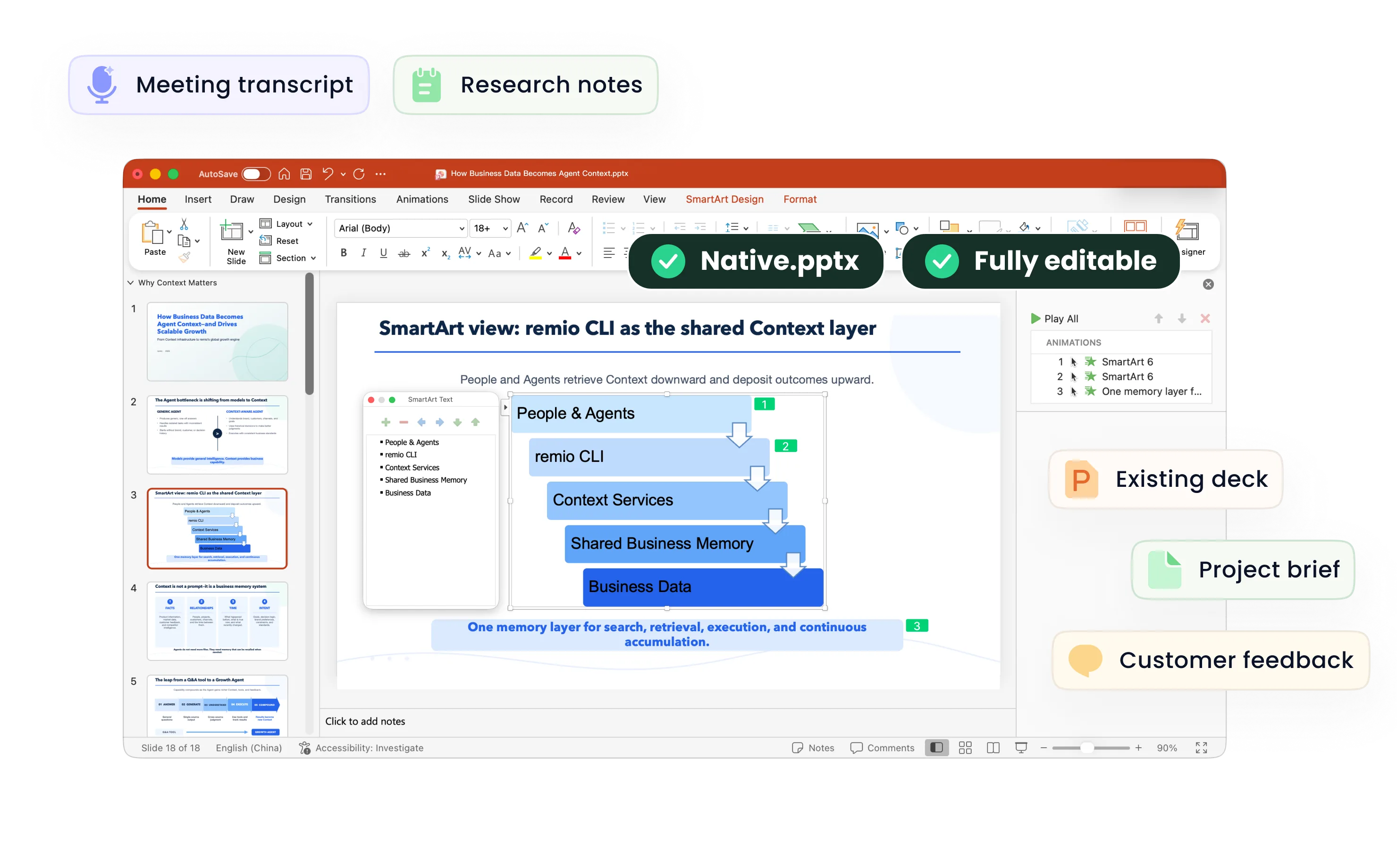
Text to PowerPoint
Turn articles, meeting notes and pasted text into editable PowerPoint slides with remio. Review the outline and refine the .pptx in the desktop app.
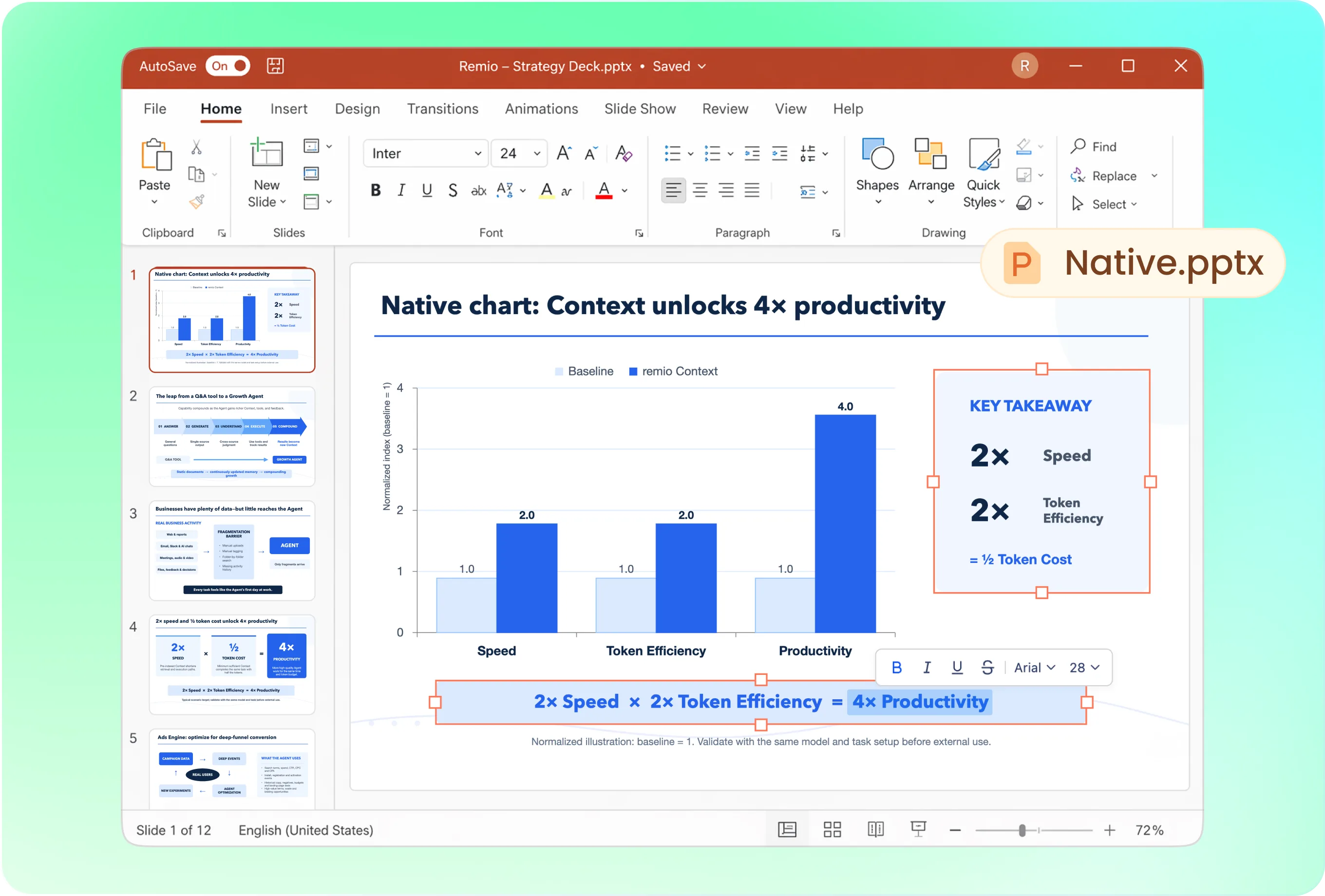
Restructure the story, not just the paragraphs
A written article and a spoken presentation need different structures. Try: “Turn these notes into eight slides for our weekly team review. Put decisions first, keep one main point per slide, and finish with owners and next steps.” Review the outline before asking remio to build the deck.
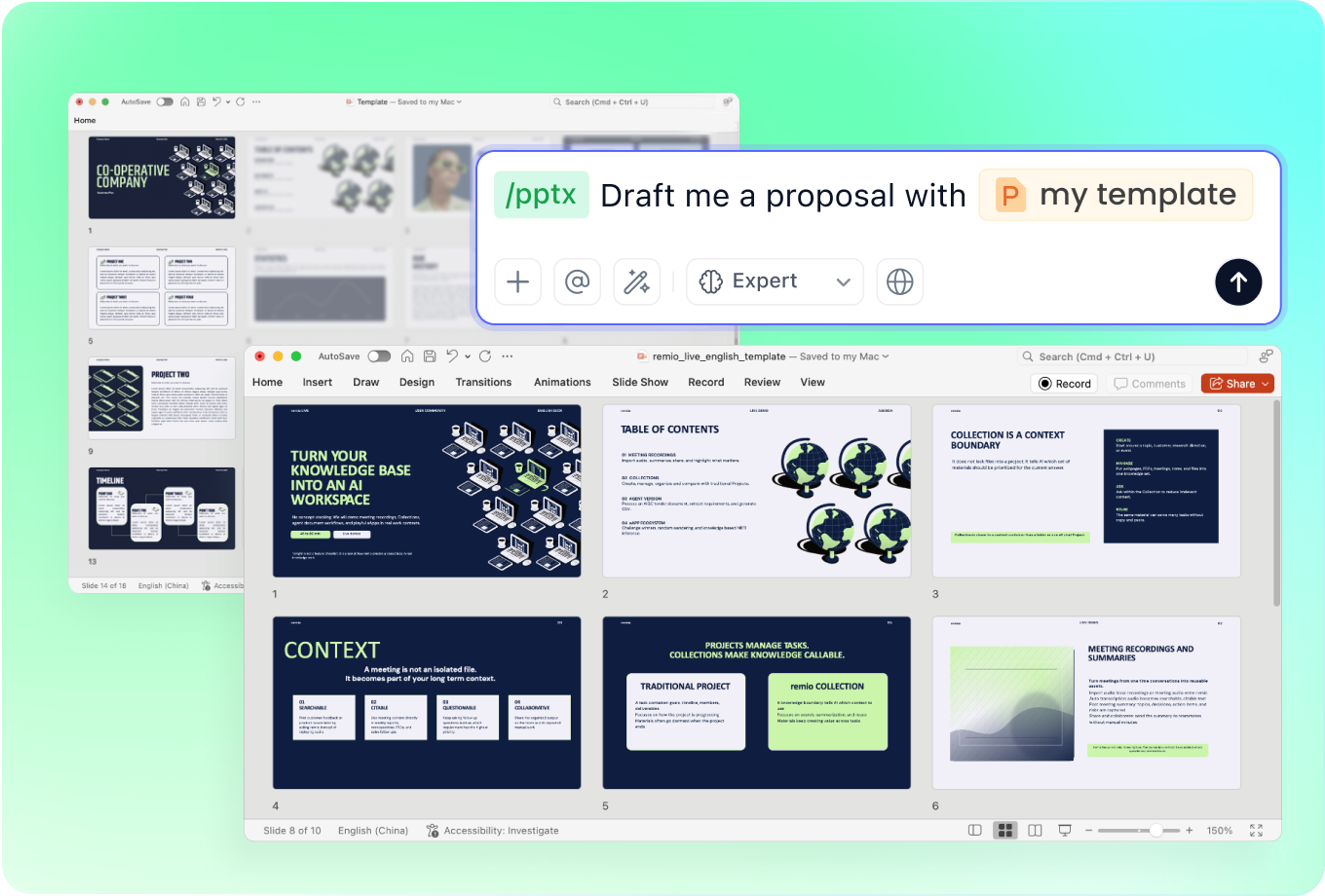
Keep the presentation on brand
Add a company PowerPoint alongside your text and ask remio to follow its layout, fonts and colors. A customer recap may need a formal tone, while an internal update can be shorter. Specify the style rather than copying whole paragraphs onto slides.
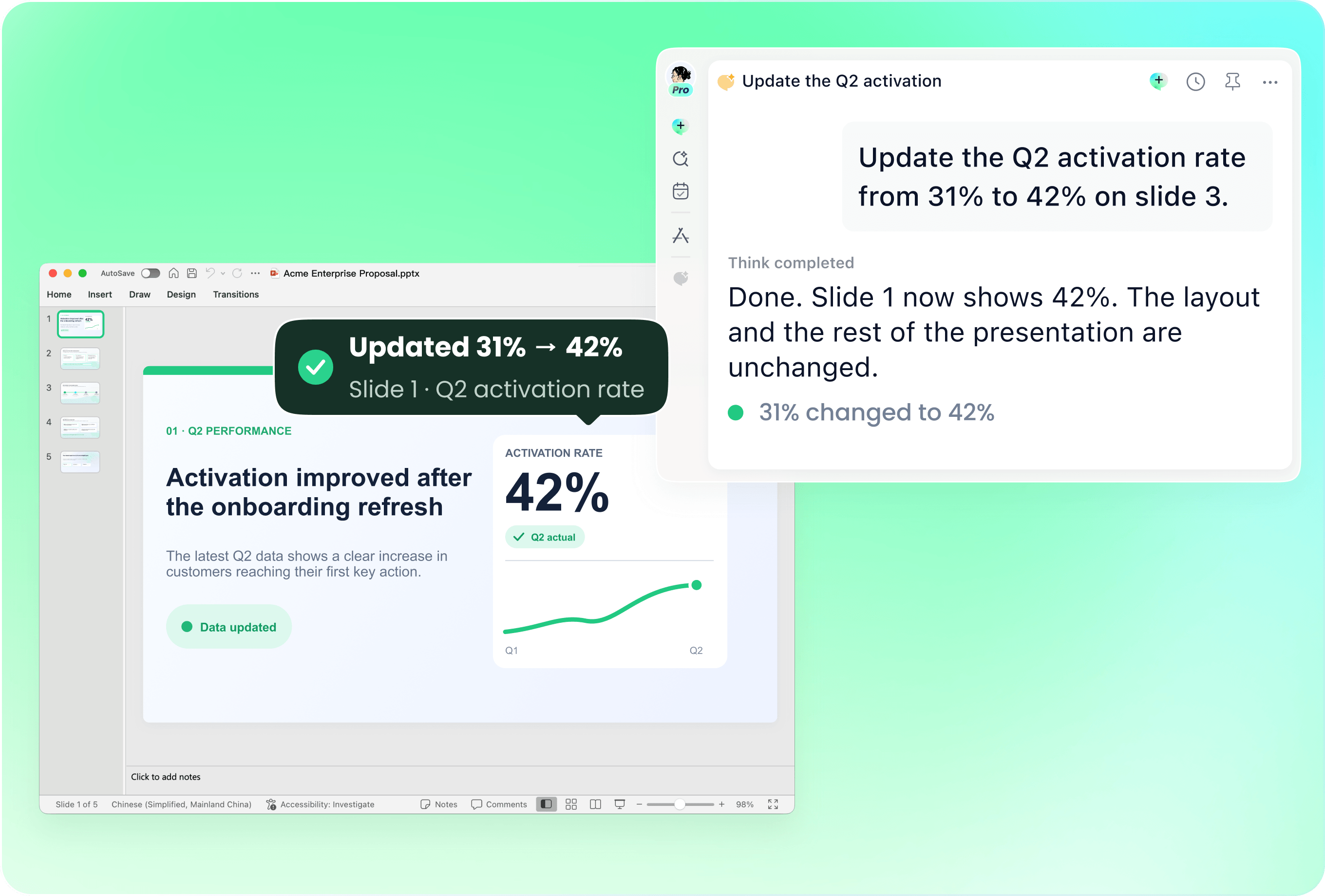
Use new text to update an existing deck
Already have last week’s presentation? Provide the new notes with that deck and name the slides to revise. Ask remio to update decisions, dates and action items while retaining the sections you still need. Check the revised slides before sharing.
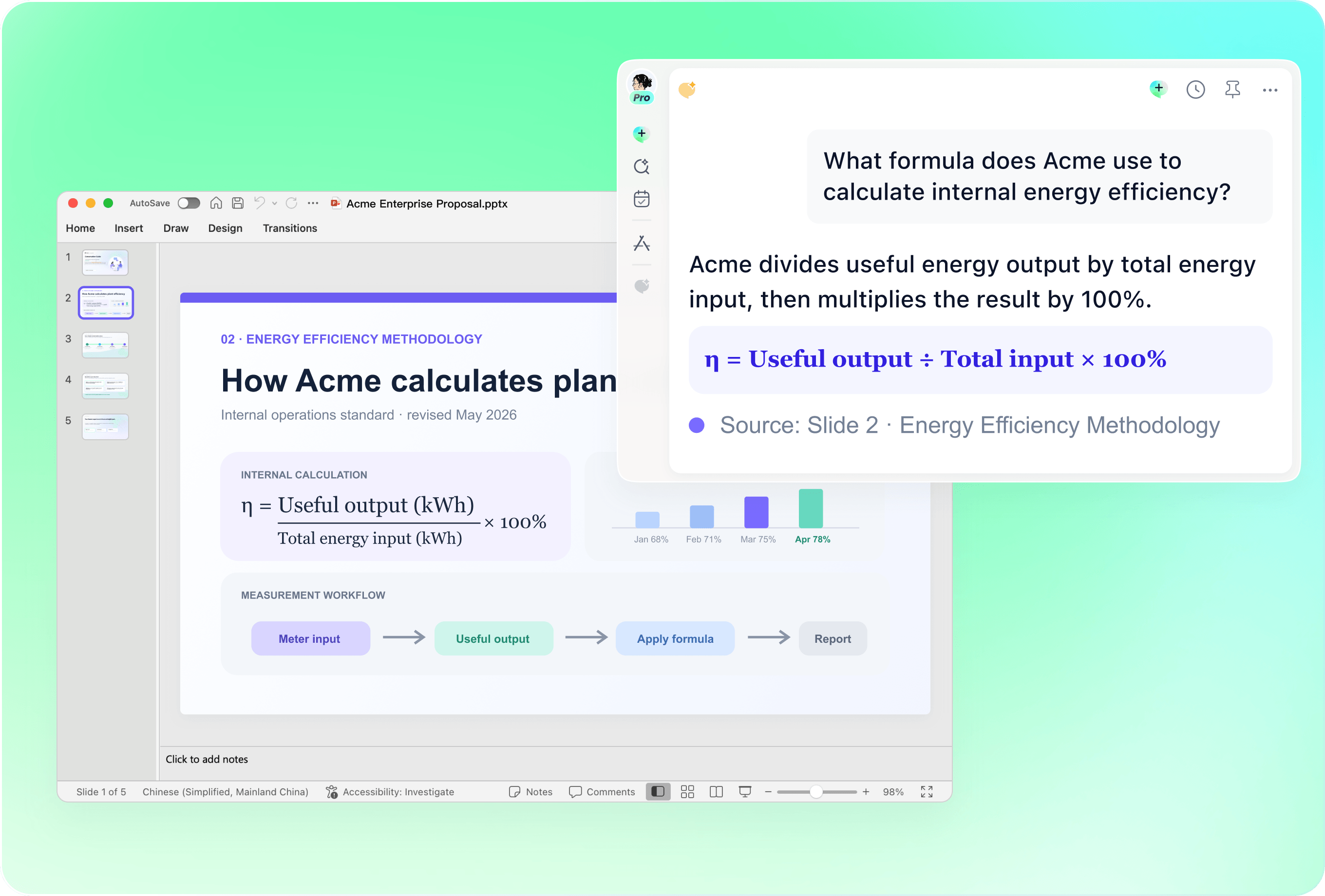
Separate source facts from slide wording
Review names, dates, quotations and numbers against the original text. Ask for shorter slide copy without changing the meaning. If a figure needs a chart, confirm the underlying data instead of letting an incomplete paragraph become an unsupported visual.
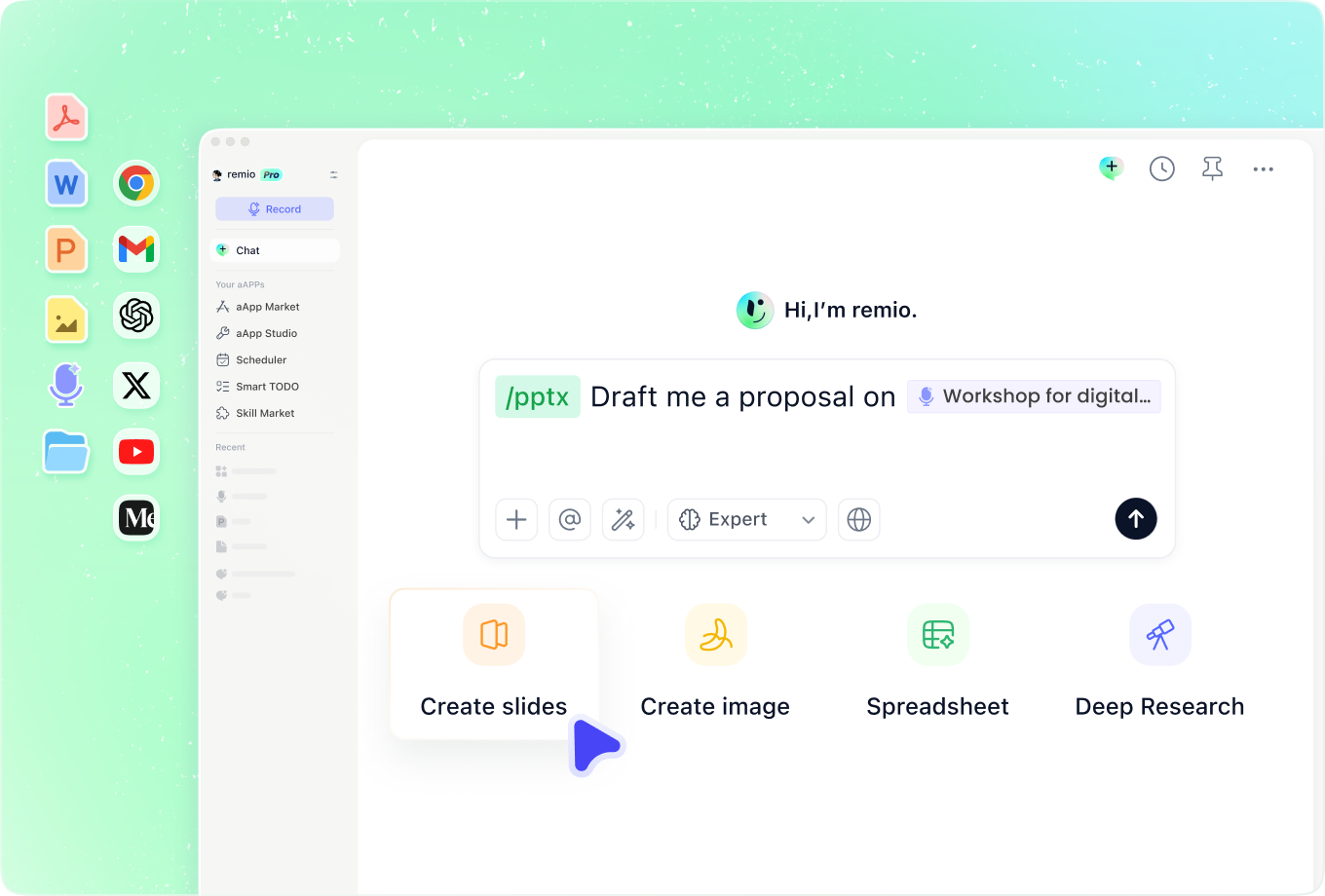
Add the context the text leaves out
Combine the draft with project notes, research and relevant meeting context in remio. Explain what the audience already knows and what decision you need. This helps distinguish an executive recap from a training deck built from the same source.
How it works
From source material to a PowerPoint file you can keep updating.
01
Add your source text
Provide the article, notes or draft in remio. Describe the audience, goal and slide count.
02
Review the slide outline
Check the narrative, section order and facts. Ask remio to shorten or reorganize sections before building.
03
Create and refine the PowerPoint
Generate the native .pptx, then review the slides and edit the wording, visuals and layout.
FAQs
Yes. You can download remio and start for free. Some advanced usage may depend on your subscription plan, but you can try the AI presentation workflow before committing.
remio is designed as a local first app instead of a browser-only slide editor.
For AI presentations, this makes a real difference. Local file access helps remio parse documents faster, handle larger context, and better preserve PowerPoint structure, styles, and layouts. It also reduces the need to upload sensitive files into a browser-based tool.Start with the text you want to present, then add relevant project notes or research. For a meeting recap, identify decisions and owners. For an article, identify the argument and supporting evidence. Ask remio to use the supplied material and flag missing facts rather than invent them.
Yes. remio creates a native .pptx file from the start, not a presentation you have to export later. Every text box, layout, chart, and image stays editable in PowerPoint.
You can open it locally, edit it directly, and keep the same .pptx file from draft to final presentation.Not yet. remio currently focuses on native PowerPoint and .pptx workflows.
Keynote and Google Slides support are planned and will be added gradually.