top of page
remio AI Presentation workspace and source materials

Timeline PPT templates

Turn dates, milestones and project notes into a clear timeline presentation. Review the sequence, owners and next decision in remio.

Desktop app for Windows 10+ (x64) and Apple silicon Macs.

Timeline PPT templates

Turn dates, milestones and project notes into a clear timeline presentation. Review the sequence, owners and next decision in remio.

Desktop app for Windows 10+ (x64) and Apple silicon Macs.

Download remio
remio AI Presentation workspace and source materials

Timeline PowerPoint Templates

Create a timeline PowerPoint presentation from project notes, dates and milestones. Show phases, owners and next steps, then refine the slides in remio.

Show phases and owners

Show phases and owners

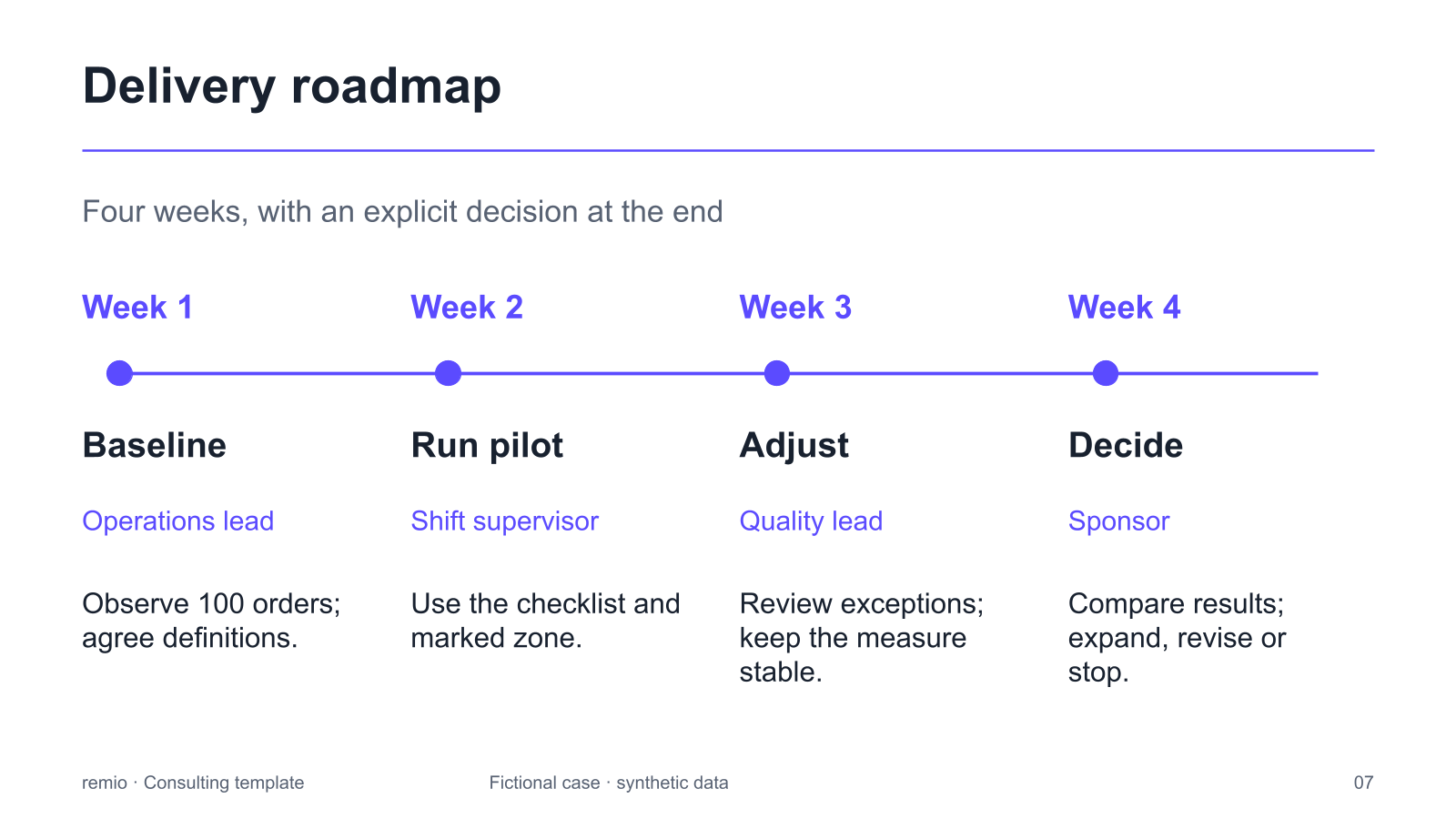
Give each phase a short label, an owner and a visible review point. The four-week roadmap shown here is a fictional planning example: baseline, pilot, adjustment and a decision. Replace its dates, roles and activities with your own approved plan; it is not a live project schedule.
Choose the right time scale

Choose the right time scale

Start with the period your audience needs to understand. A delivery plan may use weeks, a product roadmap may use quarters, and a company history may use years. Keep the scale explicit, and group detailed events into phases when the labels no longer fit comfortably.

Distinguish plans from evidence

Distinguish plans from evidence

Label planned dates, completed milestones and uncertain estimates clearly. For a historical or company timeline, provide reliable sources for the events and dates. Ask remio to build the story from your material, then check the order and wording against the originals.

Revise the timeline as work changes

Revise the timeline as work changes

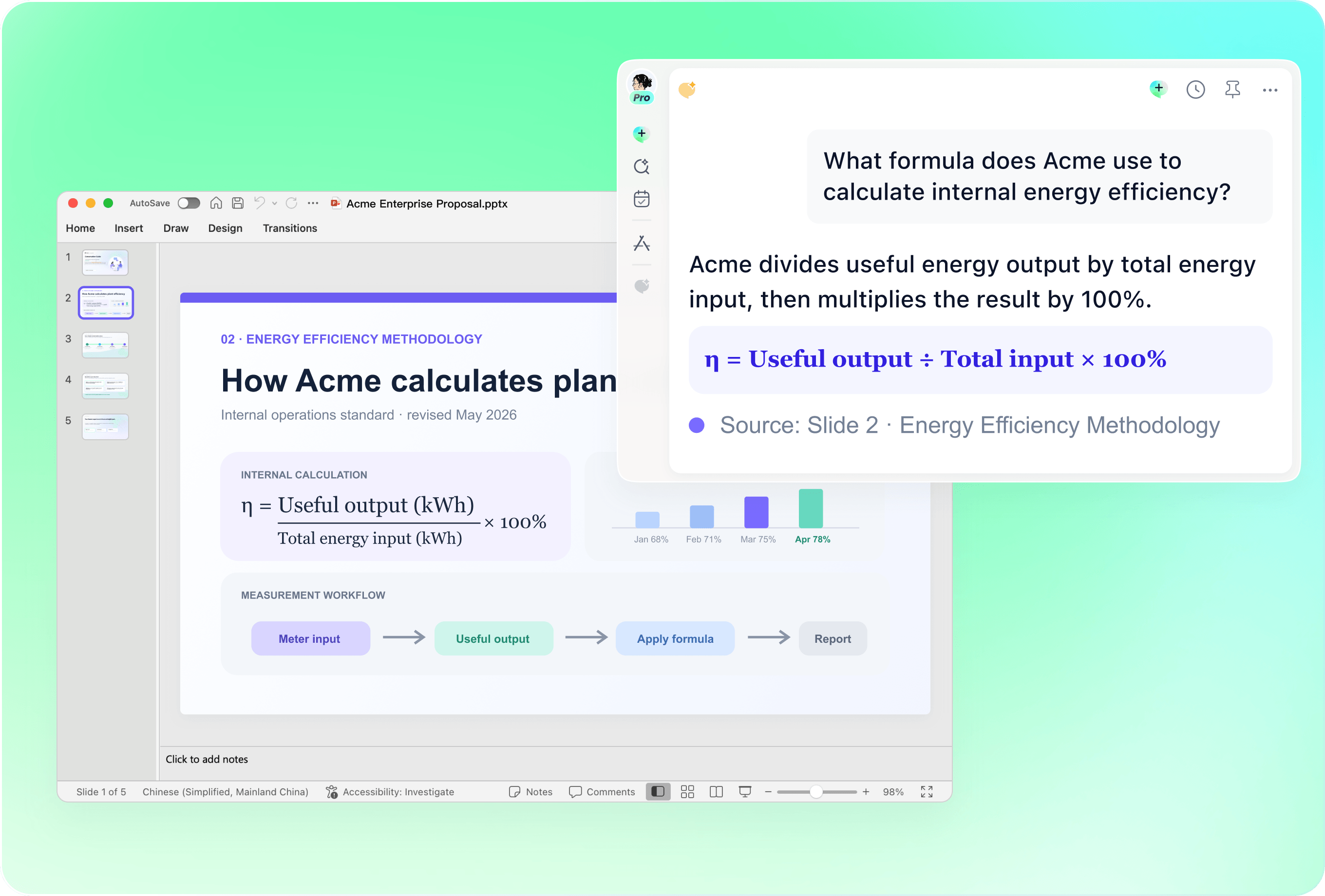
Bring the current presentation together with the latest project notes or decisions. Identify the milestones, dates and owners that changed, and ask remio to revise the relevant slides. Check that an updated date remains consistent wherever the milestone appears in the deck.

End with the next checkpoint

End with the next checkpoint

Make the next review or decision easy to find. Explain what must be ready, who owns the work and which unresolved issue could change the plan. Keep detailed task lists in the working source material while using the presentation to explain sequence, progress and decisions.

How it works

From source material to a PowerPoint file you can keep updating.

  1. Add dates and context

    Provide the purpose, period, milestones, owners and reviewed notes.

  2. Review the sequence

    Check the order, time scale, source dates and planned versus completed work.

  3. Refine and share

    Check label readability, responsibility and the next review or decision.

FAQs

What should a timeline presentation include?

Start with the purpose and time period, then show the key events or phases in order. Add concise labels, dates, owners where relevant, and the next review or decision. Keep enough context for the audience to understand why each milestone matters.

Which timeline scenarios can I present?

Use a timeline structure for a project plan, product roadmap, milestone review, process explanation or company history. Choose a consistent time scale and provide source material for the events, dates and responsibilities you want to show.

How many milestones should I put on one slide?

Use only as many as remain readable at the size and distance of the presentation. If the labels become crowded, group events by phase or split the period across slides. Keep supporting detail in the source material instead of shrinking every label.

Can I update an existing timeline deck?

Yes. Add the current presentation and the latest reviewed project material. Explain which dates, phases or owners changed and which visual conventions to preserve. Review all references to the updated milestone before sharing the revised presentation.

How do I create a timeline presentation with remio?

Download the remio desktop app, add your project notes and key dates, and describe the audience and purpose. Review the outline, refine the timeline slides, and check the sequence, labels, ownership and next steps before sharing.

Timeline PowerPoint Templates

Create a timeline PowerPoint presentation from project notes, dates and milestones. Show phases, owners and next steps, then refine the slides in remio.

Show phases and owners

Show phases and owners

Give each phase a short label, an owner and a visible review point. The four-week roadmap shown here is a fictional planning example: baseline, pilot, adjustment and a decision. Replace its dates, roles and activities with your own approved plan; it is not a live project schedule.
Choose the right time scale

Choose the right time scale

Start with the period your audience needs to understand. A delivery plan may use weeks, a product roadmap may use quarters, and a company history may use years. Keep the scale explicit, and group detailed events into phases when the labels no longer fit comfortably.

Distinguish plans from evidence

Distinguish plans from evidence

Label planned dates, completed milestones and uncertain estimates clearly. For a historical or company timeline, provide reliable sources for the events and dates. Ask remio to build the story from your material, then check the order and wording against the originals.

Revise the timeline as work changes

Revise the timeline as work changes

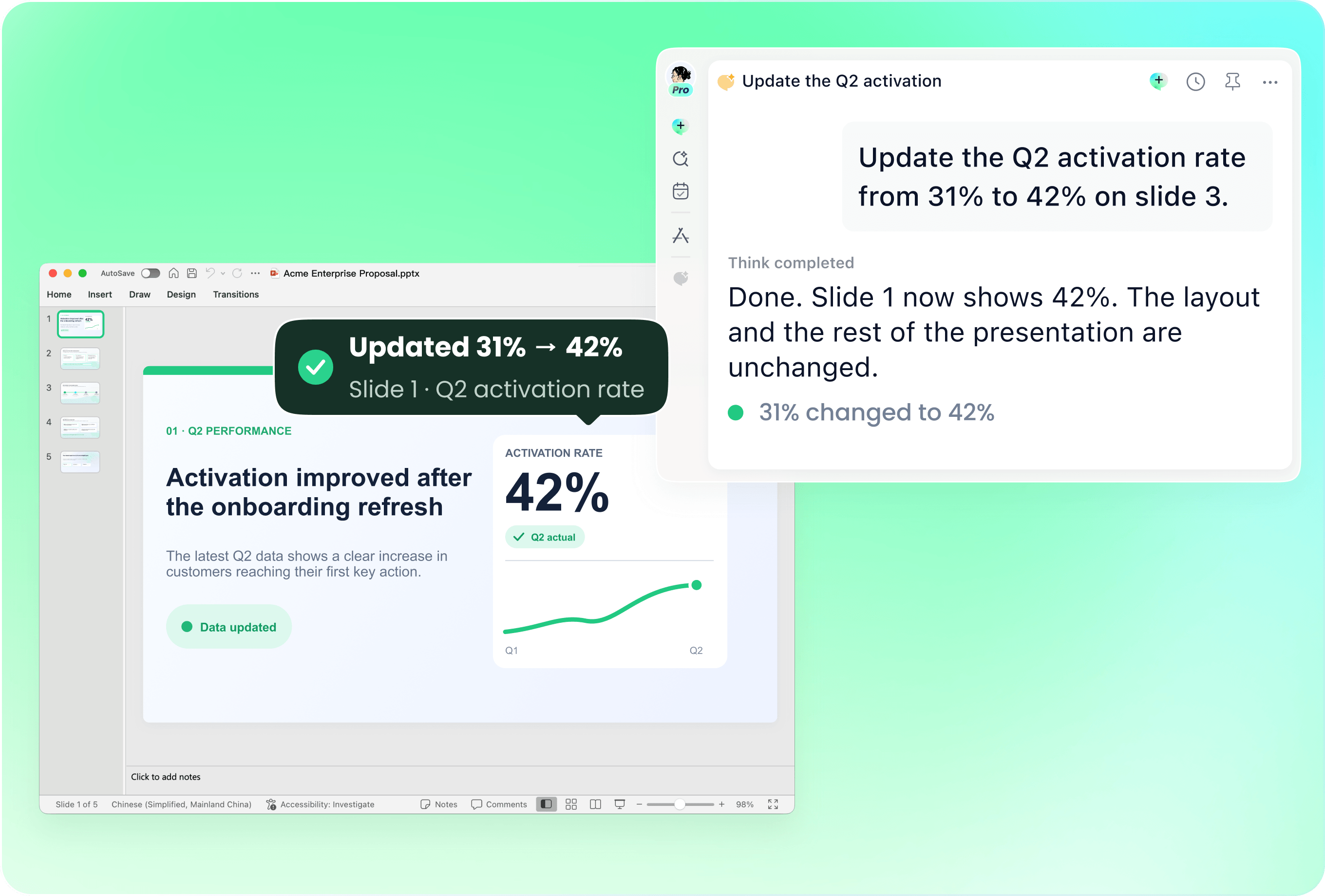
Bring the current presentation together with the latest project notes or decisions. Identify the milestones, dates and owners that changed, and ask remio to revise the relevant slides. Check that an updated date remains consistent wherever the milestone appears in the deck.

End with the next checkpoint

End with the next checkpoint

Make the next review or decision easy to find. Explain what must be ready, who owns the work and which unresolved issue could change the plan. Keep detailed task lists in the working source material while using the presentation to explain sequence, progress and decisions.

How it works

From source material to a PowerPoint file you can keep updating.

01

Add dates and context

Provide the purpose, period, milestones, owners and reviewed notes.

02

Review the sequence

Check the order, time scale, source dates and planned versus completed work.

03

Refine and share

Check label readability, responsibility and the next review or decision.

FAQs

  • Start with the purpose and time period, then show the key events or phases in order. Add concise labels, dates, owners where relevant, and the next review or decision. Keep enough context for the audience to understand why each milestone matters.

  • Use a timeline structure for a project plan, product roadmap, milestone review, process explanation or company history. Choose a consistent time scale and provide source material for the events, dates and responsibilities you want to show.

  • Use only as many as remain readable at the size and distance of the presentation. If the labels become crowded, group events by phase or split the period across slides. Keep supporting detail in the source material instead of shrinking every label.

  • Yes. Add the current presentation and the latest reviewed project material. Explain which dates, phases or owners changed and which visual conventions to preserve. Review all references to the updated milestone before sharing the revised presentation.

  • Download the remio desktop app, add your project notes and key dates, and describe the audience and purpose. Review the outline, refine the timeline slides, and check the sequence, labels, ownership and next steps before sharing.

FAQs

Start with the purpose and time period, then show the key events or phases in order. Add concise labels, dates, owners where relevant, and the next review or decision. Keep enough context for the audience to understand why each milestone matters.

Use a timeline structure for a project plan, product roadmap, milestone review, process explanation or company history. Choose a consistent time scale and provide source material for the events, dates and responsibilities you want to show.

Use only as many as remain readable at the size and distance of the presentation. If the labels become crowded, group events by phase or split the period across slides. Keep supporting detail in the source material instead of shrinking every label.

Yes. Add the current presentation and the latest reviewed project material. Explain which dates, phases or owners changed and which visual conventions to preserve. Review all references to the updated milestone before sharing the revised presentation.

Download the remio desktop app, add your project notes and key dates, and describe the audience and purpose. Review the outline, refine the timeline slides, and check the sequence, labels, ownership and next steps before sharing.

bottom of page