Training Presentation Maker
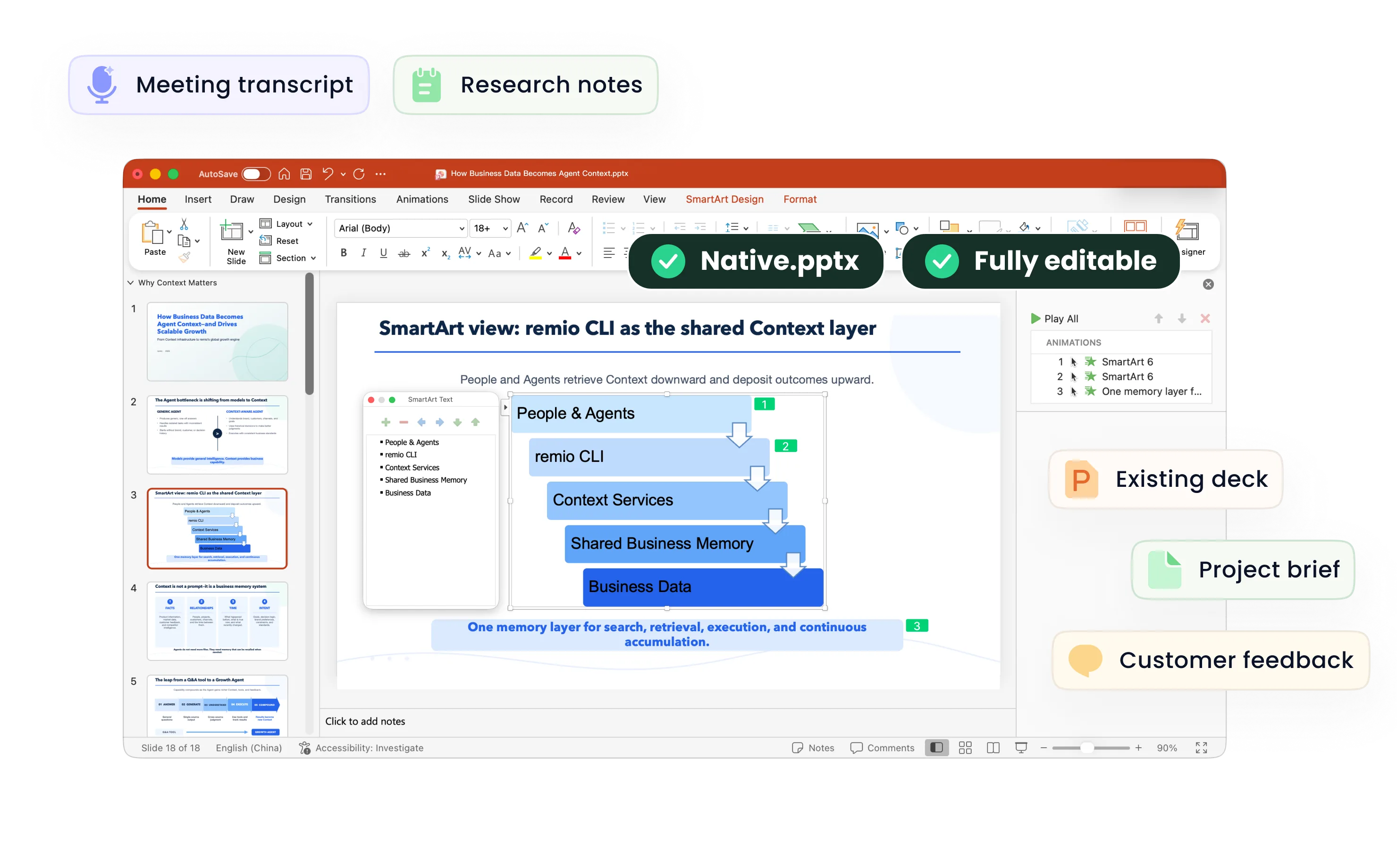
Create training and onboarding presentations from procedures, notes and examples. Review learning goals, exercises and instructions with remio.
Teach the workflow in a practical sequence
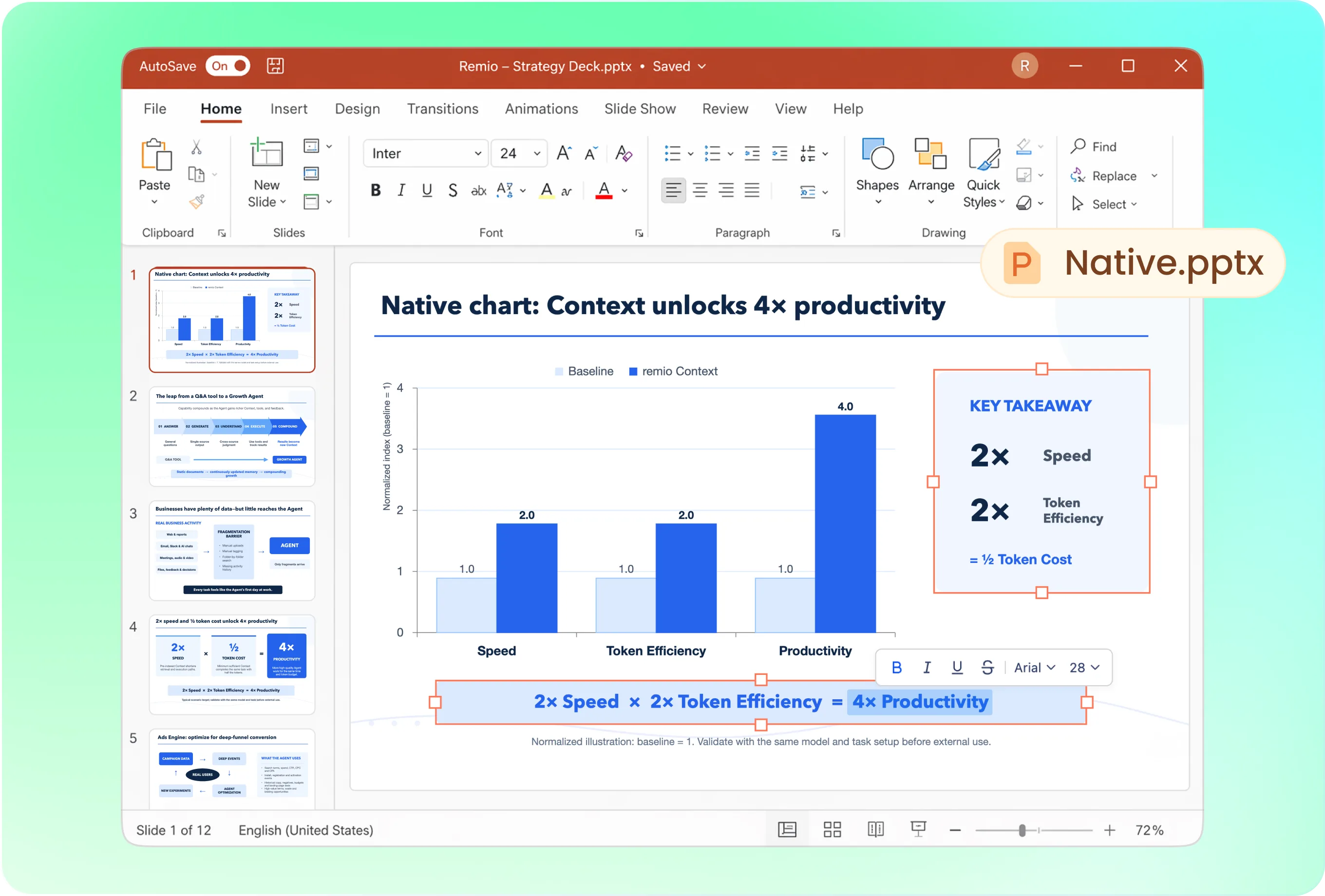
Ask for an explanation of the task, a worked example, guided practice, common mistakes and a check for understanding. Keep each section tied to the learning goal. Review whether someone can follow the sequence using the materials you supplied.
Keep training materials consistent
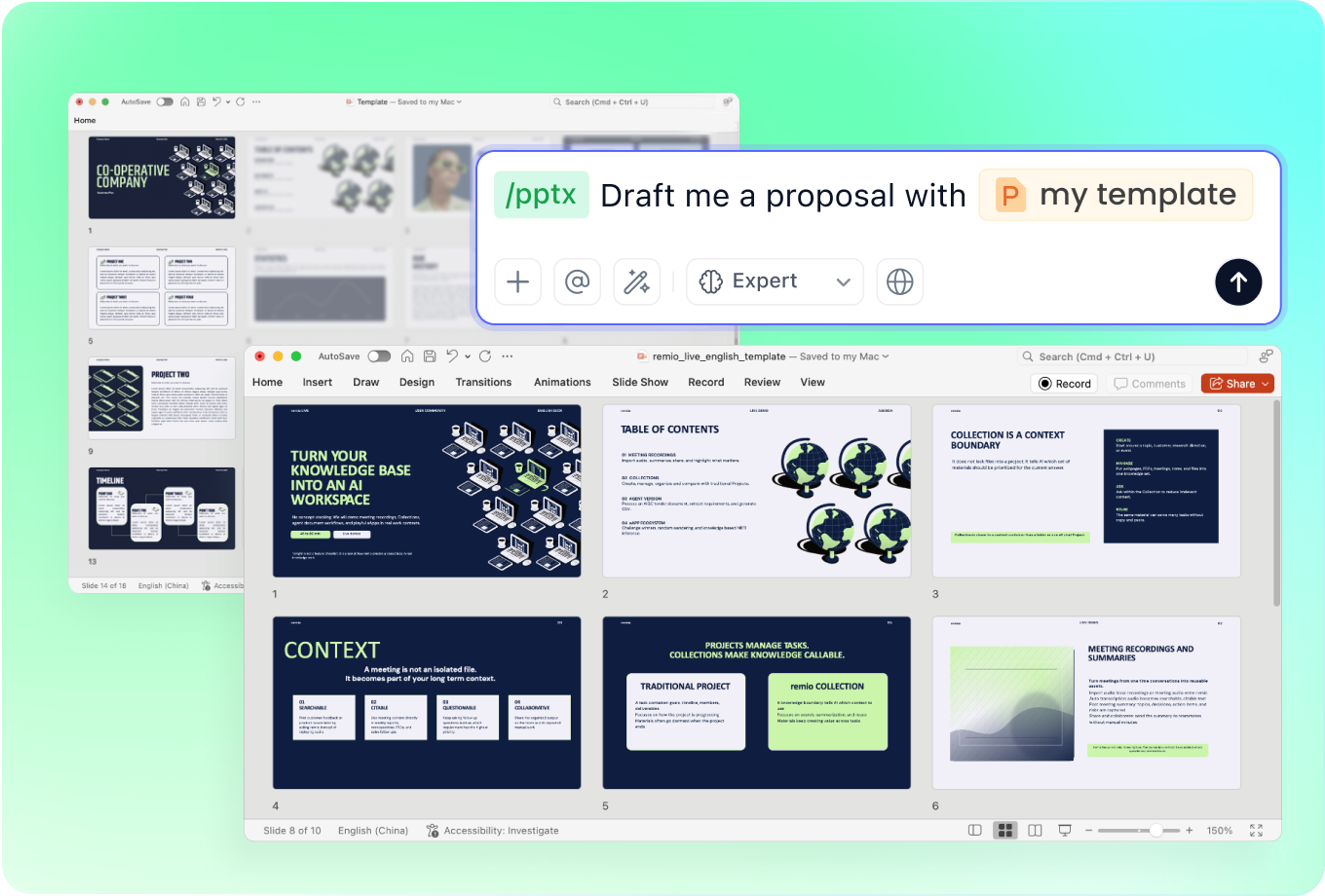
Provide an approved training or company PowerPoint as a reference. Explain the delivery setting and the amount of detail appropriate for learners. Ask remio to use a consistent layout for instructions, examples and recap slides without hiding important qualifications.
Update the training when procedures change
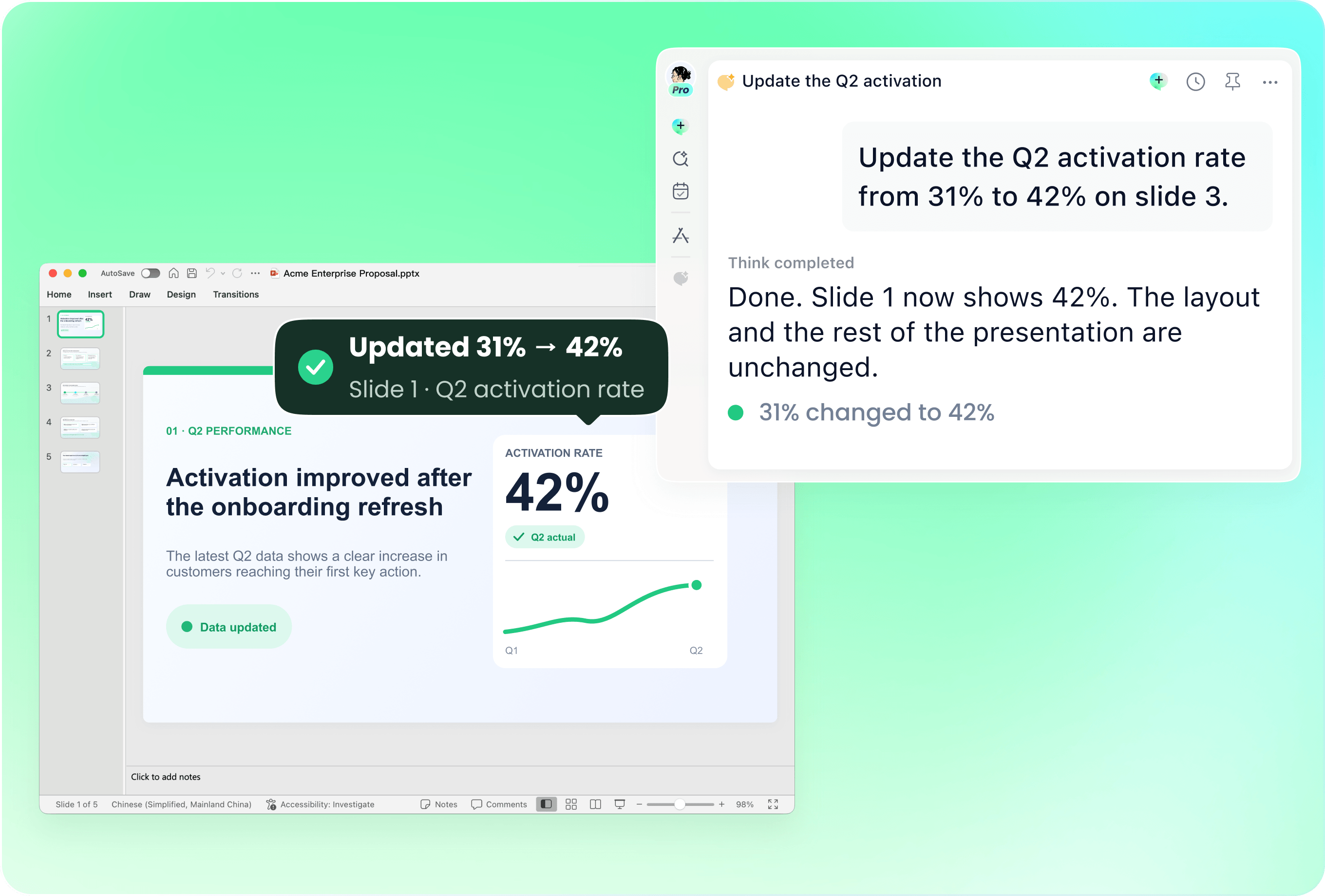
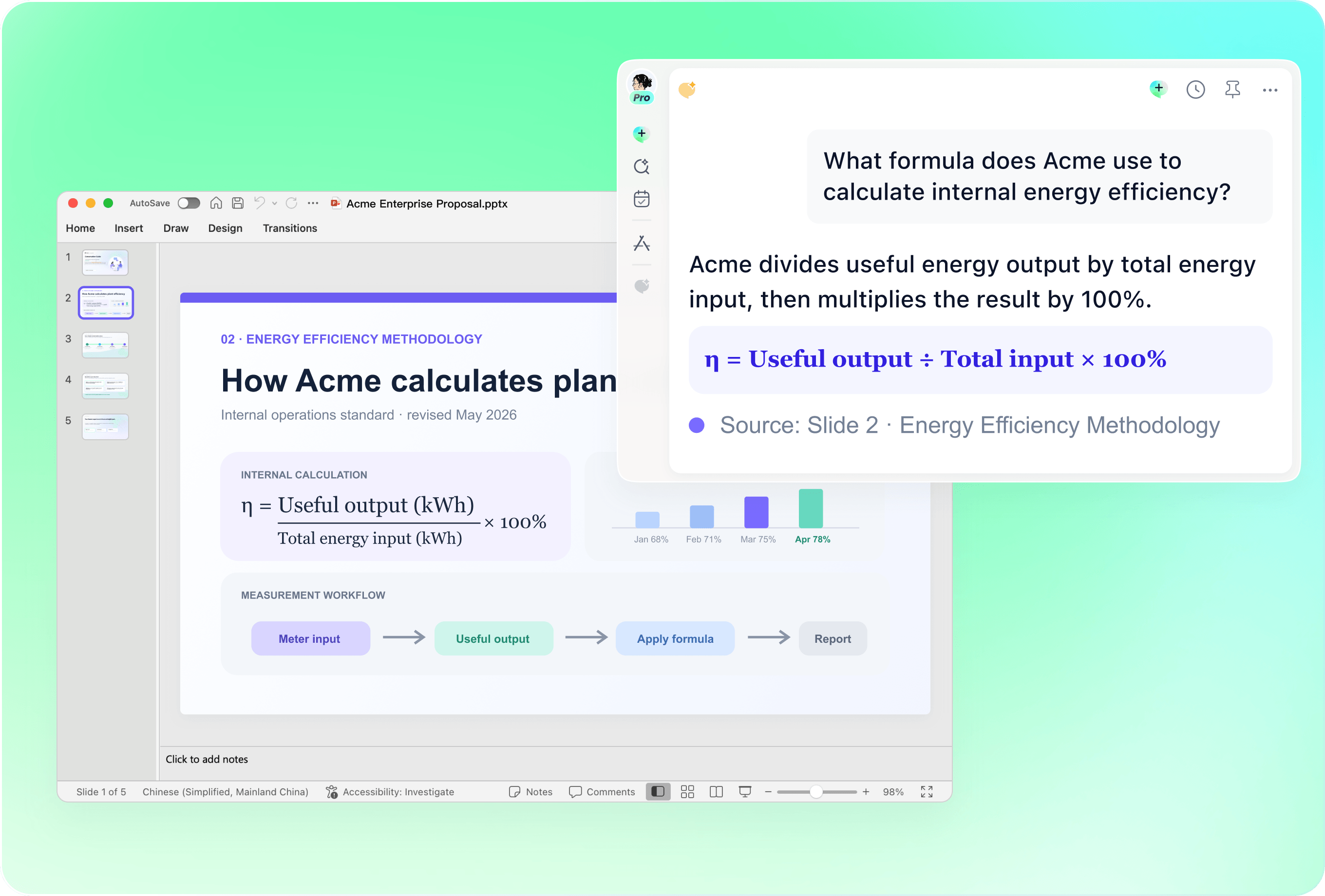
Use the current deck with revised documentation or trainer feedback. Name the affected steps, screenshots and examples. Ask remio to revise those slides, then check that obsolete instructions and old policy references no longer appear in the presentation.
Check instructions with the subject expert
Review procedural steps, prerequisites, answer keys and examples against approved documentation. Ask the responsible owner to check policy, compliance or safety material. A generated presentation is a draft training aid, not evidence that a procedure is current or approved.
Use real questions from earlier sessions
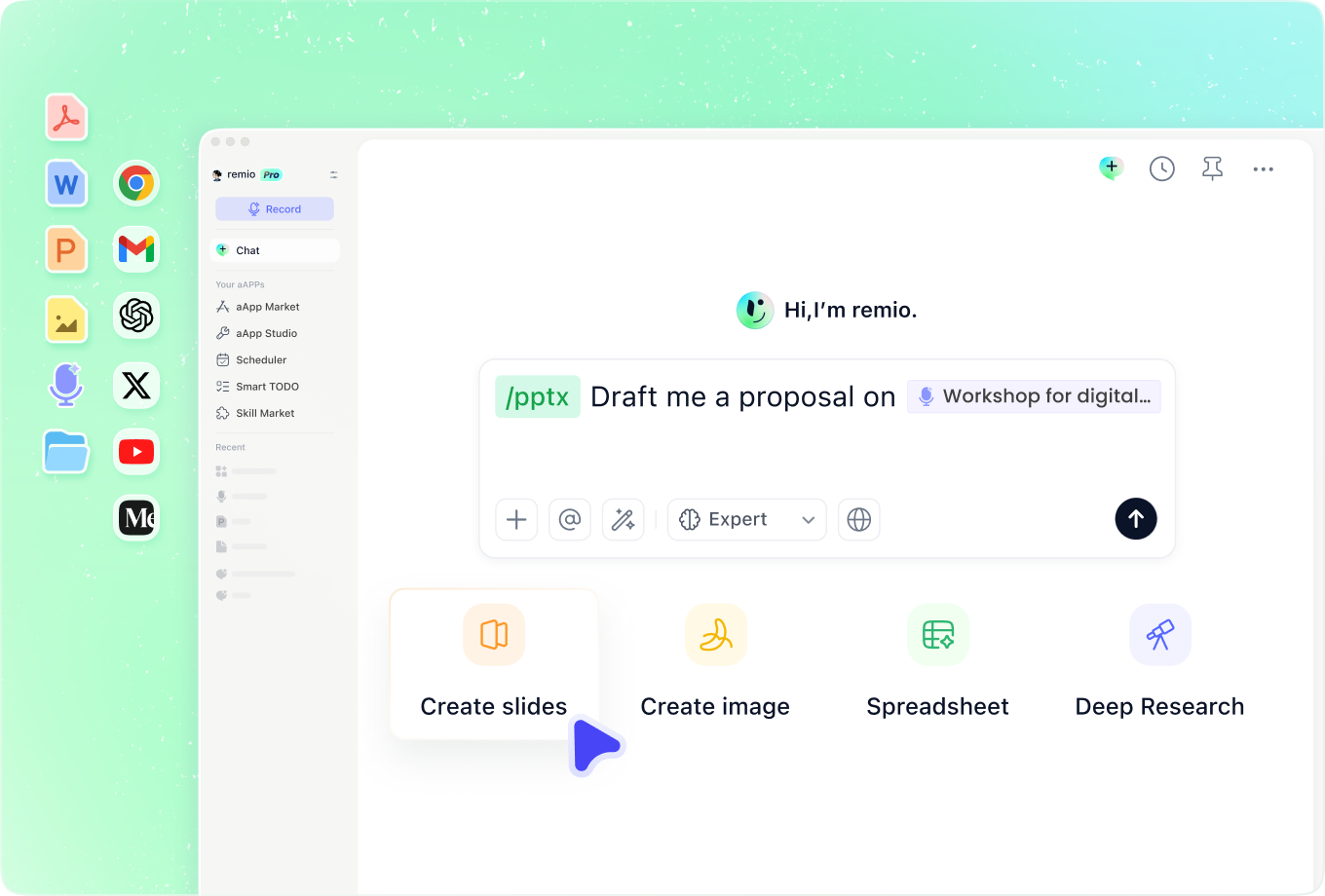
Add trainer notes, common support questions and relevant work context to explain where learners usually get stuck. Avoid unnecessary personal information in examples. Ask remio to identify missing explanations instead of inventing a rule or an exception to the procedure.
How it works
From source material to a PowerPoint file you can keep updating.
01
Add the training sources
Provide the task, audience, approved instructions and session goals.
02
Review the learning sequence
Check examples, practice, prerequisites and assessment questions.
03
Build and validate the slides
Create the editable PowerPoint and review it with the content owner.
FAQs
Yes. You can download remio and start for free. Some advanced usage may depend on your subscription plan, but you can try the AI presentation workflow before committing.
remio is designed as a local first app instead of a browser-only slide editor.
For AI presentations, this makes a real difference. Local file access helps remio parse documents faster, handle larger context, and better preserve PowerPoint structure, styles, and layouts. It also reduces the need to upload sensitive files into a browser-based tool.Combine approved procedures with examples and relevant trainer notes. Specify the learners’ starting knowledge and the session goal. Review policy and safety instructions with the responsible owner before using the deck; a slide generator does not approve training content.
Yes. remio creates a native .pptx file from the start, not a presentation you have to export later. Every text box, layout, chart, and image stays editable in PowerPoint.
You can open it locally, edit it directly, and keep the same .pptx file from draft to final presentation.Not yet. remio currently focuses on native PowerPoint and .pptx workflows.
Keynote and Google Slides support are planned and will be added gradually.