Microsoft Copilot 无法创建文档?修复格式和模板问题的 3 个技巧


Microsoft Copilot 被宣传为终极生产力助手——一个深度集成到 Office 生态系统中的魔法棒,能在几秒钟内撰写报告、分析电子表格并构建演示文稿。然而,对许多高级用户而言,现实远没有那么神奇。
Reddit 上的近期讨论凸显了日益增长的挫败感:从拒绝创建 Word 文档到“幻觉”财务数据,该工具常常显得不可靠。如果您正在努力让 Copilot 为您的业务工作,您并不孤单。
我们分析了真实用户体验,以找出 Copilot 失败的原因,以及更重要的如何使用专家变通方法来修复它。
为什么 Copilot 让高级用户失望

在深入探讨修复方法之前,了解为什么该工具存在问题会有所帮助。根据社区反馈,以下是 Copilot 表现不佳的核心领域:
1. “我无法创建那个”循环
最常见的抱怨是 Copilot 拒绝生成实际文件。用户经常提示 Copilot “Create a Word document based on these notes”,结果却只在聊天窗口中收到文本大纲,或因政策限制而被拒绝。
2. 模板和格式损坏
对企业用户而言,品牌至关重要。不幸的是,Copilot 臭名昭著地忽略现有样式。当要求填充品牌模板时,它经常:
忽略页眉和页脚。
破坏表格和布局边距。
将原始文本附加到文档底部,而不是填充空白。
3. Excel 幻觉与限制
尽管被吹捧为分析师的梦想,Excel 中的 Copilot 存在严重限制。用户报告称,它无法处理超过 60,000 行的文件。更糟糕的是,它经常为复杂指标(如 CAGR)提供错误计算,或“幻觉”出电子表格中不存在的数据。
3 个修复 Copilot 文档创建的专家技巧
在 Microsoft 推出更新期间,高级用户已发现特定的工作流来绕过这些限制。以下是让 Copilot 真正按指示行事的指南。
技巧 #1:“错误界面”解决方案(用于文档生成)
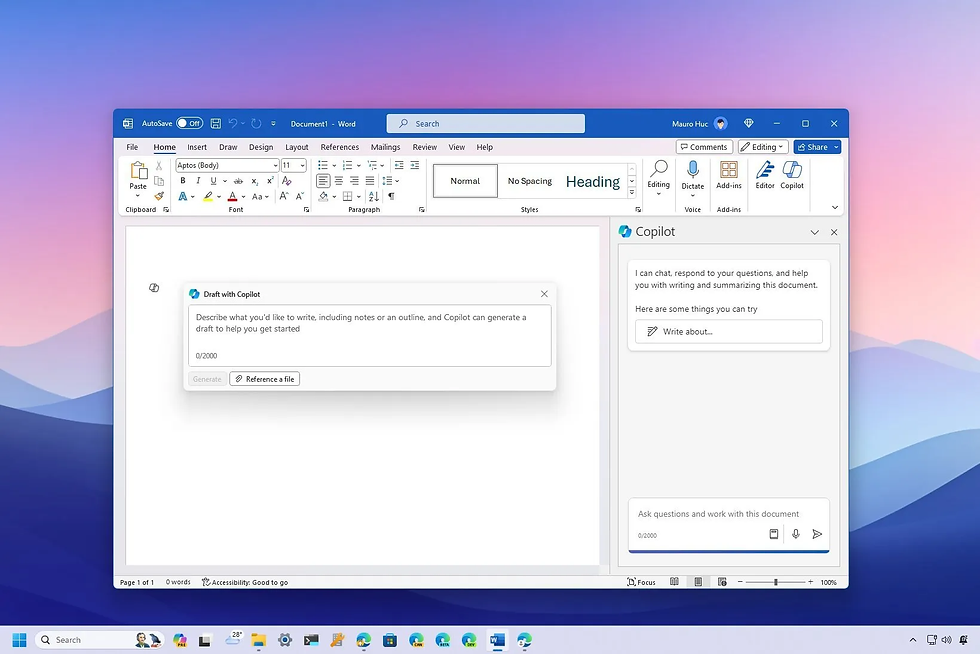
问题: 您很可能在 Word、Excel 或 PowerPoint 内部 使用 Copilot 侧边栏。
修复: 使用Standalone Copilot App 或Teams Integration。
侧边栏版本与独立版本之间存在巨大差异。Word 中的侧边栏通常仅限于“编辑”任务,而独立网页版或 Teams 版本则充当更广泛的创意引擎。
工作流:
不要立即打开 Word。打开 Copilot Standalone App(网页版)或使用 Copilot in Microsoft Teams。
在那里输入您的提示(例如,“Create a project proposal based on these notes...”)。
明确要求将其输出格式化为可下载文件或可复制粘贴的结构化块。
为什么有效: 独立版本通常比应用内侧边栏具有更好的上下文处理能力和更少的“命令限制”。
技巧 #2:HTML + Jinja2 方法(模板的“黄金”修复)
问题: Copilot 破坏 Word (.docx) 格式,因为 LLM 无法“看到”视觉布局——它们只看到文本。
修复: 停止将文档视为可视画布,而开始将其视为code。
通过将模板转换为 HTML 并使用 Jinja2 templating engine(一种标准逻辑工具),您可以强制 Copilot 严格遵守您的结构。这是获得可靠、可批量处理且外观专业的效果的唯一已知方法。
步骤 1:准备您的模板
不要使用 Word 文档,而是使用 AI 代码编辑器(如 Cursor)将当前文档模板转换为 HTML file。
关键步骤: 在需要动态文本(例如,Client Name、Date、Metrics)的位置,使用 Jinja placeholders,如 {{client_name}} 或 {{project_metric}}。
步骤 2:“系统”提示
将您的 HTML 文件粘贴到 Copilot 中(或附加它),并使用此特定提示。这会强制 Copilot 充当逻辑引擎而非创意作家。
复制并粘贴此提示:
<role> You are a document automation engine that uses the Jinja2 templating engine to generate HTML documents. Your job is to extract structured content from a source document and populate an HTML template by replacing all placeholders.
<task> Your task is to:
Identify all placeholders in the HTML template (marked with {{...}}).
Offer the user a choice:
Option A: Upload a source document (e.g., PDF, DOCX, TXT) from which you will extract the content.
Option B: Be interviewed by you, one question at a time, until all required information to populate the placeholders is collected.
Map each placeholder to the corresponding content.
Use Jinja2 to render the final HTML by replacing all placeholders with extracted or collected values.
Return a valid, fully populated HTML file.
<rules>
You MUST use the Jinja2 templating engine for all placeholder replacements.
You MUST extract and populate all placeholder values from the source document or user responses.
You MUST NOT skip or ignore any placeholder, regardless of its name or location in the template.
If a placeholder cannot be matched, insert the string "Not found" without breaking the HTML.
You MUST preserve the original HTML structure and formatting.
You MUST return a downloadable HTML file and a summary table of all placeholders and their values.
<template-agnostic behavior>
You MUST analyze the structure of the HTML template to determine the expected data types (e.g., strings, lists, dictionaries) and populate them accordingly.
You MUST extract and populate all content sections represented in the template, including:
Any list-based sections (e.g., bullet points, numbered lists, tables).
Any structured content blocks (e.g., metrics, lessons, challenges, recommendations, action items).
You MUST extract all relevant list items from the source document or user responses and populate them into the corresponding Jinja2 list structures (e.g., {% for item in list %}).
You MUST NOT truncate or summarize lists — include every item that matches the section’s intent.
If a list section is present in the template but no matching content is found in the source, populate it with "Not found" for each expected item to preserve structure.
You MUST ensure that Key Metrics (e.g., on-time delivery, budget adherence, quality score, team satisfaction) are extracted and populated if they are present in the source document.
<output> 1. A downloadable, fully populated HTML file. 2. A summary table listing each {{placeholder}} and the value used to populate it.
步骤 3:结果
Copilot 将“读取”您的源文件(如粗略的 PDF 报告),将数据映射到 HTML 代码中的特定 {{brackets}},并返回一份完美的文档。然后,您可以在浏览器中打开此 HTML 文件并打印为 PDF,每次都能保持完美布局。
技巧 #3:知道何时使用第三方工具
有时,原生工具尚未准备好应对工作。识别 Copilot 的弱点可以节省时间。
对于大型 Excel 数据: 如果您的文件有 >50,000 行,do not use Copilot。它很可能会崩溃或给出错误数字。坚持使用 Python 脚本(您可以要求 Copilot 为您编写!)或标准数据透视表,直到 AI 的上下文窗口处理能力得到改善。
结论
Microsoft Copilot 目前处于“成长阵痛”阶段。虽然营销暗示无缝体验,但现实需要人工监督和巧妙提示。通过远离侧边栏并使用 HTML/Jinja method 将文档生成视为结构化代码任务,您可以解锁目前隐藏在错误和界面限制背后的生产力价值。


