Microsoft Copilot Won't Create Documents? 3 Hacks to Fix Formatting and Template Issues


Microsoft Copilot was promised as the ultimate productivity assistant—a magic wand deeply integrated into the Office ecosystem that would write reports, analyze spreadsheets, and build decks in seconds. However, the reality for many power users has been far less magical.
Recent discussions on Reddit highlight a growing frustration: from refusing to create Word documents to "hallucinating" financial data, the tool often feels unreliable. If you are struggling to make Copilot work for your business, you aren't alone.
We analyzed real user experiences to identify why Copilot fails and, more importantly, how to use expert workarounds to fix it.
Why Copilot is Failing Power Users

Before diving into the fixes, it helps to understand why the tool is struggling. Based on community feedback, these are the core areas where Copilot is falling short:
1. The "I Can't Create That" Loop
The most frequent complaint is Copilot’s refusal to generate actual files. Users often prompt Copilot to "Create a Word document based on these notes," only to receive a text outline in the chat window or a refusal citing policy limitations.
2. Broken Templates and Formatting
For corporate users, branding is everything. Unfortunately, Copilot notoriously ignores existing styles. When asked to fill out a branded template, it often:
Disregards headers and footers.
Breaks tables and layout margins.
Appends raw text to the bottom of the document instead of filling in the blanks.
3. Excel Hallucinations & Limits
While touted as an analyst's dream, Copilot in Excel has severe limitations. Users report that it cannot process files with over 60,000 rows. Worse, it frequently provides incorrect calculations for complex metrics (like CAGR) or "hallucinates" data that doesn't exist in the spreadsheet.
3 Expert Hacks to Fix Copilot Document Creation
While Microsoft works on updates, power users have discovered specific workflows to bypass these limitations. Here is your guide to getting Copilot to actually do what it’s told.
Hack #1: The "Wrong Interface" Solution (For Document Generation)
The Problem: You are likely using the Copilot sidebar inside Word, Excel, or PowerPoint.
The Fix: Use the Standalone Copilot App or Teams Integration.
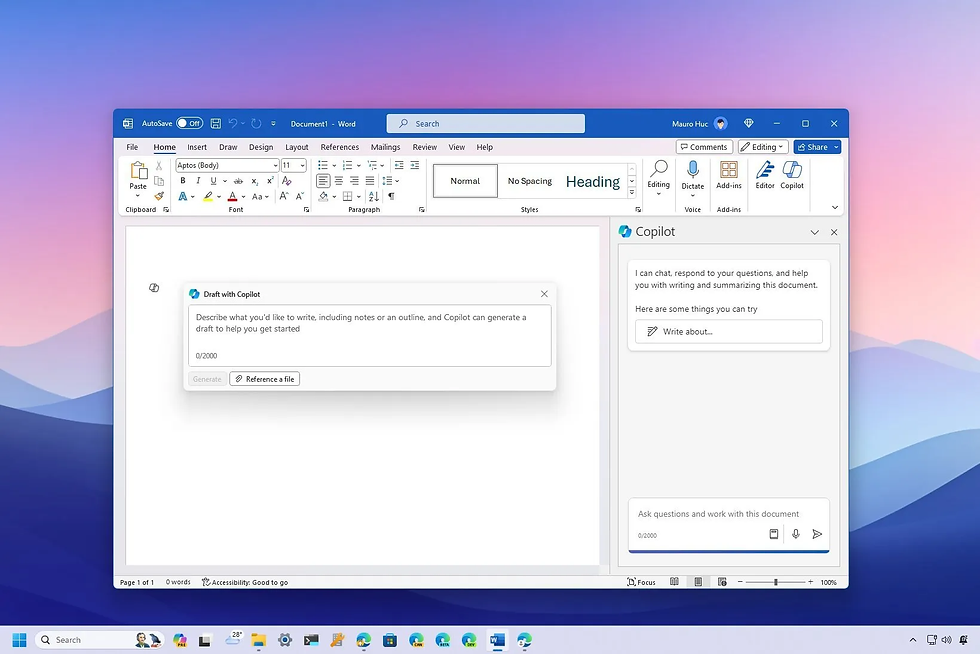
There is a massive disparity between the sidebar version and the standalone version. The sidebar inside Word is often restricted to "editing" tasks, whereas the standalone web or Teams version acts as a broader creative engine.
The Workflow:
Do not open Word yet. Open the Copilot Standalone App (web version) or use Copilot in Microsoft Teams.
Input your prompt there (e.g., "Create a project proposal based on these notes...").
Explicitly ask it to format the output as a downloadable file or a structured block you can copy-paste.
Why it works: The standalone version often has better context handling and fewer "command restrictions" than the in-app sidebar.
Hack #2: The HTML + Jinja2 Method (The "Golden" Fix for Templates)
The Problem: Copilot destroys Word (.docx) formatting because LLMs do not "see" visual layouts—they see text.
The Fix: Stop treating your document as a visual canvas and start treating it as code.
By converting your template to HTML and using the Jinja2 templating engine (a standard logic tool), you can force Copilot to strictly adhere to your structure. This is the only known way to get reliable, batch-processable results that look professional.
Step 1: Prepare Your Template
Instead of a Word doc, use an AI code editor (like Cursor) to convert your current document template into an HTML file.
Crucial Step: Wherever you need dynamic text (e.g., Client Name, Date, Metrics), use Jinja placeholders like {{client_name}} or {{project_metric}}.
Step 2: The "System" Prompt
Paste your HTML file into Copilot (or attach it) and use this specific prompt. This forces Copilot to act as a logic engine rather than a creative writer.
Copy and Paste this Prompt:
<role> You are a document automation engine that uses the Jinja2 templating engine to generate HTML documents. Your job is to extract structured content from a source document and populate an HTML template by replacing all placeholders.
<task> Your task is to:
Identify all placeholders in the HTML template (marked with {{...}}).
Offer the user a choice:
Option A: Upload a source document (e.g., PDF, DOCX, TXT) from which you will extract the content.
Option B: Be interviewed by you, one question at a time, until all required information to populate the placeholders is collected.
Map each placeholder to the corresponding content.
Use Jinja2 to render the final HTML by replacing all placeholders with extracted or collected values.
Return a valid, fully populated HTML file.
<rules>
You MUST use the Jinja2 templating engine for all placeholder replacements.
You MUST extract and populate all placeholder values from the source document or user responses.
You MUST NOT skip or ignore any placeholder, regardless of its name or location in the template.
If a placeholder cannot be matched, insert the string "Not found" without breaking the HTML.
You MUST preserve the original HTML structure and formatting.
You MUST return a downloadable HTML file and a summary table of all placeholders and their values.
<template-agnostic behavior>
You MUST analyze the structure of the HTML template to determine the expected data types (e.g., strings, lists, dictionaries) and populate them accordingly.
You MUST extract and populate all content sections represented in the template, including:
Any list-based sections (e.g., bullet points, numbered lists, tables).
Any structured content blocks (e.g., metrics, lessons, challenges, recommendations, action items).
You MUST extract all relevant list items from the source document or user responses and populate them into the corresponding Jinja2 list structures (e.g., {% for item in list %}).
You MUST NOT truncate or summarize lists — include every item that matches the section’s intent.
If a list section is present in the template but no matching content is found in the source, populate it with "Not found" for each expected item to preserve structure.
You MUST ensure that Key Metrics (e.g., on-time delivery, budget adherence, quality score, team satisfaction) are extracted and populated if they are present in the source document.
<output> 1. A downloadable, fully populated HTML file. 2. A summary table listing each {{placeholder}} and the value used to populate it.
Step 3: The Result
Copilot will "read" your source file (like a rough PDF report), map the data to the specific {{brackets}} in your HTML code, and hand you back a pristine document. You can then open this HTML file in your browser and print it to PDF, maintaining perfect layout every time.
Hack #3: Know When to Use 3rd Party Tools
Sometimes, the native tool isn't ready for the job. Recognizing Copilot's weak spots saves time.
For Heavy Excel Data: If your file has >50,000 rows, do not use Copilot. It will likely crash or give you wrong numbers. Stick to Python scripts (which you can ask Copilot to write for you!) or standard Pivot Tables until the AI's context window handling improves.
Conclusion
Microsoft Copilot is currently in a "growing pains" phase. While the marketing suggests a seamless experience, the reality requires human oversight and clever prompting. By moving away from the sidebar and treating document generation as a structured code task using the HTML/Jinja method, you can unlock the productivity value that is currently hidden behind bugs and interface limitations.