Analyze Excel Data with AI
Bring a workbook or CSV into remio. Ask what changed, find the rows behind the result, and save the analysis as an editable Excel workbook.
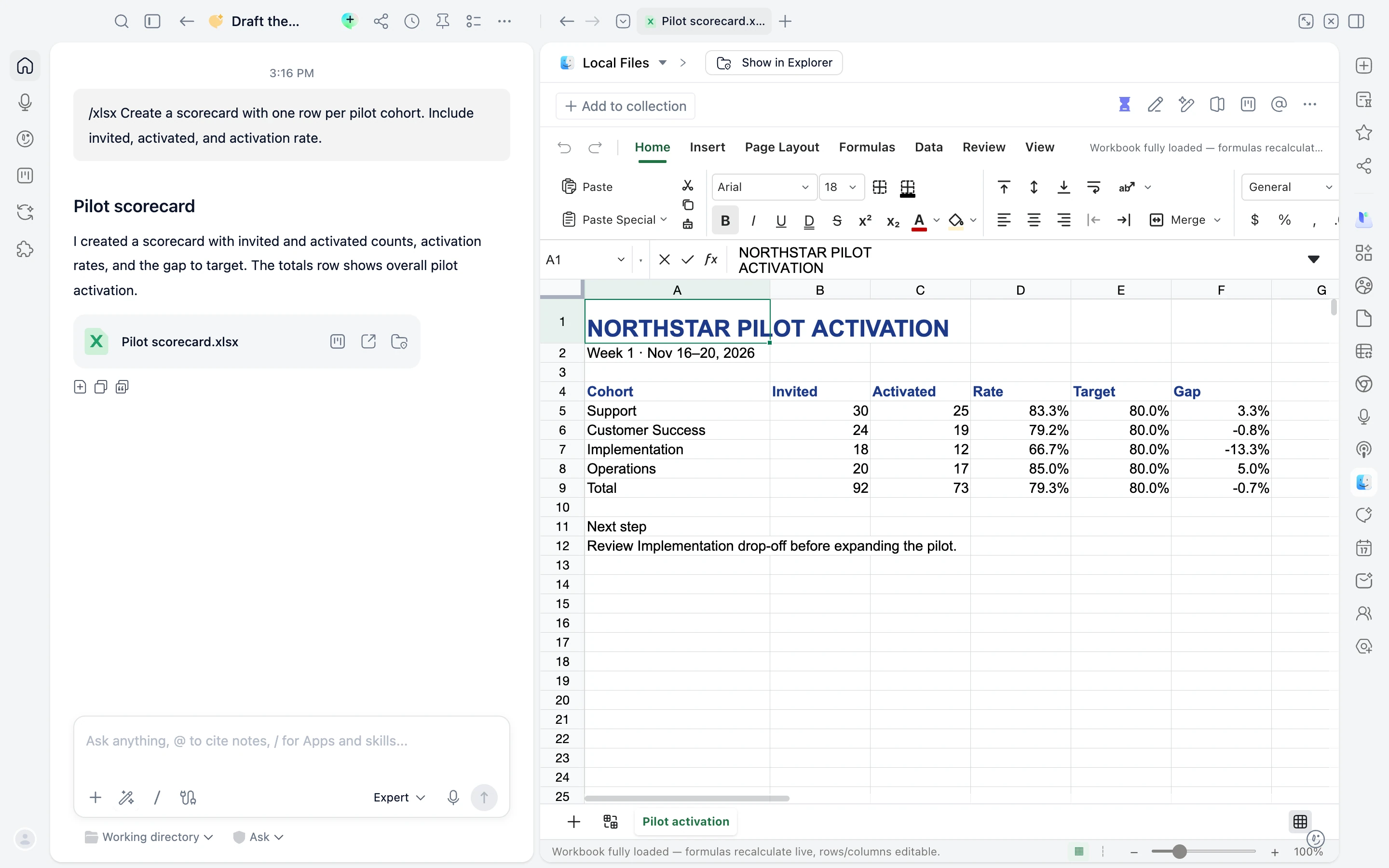
Compare results across periods and teams
For a monthly sales review, attach an export with dates, regions, and revenue. Ask for current and previous month totals by region, the change, and the number of rows included. If you have a target workbook, specify which columns link it to the export and ask for unmatched rows.
Review the largest changes against the source and explain them with the accompanying project notes. If the results belong in a deck, see Excel to PowerPoint.
Review your spreadsheet with remio
- Attach a workbook or CSV and name the sheets, columns, time window, and units.
- Use /xlsx to ask for the calculation. Specify how to handle missing or duplicate records, and ask to see the filters and totals.
- Check the summary against source rows. Request a separate XLSX for the cleaned data, analysis, or chart.
Excel data analysis questions
How do I analyze a workbook without changing it?
Ask for an analysis without file edits. If you want a workbook with the findings, request a separate copy.
Can I compare multiple sheets or use a CSV?
Yes. Name the relevant sheets or attach the CSV and identify the key columns, units, and filters.
See the AI Excel assistant and Excel guide.