Work in a webpage
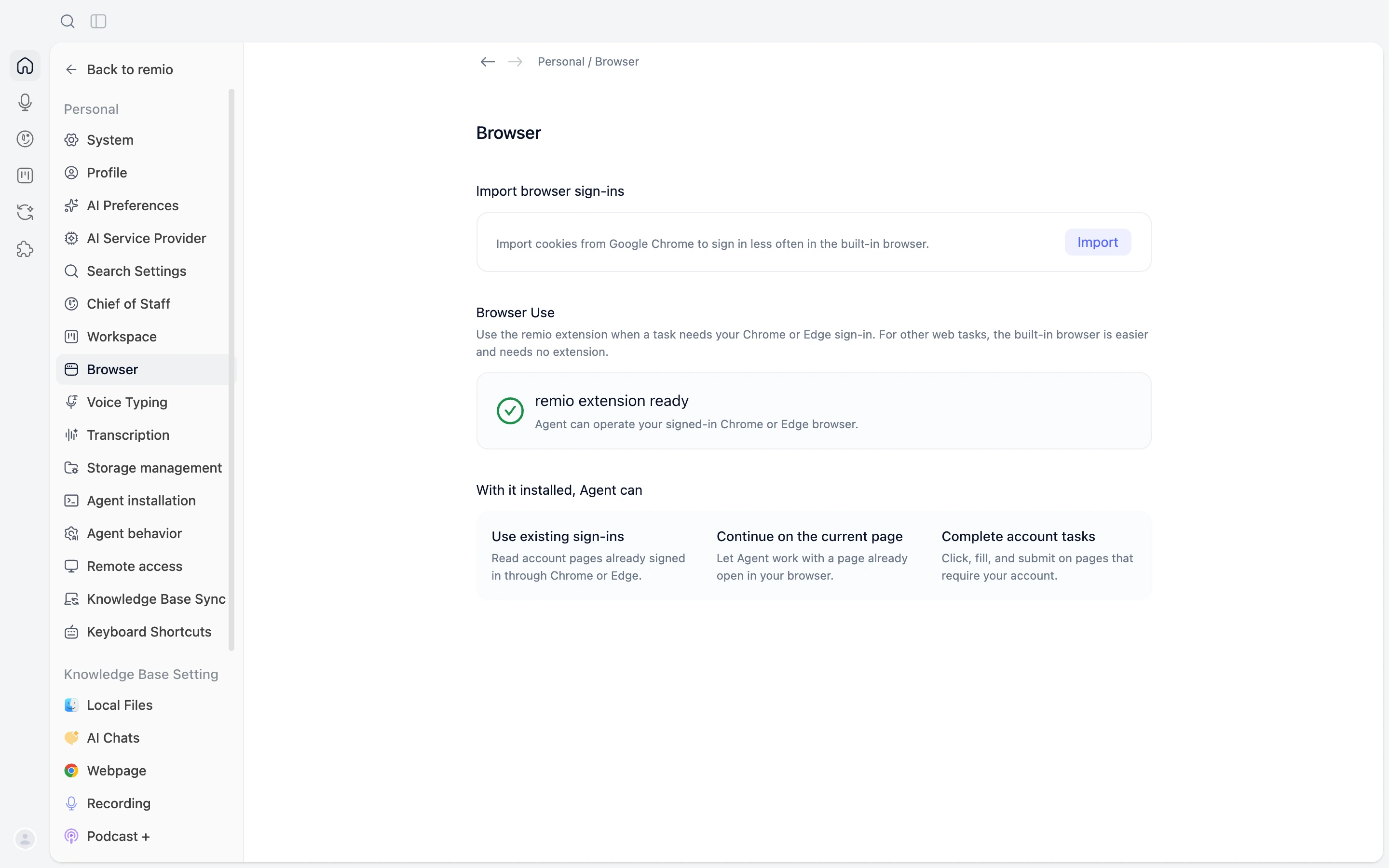
Give Chat a site or page and tell it what you need done. Interactive tasks can open in remio’s built-in browser. If you want to work in your own supported Chromium browser, check the remio extension under Preferences → Browser → Browser Use.
Click the page preview in Chat to inspect the active page. If a website requires sign-in, sign in on the page and choose Logged in, continue when prompted. Review form entries and any requested approval before submission.
Work in a desktop app
On macOS or Windows, name the desktop app and the task in Chat. Approve the first use of that app if prompted and review sensitive steps such as sending or deleting. Use the stop control in Chat to stop input. Review steps already completed in the target app.
FAQ
Which browser will remio use for a web task?
Interactive tasks can open in the built-in browser. To use a supported Chromium browser you already use, check the extension under Preferences → Browser → Browser Use.
What do I do if a page asks me to sign in?
Sign in directly on the page, then choose Logged in, continue when Chat prompts you.
Can I stop remio before it finishes a desktop action?
Use the stop control in Chat. Open the target app to check which steps had already completed.