Create a presentation
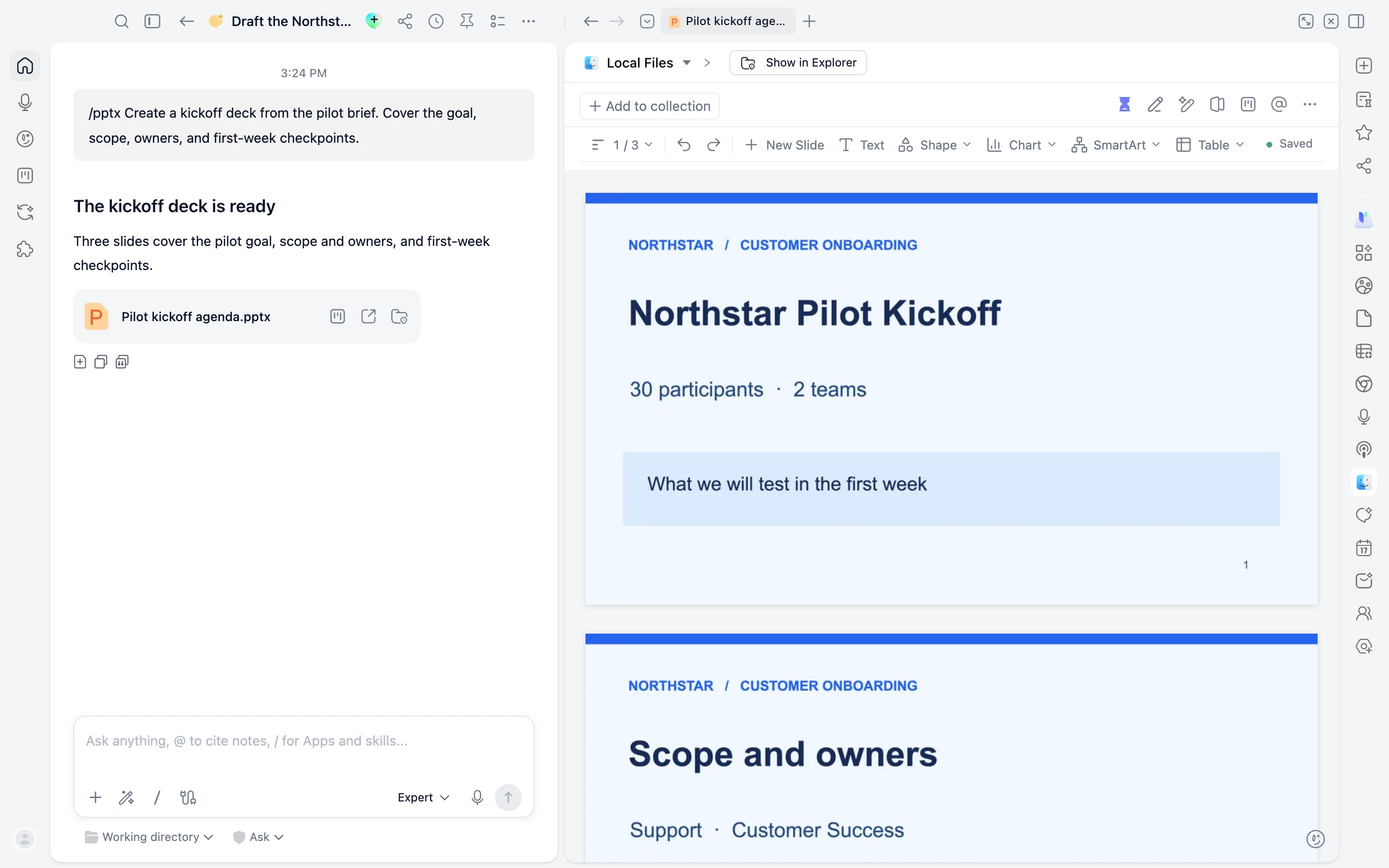
In Chat, start with /pptx or request a PowerPoint presentation. Attach the source files, then specify the audience, purpose, approximate length, and any elements that should stay editable.
Choose a generation mode. Professional is suited to native, editable slides. Web produces an HTML presentation. Creative produces a PowerPoint with one full-slide image per slide. Review the mode and output before continuing if you need a specific file format or native elements.
Use an outline and style reference
Review the proposed outline and revise it in Chat before generating the deck. Add a Style reference when you want to match an existing presentation. Identify which files contain facts and data, and which file defines the look.
Edit and save
Open the generated deck from Chat. To revise a slide, refer to its title or a visible element and describe the change. Specify whether to edit the existing file or save a copy. Review slide order, formatting, and charts before sharing. See Work with files and documents for locating outputs.
FAQ
Which mode should I choose for editable PowerPoint slides?
Choose Professional for native, editable PowerPoint slides. Check the returned slide elements to confirm they behave as expected.
Can I match an existing presentation’s look?
Add a deck as a Style reference and identify which files provide facts or data. Review the outline before generating the presentation.
How do I revise just one slide?
Tell Chat the slide title or describe a visible element. Specify which parts to change and whether to save the revision as a copy.