Give remio the file
Attach a file from your computer, or type @ to pick an item from your knowledge base. You can also open supported files from Finder or File Explorer with remio. To keep a local folder searchable, add it in Local Files.
Describe the output
Ask for the output you need and the sources it should use. For an editable Word file, request .docx. For a PDF review, specify pages, sections, or questions. A scanned PDF may require text recognition. Check exact wording, numbers, and any tables against the original.
Open, revise, and save
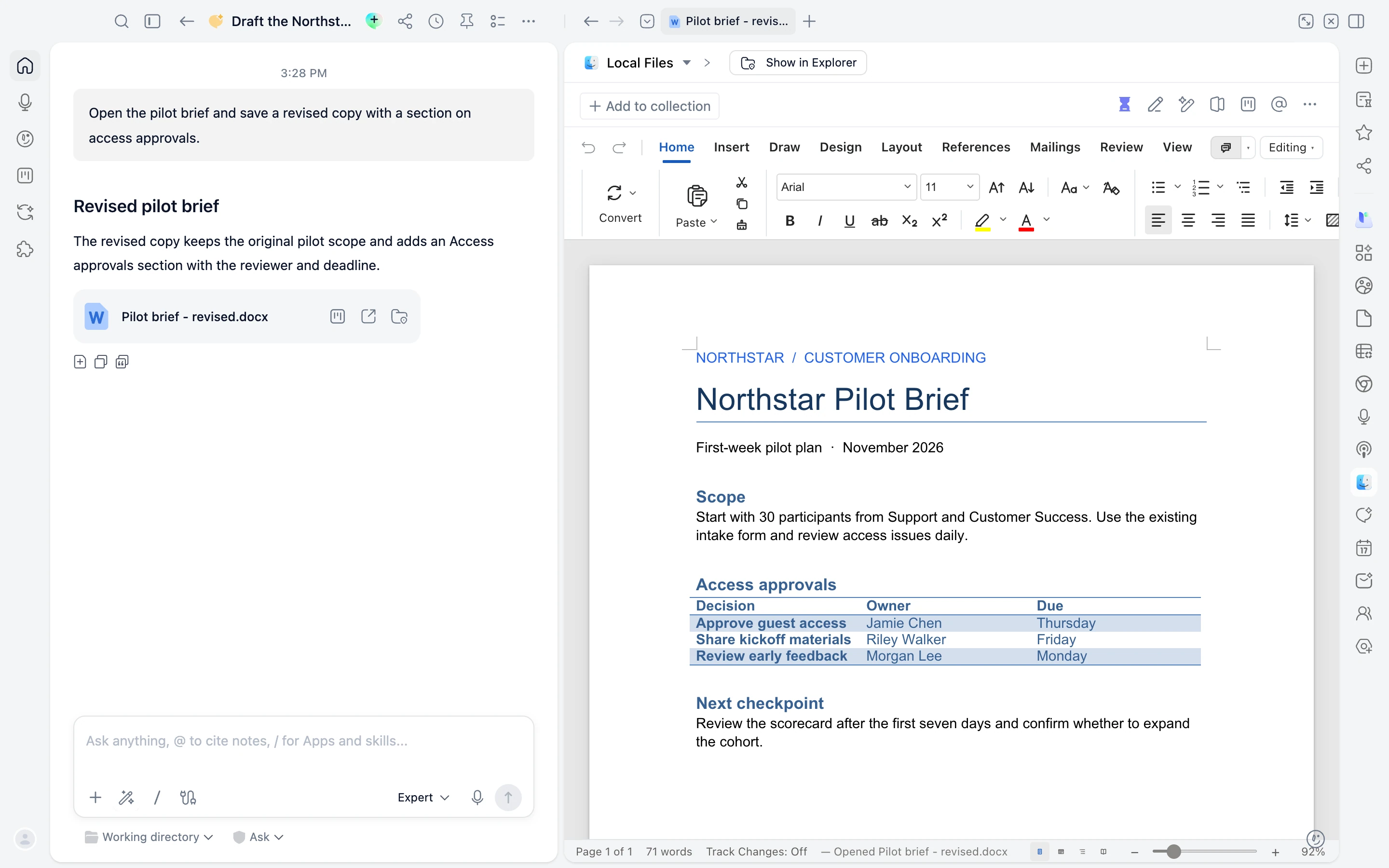
Open the output link or card in Chat. For supported formats, review or edit the result inside remio. Ask remio to save a separate copy when you need to preserve the input file. If a file was created on another computer, use the available preview or download option and check which computer holds the original.
FAQ
Can I ask for a Word file I can edit later?
Yes. Ask for a .docx file and provide the outline, audience, or formatting you need.
How should I review a result created from a scanned PDF?
Compare key names, numbers, and tables against the original. A scan may need text recognition, so check passages where the source is unclear.
How do I keep the original file when asking for edits?
Ask remio to save a separate copy. Open the result in Chat and verify its location before using or sharing it.