Workspace keeps conversations, materials, and tasks you want to revisit in cards. Open Workspace on the right to see their current state and continue work.
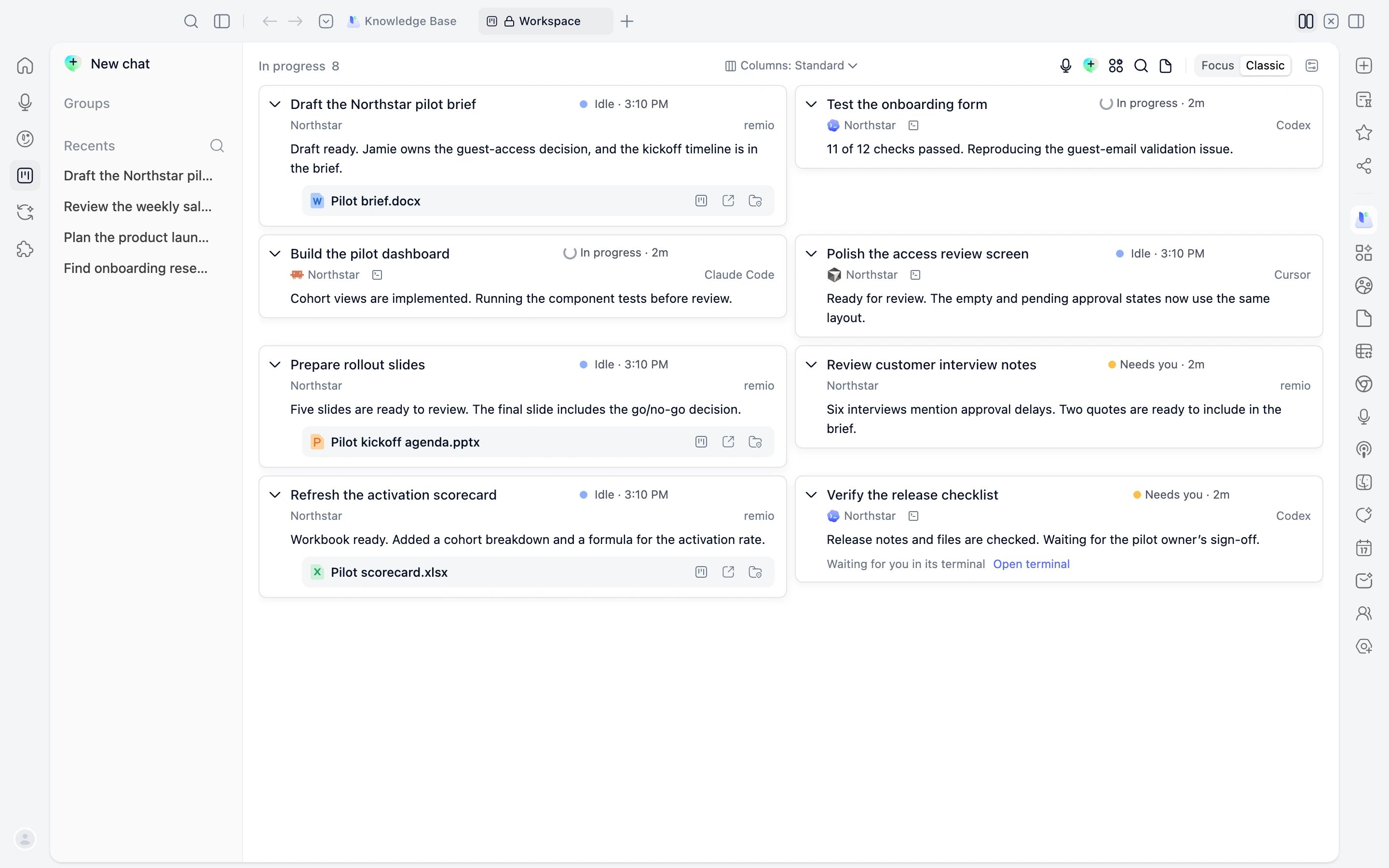
Add and open a card
Add the relevant conversation or resource to Workspace. Choose an ongoing project, an in-progress output, or a resource you check regularly.
Read the card’s brief or preview. Click a task card’s title or brief to expand it, or choose Open on the left from the card menu to work in the main Chat pane.
Reply on the card to continue. Pending questions and requests for approval appear with the task. Collapse the card when you are done reviewing it.
Follow changes over time
Pin the cards you revisit most. Use Assistant settings in the card menu to set what it checks, when it runs, and what the brief should cover. To follow a subject across updates, choose Create resource → New topic, describe what to follow, and set a check schedule. Brief generation depends on the card and whether Workspace is open and active. Focus hides the sidebars and Chat to give the cards room. Classic brings them back.
Use Chief of Staff to review priorities and Automations to set up work based on a schedule or new content.
FAQ
How do I resume an ongoing task?
Open its card in Workspace and reply there, or choose Open on the left to continue in the main Chat pane.
Why did my sidebar and Chat disappear?
Workspace Focus hides those areas to give the cards room. Switch to Classic to bring them back.
How do I keep track of a topic over time?
In Workspace, choose Create resource → New topic, describe the subject, and set a check schedule. Review the card settings to see when a brief can run.